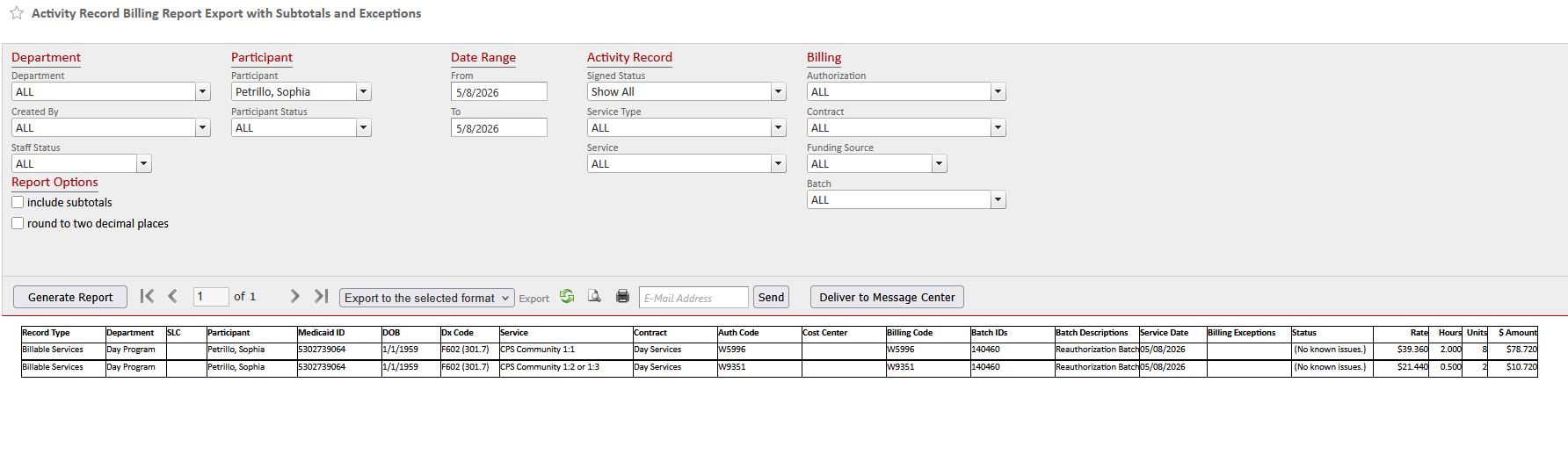
How can I make sure the correct ratio authorization is assigned for billing?
Administrator, Billing Specialist
This reauthorization process allows providers to define which staff to consumer ratios belong to which services and reauthorize existing activity records to assign the appropriate authorization based on consumer authorizations and staff/consumer times.
Configuring Ratios per Service
Access the Ratio Service Group Utility in Provider Build.
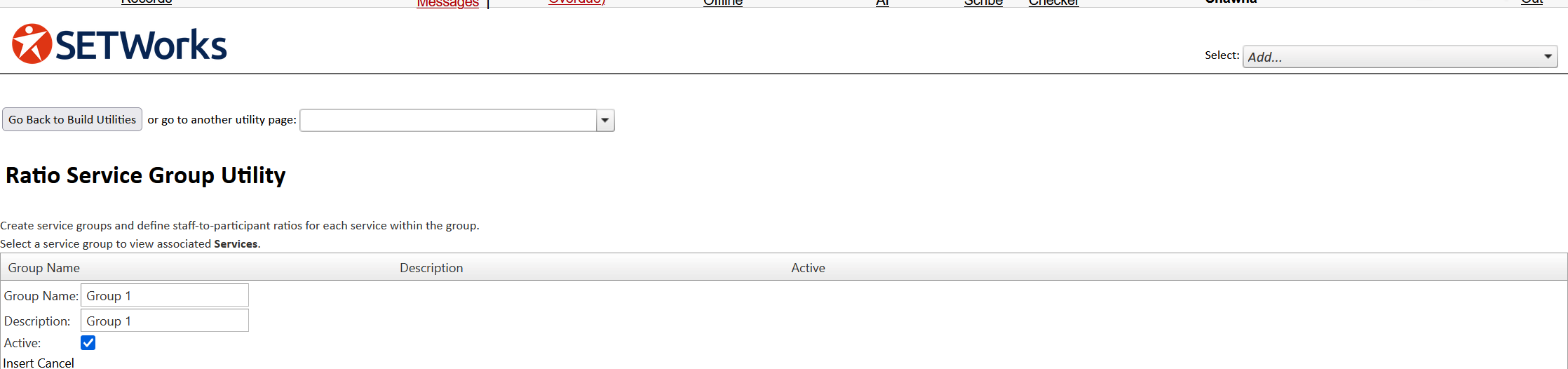
Select + Add new record in the Group section to create a new group of services. Add a Group Name and Description and then click Insert to save.
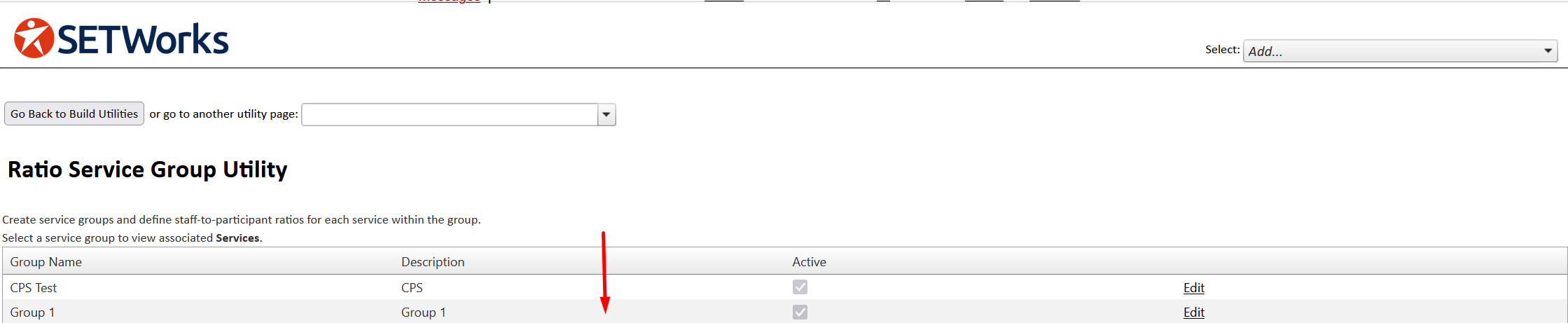
Once the group has been added, click in the black space on the line of the group you want to add services to.
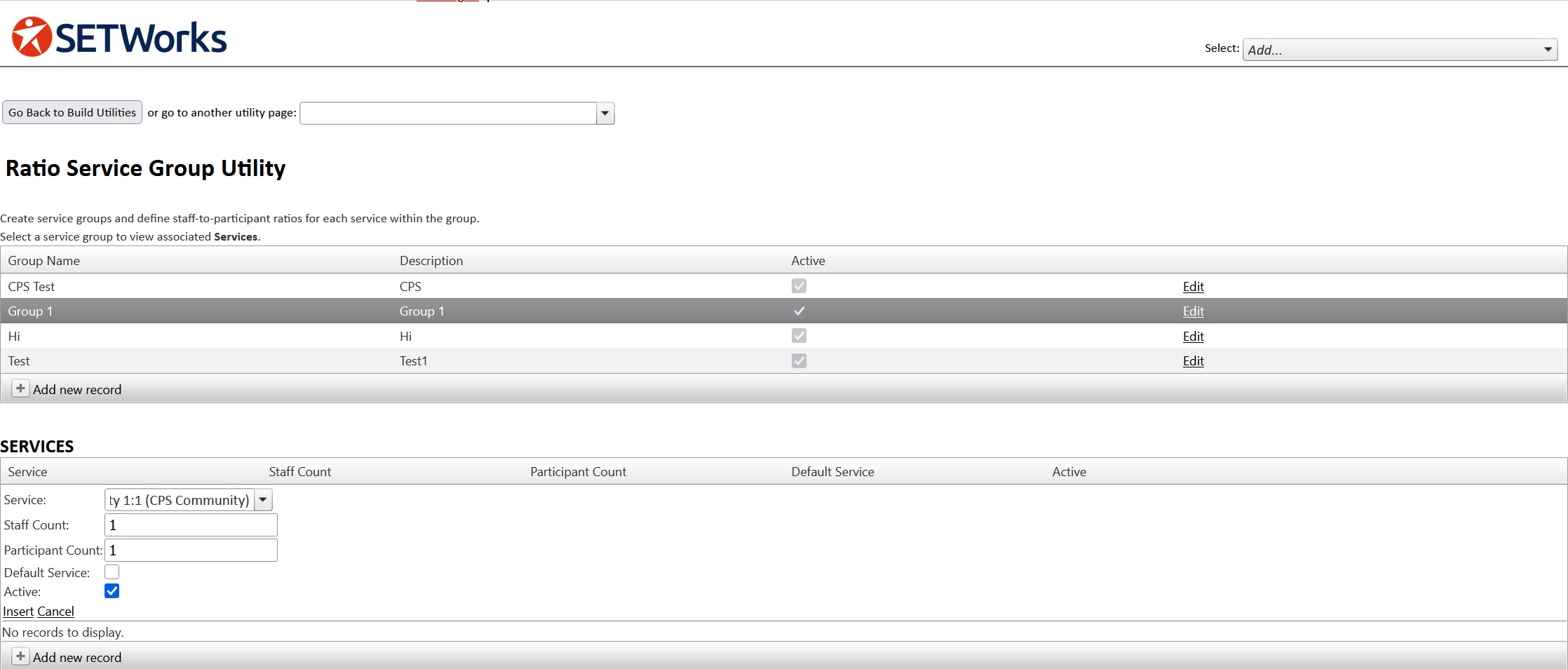
You will see a section populate for Services. In this section, you will assign the services that apply for this group and configure the staff to consumer ratio for each service.
- Select + Add new record
- Select the service from the drop-down menu.
- In Staff Count: Enter the staff count for the ratio of the applicable service
- In Consumer Count: Enter the consumer count for the ratio of the applicable service.
- Click Insert to save
- Add additional services to the group as needed
Once groups are configured, you're ready to start the re-authorization process
Re-authorizing Ratio Services
Note: Please Note: Goals must be assigned to any authorization the consumer has for the group for the re-authorization process to be successful.
To re-authorize ratio service you will first need to add the activity records to a batch on the Manage Batches & Submit Billing page. Once added to a batch, on the Review Tab, in the reauthorization section, select the batch you want to re-authorize and click "re-authorize Ratio Services"
Note: If you are not familiar with the Manage Batches & Submit Billing page please reference Electronic Billing - Basic Workflow
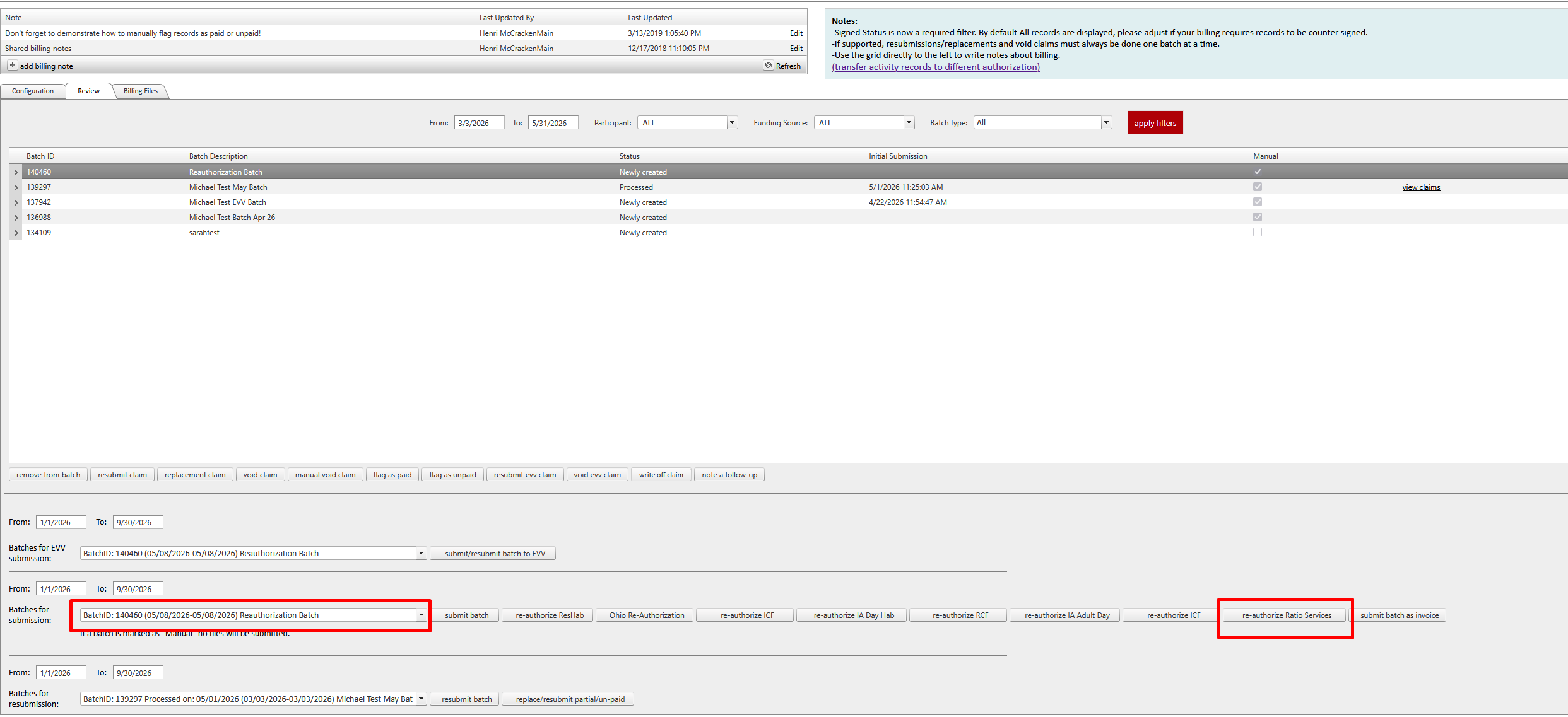
This process will change the consumer times on the record and apply the correct authorization for the specific time frames.
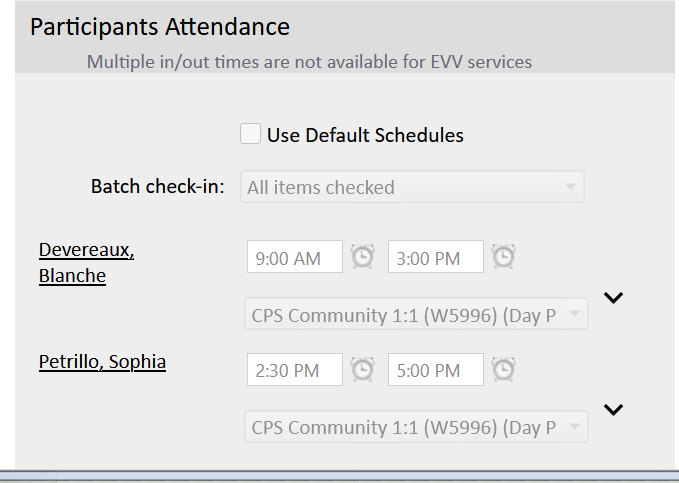
Consumer Times prior to re-authorization
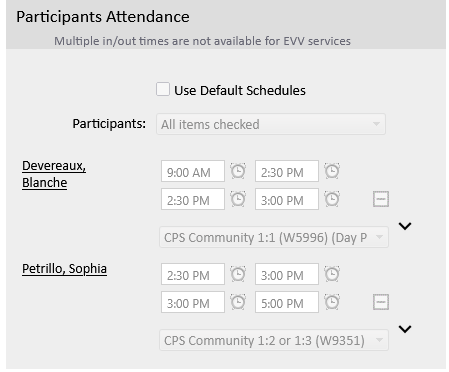
Consumer Times after re-authorization
QA / Notifications
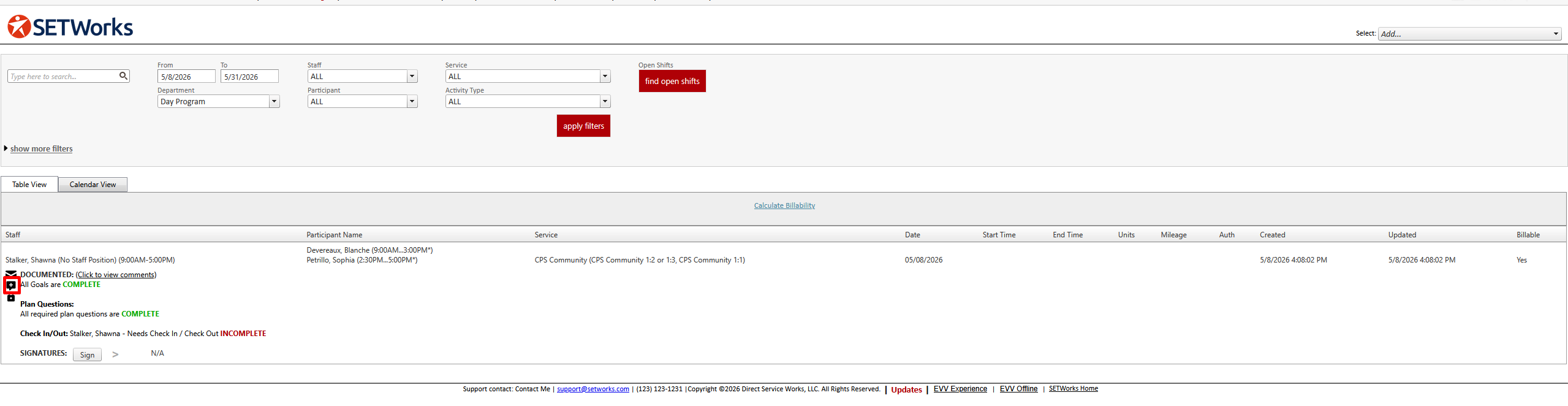
After the re-authorization process has completed, SETWorks will enter a QA Comment on the group activity record to notate what was re-authorized for the particular record.
Note: If you do not see the icon for QA Comments you can enable this feature via a privilege Settings > Provider Build > Activity Records Group > Allow user to view QA Comments on the group activity record

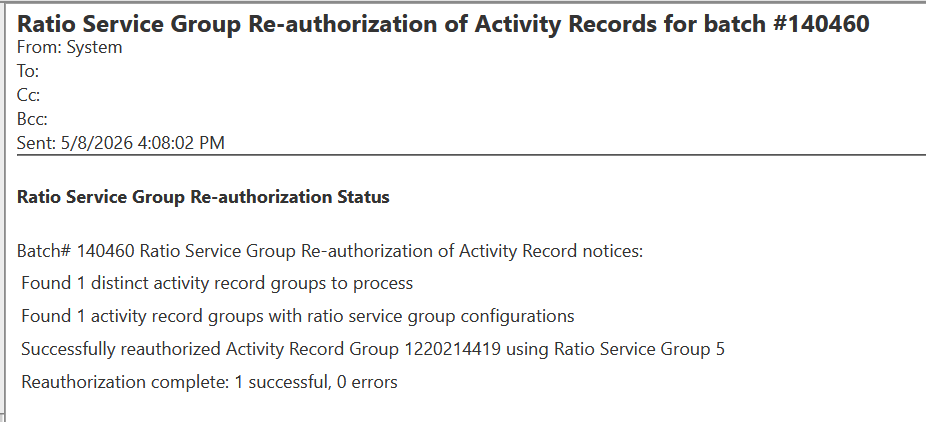
SETWorks will also send an internal notification, via the Message Center, to users subscribed to Billing Notifications.
Reporting
SETWorks Billing Reports will reflect the re-authorized hours on the respective authorizations after you complete the re-authorization process.