
Need multiple staff signatures on the same form without the hassle of logging in and out? The Present User feature makes in-person signing quick, smooth, and even a little fun. It is perfect for team meetings, group intakes, or when everyone is gathered around the same device. Use Present User with forms in SETWorks, whether for consumer, activity records, staff, department, employer, or other needs - simplify your group signing process today!
What This Feature Does
Present User lets you collect signatures from other staff members while staying logged into your own account. Think of it as “pass the laptop” signing. Easy, efficient, and secure!
Note: Terminology may vary depending on your SETWorks Version. If labels look different in your system, your local administrator can help translate your version’s terms.
Head to the Form
- Open the Consumer's Profile
- Select the Forms tab
- Find the form that needs signed
Note: Some forms may already have signature slots configured. If you need to remove any, check out Deleting Form Signatures .

Request a Signature
- Click Request Signature/Completion
- In the Select a Signature dropdown, choose Present User
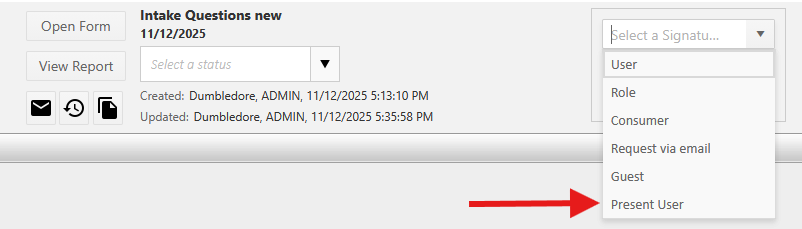
Pick Your Signer
- A field will appear allowing you to choose which user needs to sign
- Select the staff member who is physically present and ready to sign
- Click Create

Time to Sign
You will now see a signature block with two options:
- Current User - the person who is currently logged into SETWorks
- Requested User - the person you selected as the Present User
Each person will enter their PIN. Once PINs are entered, click Sign

Success!!
Once signed, the form will display that the signature was collected electronically on behalf of the current user’s account. If more team members need to sign, simply repeat these steps and continue gathering each person’s PIN and signature.

The Present User feature takes the headache out of multi-signature workflows. No logging out. No swapping accounts. Just tap, sign, done!