How can I apply a manual payment to an activity record or claim?
Administrators, Billing
When you have been paid for claims in a way where your remittance advice can't be automatically received or imported into setworks, you can input payment information manually. This will allow the payment to be reflected in reports like the Aging Report, and allow you to submit replacement claims and void claims from within SETWorks.
Note: Terminology can be modified within SETWorks to better fit the needs of your organization. If the terminology in our articles are not the same on your site, talk to your local administrator to assist in translation.
How to Apply Manual Payment to an activity record or claim:
Open the Global Action Menu (" Select: Add..." dropdown).
Select: "Billing: Manage Claims"
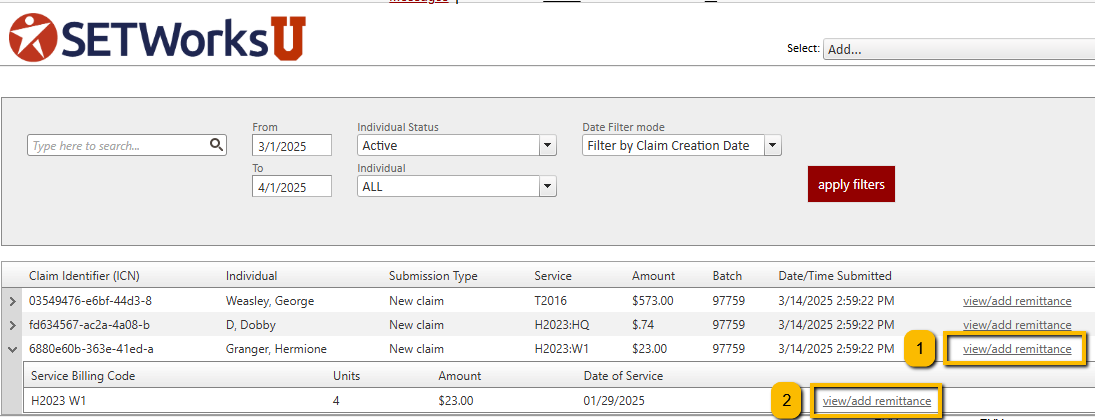
Adjust the filters to show the claims you would like to apply a manual payment to. You can click the "view/add remittance" on the claim level (see 1) to apply the full payment to the claim, or you can click the "view/add remittance" on the individual date level (see 2) to apply partial payments.
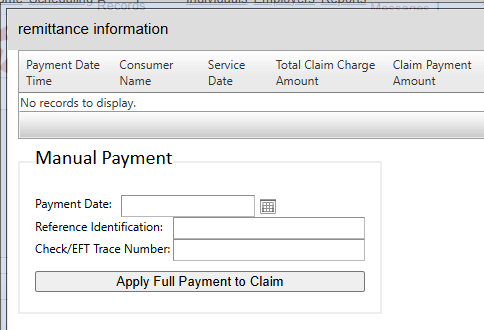
If you click the button on the claim level, you will see fields for the payment date, the reference identification, and the check/EFT trace number. Clicking the "Apply Full Payment to Claim" button will create payment records for each line item in the claim.
If you click the button on the individual date level, you will see an "add manual payment" button that allows you to input the same fields as above plus the claim payment amount. This will allow you to apply partial payments.
Note: In either case , it is important to include the reference identification, because this information is required by funders to submit replacement claims or void claims. If you are having trouble identifying the reference identification on your remittance advice, please reach out to ebilling@setworks.com .
How to Import Bulk Claim Payment Information:
If you receive 835 (remittance) files that aren't automatically uploaded into SETWorks, you can upload that data using our 835 upload tool:
Provider Files > 835 Upload
This tool accepts the following file extensions:
- .TXT
- .835
- .ERA
- .EDI
If your file is in another format, you can use our excel template importer.
First, enable the privilege:
Settings > Provider Build tab > Maintain Privileges
Note: "Enable manual Claim Payment importer"
Then, open the Global Action Menu (" Select: Add..." dropdown).
Select: "Billing: Manage Claims"
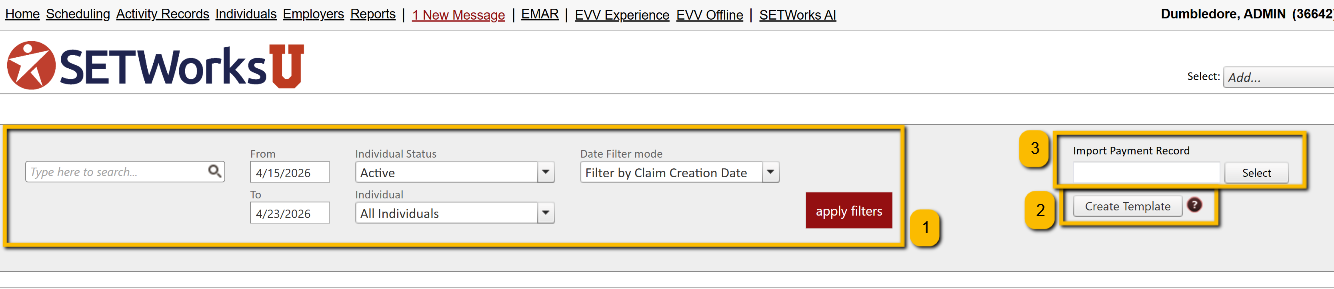
Adjust the filters to show the claims you would like to apply a manual payment to (1). Then click on "Create Template" (2). This will generate an excel template with your claims where you can input the payment information. When the template is filled out, upload by clicking on "Select" (3):