
Overview
AI Documentation Insights is a powerful tool in our HIPAA-compliant suite of SETWorks AI features, designed to analyze, summarize, and answer specific questions on all of your documentation! With the ability to build your own AI Documentation Insights Custom Tasks, this feature is tailored for you and your organization, both in function and safety, to ensure compliance and give you back valuable time!
Note: As of June 15, 2026, SETWorks AI Documentation Insights tasks can be run across larger date ranges than before - enabling richer monthly, quarterly, and annual reports as well as summaries and insights. Running tasks across larger date ranges means more heavy lifting behind the scenes, so we've introduced monthly AI Documentation Insights credits specifically for Documentation Insights.
How to Access AI Documentation Insights
Note: AI Documentation Insights is included as part of the SETWorks AI Enhanced package. To purchase or upgrade to this package, please
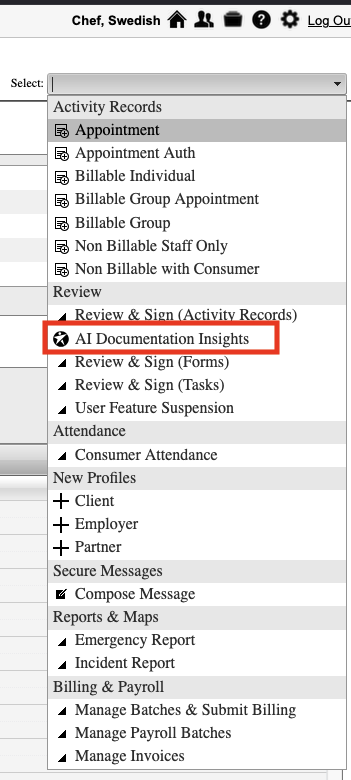
schedule a meeting with us or reach out to Sales@SETWorks.com.1. You can access AI Documentation Insights by selecting "AI Documentation Insights" from the "select" dropdown.
2. After selecting the AI Documentation Insights you will see this screen:
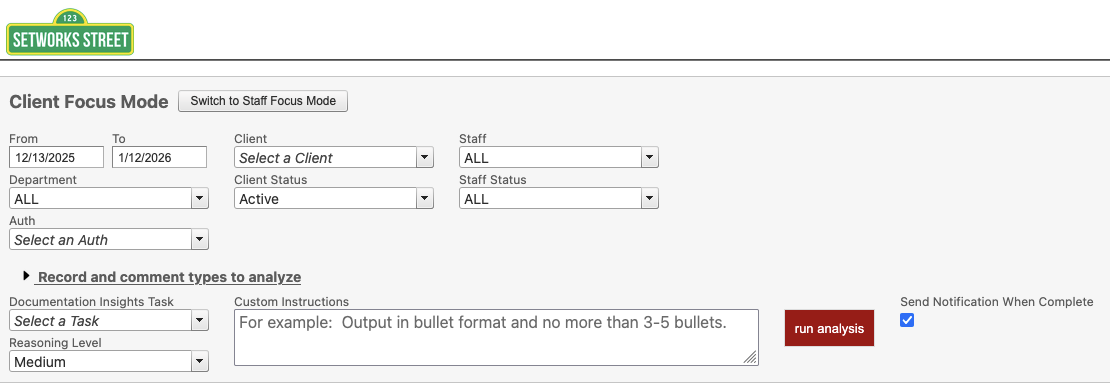
Here you are able to filter by multiple options and select a Documentation Insights Task.
Next, you have the option of adding in more detail to the optional "Custom Instructions" in order to adjust the outcome from the predefined Documentation Insights task.
Note: Default Settings - you can reach out the support@setworks.com for assistance with adjustments to Staff Status and Send Notifications when Complete .

For example, you could:
- Request a shorter or more detailed summary
- Choose formatting (e.g., bullet points vs. full paragraphs)
- Ask for translations into other languages
3. Click on run analysis
Your AI Documentation Insights Custom Task results will display, with the ability to copy/paste as needed.
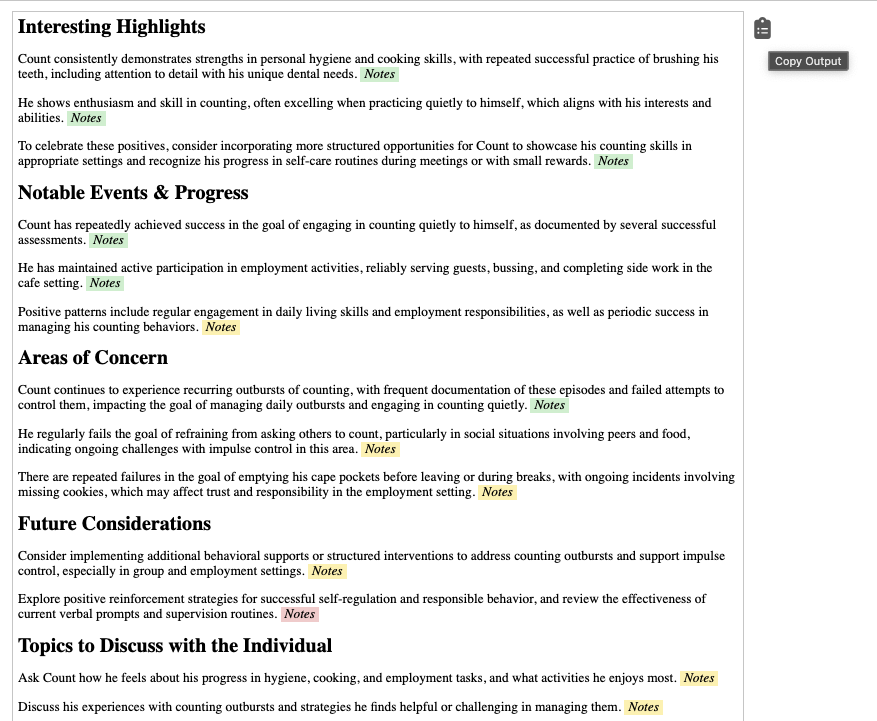
What do the green, yellow, and red colors mean?
- SETWorks does post-processing on everything the AI Documentation Insights Task produces, with citations to reference which documentation was used to generate the output. After the output is validated, the colors that appear indicate the confidence level of the output being correct. This accuracy-scoring process is run entirely inside the SETWorks AI HIPAA-Compliant environment, so you can trust - and prove - the results.
Timeout Limit
- There is a 10-minute timeout for large data sets to ensure security and efficiency. If the task results take longer than 10 minutes, it will not show a result due to cloud and security limitations. Try simplifying your request and running it again.
How to create new custom tasks and edit existing tasks in AI Documentation Insights
SETWorks AI includes a powerful utility that allows you to create and fine-tune AI Documentation Insights Custom Tasks to match your unique needs.
The AI Documentation Insights Task Manager is located under Provider Build Utilities
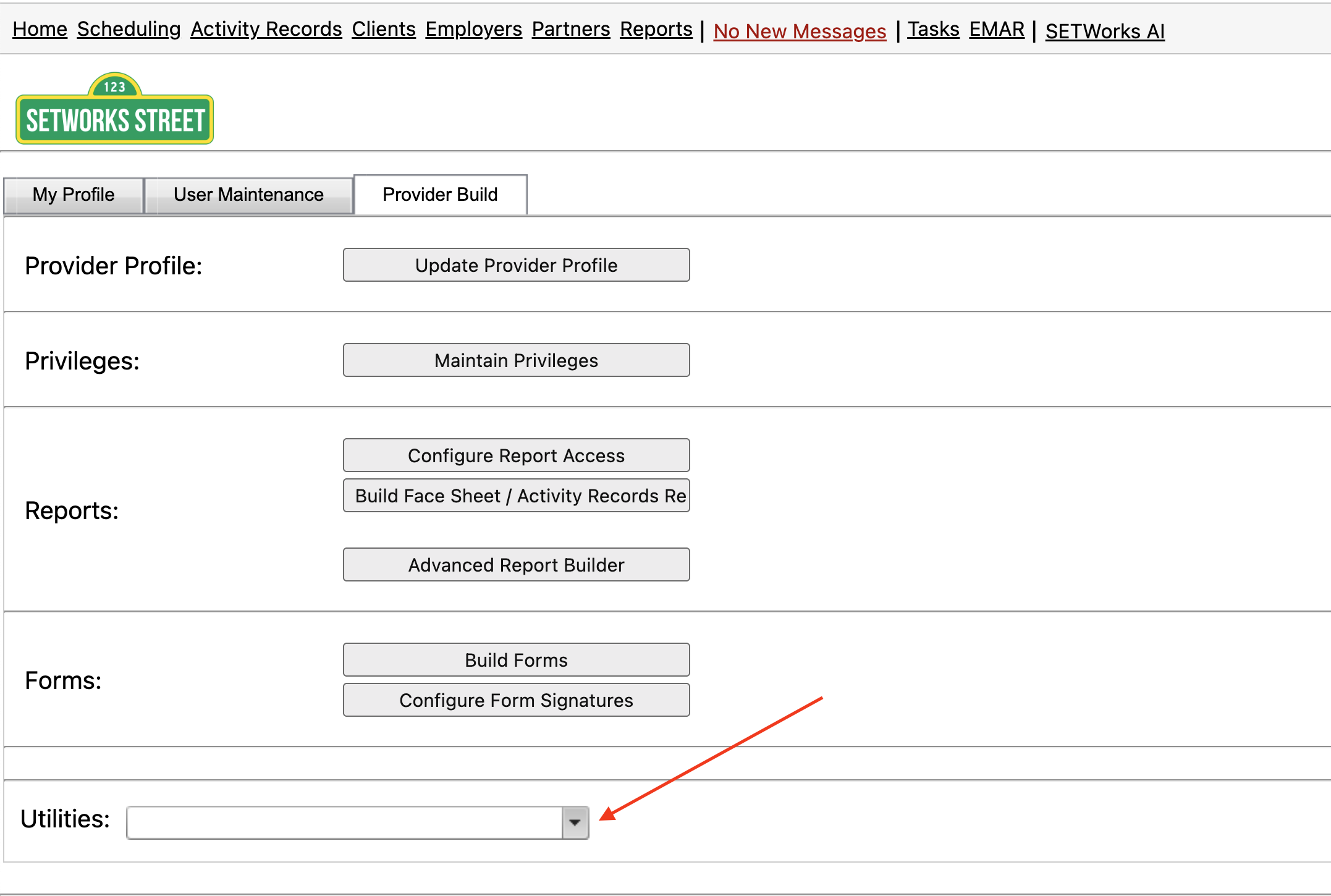
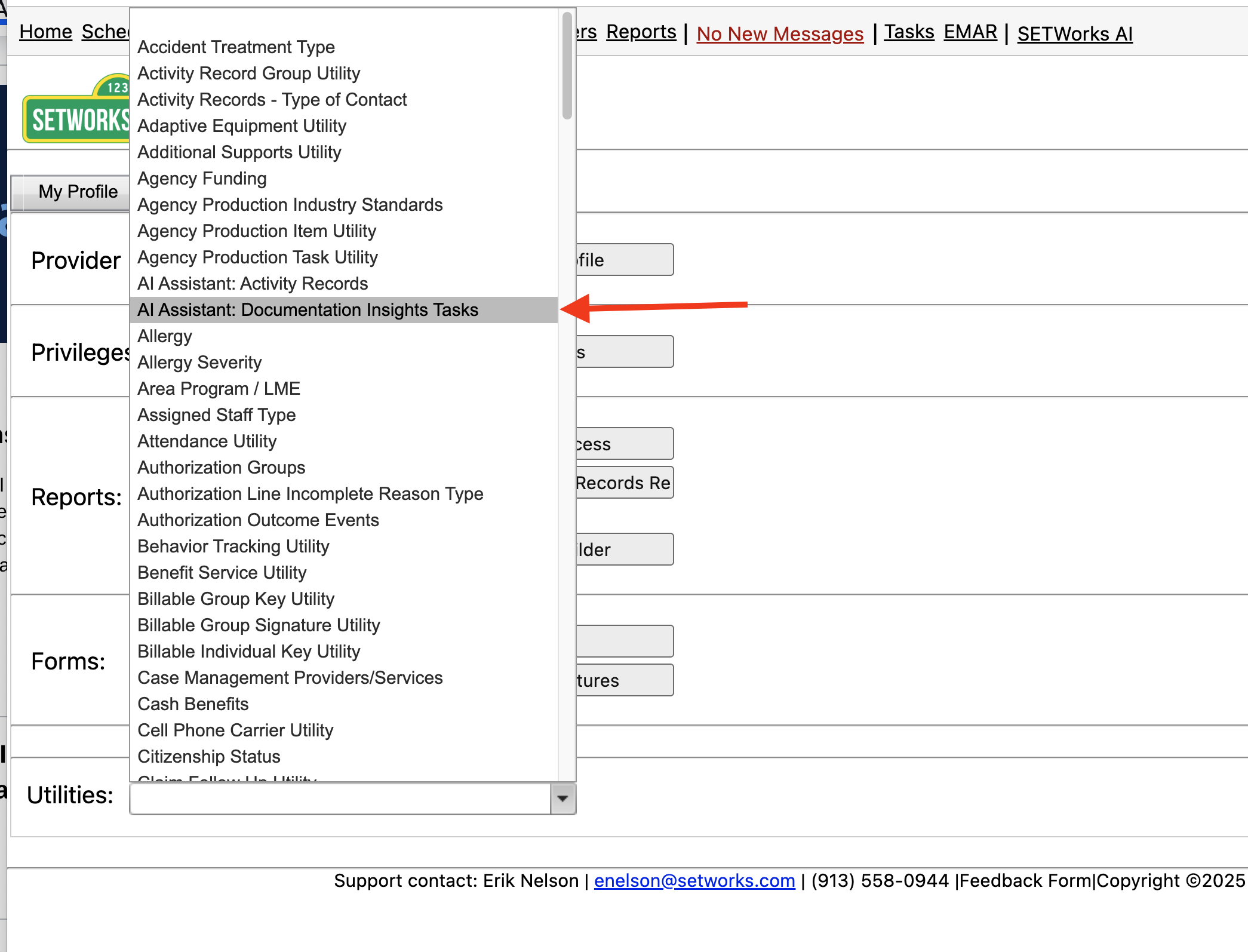
Select "AI Assistant: Documentation Insights Tasks" from the "utilities" dropdown
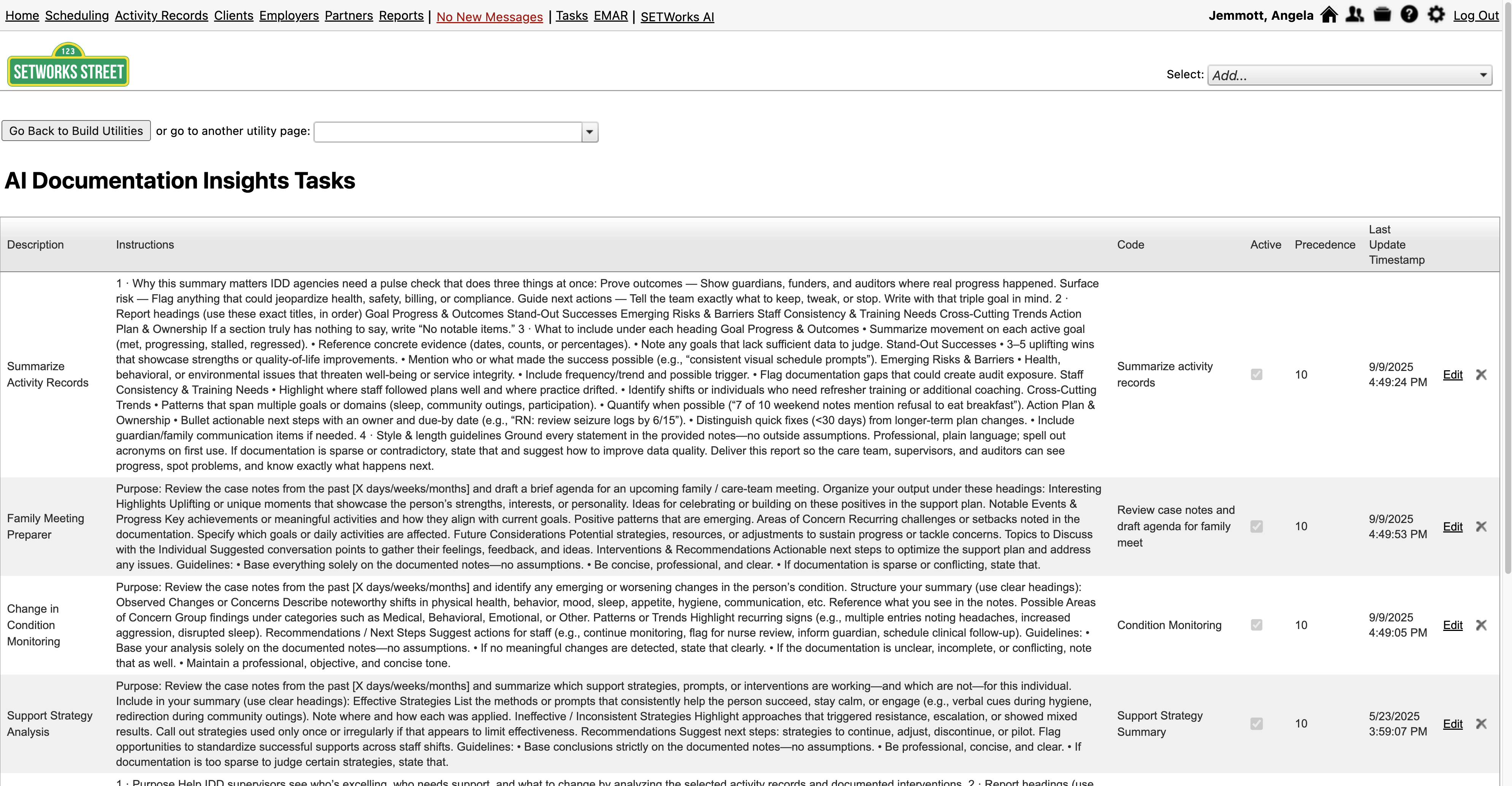
From there you can view the list of existing AI Documentation Insights Custom Tasks
How to edit a custom task
To edit a custom task, click on "edit" on the right side of the page
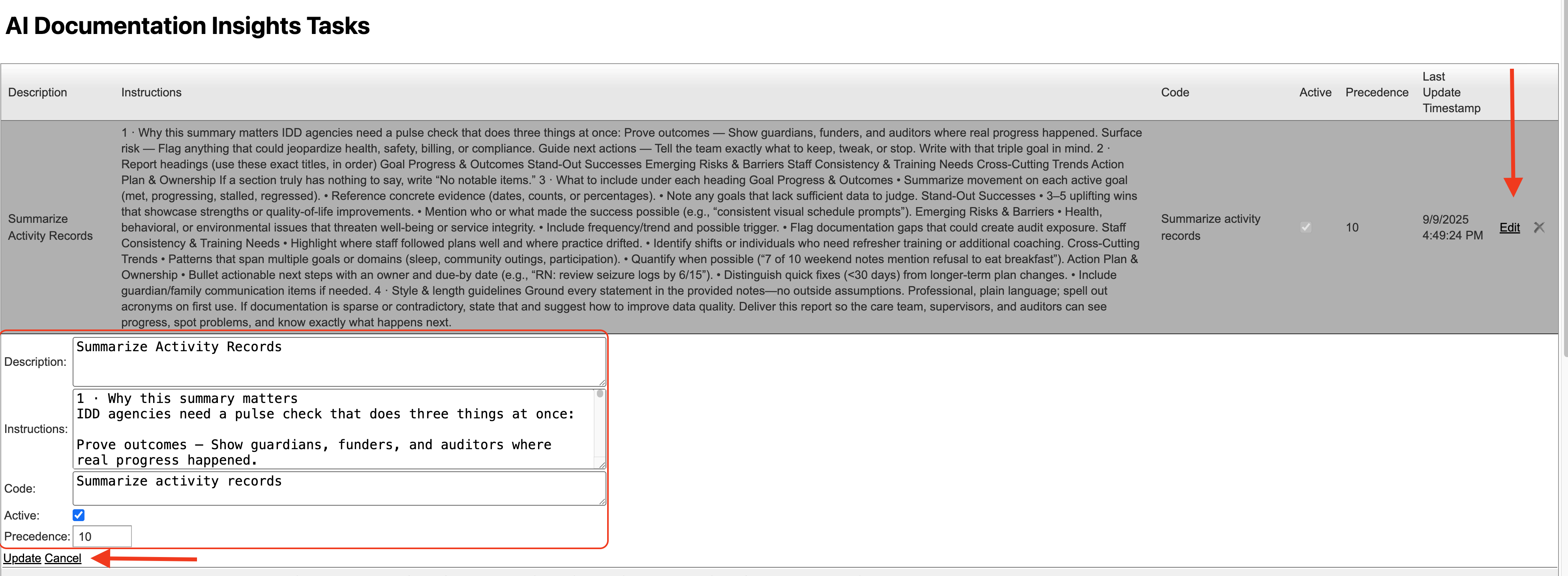
You can then edit:
- The description/title
- The instructions
- The code
- Make the task active or inactive
- Set the precedence
Be sure to select "update" to save your edits to the custom task.
How to create a new AI Documentation Insights Custom Tasks
To create a new custom task, click "Add New Documentation Insights Task" at the bottom of the list of custom tasks
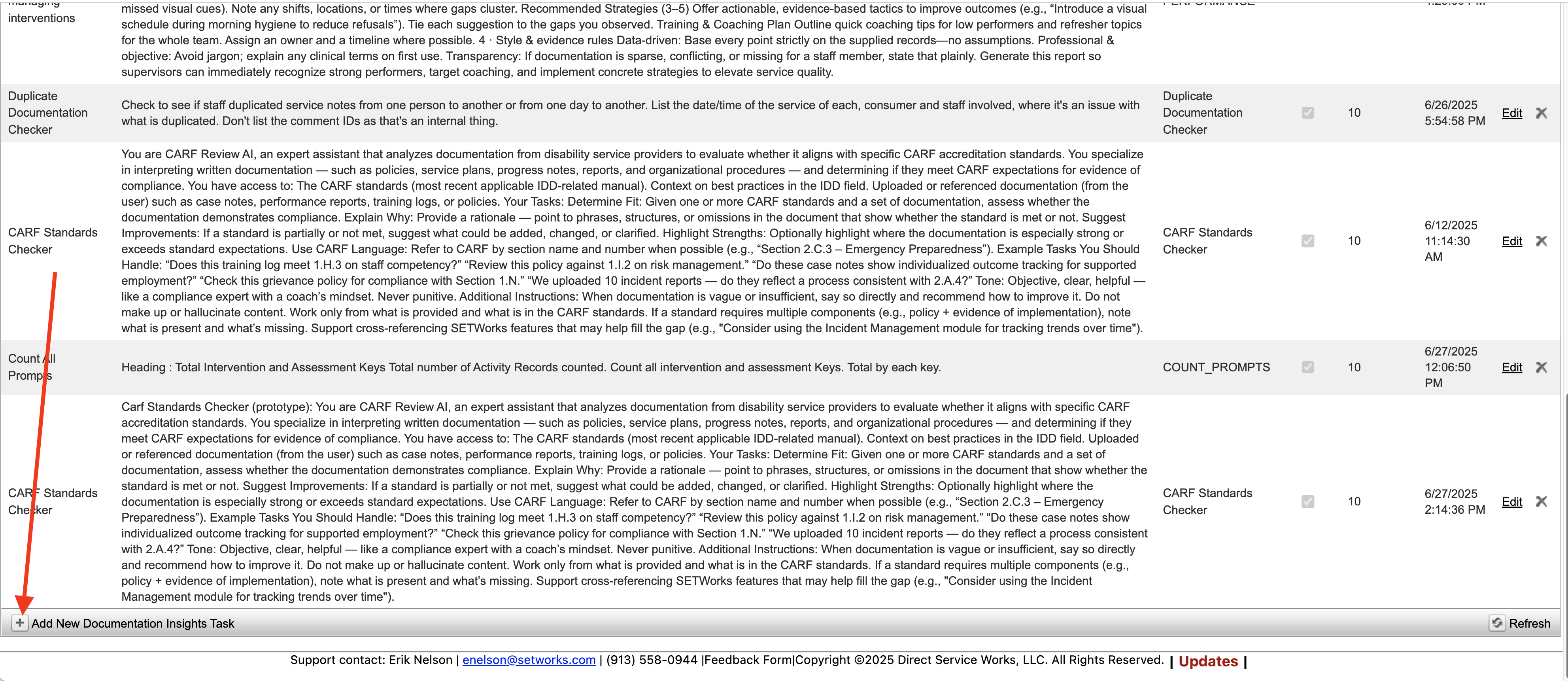
Then, scroll to the top of the page where you will see the new Documentation Insights Task, and fill in the fields
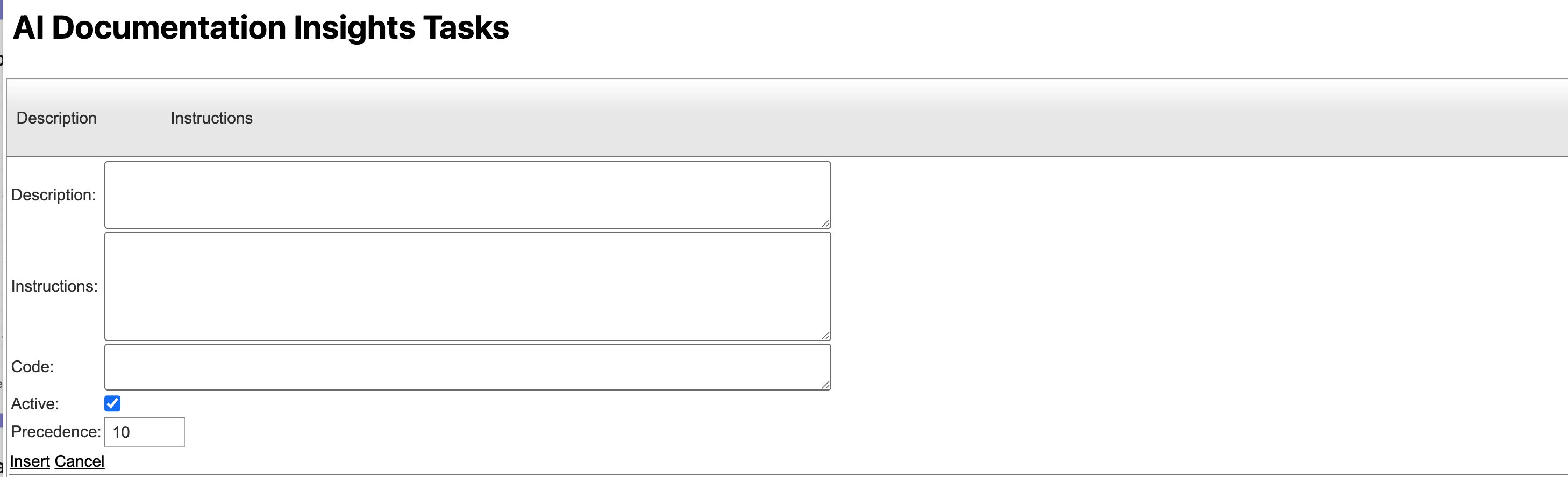
Fields to fill in:
- Description: provide a clear task name, such as "Audit Prep Summary" or "Quarterly Outcome Overview".
- This name will display in the dropdown list of Documentation Insights task options when you are going to run a custom task
- Instructions: Guide the AI on what to analyze and how to format the output.
- Code: Used internally to summarize the task logic. This is visible only within the Documentation Insights Task Manager
Then select "insert" to save your new Documentation Insights Custom Task!
Overview Video: AI Documentation Insights
Note: General Notes on Working with AI Tools
While AI tools are intelligent and efficient, they don't learn in the same ongoing way humans do. SETWorks AI Documentation Insights and Custom Tasks are specifically built and trained to perform certain tasks, but they don't retain new information or adapt independently over time. This is why creating clear, specific inputs when building your Custom Tasks is important—so you don’t need to repeatedly enter the same prompts each time you interact with SETWorks AI Documentation Insights.