How can I write off an activity record or claim?
Administrators, Billing
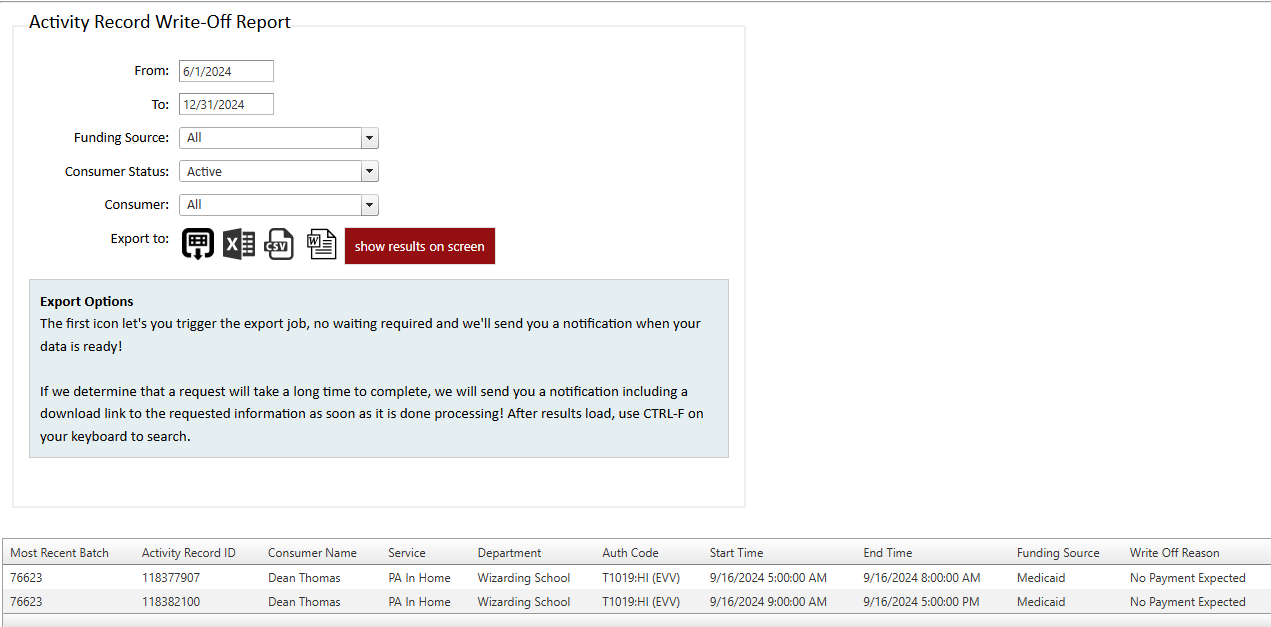
When you have an activity record that you are not expecting payment for, you can mark it as a write-off. This will exclude the activity record from the Aging Report. You can also view a list of activity records that have been written off using the Activity Record Write-Off Report.
Note: Terminology can be modified within SETWorks to better fit the needs of your organization. If the terminology in our articles are not the same on your site, talk to your local administrator to assist in translation.
Enabling Write-offs
Open Settings > Provider Build > Maintain Privileges
There is an optional privilege to require a reason for the write-off.

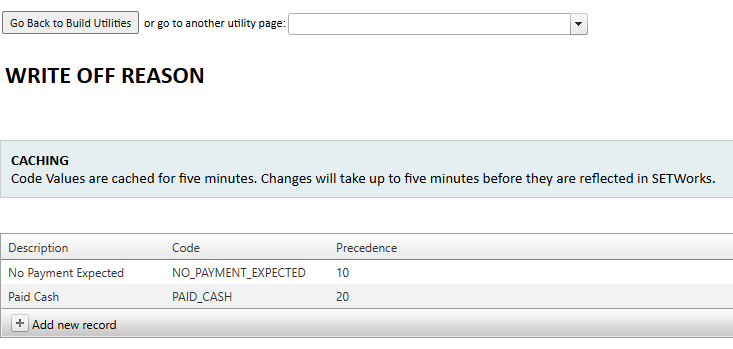
If you turn on the privilege to require a reason for write-offs, the reasons can be configured in the Write Off Utility.
Settings > Provider Build > Utilities Dropdown > Write-Off Utility
"No Payment Expected" is a pre-loaded option, and you can add and edit additional options:
How to Write Off an Activity Record
Open the Global Action Menu (" Select: Add..." dropdown).
Select: "Billing: "Manage Batches & Submit Billing"
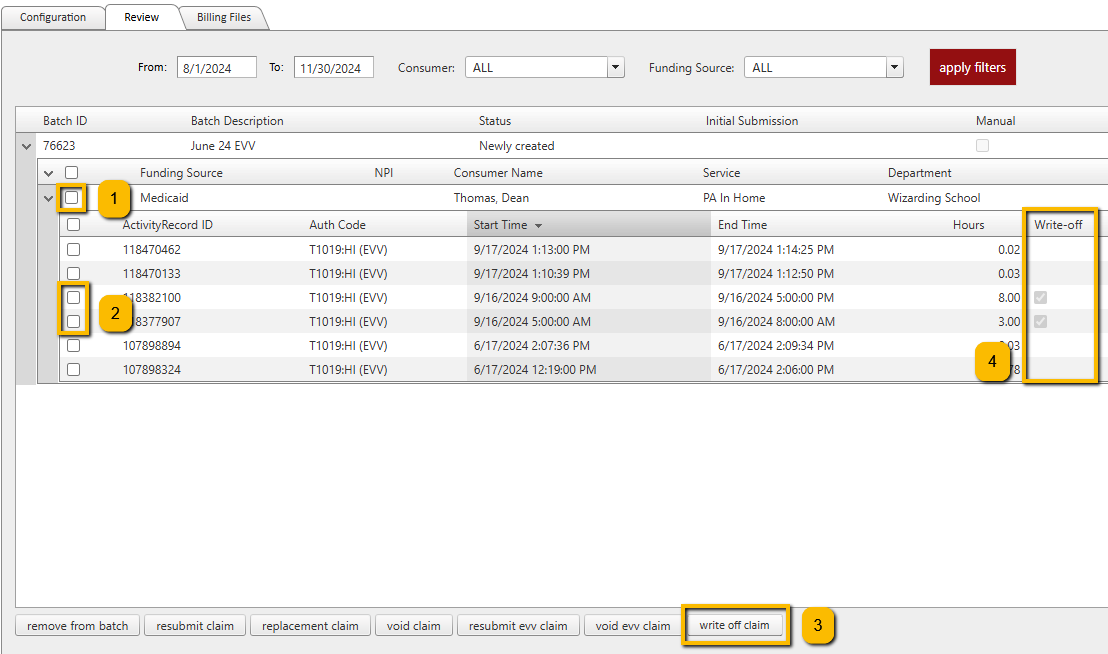
On the "Review" Tab, you can select the checkboxes on the funder level (see 1) or the individual activity record level (see 2), and then click the "write off claim" button (see 3). Activity records that have been written off will show a check mark in the Write-off column (see 4):
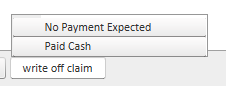
If you have enabled the privilege to require a reason for the write-off, the "write off claim" button becomes a menu with the options you configured in the utility:
Note: If you make a change to the activity record, remove it from a batch, or void/resubmit/replace the claim, the write-off status will be reset.
Aging Report
When you run the Aging report, any records that have been written off will be automatically excluded, allowing you to declutter your view and only see records you are still expecting payment for. For example, if you ran the report for the batch in the screenshot above, you would only see claims for 6/17 and 9/17, since the records on 9/16 were written off.
Activity Record Write-Off Report
Note: The date filters correspond to activity record dates, not batch submission or write-off dates.
The report will show activity records that have been written off, along with the reason if applicable: