How can I Download Multiple Invoices at Once?
Manager/Administrator
Batch downloading invoices allows you to select multiple invoices that you would like to download in one batch and delivers them via the Message Center.
Note: Terminology can be modified within SETWorks to better fit the needs of your organization. If the terminology in our articles are not the same on your site, talk to your local administrator to assist in translation.
Configuration
Please ensure the following privileges are enabled for the desired roles.
Settings > Provider Build > Maintain Privileges > Electronic Billing
Note: Enables the ability to download batch invoices (requires the privilege to enable the "View Report" button within Manage Invoices)
Downloading Invoices
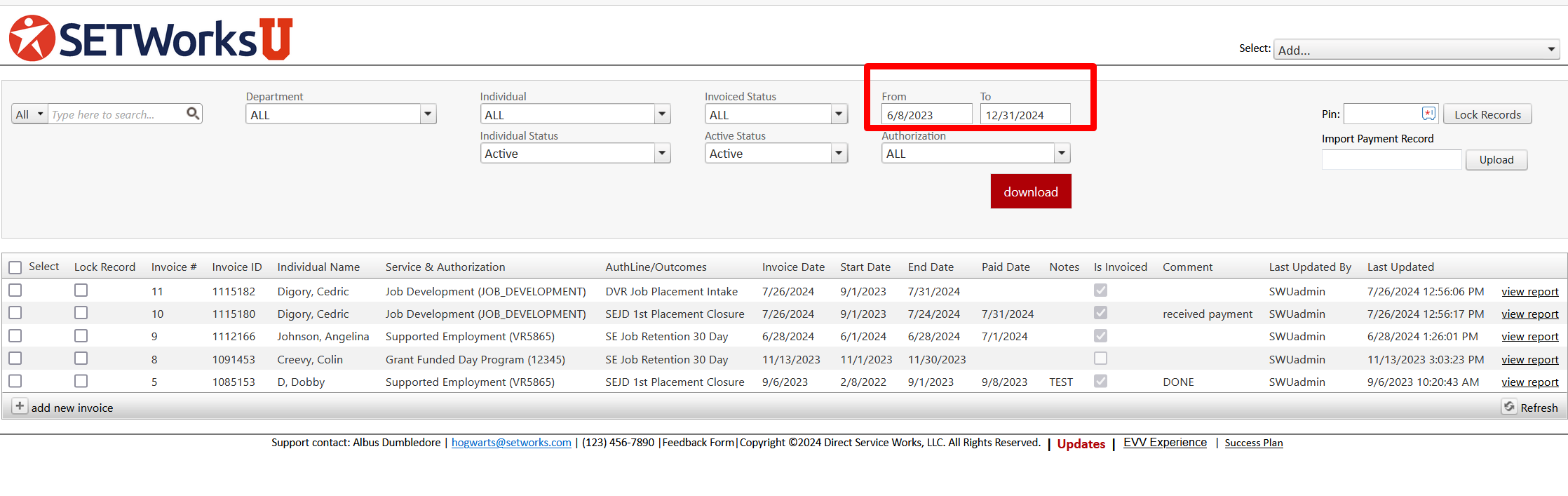
Navigate to the Manage Invoices Page using the Global Action Menu then set the desired date range for the invoices you want to download.
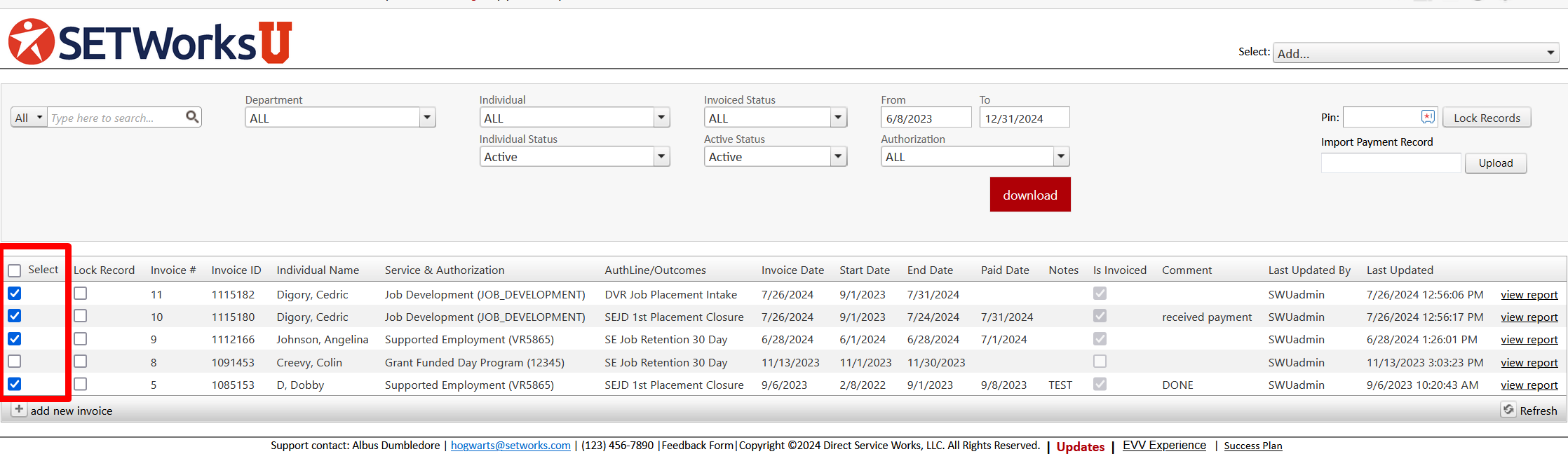
Use the checkboxes in the first column 'Select' to mark each invoice you want to include in the batch to download.
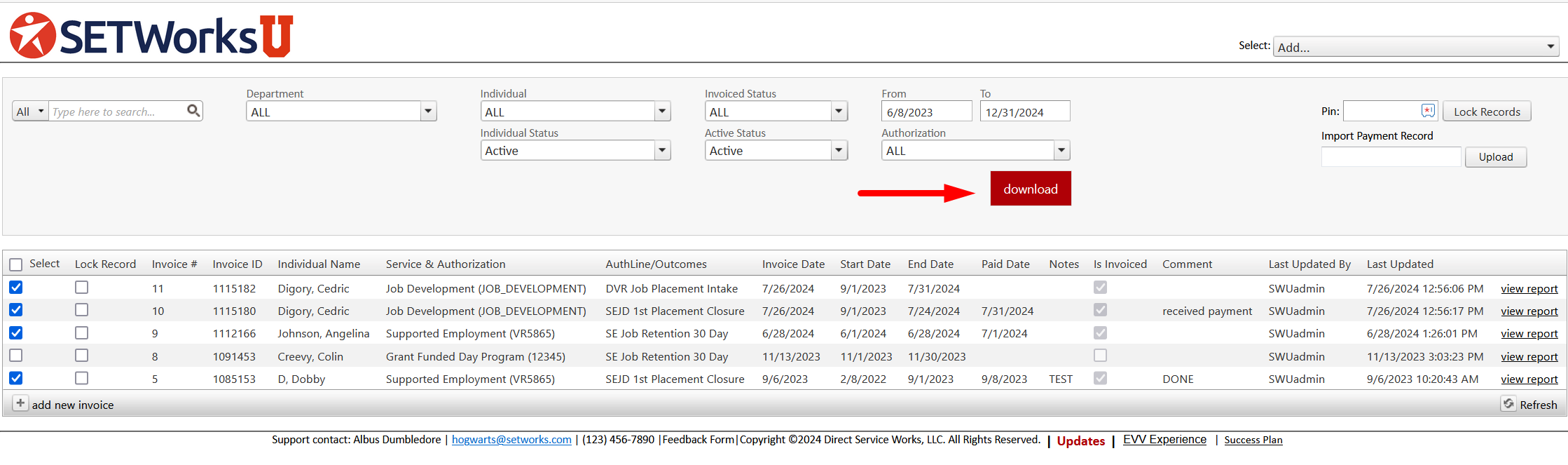
Once you have the desired invoices selected click the red Download button.
Select if you want the selected invoices to be marked as "invoiced" after downloading.
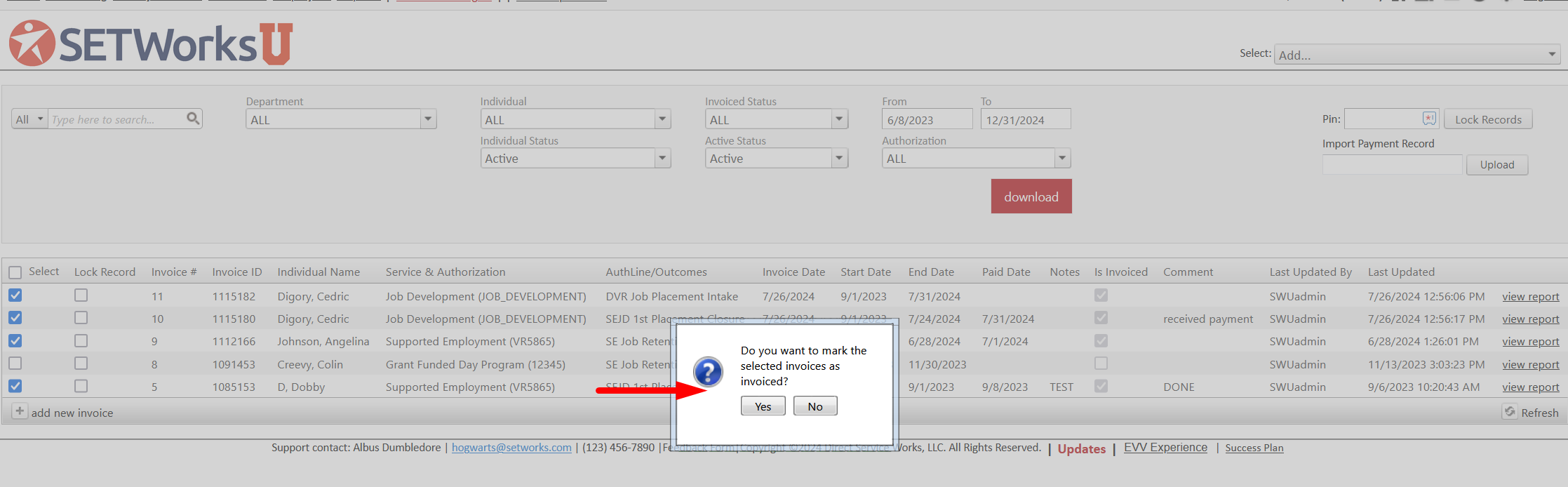
You should receive a notification that your download will be delivered to your message center when the file is ready. Please click "Yes" when you receive this notification.
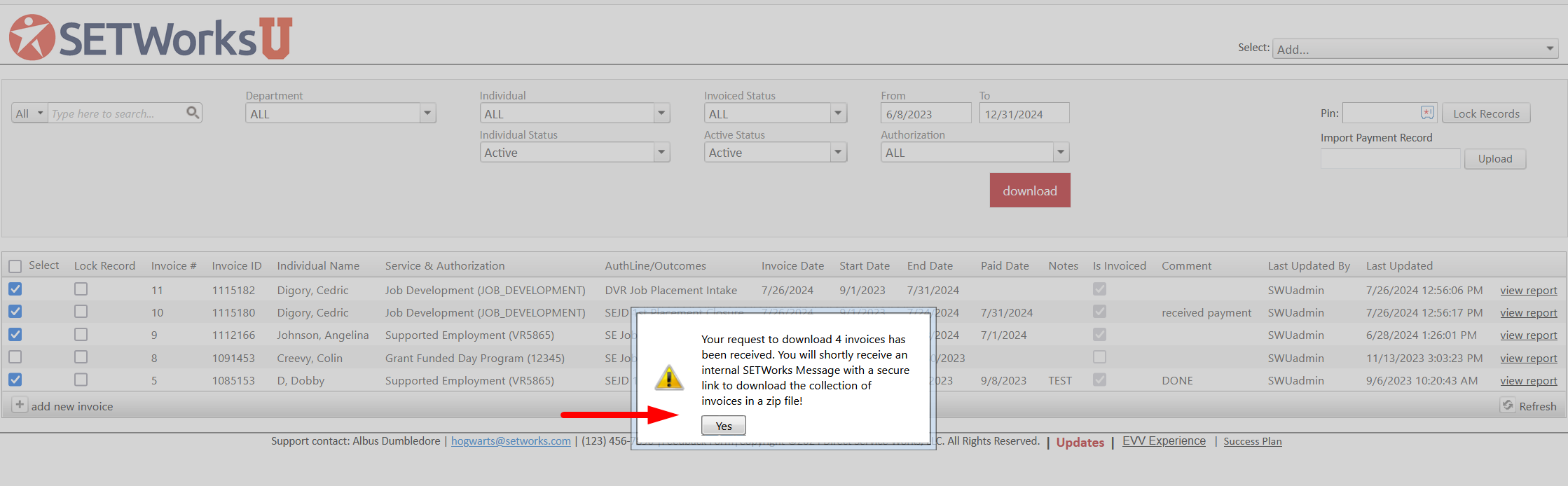
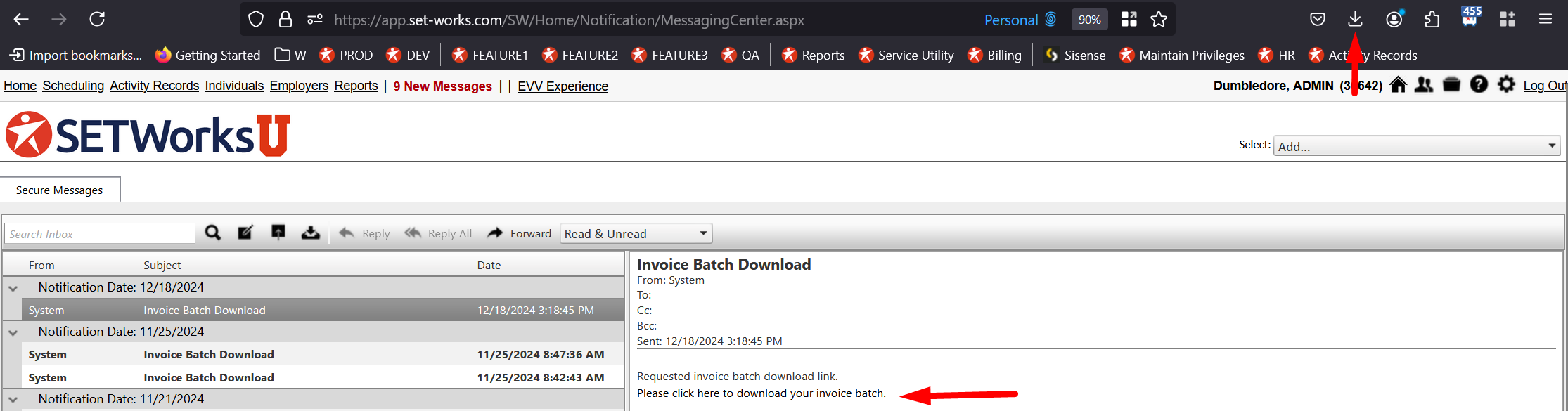
Allow for some time for the file to generate and then check your Message Center.
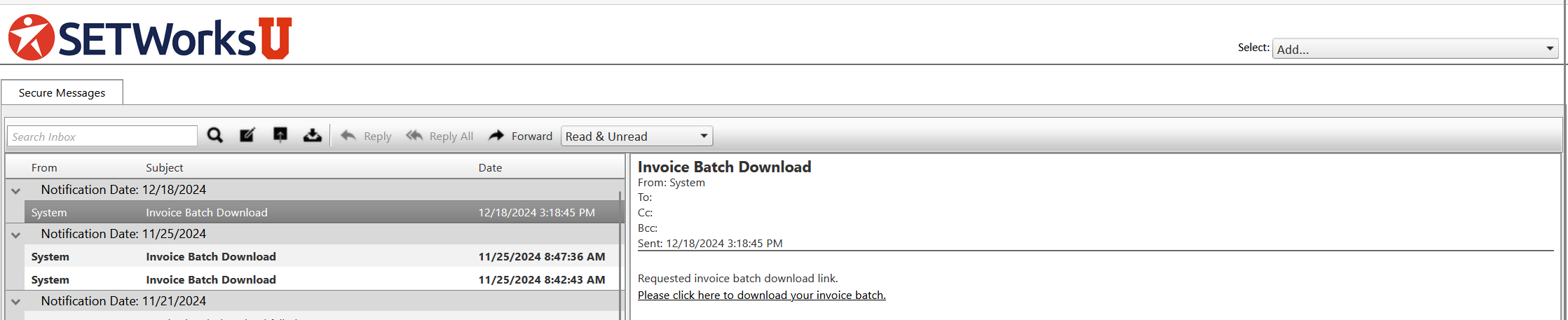
Click on the link in the message to download the file to your device. Click on your downloads in your browser to open the file and save to your device.