
What is OOD Remittance/Applied Payments
This feature allows you to upload the Applied Payment Files in the Manage Invoices section of SETWorks. It will update the invoices in SETWorks that the Applied Payment File matches with.
Note: Terminology can be modified within SETWorks to better fit the needs of your organization. If the terminology in our articles are not the same on your site, talk to your local administrator to assist in translation.
Configuration
The following Privileges will need to be enabled
Settings > Provider Build > Maintain Privileges > Activity Records Management
Note: Can import invoice payment files into system. Enable the Manage Invoice section.
Uploading an OOD Applied Payments File
Note: There is one File that will show what has been paid and another file that shows what has been rejected. There are no partial payments.
1. Download the OOD Applied Payments Files from the OOD Portal.
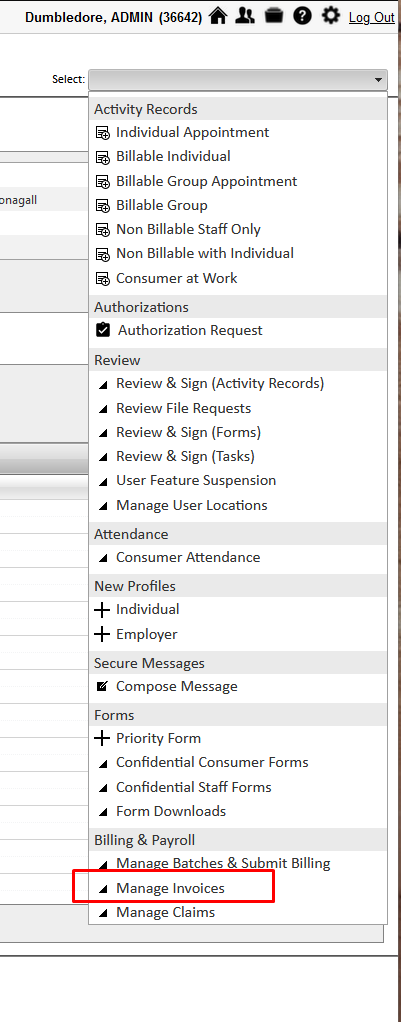
2. Select the 'Manage Invoices' link from the Select add dropdown menu
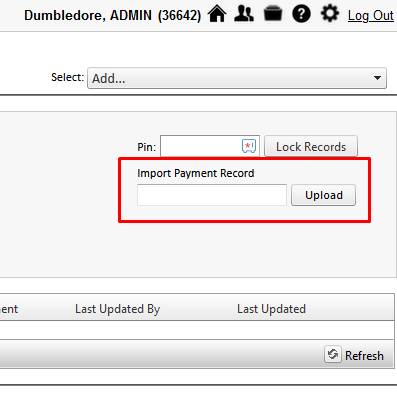
3. Select the 'Upload' button below the 'Import Payment Record'
4. Select the OOD Applied Payments File and then select 'Open' to upload the File
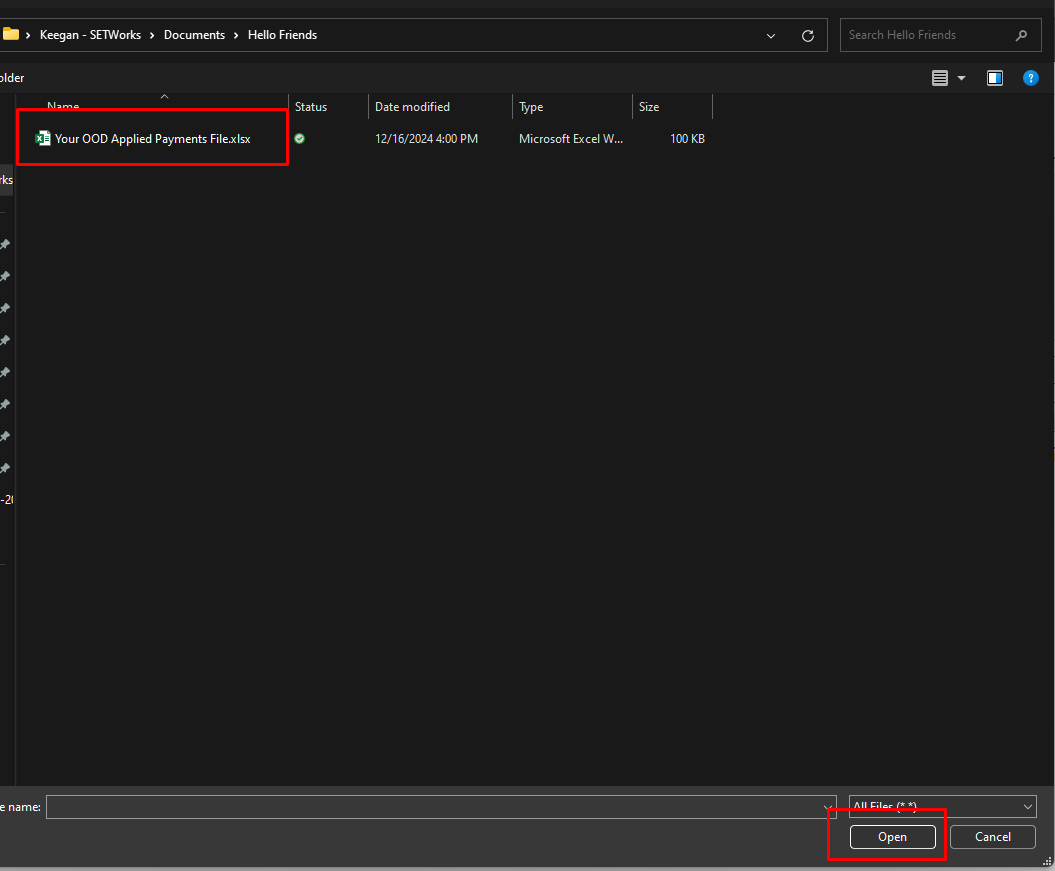
Note: Please make sure that the File is an Excel Workbook (.xlsx). No other Format is accepted.
Once the File has been applied you can use the "(SW) Invoice Aging Report" to see which Invoices still have outstanding payments.
What gets Updated on the Invoice
The following sections will be updated on the Invoice after the Applied Payments Document is uploaded
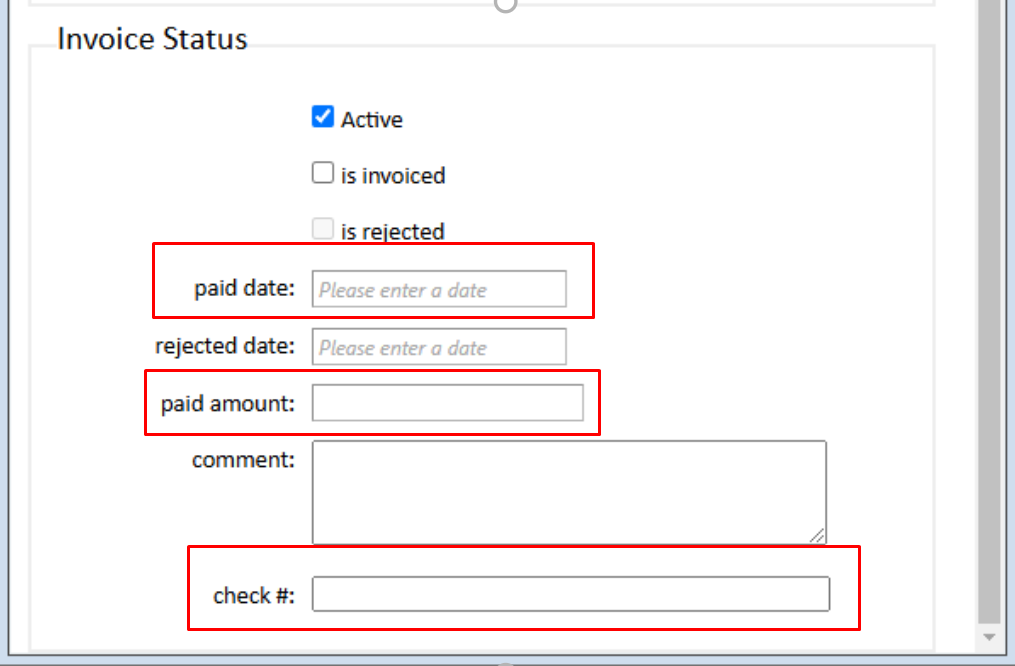
- The Invoice “Paid Amount” field with the value in the spreadsheet “Amount Requested” column.
- Set the invoice “Paid Date” to be the current date of the upload.
- And the Invoice “Check #” with the value in the spreadsheet “Warrant Number” column.
Troubleshooting
The following information needs to match on the Invoice with the Spreadsheet. If they do not match then you will receive an error message.
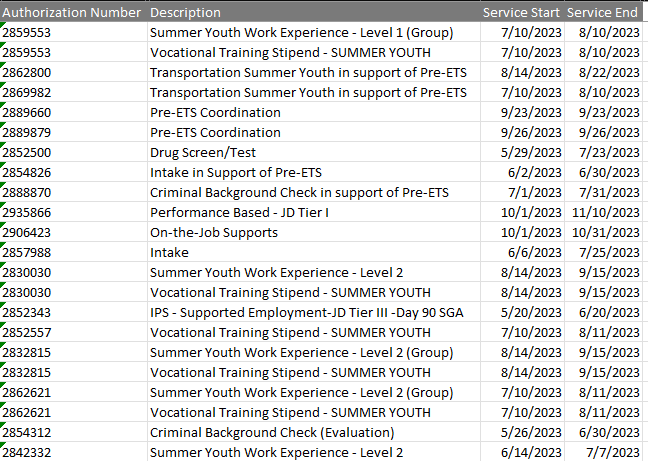
Spreadsheet “Authorization Number” is the Authorization Code tied to the Authorization linked to the Invoice.
Spreadsheet “Service Start” and “Service End” must match the Invoice “Start Date” and “End Date”.
Spreadsheet “Description” column must match the Service tied to the Authorization linked to the Invoice.