What are Authorization Groups?
Authorization Groups are a way to group together different authorizations, allowing you to track a total amount of usage for that group. All authorizations within the group share authorized hours, start and end dates, and limits, and the associated services for each authorization must have the same billing rounding rule. Once an authorization is part of an authorization group, any updates made to that authorization update the other authorizations in that group.
There are two kinds of authorization groups:
- Individual authorization group: allows you to share authorized hours over multiple authorizations for one individual. For example, a funder could authorize 50 hours of service for an individual to be split flexibly between job coaching and transportation. You can create separate authorizations for job coaching and transportation but have them in the same group, which allows you to track the total utilization of hours between them.
- System-wide authorization group: allows you to share authorized hours over authorizations for multiple individuals. For example, a funder could award a grant that allows your organization to provide 100 hours worth of transportation support for any of your individuals who meet a certain criteria. You could add those individuals to a system-wide authorization group, and set up an authorization for each of them within that group, and those authorizations would share the 100 hours.
Note: Terminology can be modified within SETWorks to better fit the needs of your organization. If the terminology in our articles are not the same on your site, talk to your local administrator to assist in translation.
How do I set up Authorization Groups?
Authorization Group Privileges
Settings > Provider Build > Maintain Privileges > Authorization:
Note: Enable Authorization Groups
Configuring Individual Authorization Groups
Consumer profile > Authorizations tab > Add new authorization
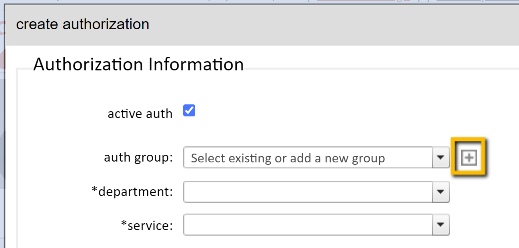
Next to the auth group dropdown, there will be a plus button to add an individual authorization group:
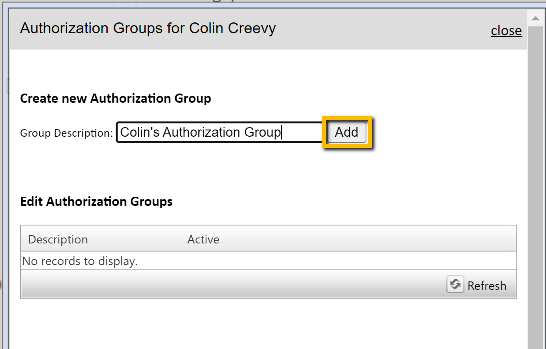
Here you can add an individual authorization group, or edit existing ones:
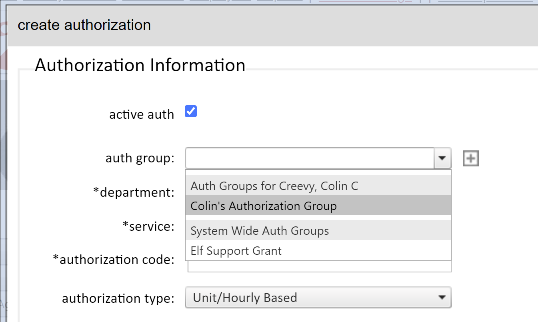
Once an authorization group is added, it will show in the dropdown on the add authorization window (system-wide groups can also appear here):
Configuring System-Wide Authorization Groups
Navigate to Settings > Provider Build > Utilities: Authorization Groups
1. Add Authorization Group
2. Description: The name of your group. e.g., Mickey Grant
3. Hours: The total number of hours allocated to the group. e.g., 1,000 hours
NOTE: When assigning a total amount to the Authorization Group, this does not automatically change the individual's authorization amounts.
4. Active: Make the group active if you want it to appear.
5. Insert.
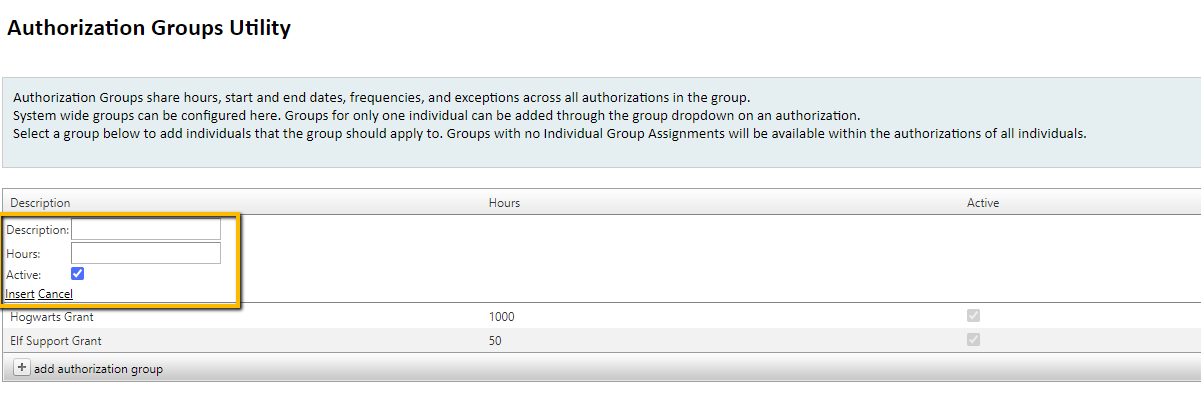
Once a system-wide authorization group has been created, it will be available to any consumer in the dropdown on their add/edit authorization window.
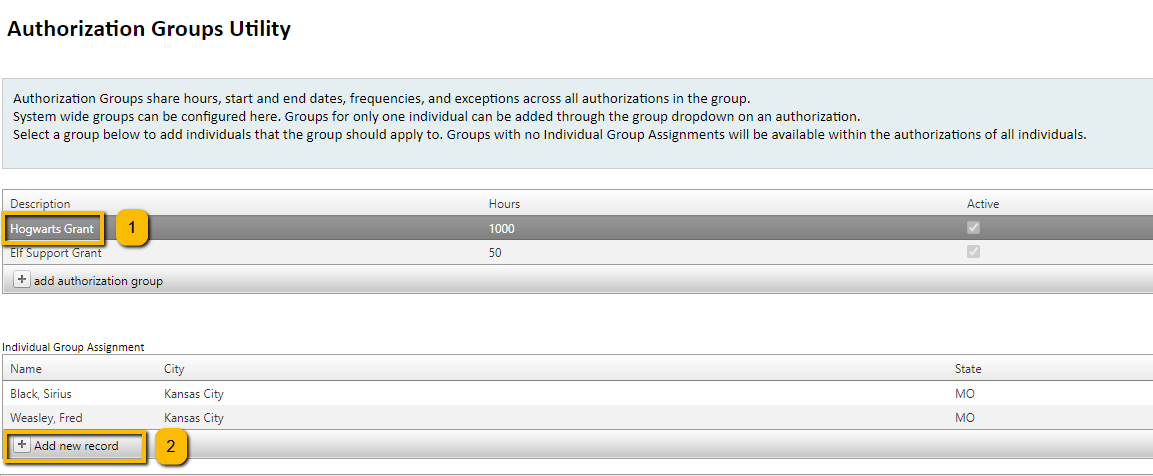
If you would like to limit the authorization group to a specific group of consumers, you can do so by selecting the group, which will show the list of
group assignments. You can add or remove consumers here, and then the group will not show in other consumers' add/edit authorization window.
Authorization Groups Reporting
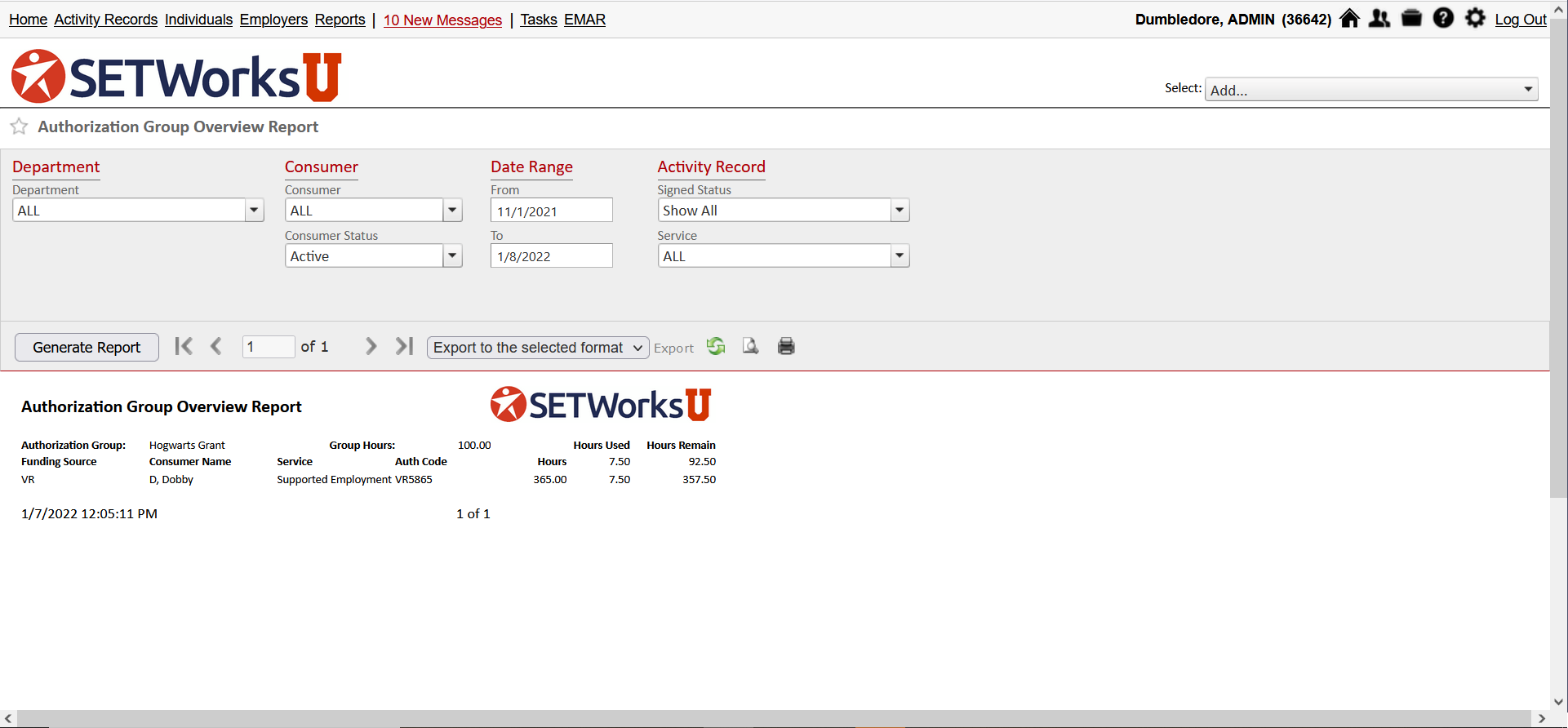
Authorization Group Overview Report