
Diagnosis Codes Utility
Administrators
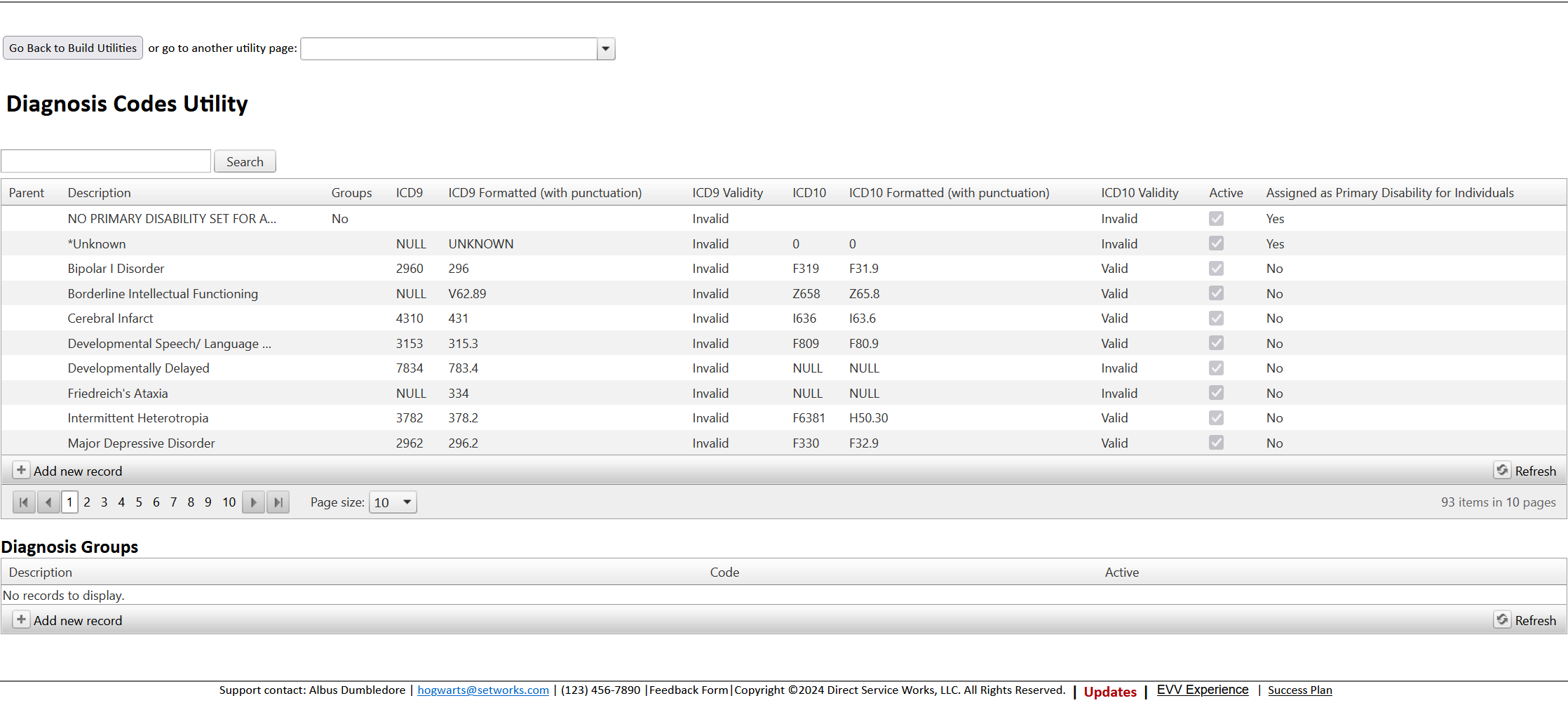
Diagnosis Codes Utility allows administrators to configure the primary and secondary disability lists in the consumer profile.
Access the Diagnosis Codes Utility
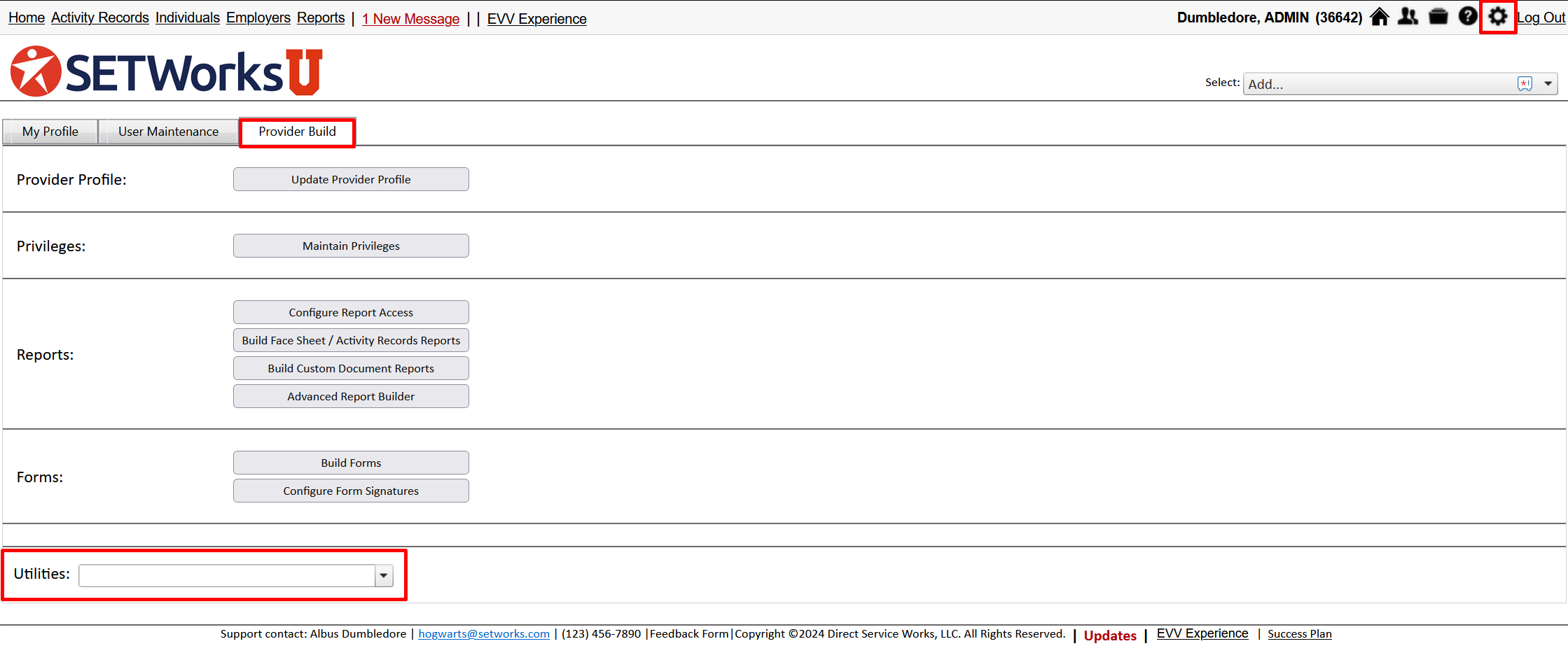
Settings > Provider Build > Select Utilities > Diagnosis Codes (Disability)
Configuring Diagnosis Codes
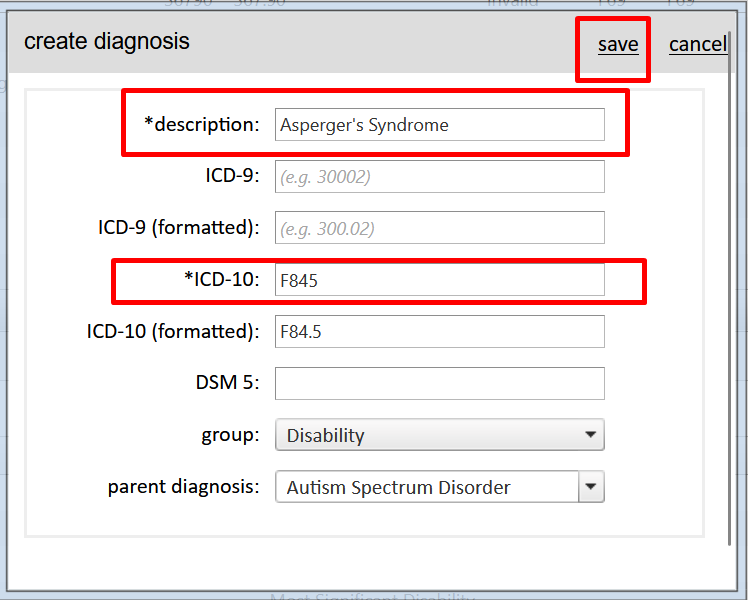
Note: Note: Description and ICD-10 code are required fields to save the diagnosis. The ICD-10 code must be correct if diagnosis will be used as a primary disability for billing.
1. Select + Add new record
2. Description: name of diagnosis or disability (required)
3. ICD-9: diagnosis code from the 9th revision of the International Classification of Diseases (optional)
4. ICD-9 (formatted): specific code with proper punctuation (optional)
5. ICD-10: diagnosis code from the 10th revision of the International Classification of Diseases (required)
6: ICD-10 (formatted): specific code with proper punctuation (optional)
7. DSM 5: diagnosis from The Diagnostic and Statistical Manual of Mental Illnesses (optional)
8: Group: the diagnosis group the description belongs to (example: respiratory illnesses) (optional)
9: Parent Diagnosis: select a parent diagnosis if this description is a sub diagnosis (optional)
10. Click Save
Configuring Diagnosis Groups
Administrators can configure Diagnosis Groups that are applicable to their organization. Diagnosis Groups are not required.
Note: Note: If you plan to assign diagnosis groups, this section should be configured before adding new diagnoses.
1. Click + Add new record
2. Description: Name of the diagnosis group
3. Code: a code to identify the group
4. Click Insert

Making Diagnosis Inactive
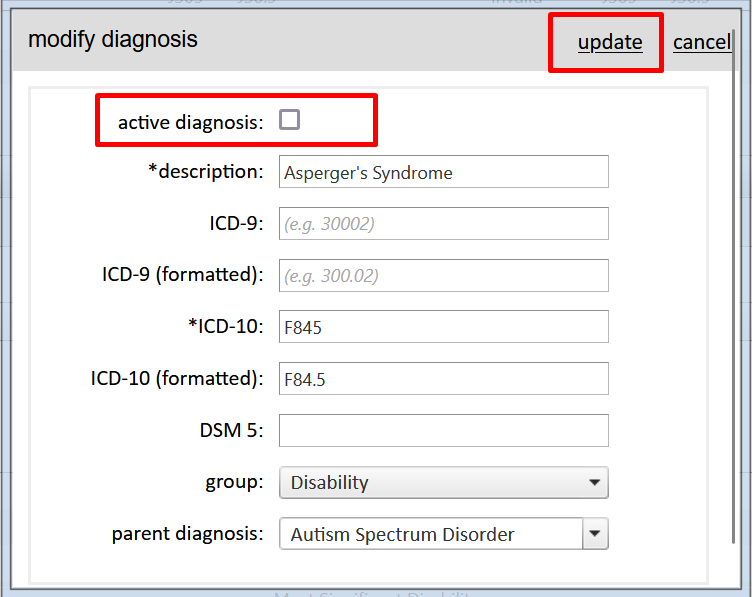
If you want to remove a diagnosis from the available list, you can make it inactive following the steps below.
1. Navigate to the utility
2. Click on the diagnosis
3. Uncheck the 'active diagnosis' box
4. Click update
Making Diagnosis Group Inactive
If you need to make a group inactive follow the steps below.
1. Navigate to the utility
2. Click 'Edit' to the far left of the group
3. Uncheck the 'Active' box
4. Click 'Update'
