How can I use Addendums to QA Billable Individual Records?
Manager/Administrator
The Addendum feature can be used to leave feedback on the Billable Individual Records. Managers and Administrators can leave feedback comments requesting changes to the record.
Note: Terminology can be modified within SETWorks to better fit the needs of your organization. If the terminology in our articles are not the same on your site, talk to your local administrator to assist in translation.
Configuration
Please ensure the ability to add Addendums is enabled for applicable roles for the type of individual records your organization utilizes.
Settings > Provider Build > Maintain Privileges > Activity Records Management
Note: Is able to add addendums to Billable Activity Records with multiple goals.
Is able to add addendums to Billable Individual Activity Records.
Is able to add addendums to Billable Job Analysis Activity Records.
Is able to add addendums to Billable Job Development Activity Records.
Is able to add addendums to Billable Narrative Activity Records.
Is able to add addendums to Consumer at Work Activity Records.
Adding Addendums
1. Navigate to the desired Activity Record, and click on the record history (clock icon indicated with an arrow below).

2. From the pop-up window, you can click on the add/modify addendum link, and insert relevant comments in the addendum box, shown below.

3. After adding your information, click update to attach the addendum to the activity record.
Notifying the Employee
Administrators or Managers can notify the employee via message center that an addendum has been added for their review.
Resolving Addendums
Once the employee has completed requested changes/revisions on the record they can open the addendum window, using steps 1-3 above, to modify the existing comment to indicate they have completed the request.
Review/Reporting
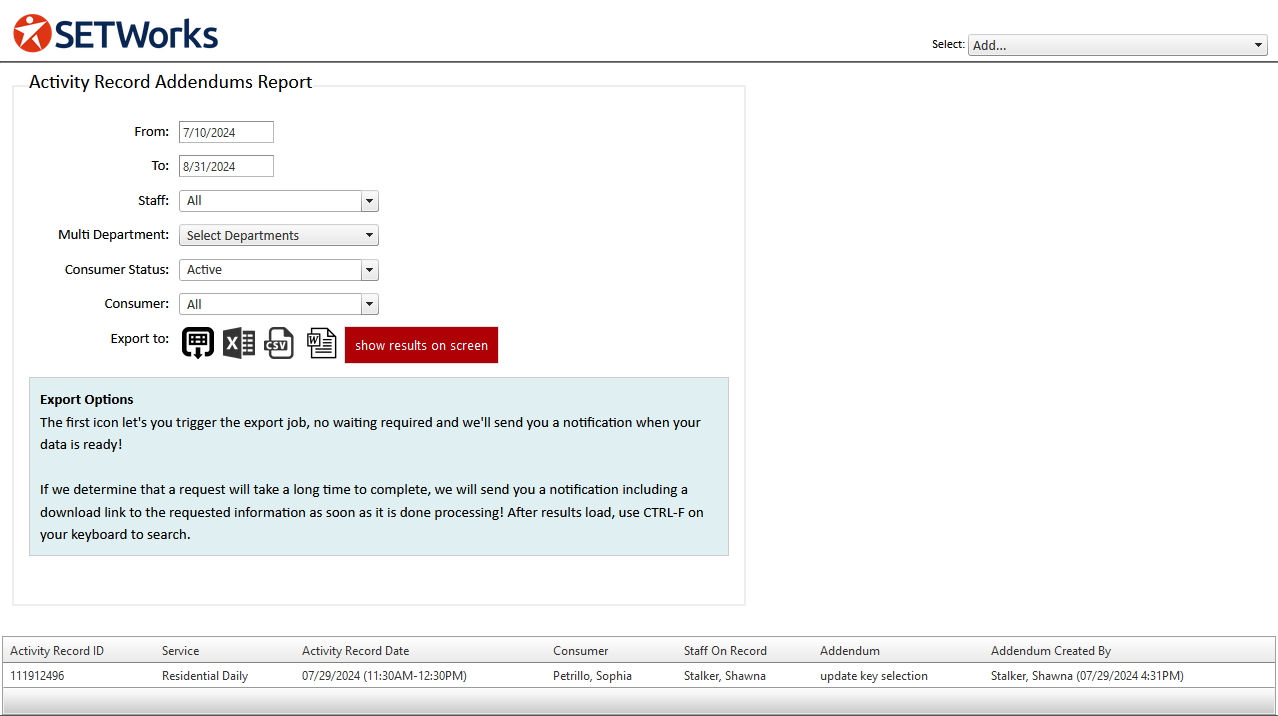
To review Addendums you can enable the Activity Record Addendums Report. You can use the data to review which records require follow up.
Settings > Provider Build > Reports > Configure Report Access