Background
Calculating units correctly is a trickier endavor than it may initially seem, as units can be affected by numerous things:
1. Service billing rule (e.g. 15 min unit)
2. Date (e.g. if the same individual has two records in the same day, both records have to be considered to calculate the correct units for the day for the individual)
There are a few Advanced Report Builder models that can help you get correct units:
- Activity Records model
- Billing model
- Authorization model (this one auto-calculates units in the "Total Units Utilized" column and "Units Utilized Within Date Range" column)
For the authorization model, you can simply select the columns. However, the Activity Records and Billing models will by default output one row per activity record per in and out time per individual. So if a person has two records in the same day, we cannot add a calculated "unit" column to either row, as it will not consider both records. Due to this, we have a Transformation to assist: The Apply Billing Rules Transformation.
Using the Apply Billing Rules Transformation
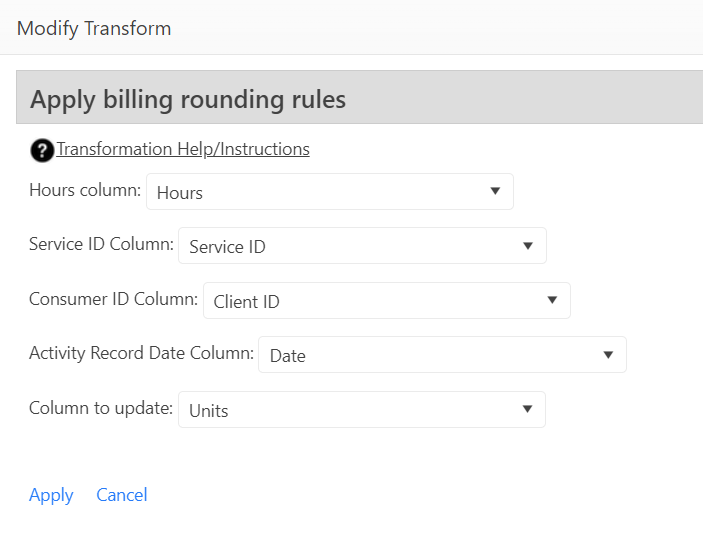
- Start with your preferred model, either the Activity Records model or the Billing model. There are a few columns you will need to ensure the next few steps have access to the correct dataset to calculate the units. You will need these columns:
- An Hours column
- A Service ID column
- A Consumer ID (or Client/Participant ID) column (whatever terminology you use for the people you support)
- An Activity Record Date column
- A new column that will be used for the units. (To add this, click on the hamburger icon next to any column and select "Insert a new Column", type "Units" as the name, and "Number" as the Data Type. Feel free to put a zero in the "Default Value" field.)
- Navigate to the Transform Data tab in the left panel.
- In the transformation dropdown, search for "billing", or navigate to the Expert Transformations section and select "Apply billing rounding rules". Select the corresponding columns for each field, then click Apply.