
What are Daily Required Forms?
Administrators
Daily Required Forms allow a provider to require their staff to fill out forms for consumers each day. When enabled, there is a tab on the home page where staff can see at a glance which consumers have forms they need to complete.
Note: Terminology can be modified within SETWorks to better fit the needs of your organization. If the terminology in our articles are not the same on your site, talk to your local administrator to assist in translation.
Video
Where do I start?
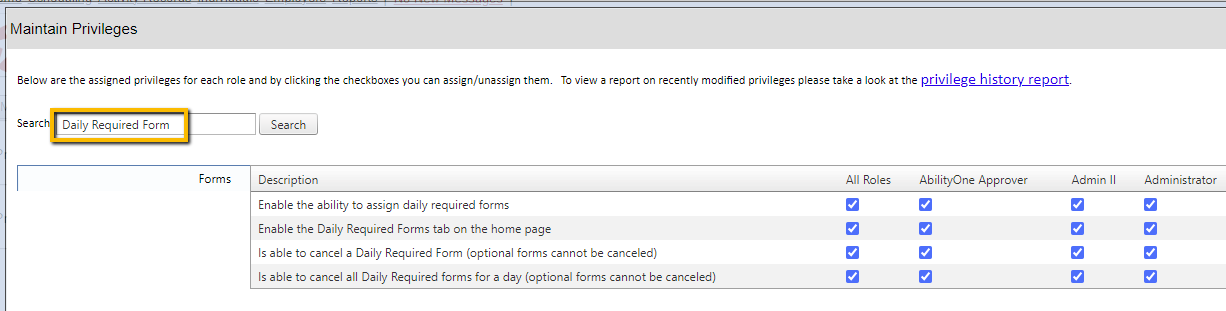
Use the four relevant privileges to manage which roles can view, assign, and cancel Daily Required Forms.
Settings > Provider Build > Maintain Privileges > Forms:
Note: Enable the ability to assign daily required forms.
Allows the user to assign Daily Required Forms in the Form Builder Utility. Note that a Daily Required Form is assigned to consumers in the selected departments, not a specific staff member.
Note: Enable the Daily Required Forms tab on the home page.
Displays a tab on the homepage for the user where they can manage the completion of any Daily Required Forms for their consumers.
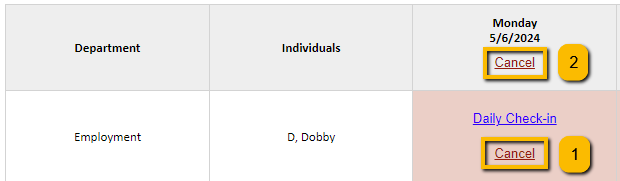
Note: Is able to cancel a Daily Required Form (optional forms cannot be cancelled).
Allows the user to cancel a Daily Required Form for a consumer.
Note: Is able to cancel all Daily Required Forms for a day (optional forms cannot be cancelled).
Allows the user to cancel all Daily Required Forms for one day for all consumers shown in the grid.
Set up a Daily Required Form
Settings > Provider Build > Build Forms
To make a form a Daily Required Form, create or edit a consumer form. Once the entity type of "Consumer" is selected (1), the Daily Required Forms box will appear at the bottom (2):
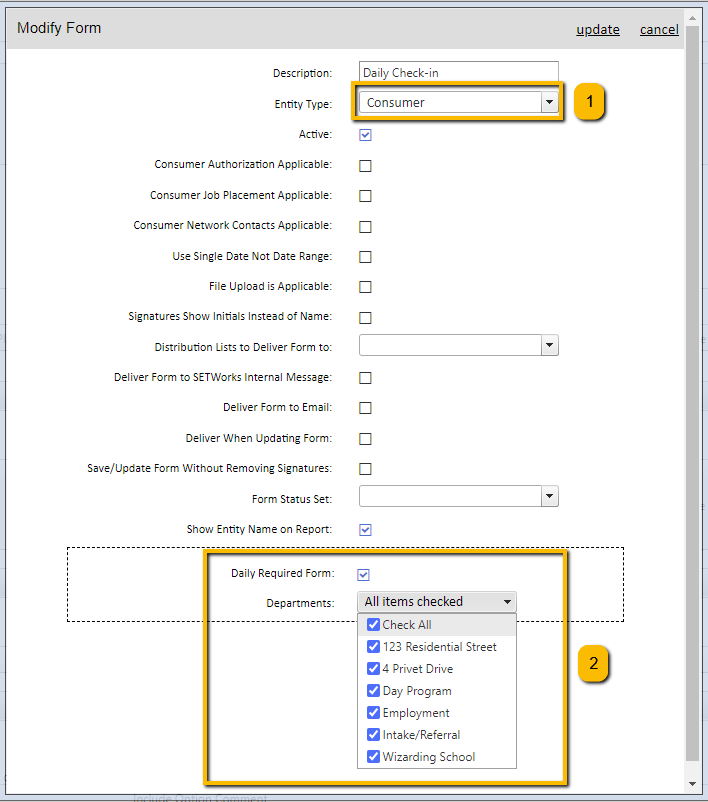
The form will be required for all consumers in the selected departments - for all other consumers, it will be optional.
Where can I see the current status of Daily Required Forms for my consumers?
Once the privilege to show the Daily Required Forms tab is enabled, you can find it here:
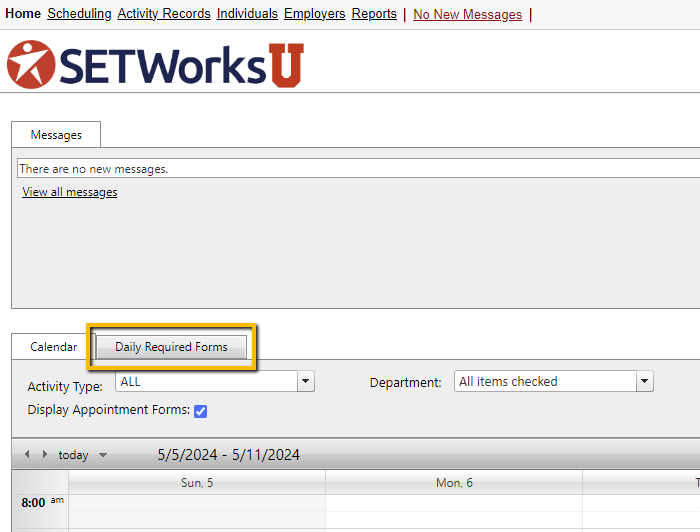
When you click on the Daily Required Forms tab, you will see something like the following. In this example, it is currently Wednesday 5/8/24, and there is a Daily Required Form called "Daily Check-in" assigned to a department that has a number of consumers. The forms are color-coded to show the current status:
Red: Form has not been completed and is late
Yellow: Form has been completed, but not signed
Green: Form has been completed and signed
White: Incomplete but not yet late
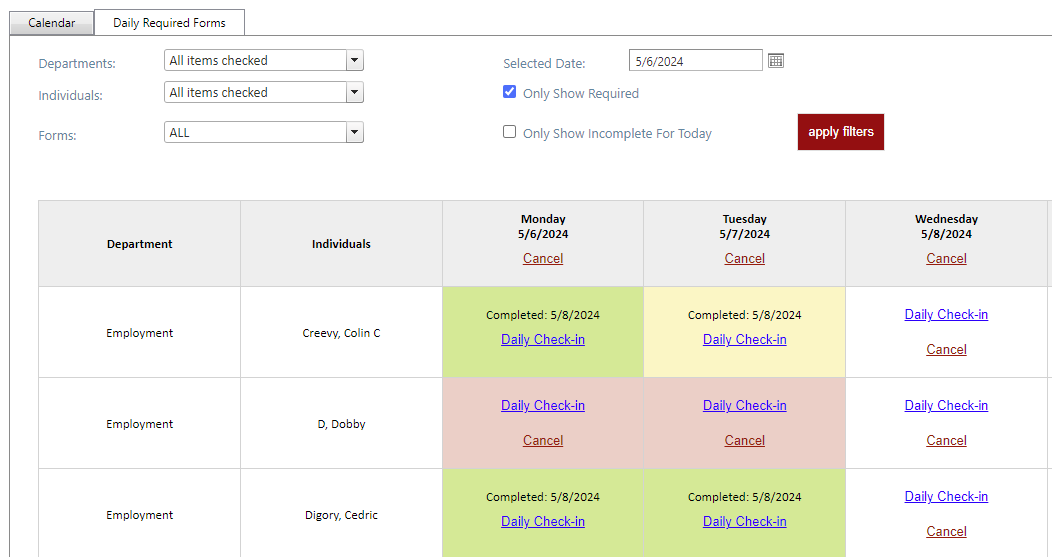
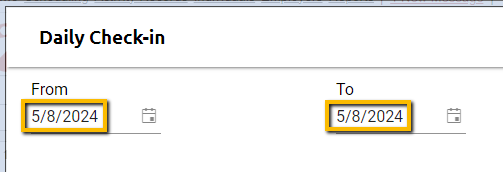
Each one has a link that will open the form with the date(s) pre-set to the date you need to complete the form for. The completed form will only count for Daily Required Forms if the date range is only one day. For example, if you fill out the correct form but for a span of two days, it will not count for either day on Daily Required Forms.
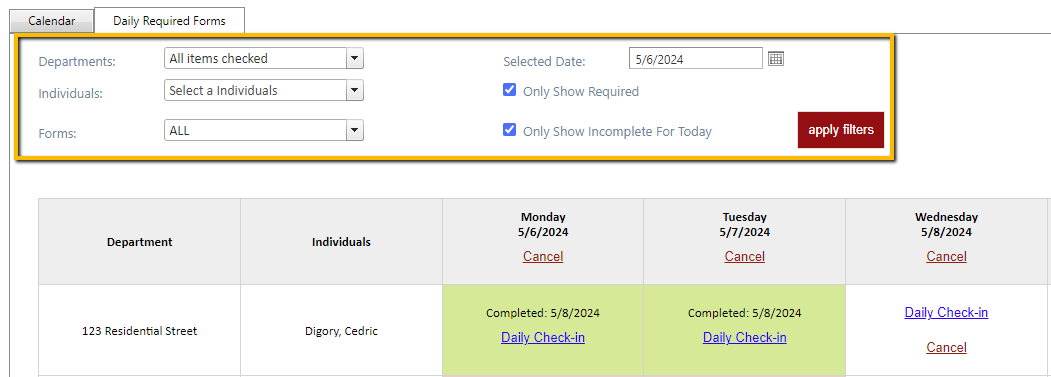
There are filters to adjust your view of Daily Required Forms at the top of the grid:
Departments: Filters by one or more specific departments
Individuals: Filters by one or more specific individuals
Forms: Filters by a specific form. This will only show forms that have been designated as a Daily Required Form.
Selected Date: Whichever date is picked, the grid will show the whole week that includes that date.
Only Show Required: Selected by default - when unchecked, optional forms will appear in the grid as well.
Only Show Incomplete for Today: only shows forms that have not been completed for the current day.
Reports
Form Dates and Daily Required Forms Overview