
In this example, let's say we want to report on how many days have passed since the termination of a job for a client and the current date the report is being run for.
1. Create a new report. Select Placements as the core model. Click save.
2. Select the columns you want: First/Last name of client, Termination Date, Employer Name, Job Title. Rearrange the columns as you'd like.
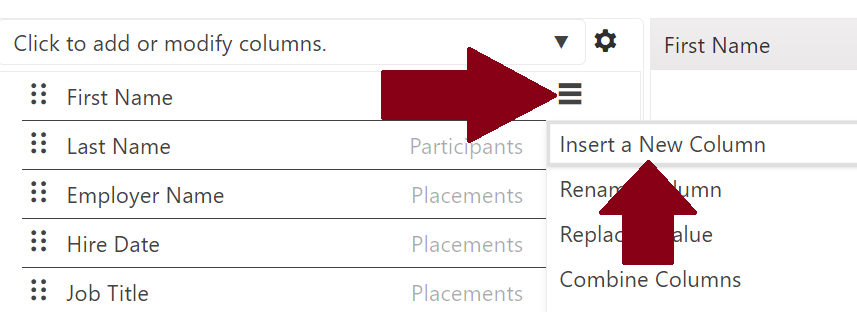
3. Create a new column by clicking on the 3 horizontal lines (hamburger icon) for any column, and click Insert a New Column.
4. Type in a column name, e.g. Dates Since Termination, and since in this new field we want a number (how many days have passed since termination), select Data Type as Number. Click Apply.
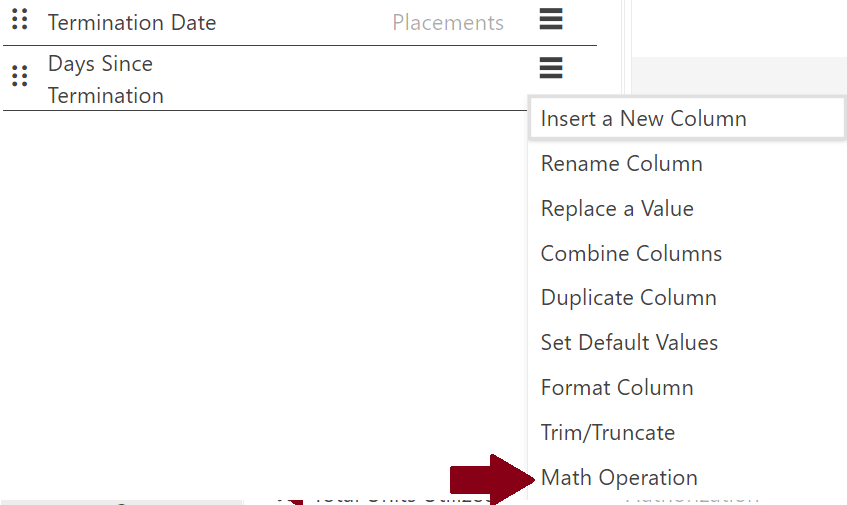
5. Click the hamburger icon for the new column, and click Math Operation.
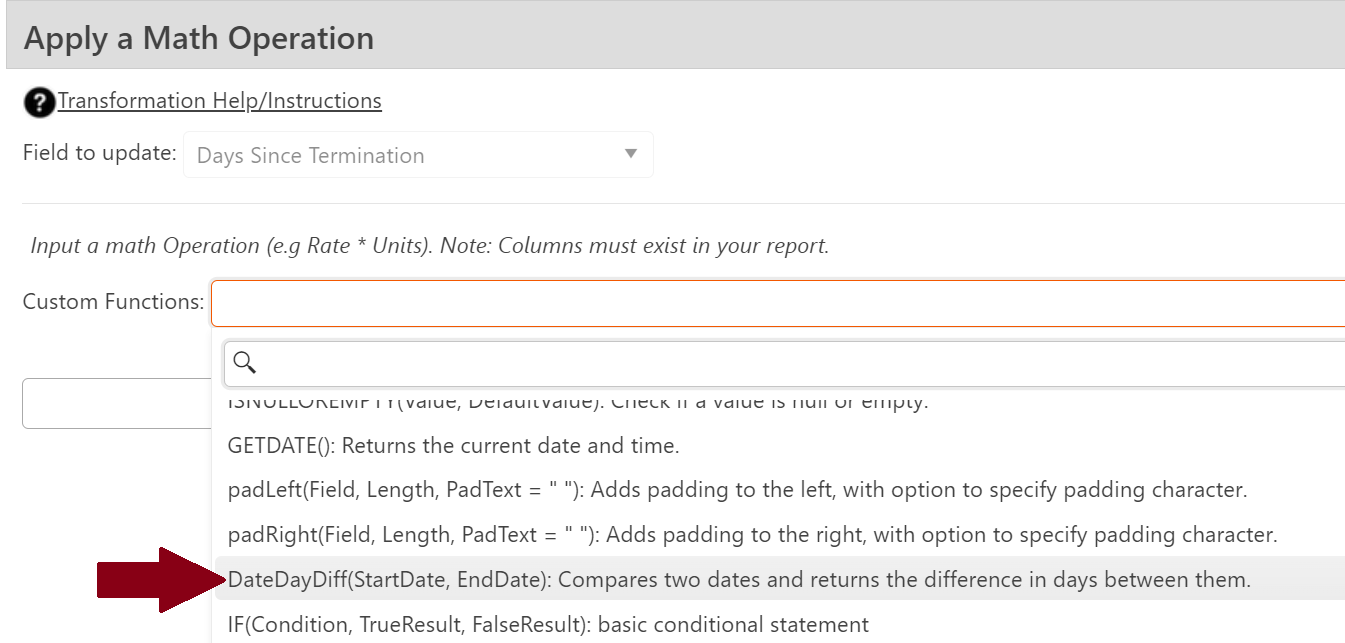
6. Click the Custom Functions dropdown, and select the option DateDayDiff. This works similarly to an Excel function. Ultimately what we are doing is inputting two dates as parameters here, and it will output how many days are between those two dates. So we will want the two dates to be 1) the termination date, and 2) the current date.
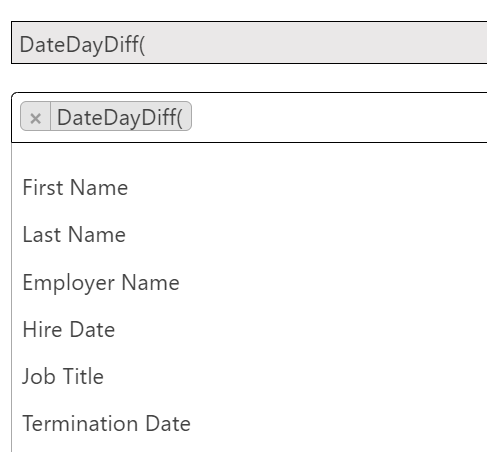
7. Then click to the right of the DateDayDiff box that was added below, and select Termination Date.
8. Then click to the right of the Termination Date box, and select the comma (,).
9. Then click on the custom function dropdown again, and select GETDATE() (this will return the current date).
10. Then click to the right of the GETDATE() box, and select the end parenthesis ")".
11. Click apply. You're done!