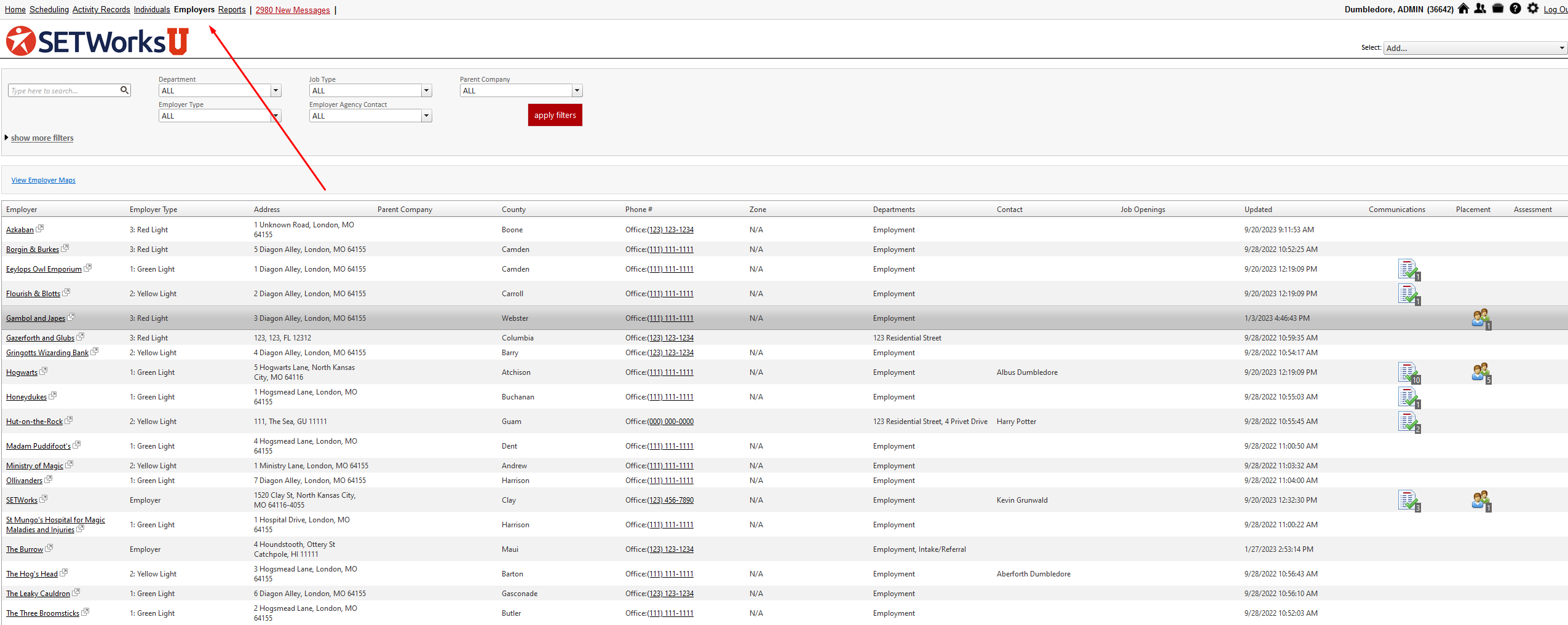
Employers
Overview:
This Support Article will explain how to create an Employer in SETWorks
Note: Terminology can be modified within SETWorks to better fit the needs of your organization. If the terminology in our articles are not the same on your site, talk to your local administrator to assist in translation.
Privileges
Settings > Provider Build > Maintain Privileges
Note: Is able to add New Employers.
Adding a new Employer
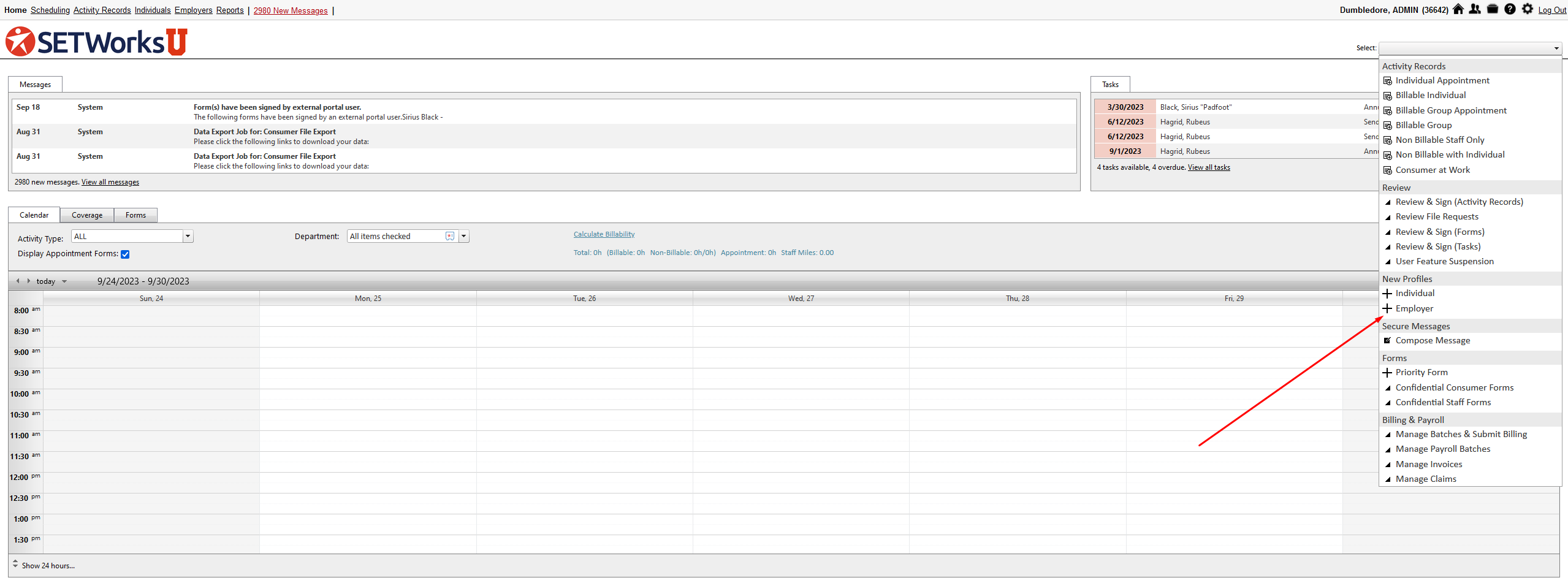
Creating a new Employer can be done by going to the Global Dropdown Menu and selecting the '+Employer' option under the category 'New Profiles'
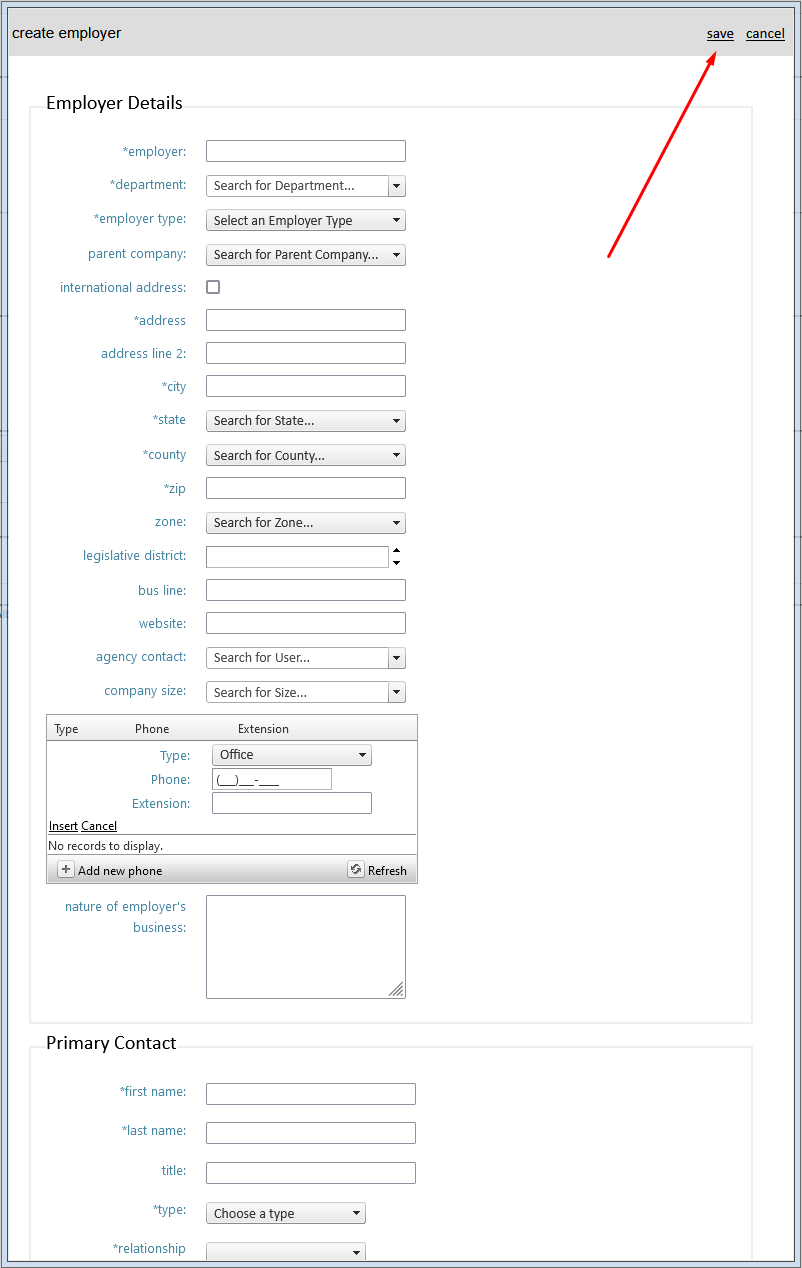
A new window will appear called 'create employer'. Fill out the corresponding information for the Employer Details and Primary Contact.
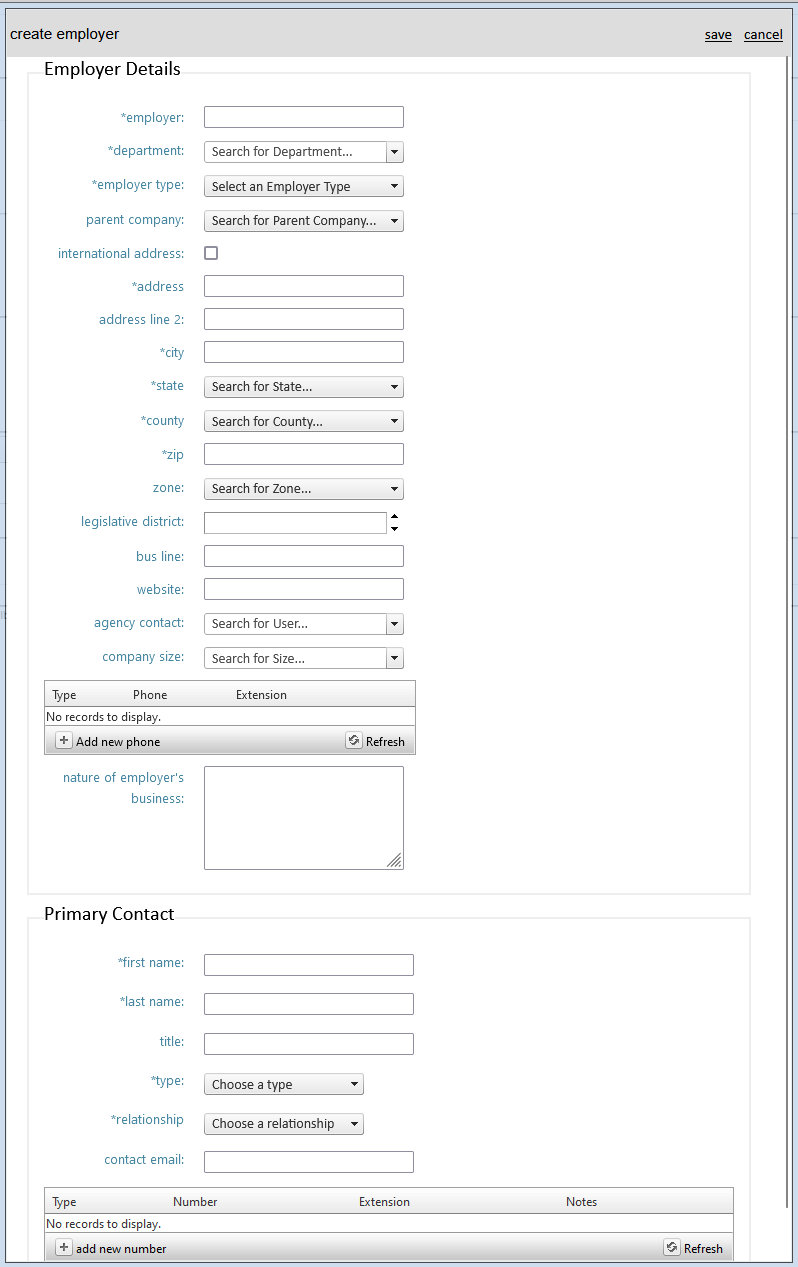
Employer Details:
Note: Dropdown Field options in this section can created or removed from their corresponding Utility in the Provider Build tab
Employer: Name of the Employer
Department: Department associated with the Employer
Employer Type: The type of Employer (Internship, Part-Time, Full-Time, etc)
Parent Company: Select if the Company is Associated with a Parent Company
International Address: Check if the Companies address is International
Address: Address of the Company
City: City of the Company
State: State of the Company
County: County of the Company
Zip: Zip Code of the Company
Zone: Zone of the Company
Legislative District: The Legislative District of the Company
Bus Line: Bus Lines available to the Company
Website: Website of the Company
Agency Contact: The Contact from your Agency
Company Size: Size of the Company (Personnel)
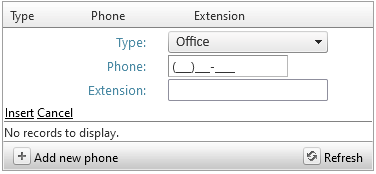
Note: Select 'Add new phone' to add a phone number then select insert to add it to the Employer/Primary Contact
Type: What type of Phone Number
Phone: The corresponding Phone Number
Extension: The Extension if there is one
Nature of Employer's Business: Description of what the Employer does
Primary Contact:
Note: Dropdown Field options in this section can created or removed from their corresponding Utility in the Provider Build tab
First Name: First Name of the Primary Contact
Last Name: Last Name of the Primary Contact
Title: Title of the Primary Contact
Type: What type of Primary Contact (Board Member, Hired/Worked with Previously, Relationship with our Agency)
Relationship: What is the Relationship of the Primary Contact (Business Owner, Administrator)
Contact Email: Email of the Primary Contact
Note: Select 'Add new phone' to add a phone number then select insert to add it to the Employer/Primary Contact
Type: What type of Phone Number
Phone: The corresponding Phone Number
Extension: The Extension if there is one
Notes: Notes for the Primary Contact
After you have finished filling out the information select the 'Save' button on the top right
You will now be to find your Employer you created in the Employer Index