Medications
Overview:
This Support Article will explain differences between Scheduled/PRN, Administering Medications, and how to add Medications.
Note: Terminology can be modified within SETWorks to better fit the needs of your organization. If the terminology in our articles are not the same on your site, talk to your local administrator to assist in translation.
Privileges:
Settings > Provider Build > Maintain Privileges:
Note: Enable the Health - Meds tab.
Note: Is able to Verify & Sign medications. Also displays the Last Verified column within the Update/Schedule Medications window.
Medications Overview:
The Health - Meds tab can be located in the Consumer Profile.
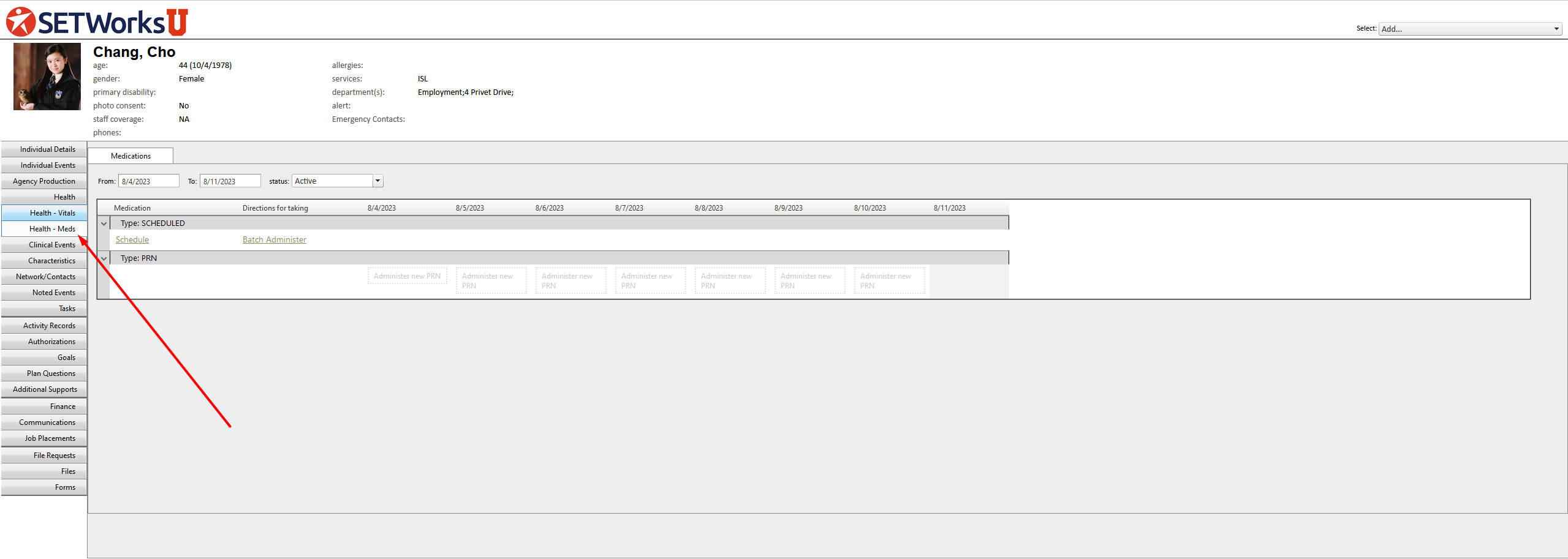
When in the Health - Meds section you will see a weekly calendar view of Medication for the Consumer.
Scheduled: A normal prescribed Prescription that needs to be taken at certain date or time.
PRN: These are Medication that are taken as needed.
From/To: This will change the date of the weekly of Medications
Status: This will show Active, Inactive, or ALL Medications for the Consumer.
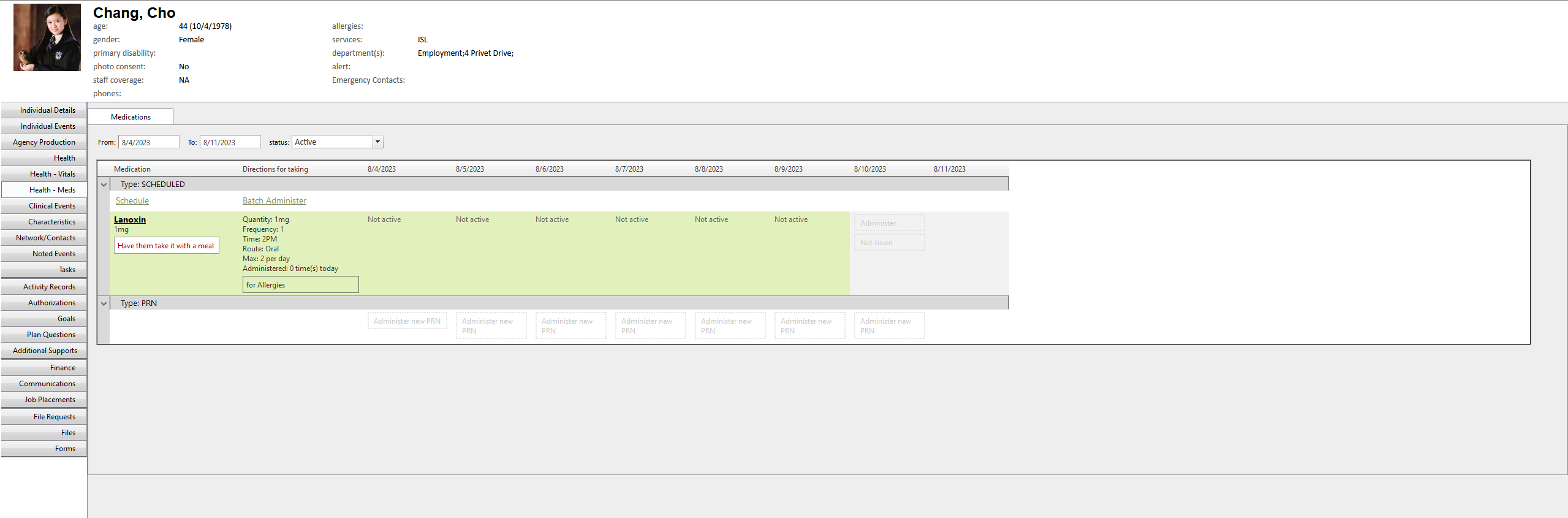
Adding a Medication:
Adding a Medication can be done by selecting the "Scheduled" button.
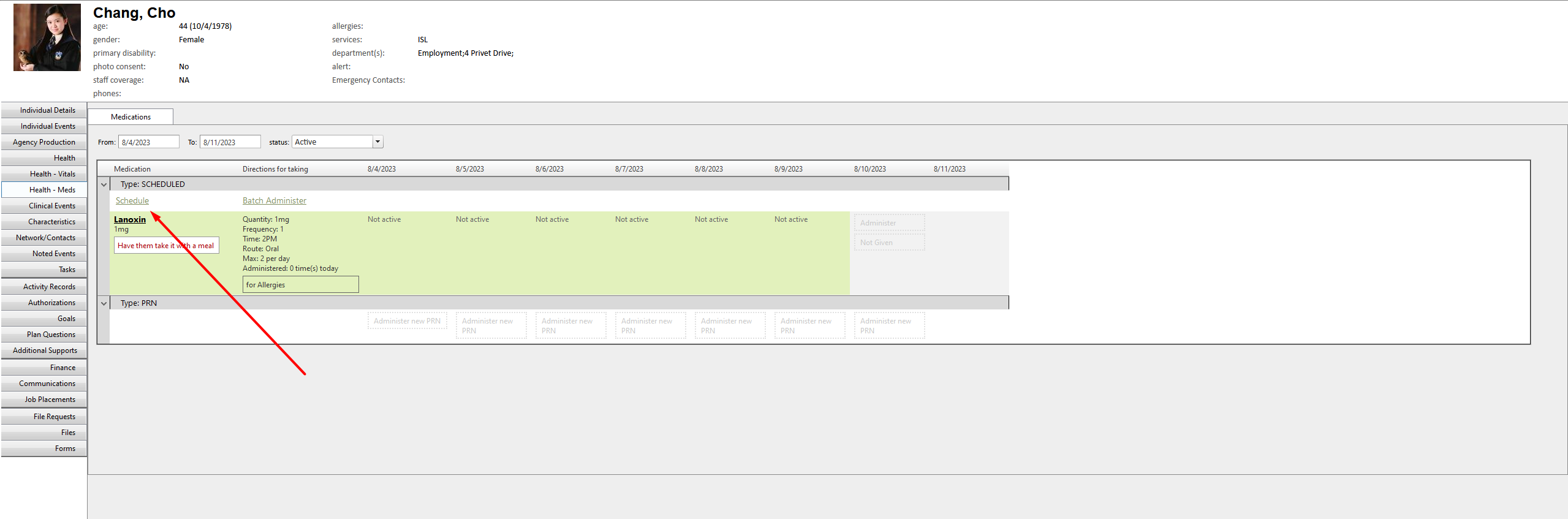
Select the "Add Medication" button

Enter in the information in the Fields.
Note: Fields with asterisks (*) or required
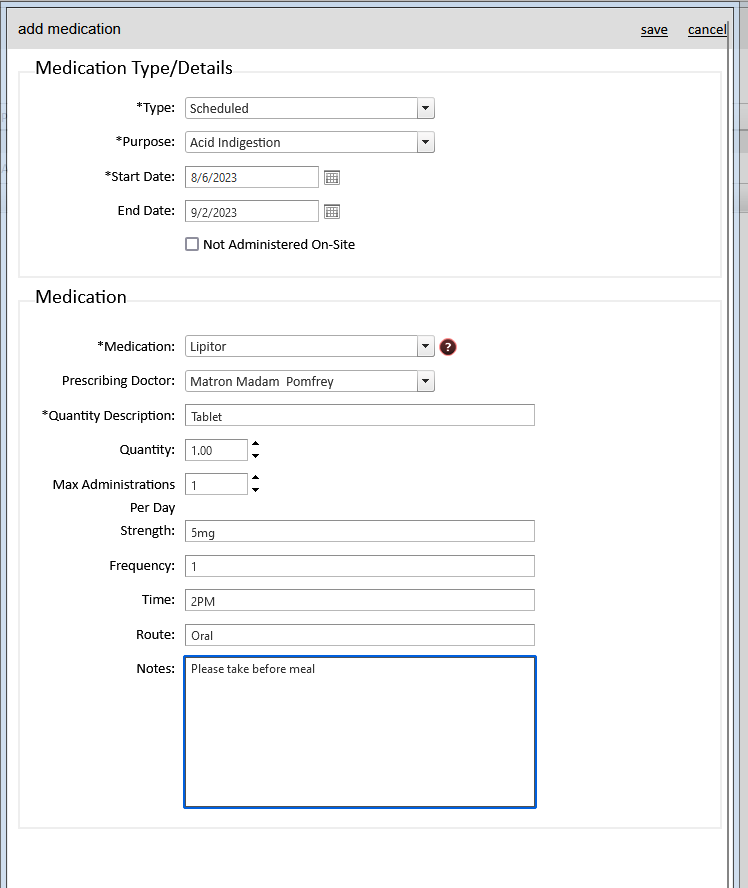
Type: Scheduled or PRN.
Purpose: Select what the Medication is for.
Note: If you are not finding a Purpose in the list please read the Medication Purpose Utility
Support ArticleStart Date: The date to start administering the Medication.
End Date: The date to end administering the Medication.
Not Administered On-Site: Check this is the Medication was administered somewhere else.
Medication: Select the Medication in the drop down list.
Note: If you are not finding the Medication in the list please read the Medications Utility Support Article
Quantity Description: Enter in the description of the quantity, for example, Tablets, Drops, or Strips
Quantity: How much of the Medication
Max Administrations: How many times can this Medication be administered
Strength: Concentration of its active ingredient
Frequency: The frequency of the Medication
Time: What time the Medication should be taken
Route: Where the medication should be taken, for example, Topical, Ears, or Mouth
Notes: Any extra information about the Medication
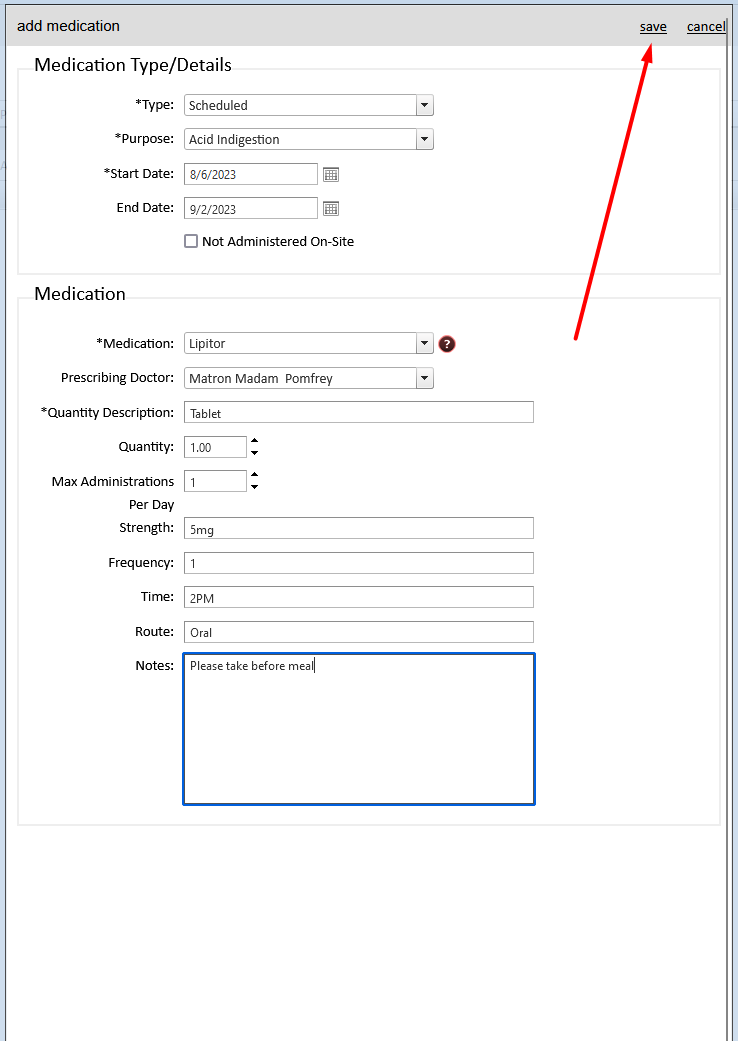
Select "Save" to add the Medication for the Consumer
Adjusting Inventory:
You can adjust the Inventory of Medications by selecting the "Arrow" next to the Medication

Select the "Adjust Inventory" button

Enter in information in the Fields
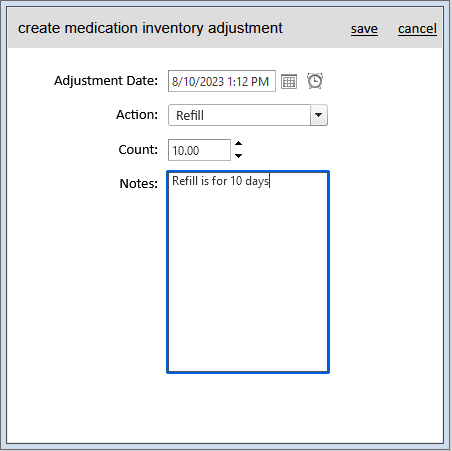
Adjustment Date: Date and Time the inventory of the Medication was adjusted.
Action: Refill or Manuel Adjustment.
Count: How many were added.
Notes: Any extra information about the Adjustment.
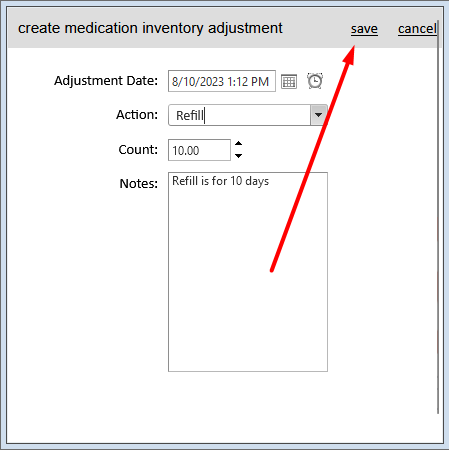
Select "Save" to add the Inventory Adjustment
Activating/Deactivating a Medication:
Note: Medications should only be deactivated/reactivated in the case of error.
Deactivating a Medication can be by Selecting the "Scheduled"
Select the Deactivate button

Enter your PIN to deactivate the Medication
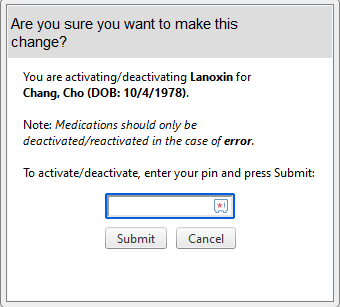
To Activate a Medication select "Inactive" from the Status drop down.

Select the "Activate" button

Enter PIN to Activate the Medication
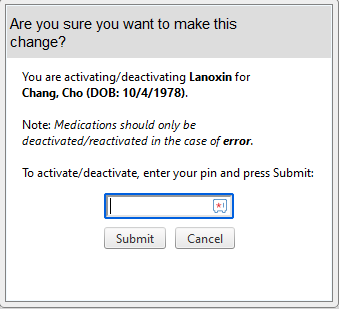
Verify and Sign Medications:
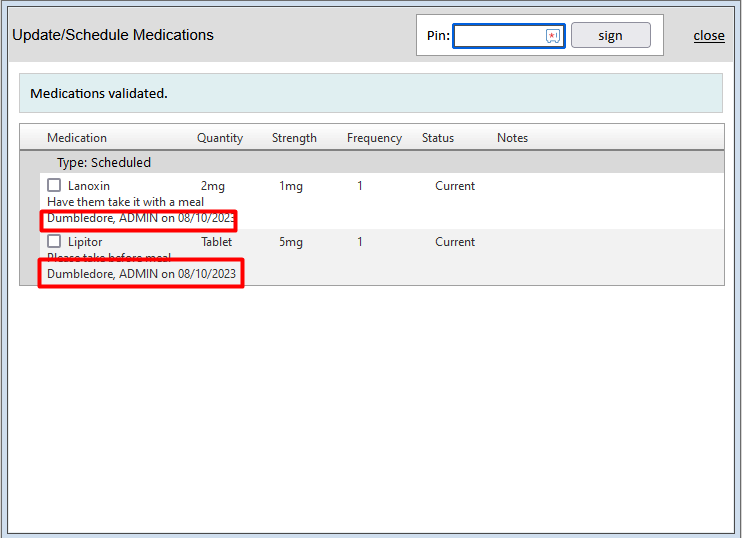
Users can Verify and Sign off on Medications by selecting the "Scheduled" button.
Select the "Verify & Sign" button

Select the checkboxes for the Medications you would like to Verify and Sign off on.
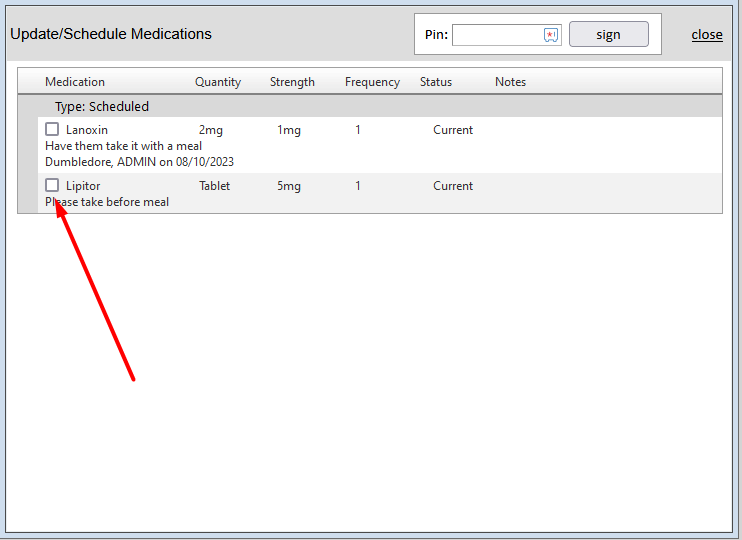
Then enter your PIN and select sign.
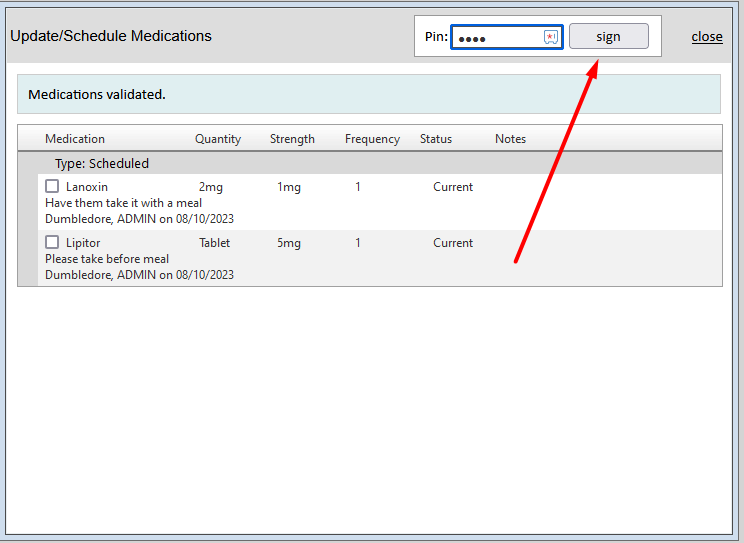
You will see the Name, Date, and Time that the Medication was Signed. You will also see it under the column "Last Verified"

How to Administer Medication:
Note: If you are Administering a controlled substance please follow the Controlled Substance Support Article
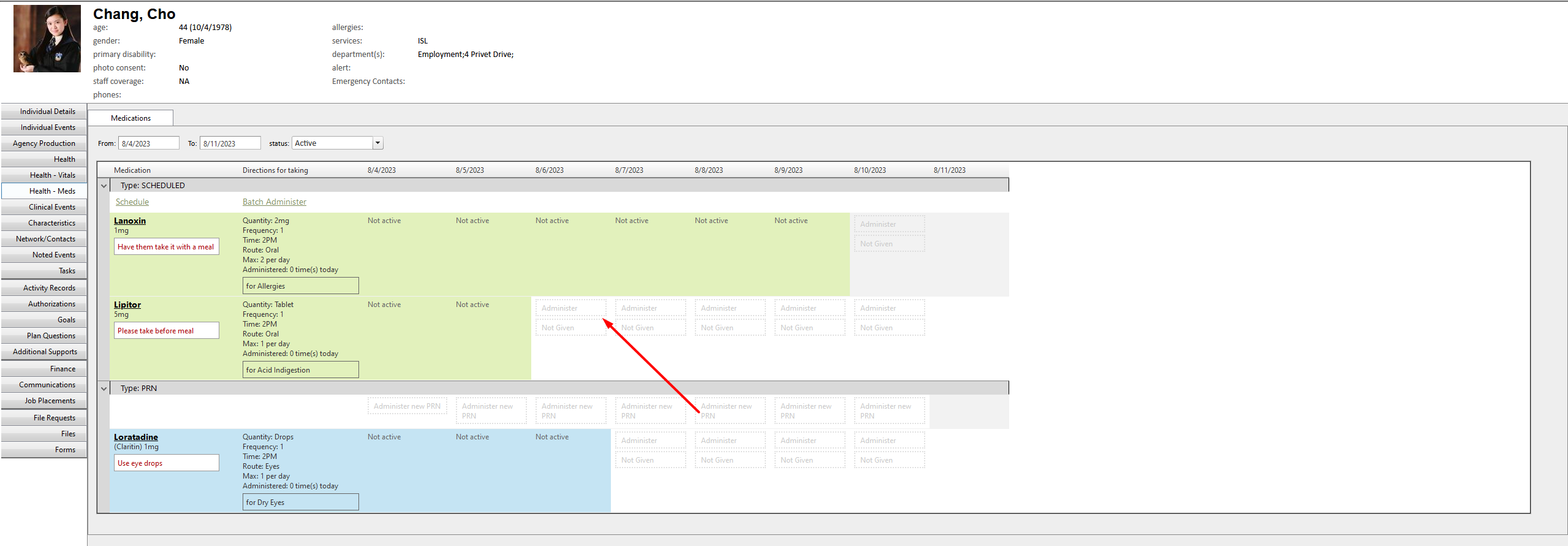
You can Administer Medications by selecting the "Administer" button on the Calendar.
Enter in information in the Fields
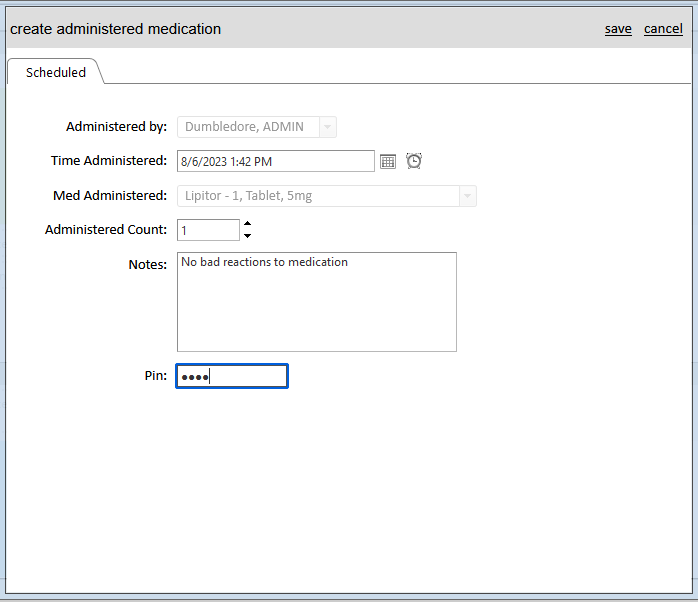
Administered by: Is the User that is Administering the Medication
Time Administered: Is the date and time the Medication was given
Med Administered: Is the Medication that was given
Administered Count: How much of the Medication was given
Notes: Any extra information about the Medication being Administered
PIN: The Users PIN to verify it is them.
Select the "Save" button
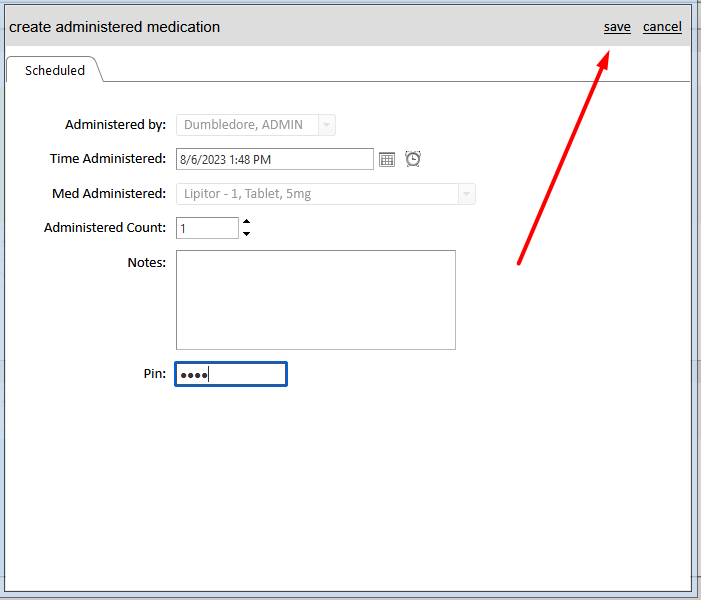
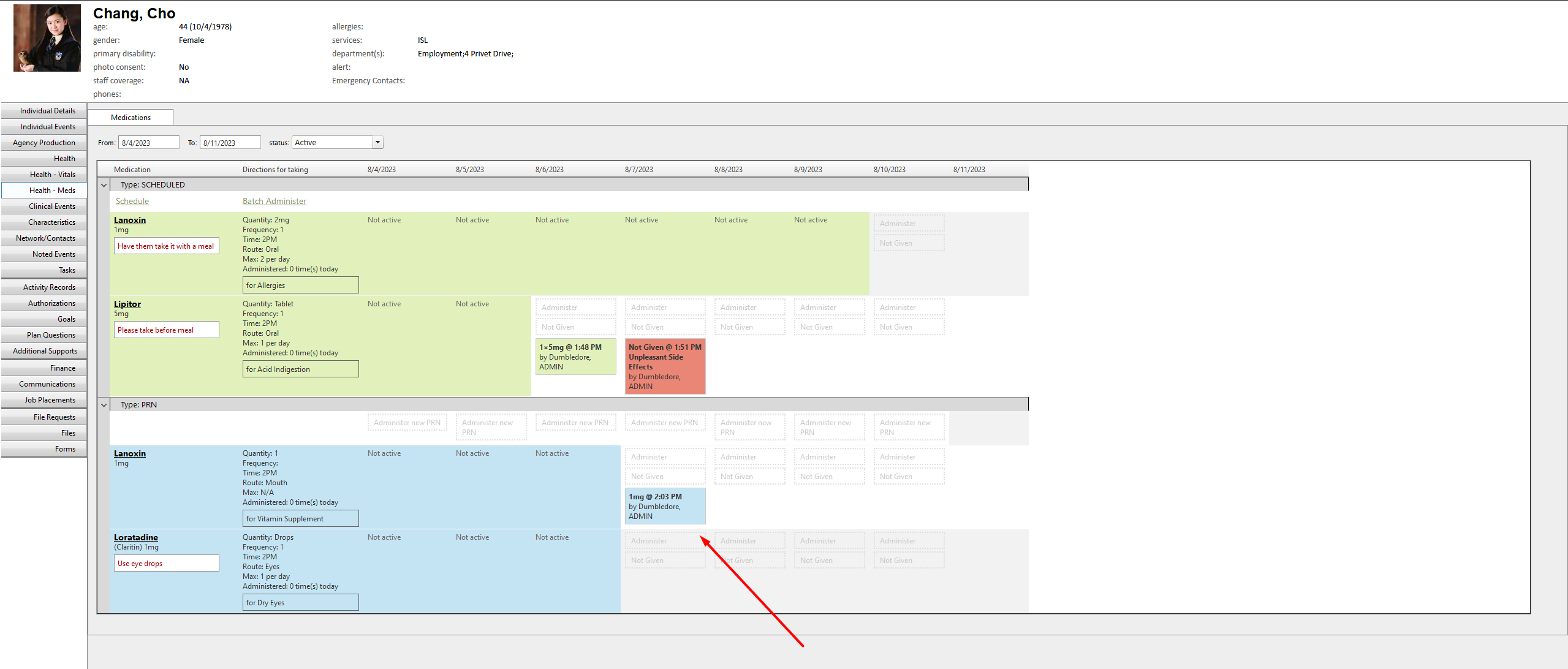
You will now see the information added to the Medication Calendar.
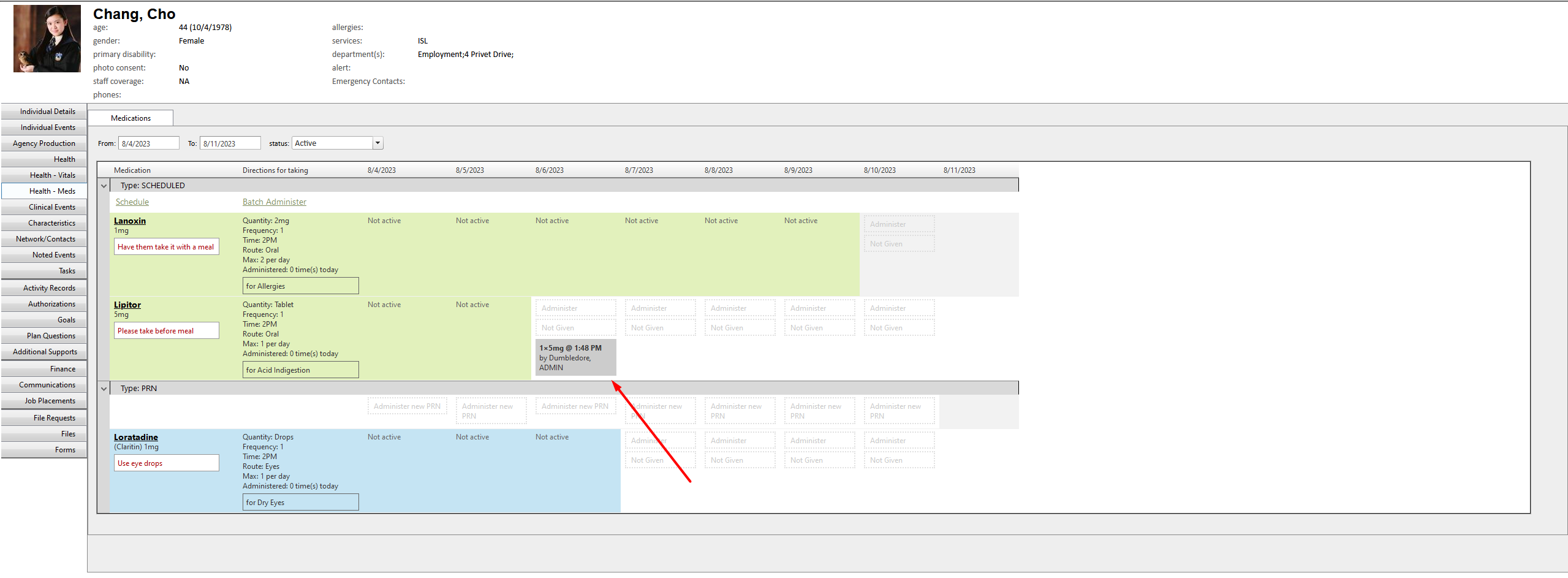
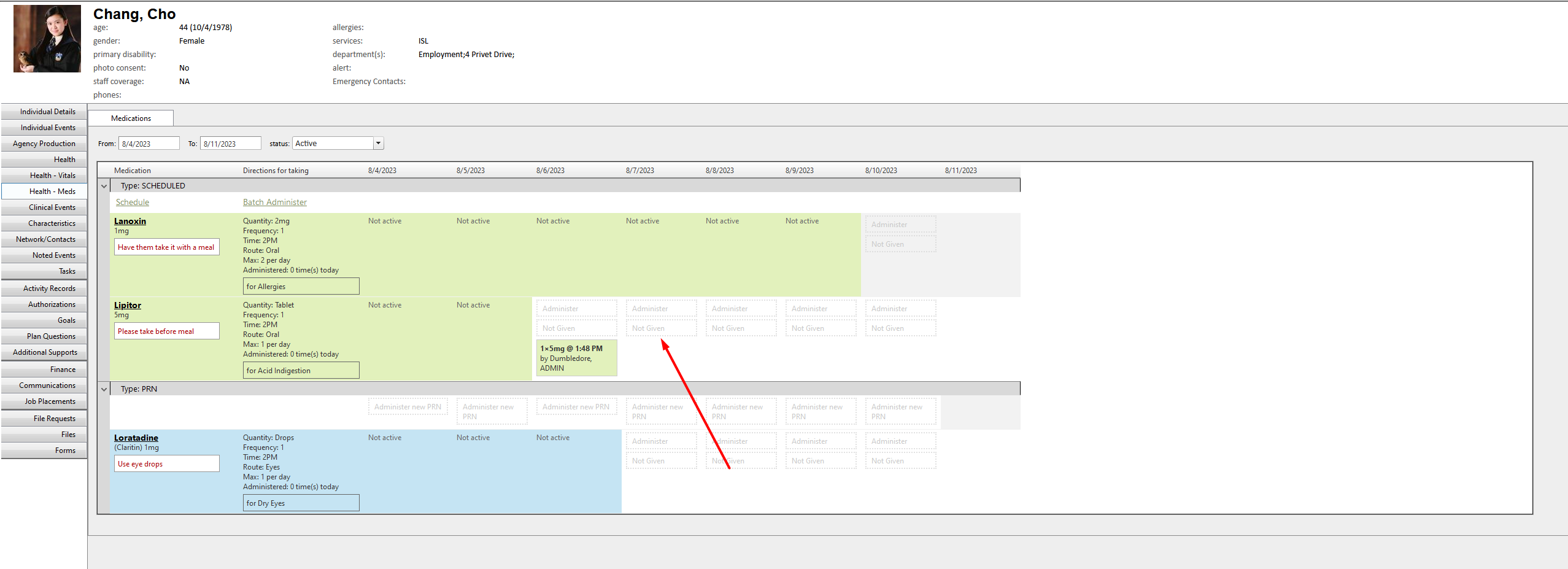
If a Medication was not given that day you can select the "Not Given" button
Enter in information in the Fields
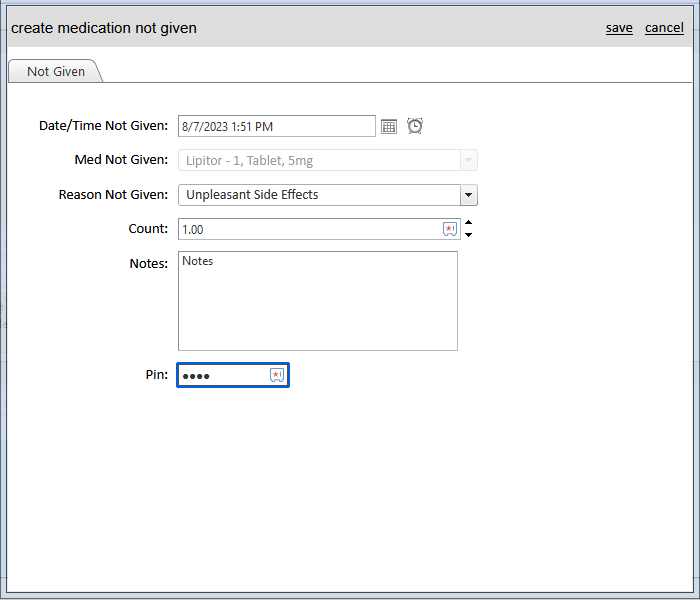
Time Administered: Is the date and time the Medication was given
Med Not Given: Is the Medication that was not given
Note: If you are not finding a Reason in the list please read the Medication Not Given Reason
Support ArticleAdministered Count: How much of the Medication was not given
Notes: Any extra information about the Medication not being Administered
PIN: The Users PIN to verify it is them.
Select the "Save" Button
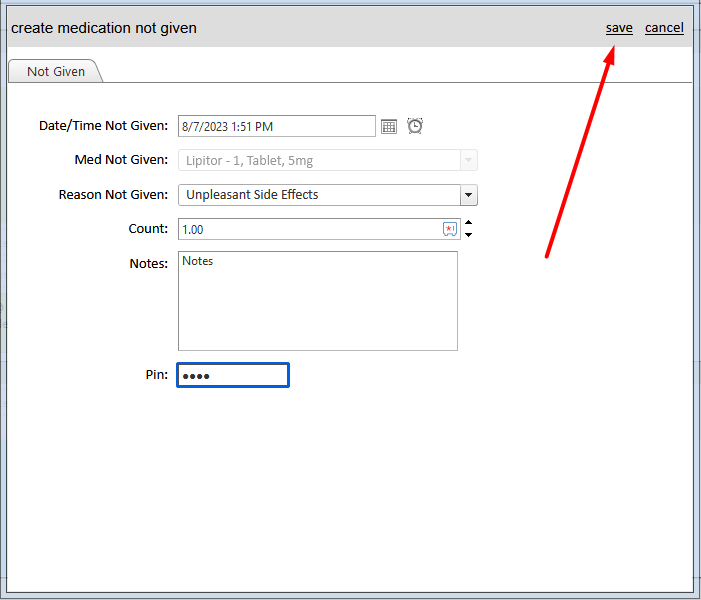
You will now see the information added to the Medication Calendar.
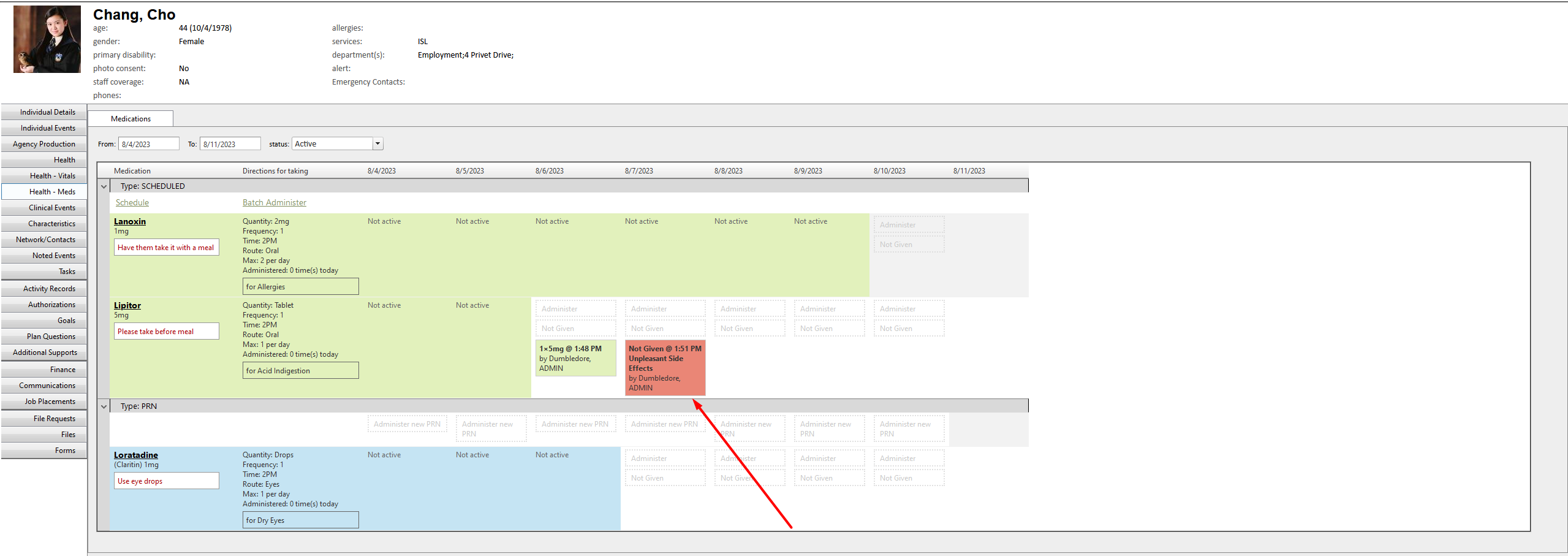
Batch Administration:
You can Administer more than one Medication using the "Batch Administer" button
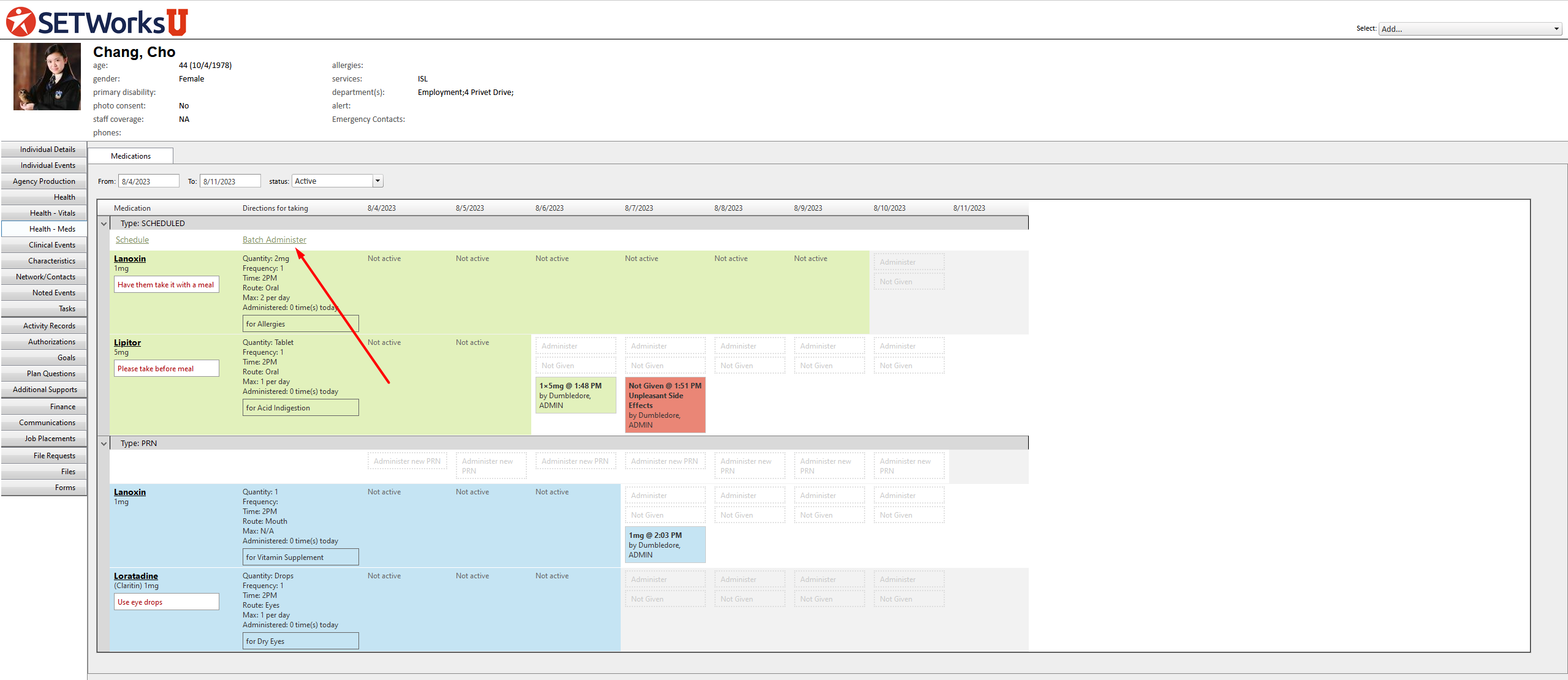
Select the Medications you would like to Batch Administer or Select "Add New" to add a new one to the list
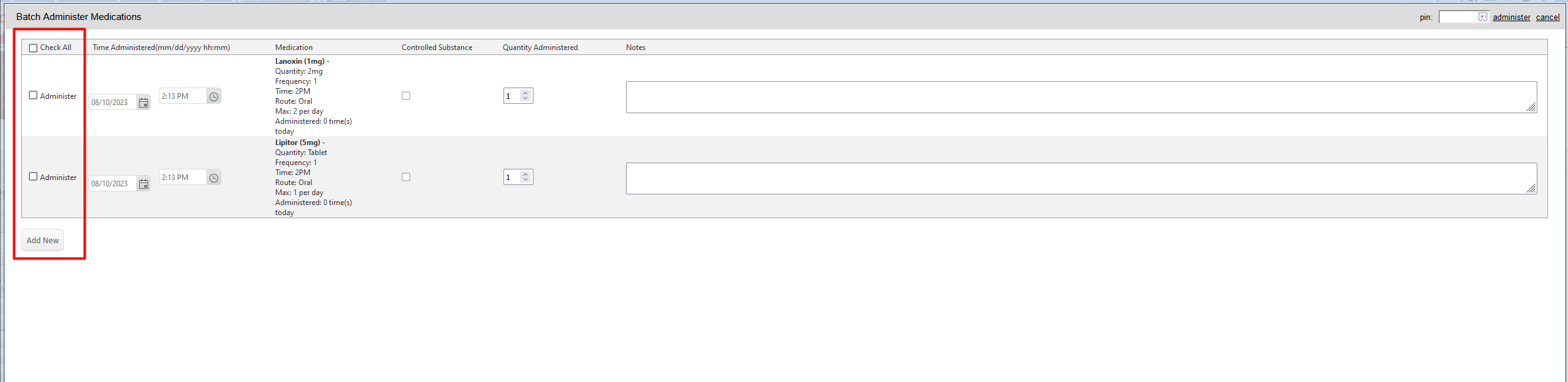
Enter in the Date and Time, if it is a controlled substance, the quantity, and any additional notes. Then enter your PIN and select the "Administer" button
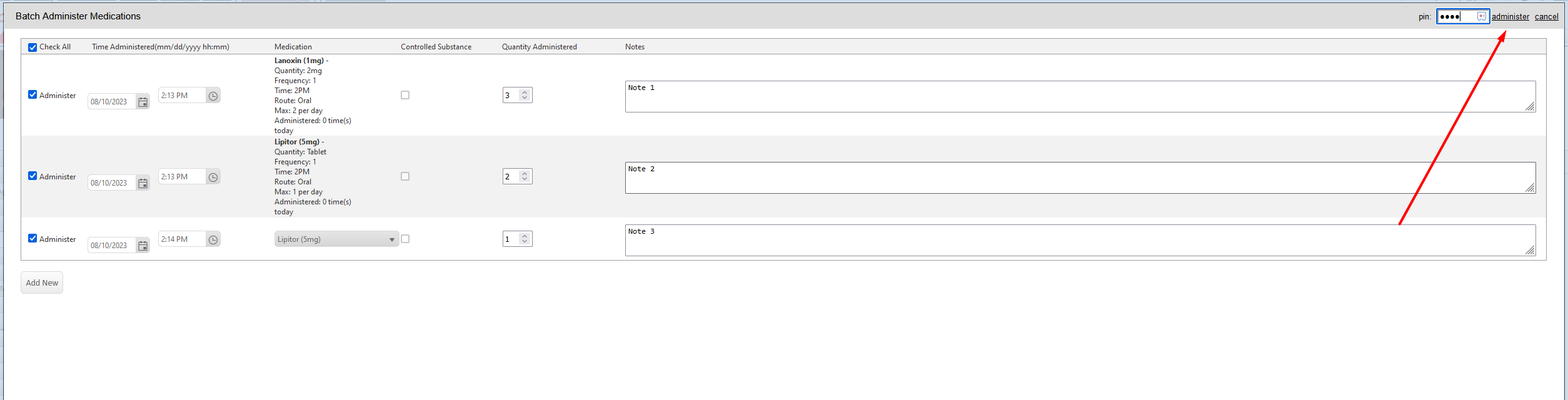
You will now see the information added to the Medication Calendar.
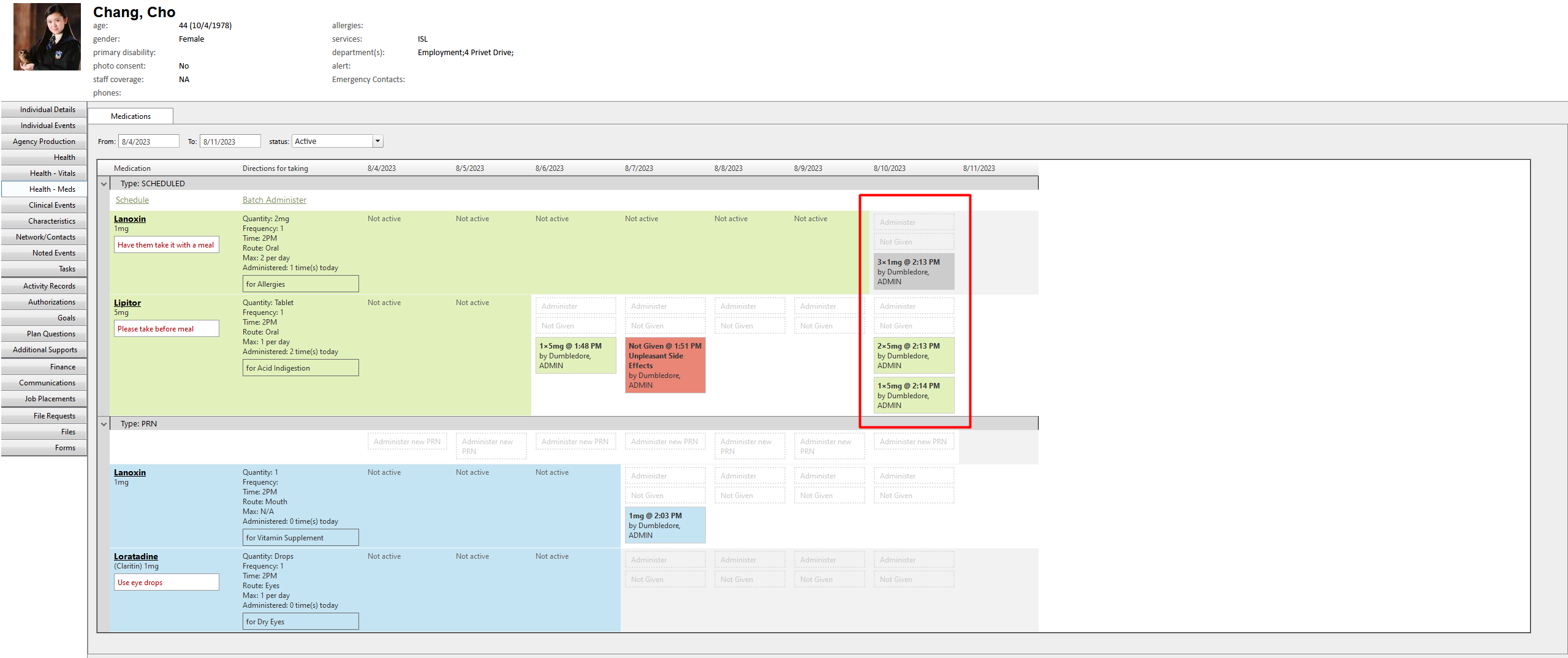
How to quickly Administer a PRN Medication:
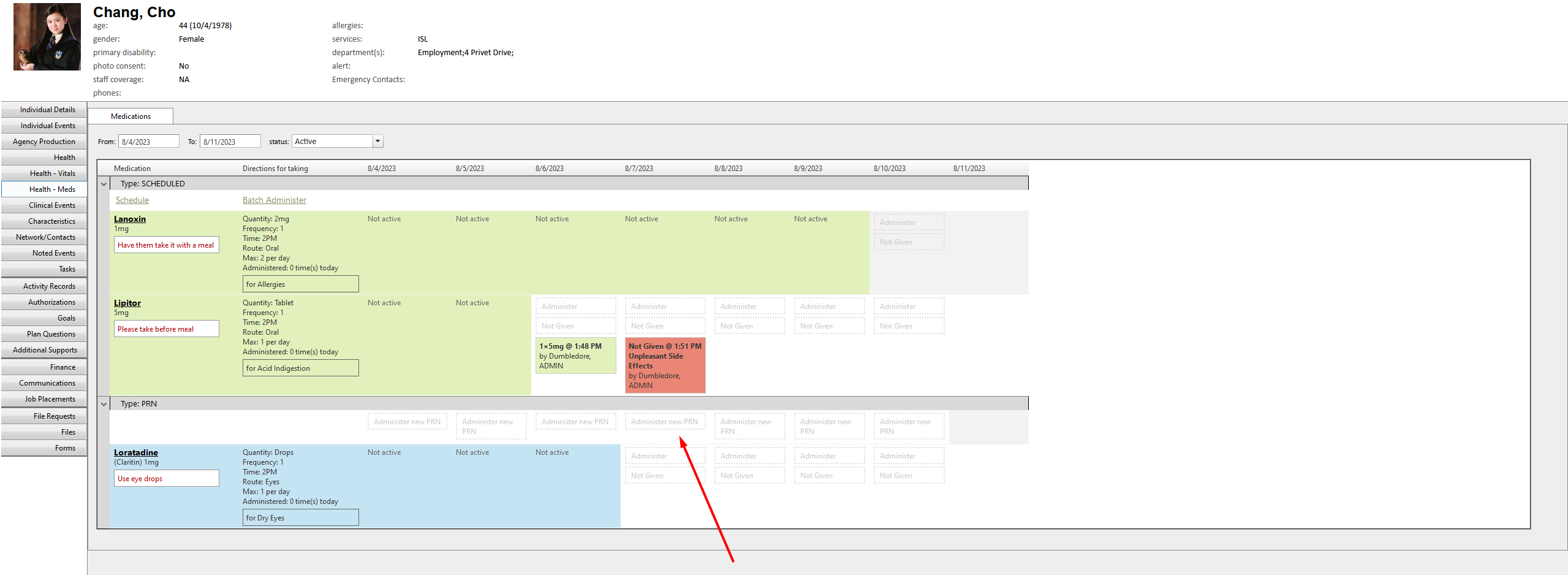
Select "Administer new PRN"
Enter in information in the Fields
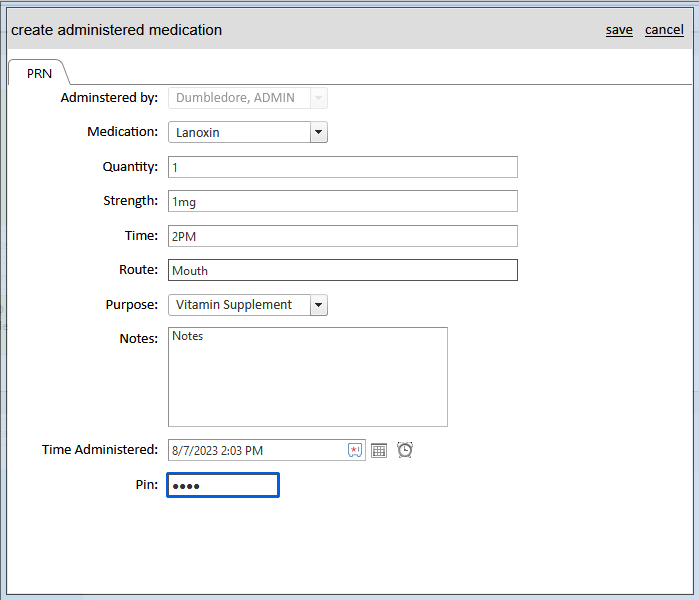
Administered by: Is the User that is Administering the Medication
Medication: Is the Medication that was given
Quantity: How much of the Medication
Strength: Concentration of its active ingredient
Time: What time the Medication should be taken
Route: Where the medication should be taken, for example, Topical, Ears, or Mouth
Purpose: Select what the Medication is for.
Note: If you are not finding a Purpose in the list please read the Medication Purpose Utility
Support ArticleTime Administered: Is the date and time the Medication was given
Notes: Any extra information about the Medication being Administered
PIN: The Users PIN to verify it is them.
Select the "Save" button
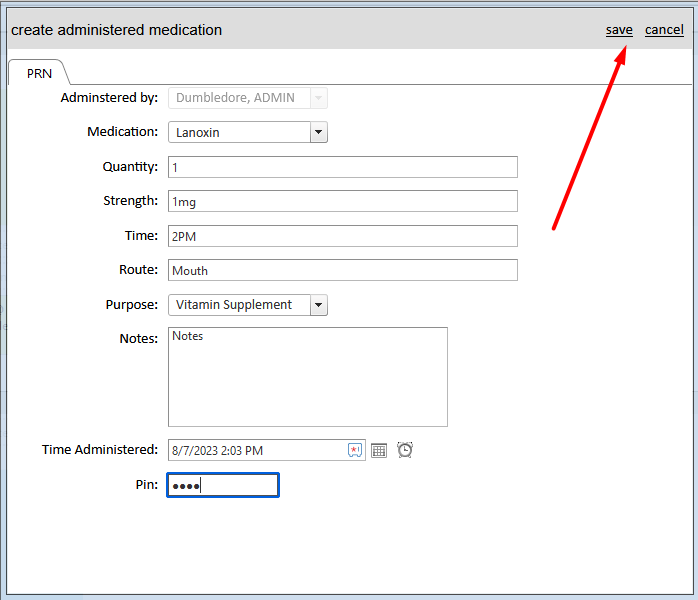
You will now see the information added to the Medication Calendar.