
How do I create a custom form report?
SETWorks forms can be used to replicate any Word or Excel form. This article will review how to create a custom form report for a Microsoft Excel Document.
Privileges
Settings > Provider Build > Maintain Privileges:
Note: Enable Custom Report Builder for Forms.
Requirements
Note: The ability to modify & save the Word/Excel document.
Create the form within the SETWorks Form Builder Utility.
Create the form within the SETWorks Form Builder Utility. For more information creating forms within SETWorks review the three part support series we did on building forms here.
Map the SETWorks Form and the Excel Document.
- Within the SETWorks Form Builder Utility open the applicable form.
- Click on Manage Custom Report.
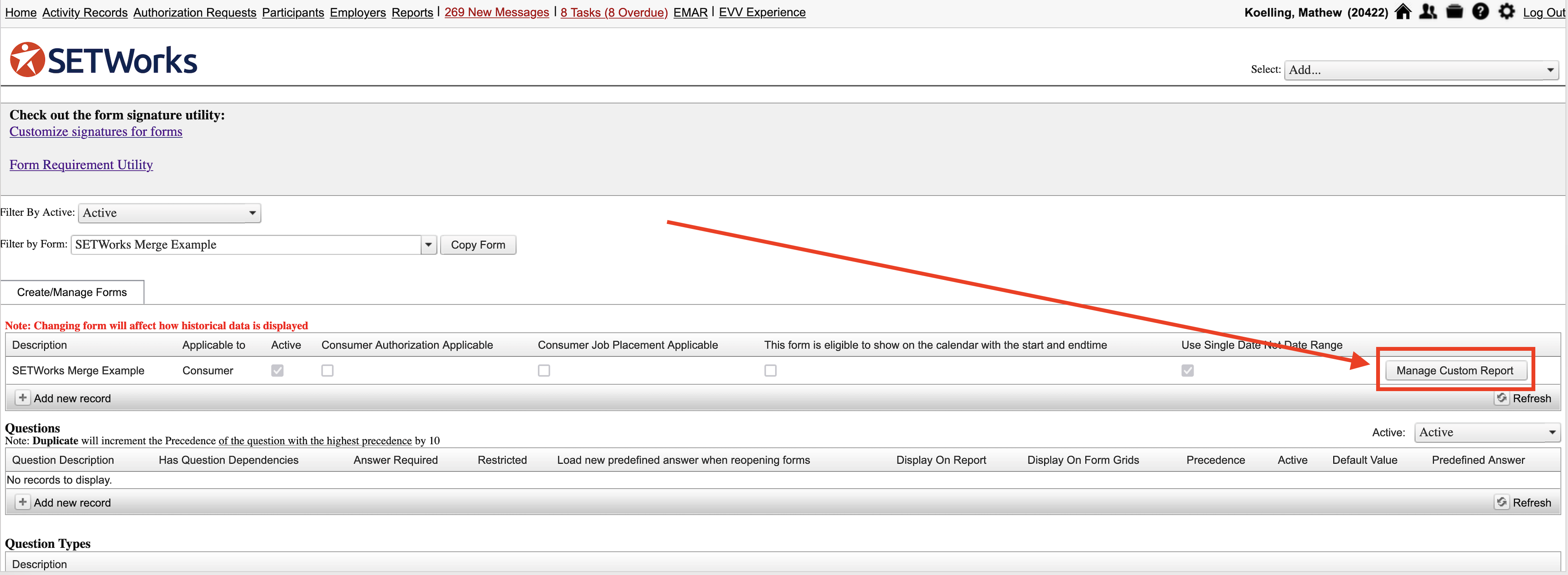
- Click Upload
- Search for and open the Excel document you wish to use.
- Within each drop-down in the left column select the appropriate SETWorks Field and then input the corresponding Excel Cell (e.g. A14) where the response should appear.
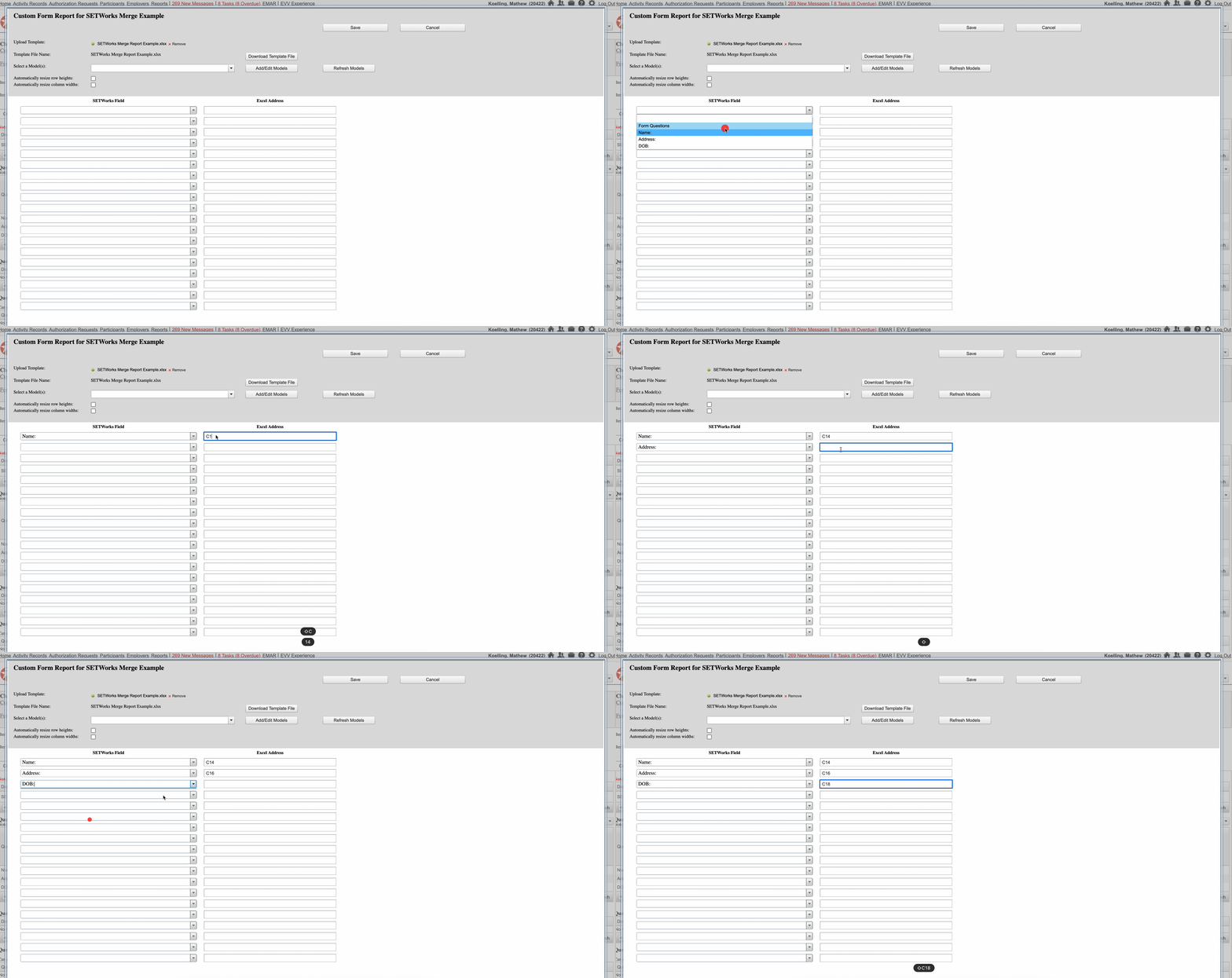
- Click Save.
Document & View Report
- Navigate to the consumer's profile and document on the form.
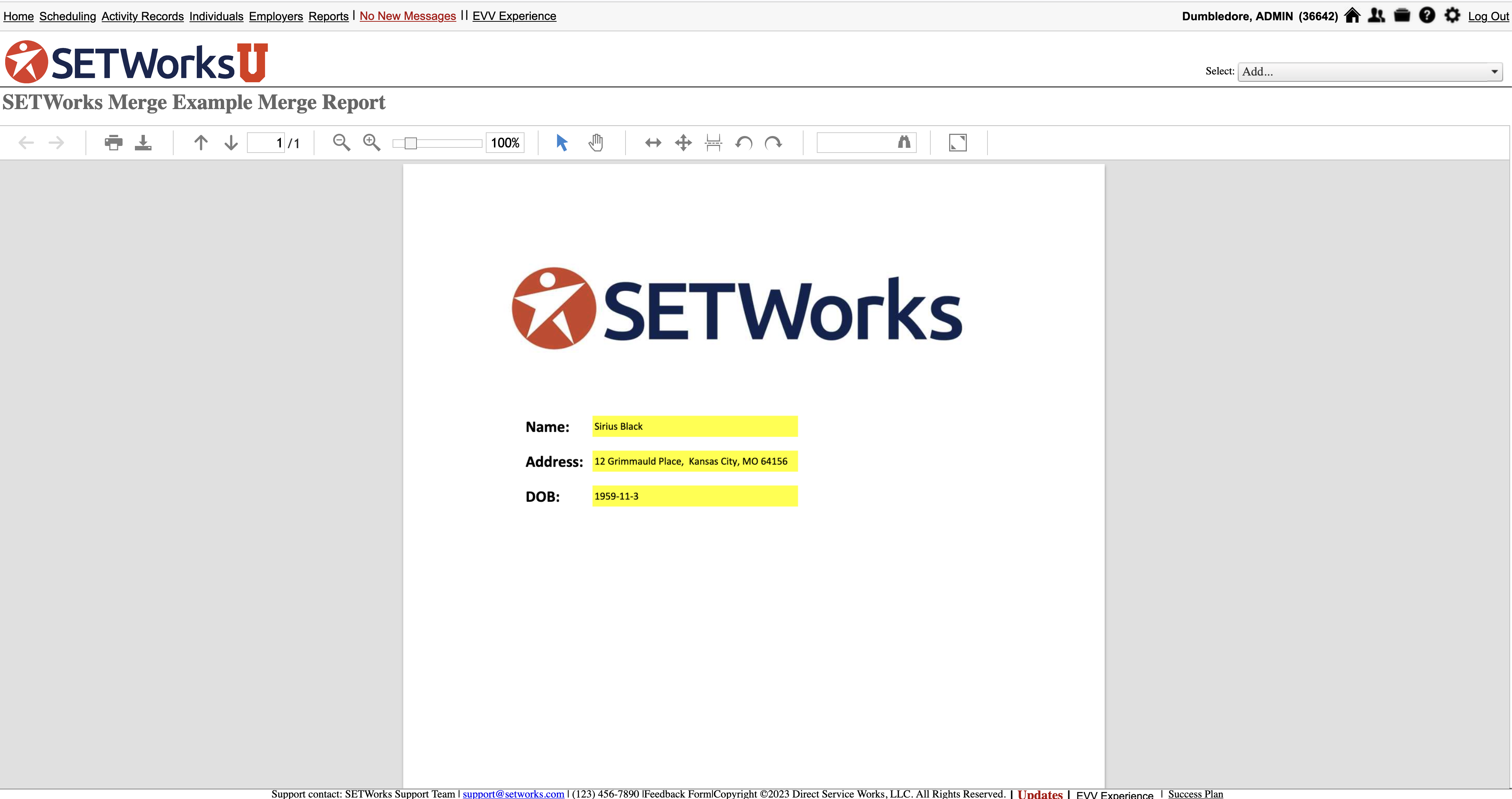
- Click View Report to view the finished Excel version.
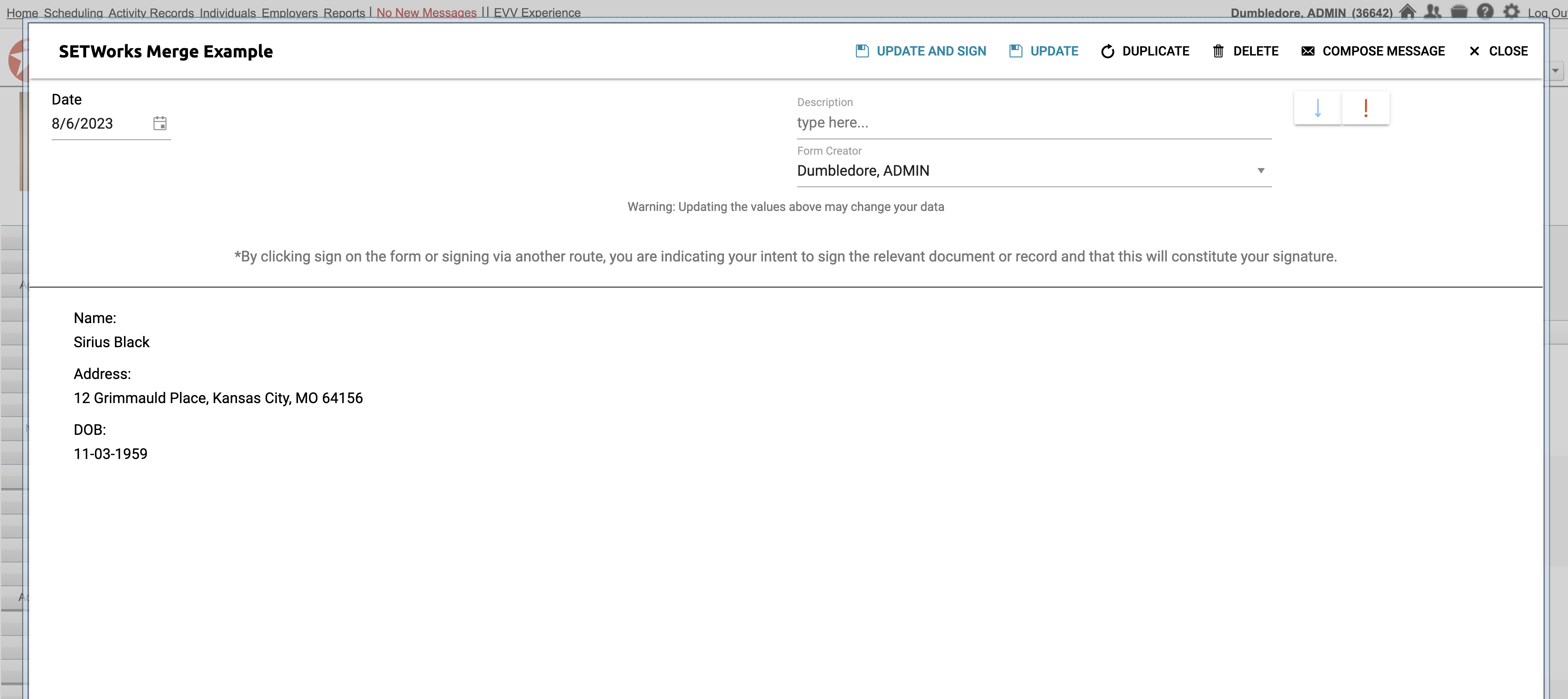
Excel Version:
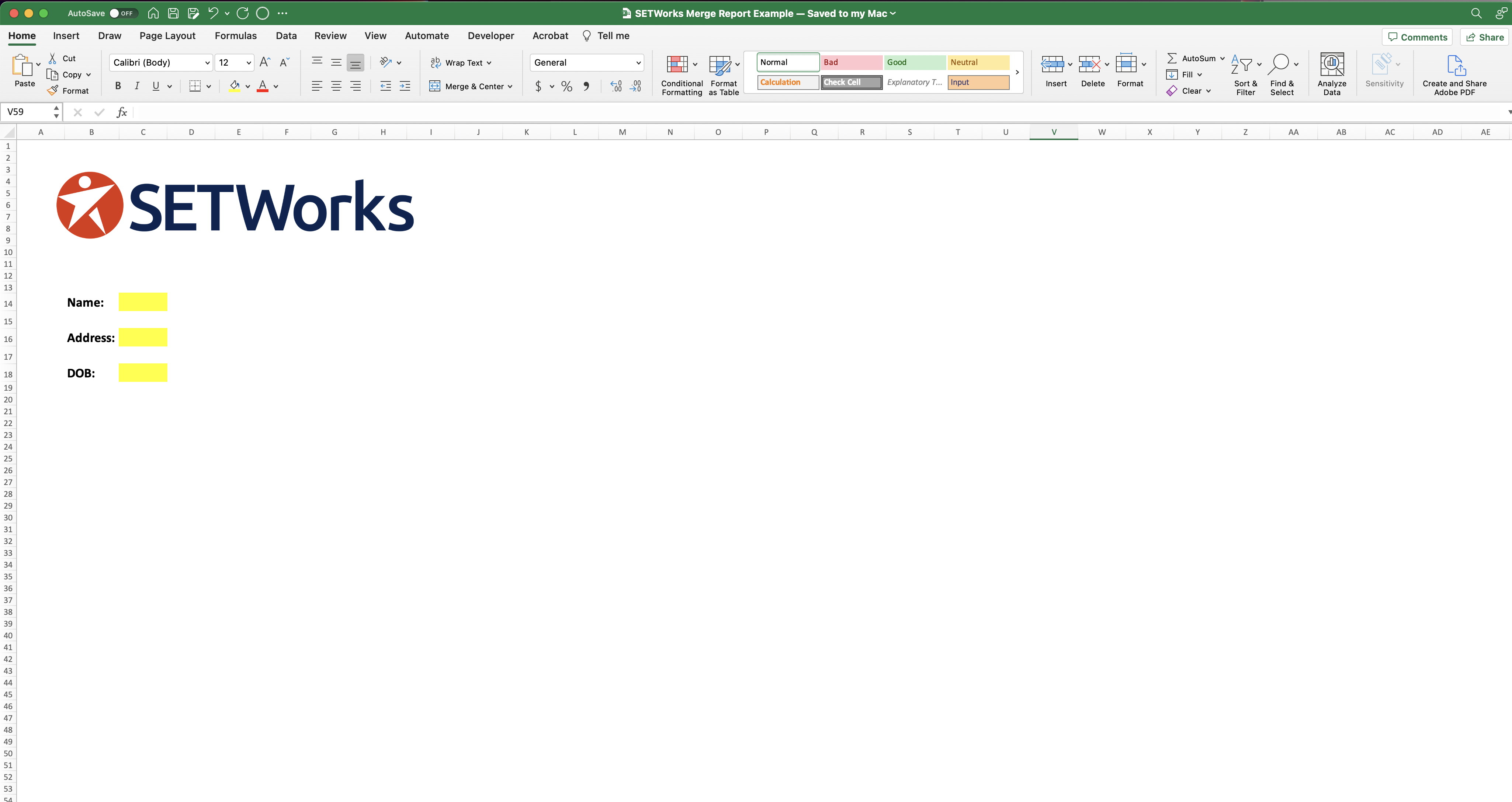
SETWorks View Report Version:
Note: Please note: Adding a custom report will override the generic form report. If you are uploading a report for an existing for that's already in use, consider making a copy first. If you need to revert back to the generic form report, please contact Support.
Note: Please note, custom reports are not able to be generated when using Distribution Lists.