
How to configure and complete the OOD Form 10 - Transportation
Understanding Form 10
Configuration
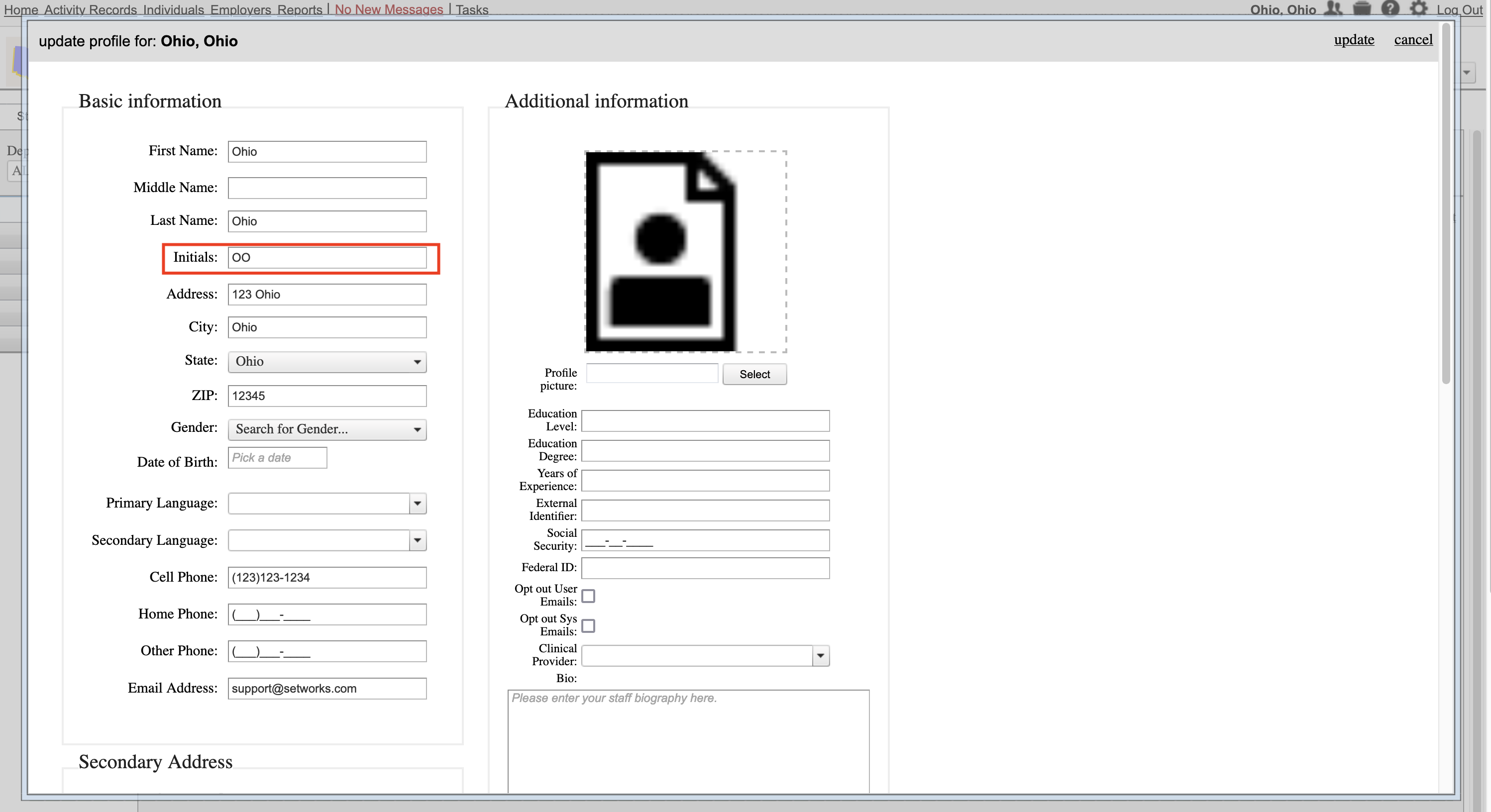
Staff Initials
- User Profile > Initials
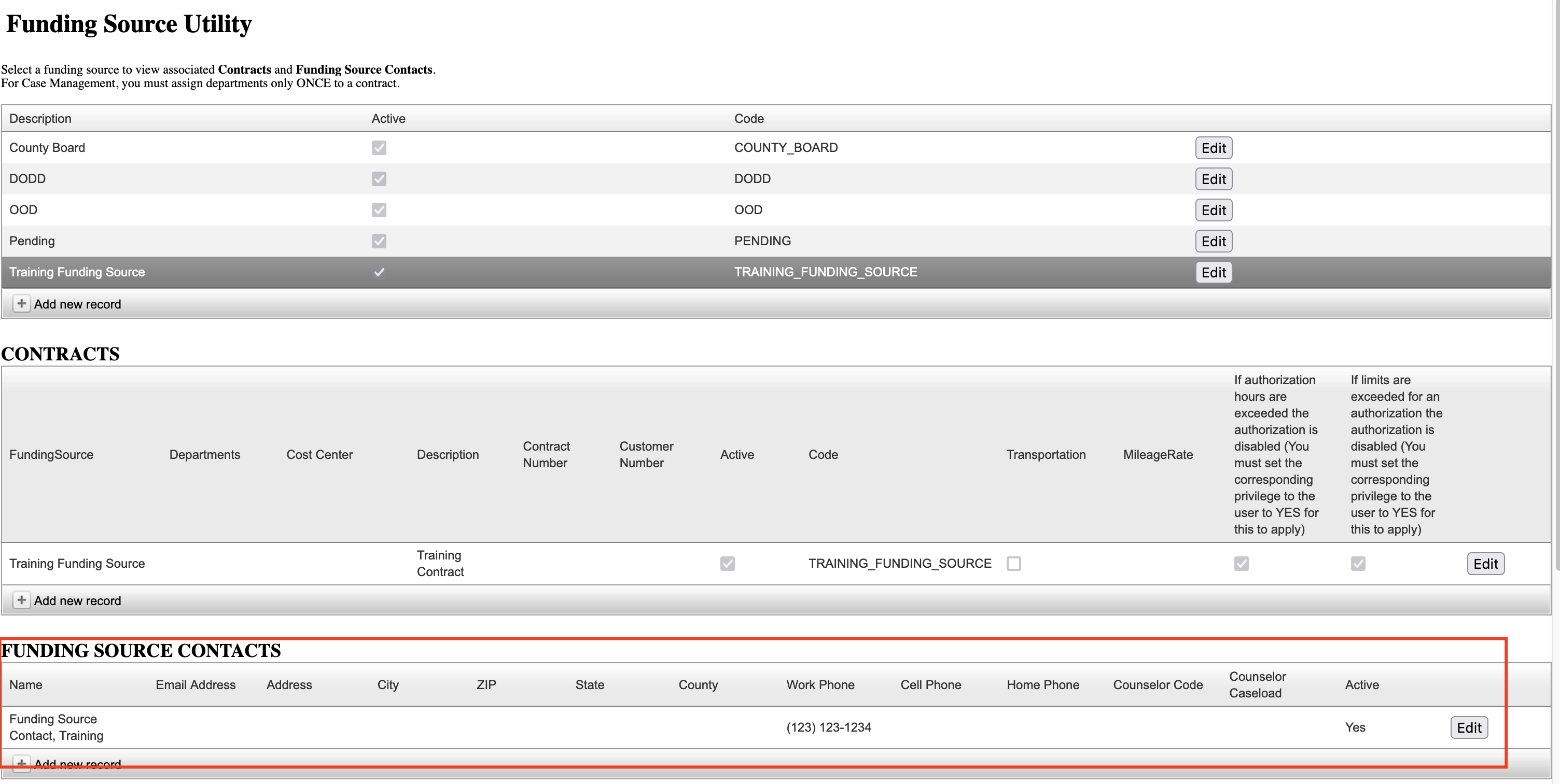
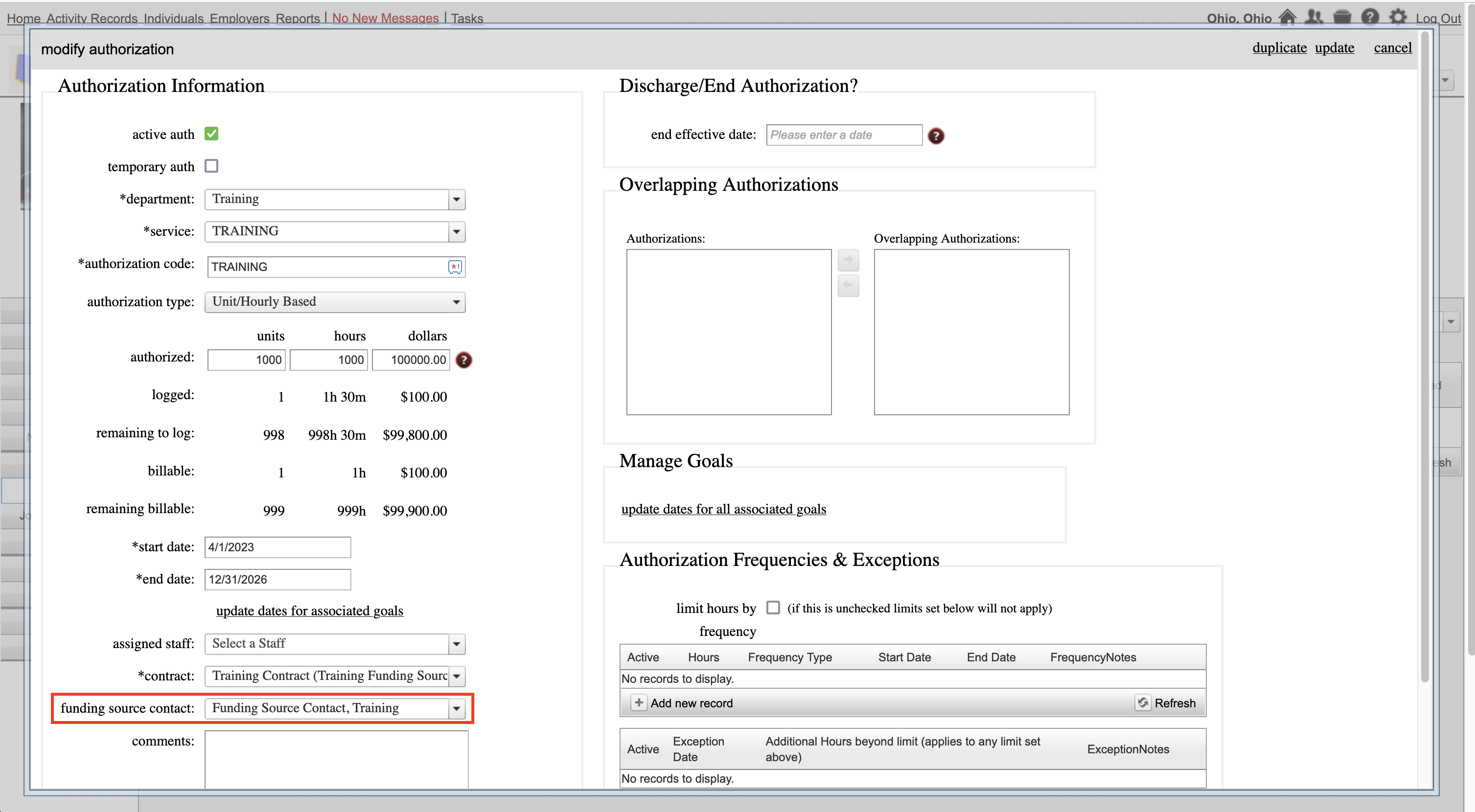
Funding Source Contacts
- OOD Staff or OOD Contractor on the form pulls from the Funding Source Contact associated to the authorization
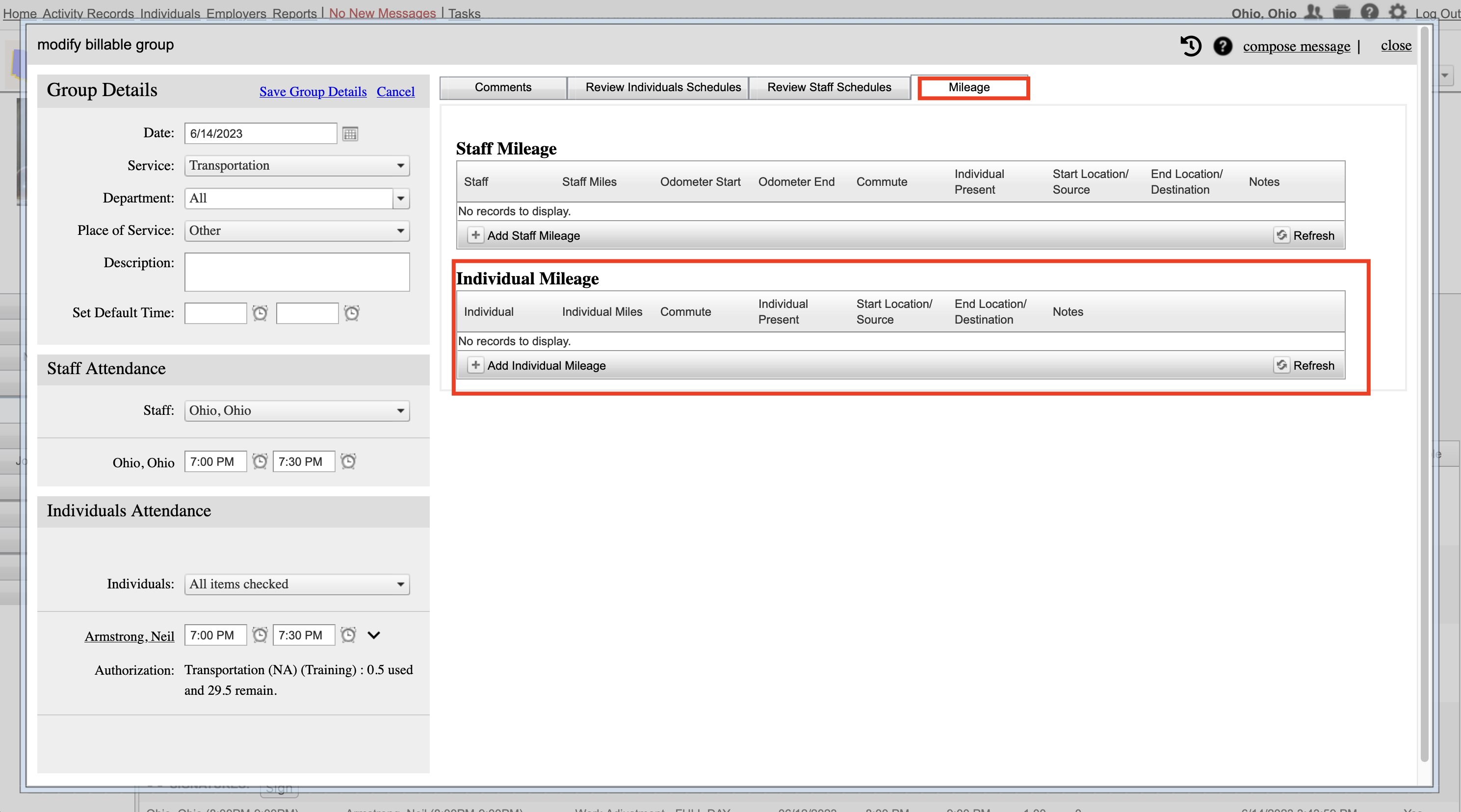
Group Activity Record - Individual Mileage
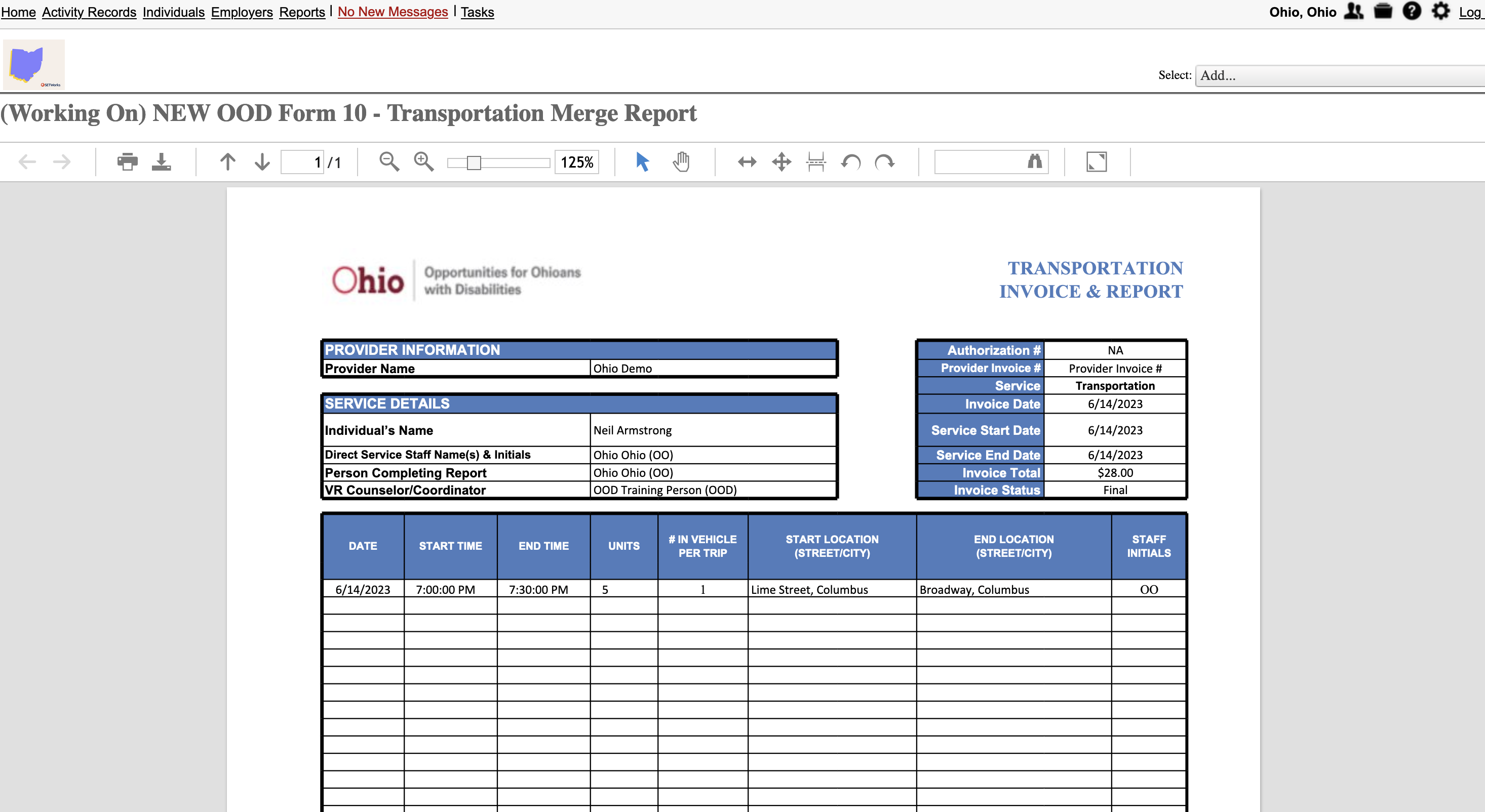
Individual Mileage, Source (Start Location), and Destination (End Location) are used for Form 10
NOTE: Learn more about Mileage privilges here
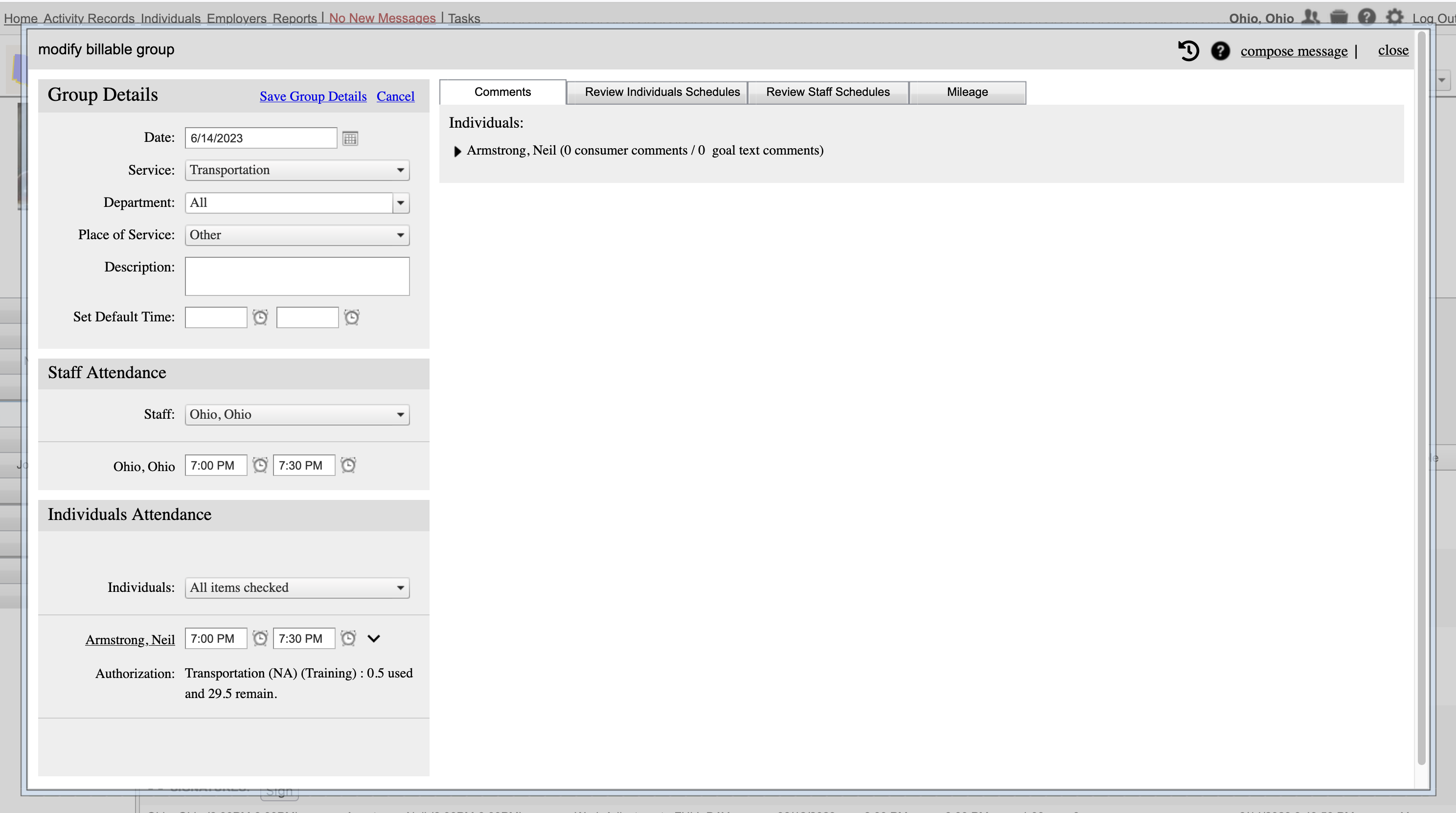
Activity Record Details
- Create a Group Activity Record - or - convert a Group Appointment to a Group Activity Record
- Select the date
- Select the service
- Select the department (not required)
- Select the Place of Service
- Include a description (not required)
- Enter the default time (will apply to all staff and individuals on the record for easier entry)
- Select the staff
- Select the individual(s) served
- Select "Save Group Details"
Mileage Documentation
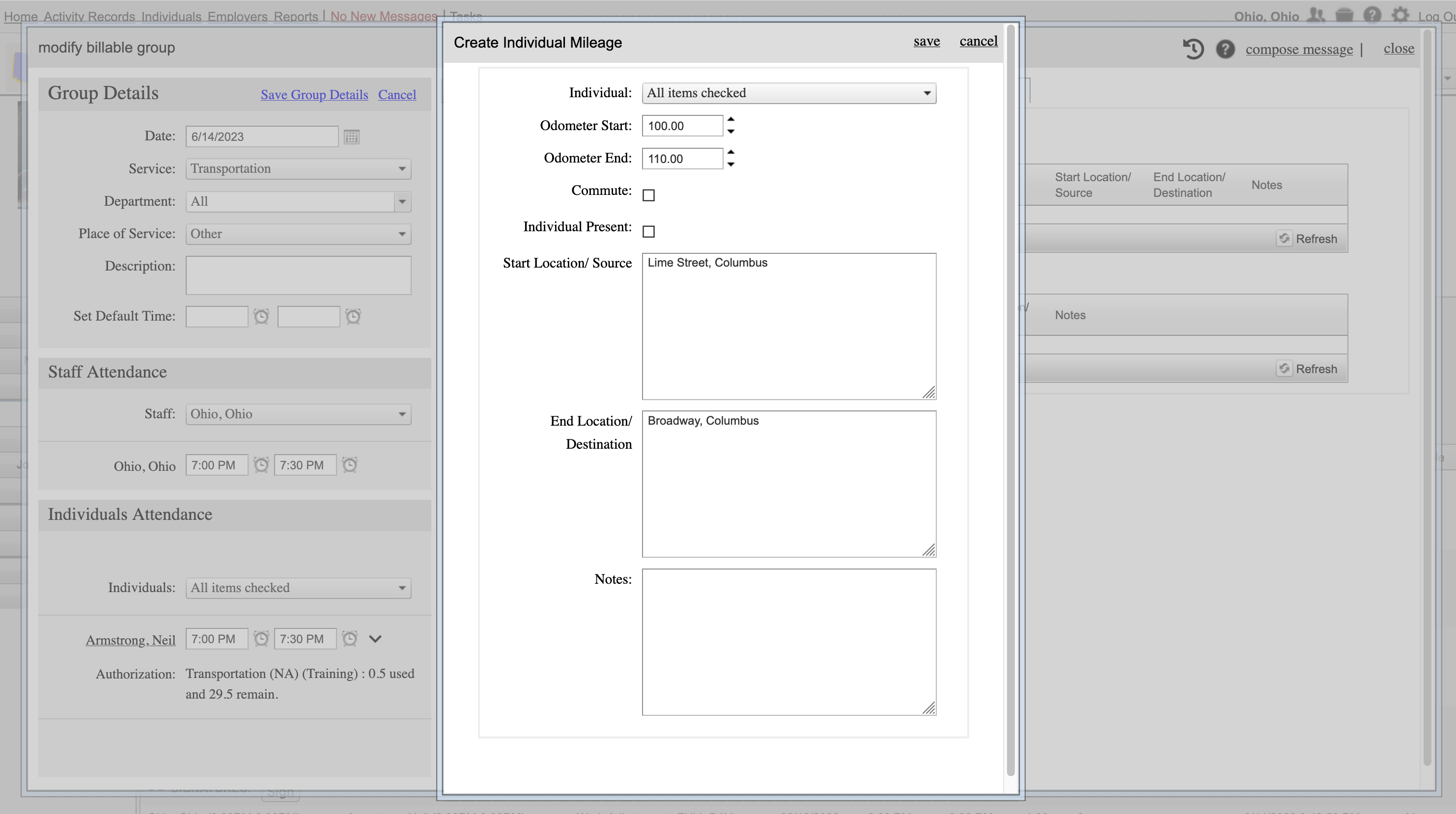
- Select the Mileage tab at the top of the Group Activity Record
- Select +Add Individual Mileage
- Select the Individual(s)
- Insert the Odometer Start & Stop
NOTE: Privileges exist to track total mileage instead of Odometer Start and Stop. Learn more about Mileage here
- Select Commute or Individual present (not required)
- Insert the Start Location - STREET/CITY in the Source
- Insert the End Location - STREET/CITY in the Destination
- Document notes (not required)
- Save
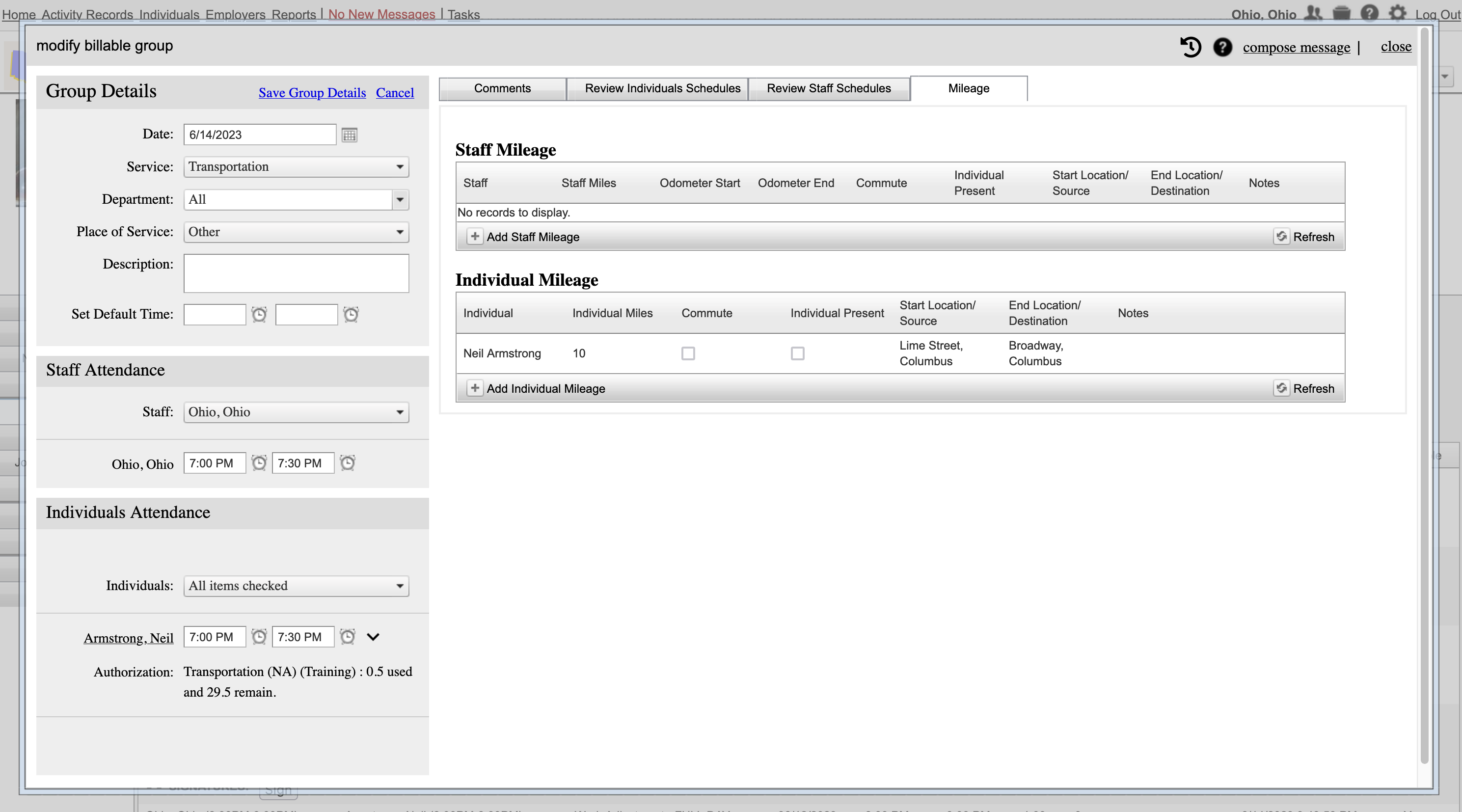
Form Documentation
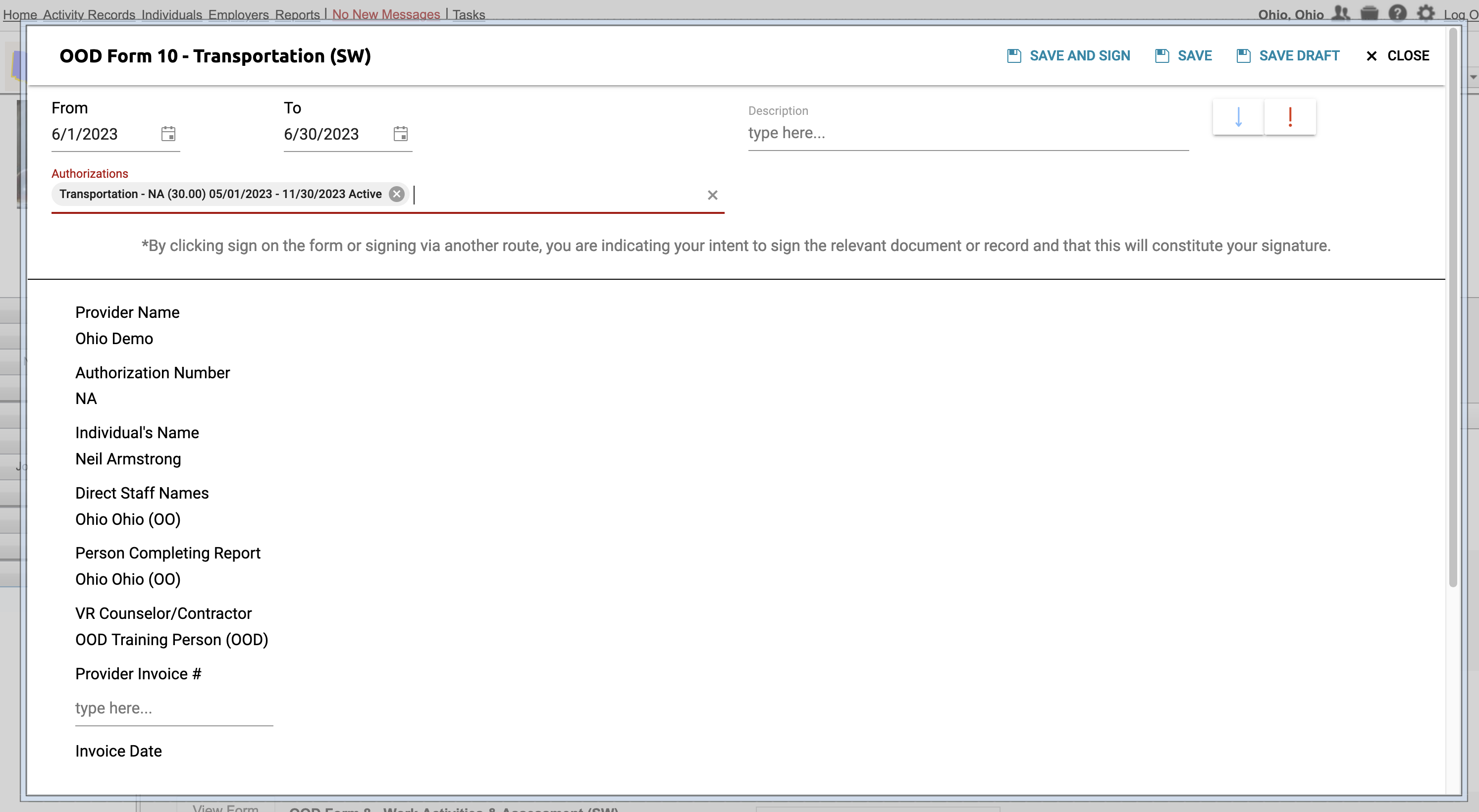
- At the end of service/end, monthly, or as needed, complete the Form in the individual's profile for billing.
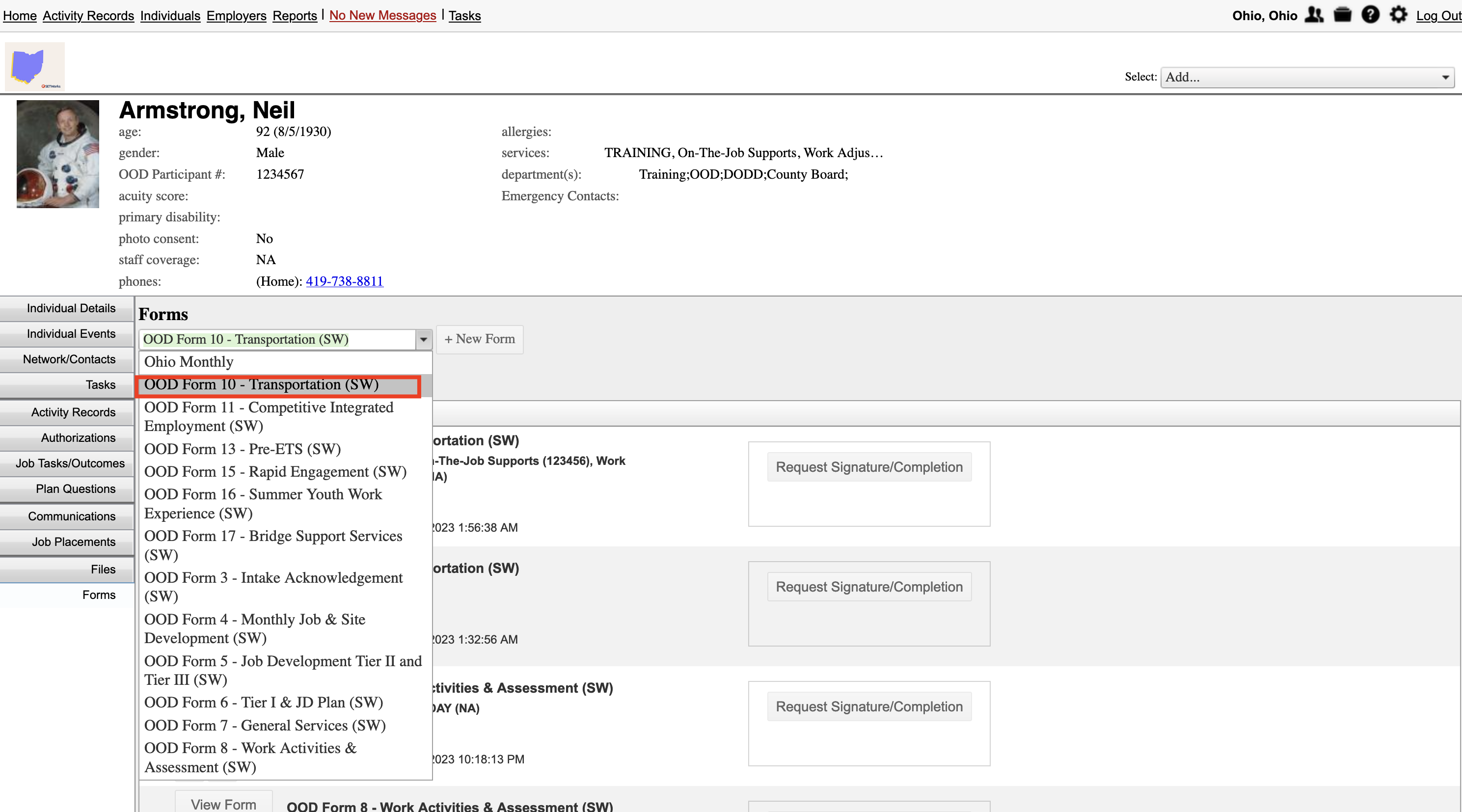
- Select the Date Range
- Select the Authorization
Other Notes
- Technically, this report works with the Billable Individual Activity Record mileage feature as well, although it is not recommended due to the form requiring the number of individuals in the vehicle per trip.
- Signatures are not generated on this form; signature configuration is preferential.
Note: NOTE: If information is missing on the report, review the steps above, update, and save the report.
Note: NOTE: If information is in the database or on the form, but does not appear on the report, contact support@setworks.com .