
Overview
SETWorks scheduling view makes it easy to create, view, and modify staffs and consumers schedules if using the group record.
Note: Scheduling view is designed exclusively for the billable group appointment and billable group activity record. It will not display other record types.
Privileges
Settings > Provider Build > Maintain Privileges:
Note: Show the Scheduling link in global navigation.
Note: Is able to approve Staff Availability.
Scheduling Overview
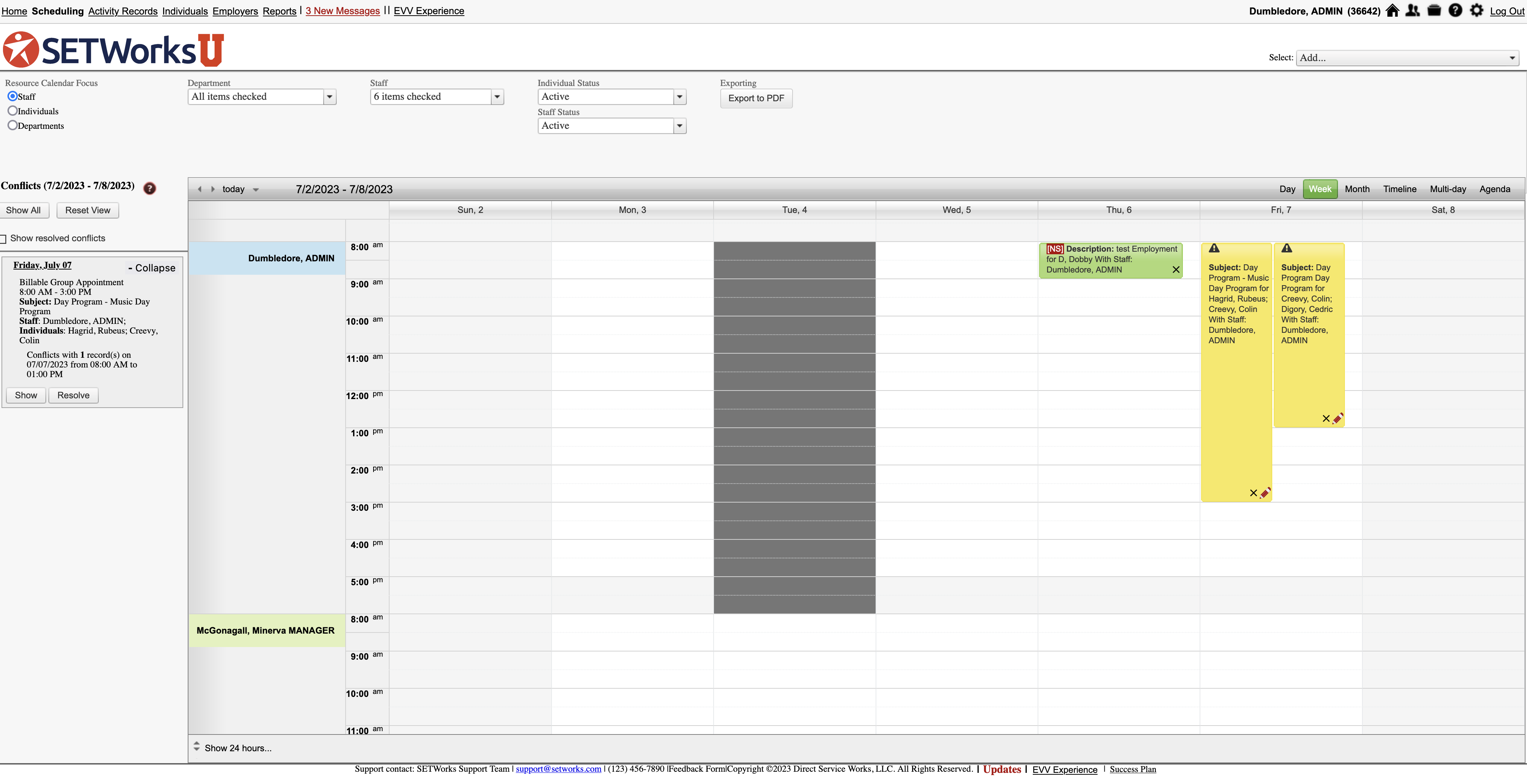
The scheduling view makes it easy to create, view, and modify staff and consumer appointments and activity records in a variety of 6 different views (Day, Week, Month, Timeline, Multi-day, Agenda). Each view stacks the applicable calendars for easy viewing and comparison of schedules. Within the scheduling view you are able to identify potential conflicts, as well as, see if staff are unavailable during a given time frame.
Webinars:
Monthly Support Webinar - August 2022 - Scheduling
SETWorks Webinar - July 2023 - Scheduling
Conflict Checking
Enabling conflict checking allows you to pinpoint where overlaps and potential scheduling conflicts exist. Any potential conflicts (same staff in two different records for same day/time or same consumer in two different records for same day/time) will display a black triangle in the upper left corner of each appointment as well as, show in the conflict view on the far left side.
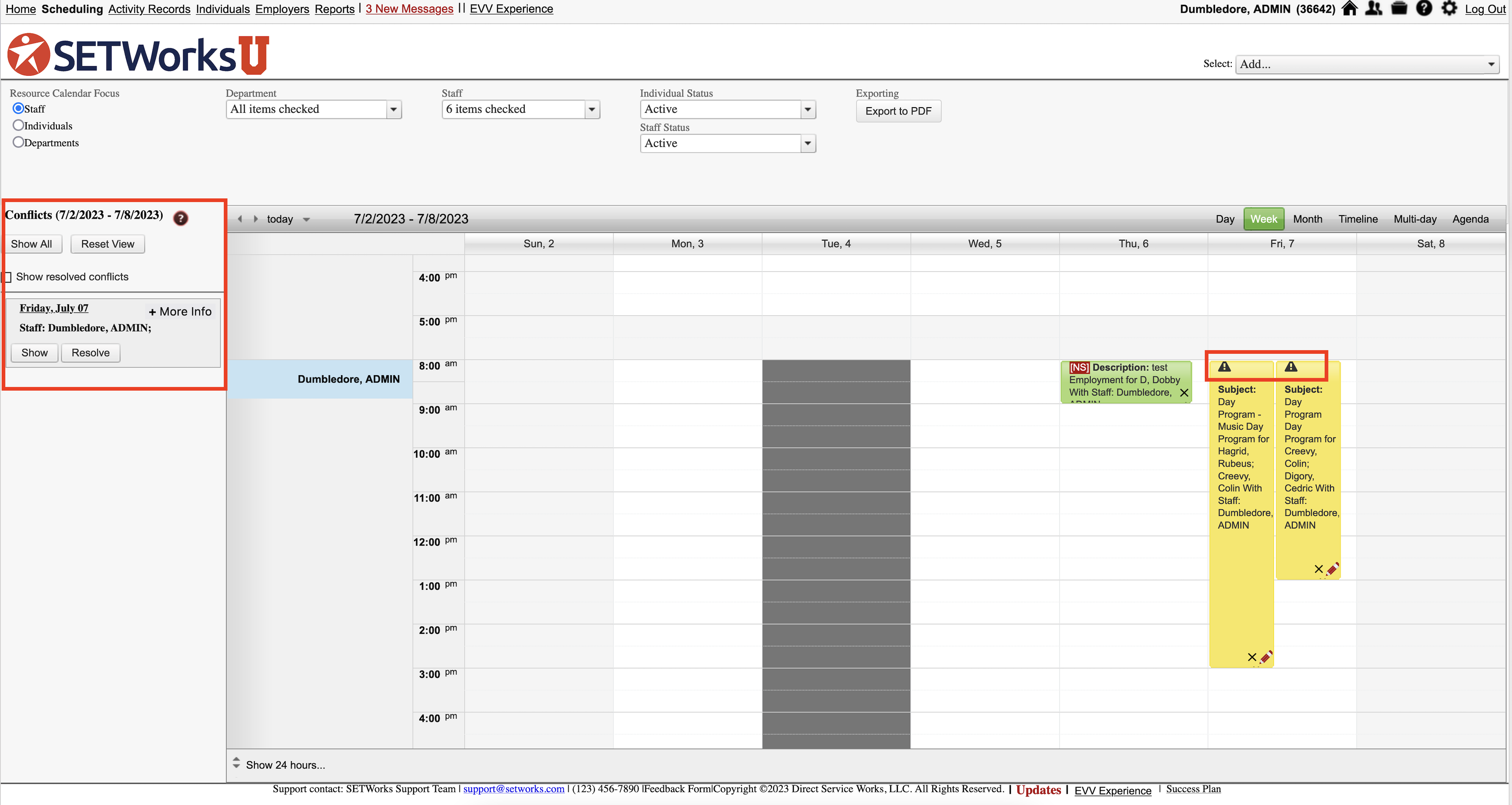
Use the conflict view on the left panel to expand the details of the conflict by clicking + More Info.
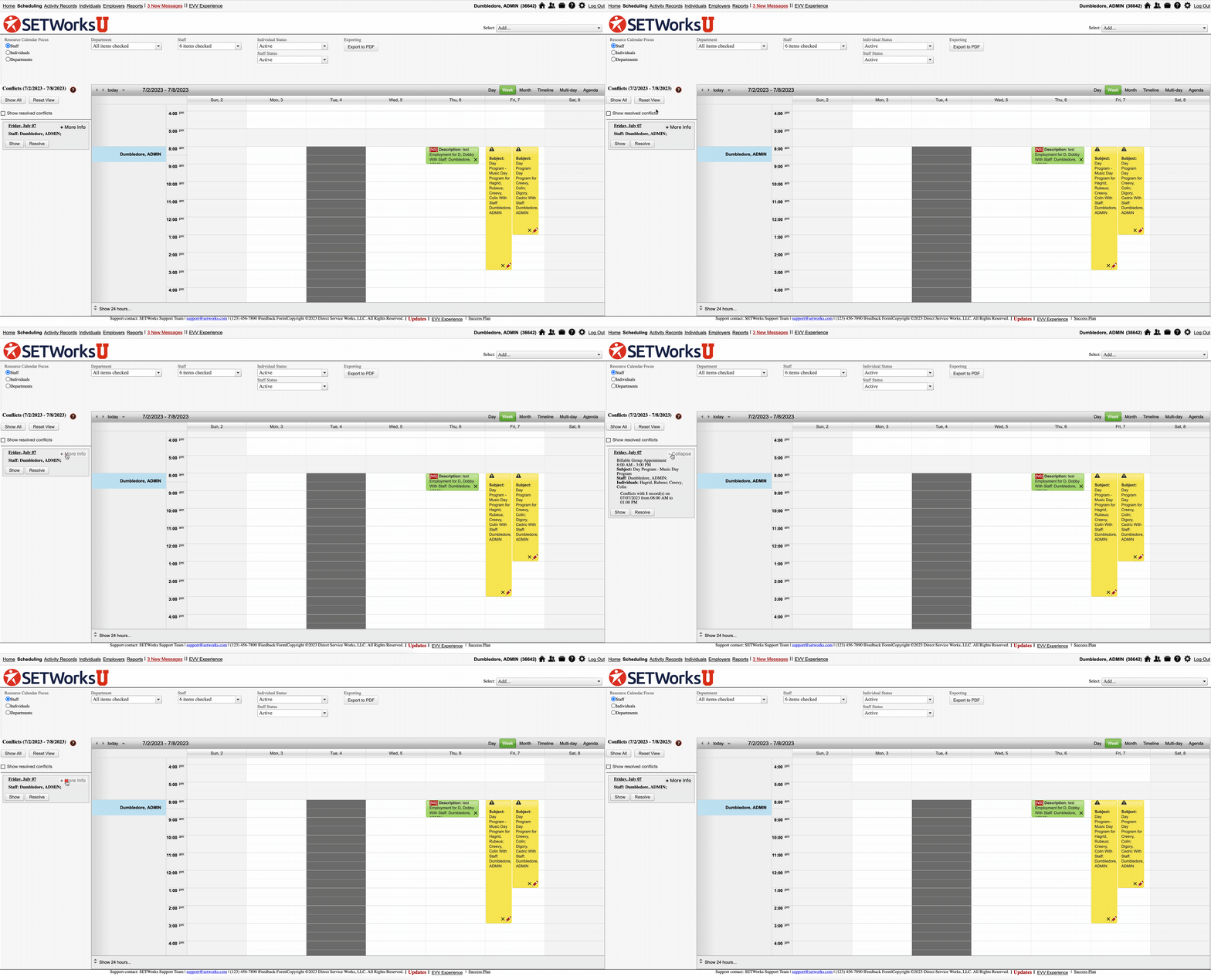
Clicking Show will pull in and isolate any and all conflicts into the view. Click Resolve to remove the records from the conflict screen.
Clicking Resolve is acknowledging that the records are supposed to be overlapping and just removes them from the conflict screen. If it truly is a scheduling conflict then the actual activity record appointment needs to be updated.
Staff Availability
If using the Staff Availability feature, any staff who have input time as not being available will have a dark grey block on their calendar.
Note: This does not prevent staff/others from creating any type of activity records. It's a visual cue that the staff is not available.
Reference our article on Staff Availability to learn more about this feature.