
How to configure and complete the OOD Form 4 - Monthly Job & Site Development
Understanding Form 4
Configuration
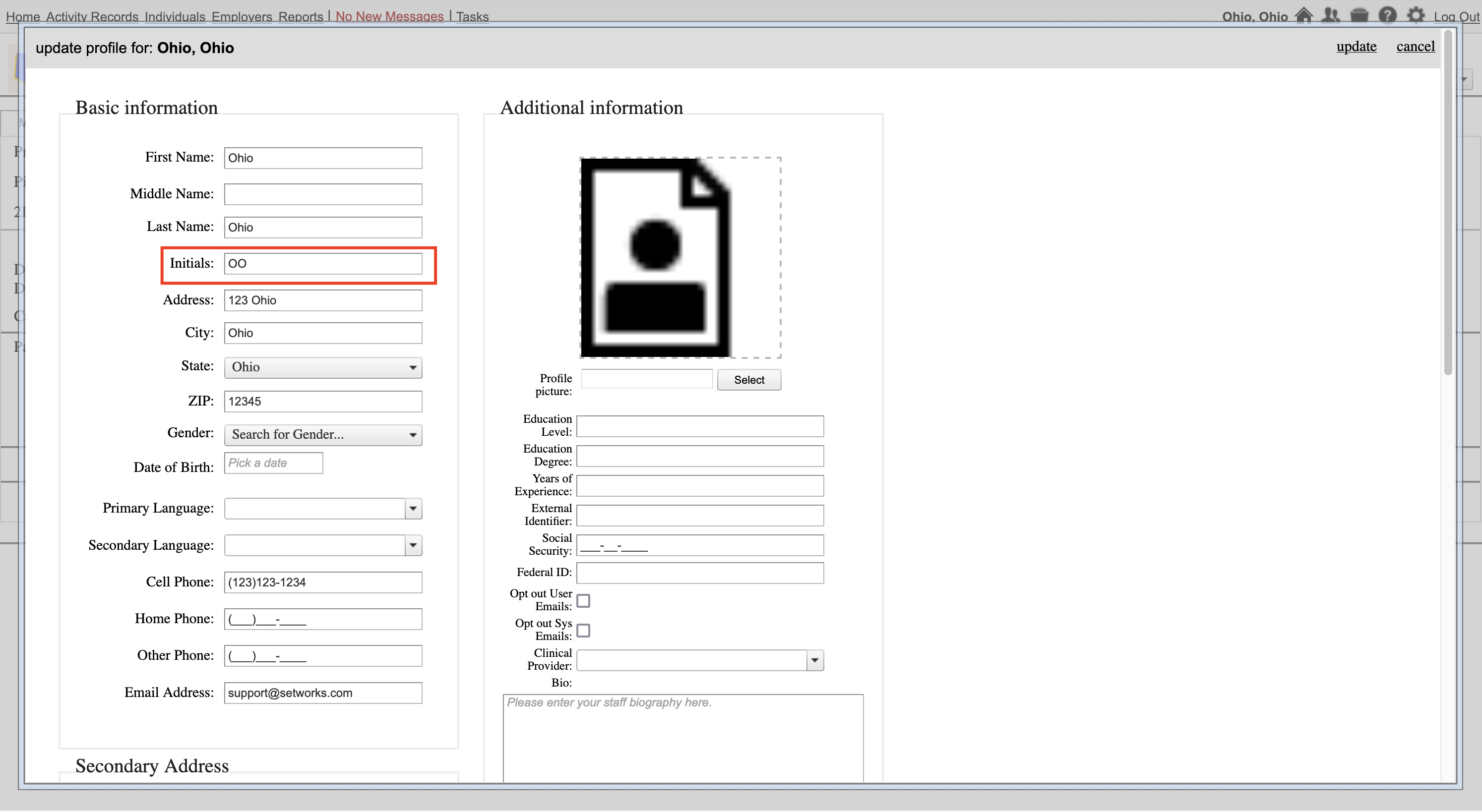
Staff Initials
- User Profile > Initials
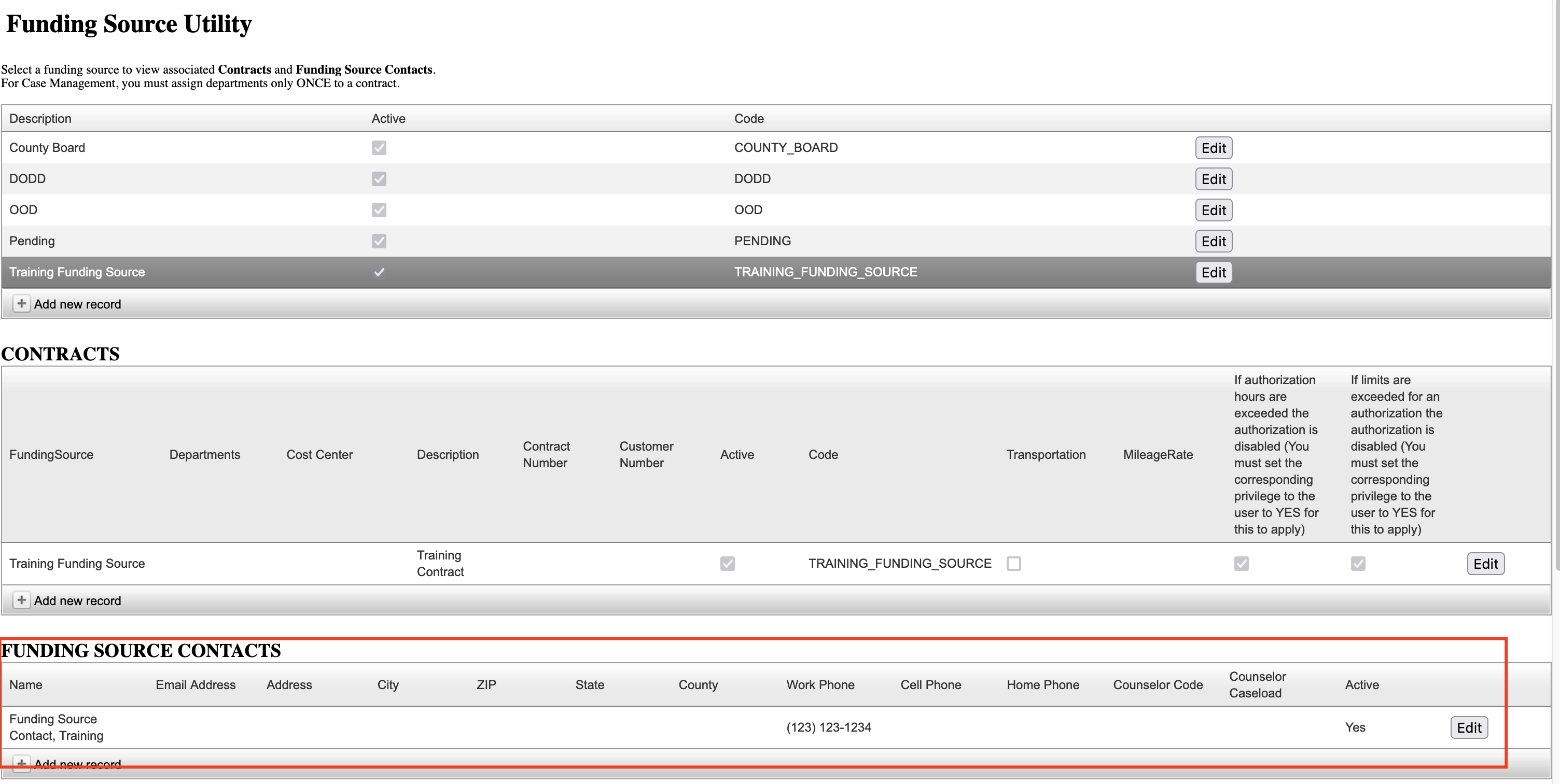
Funding Source Contacts
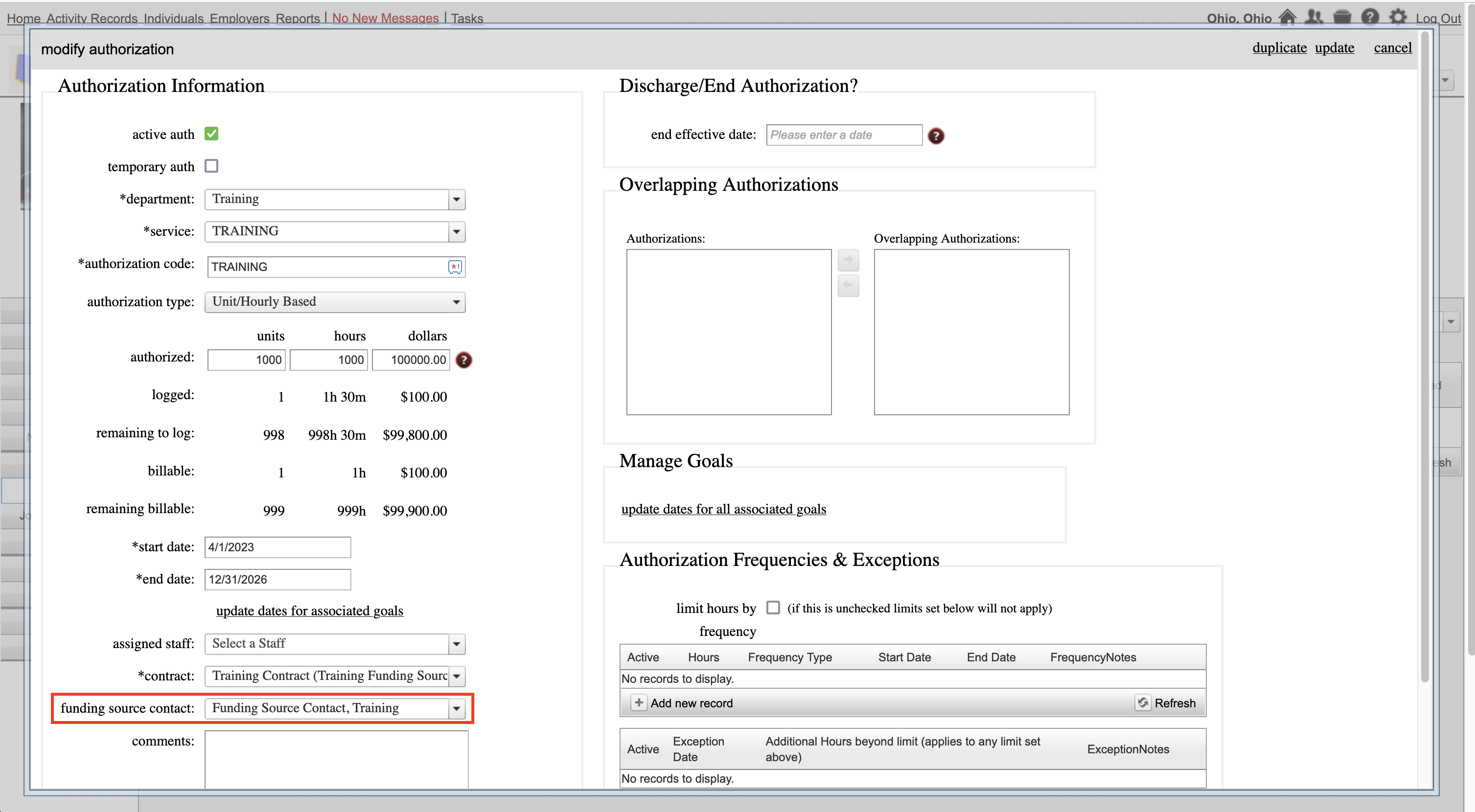
- OOD counselor on the form pulls from the Funding Source Contact associated to the authorization
Employment Goal
- Job Placements > Employment Goals
- The Notes section of the Employment Goal pulls to the form.
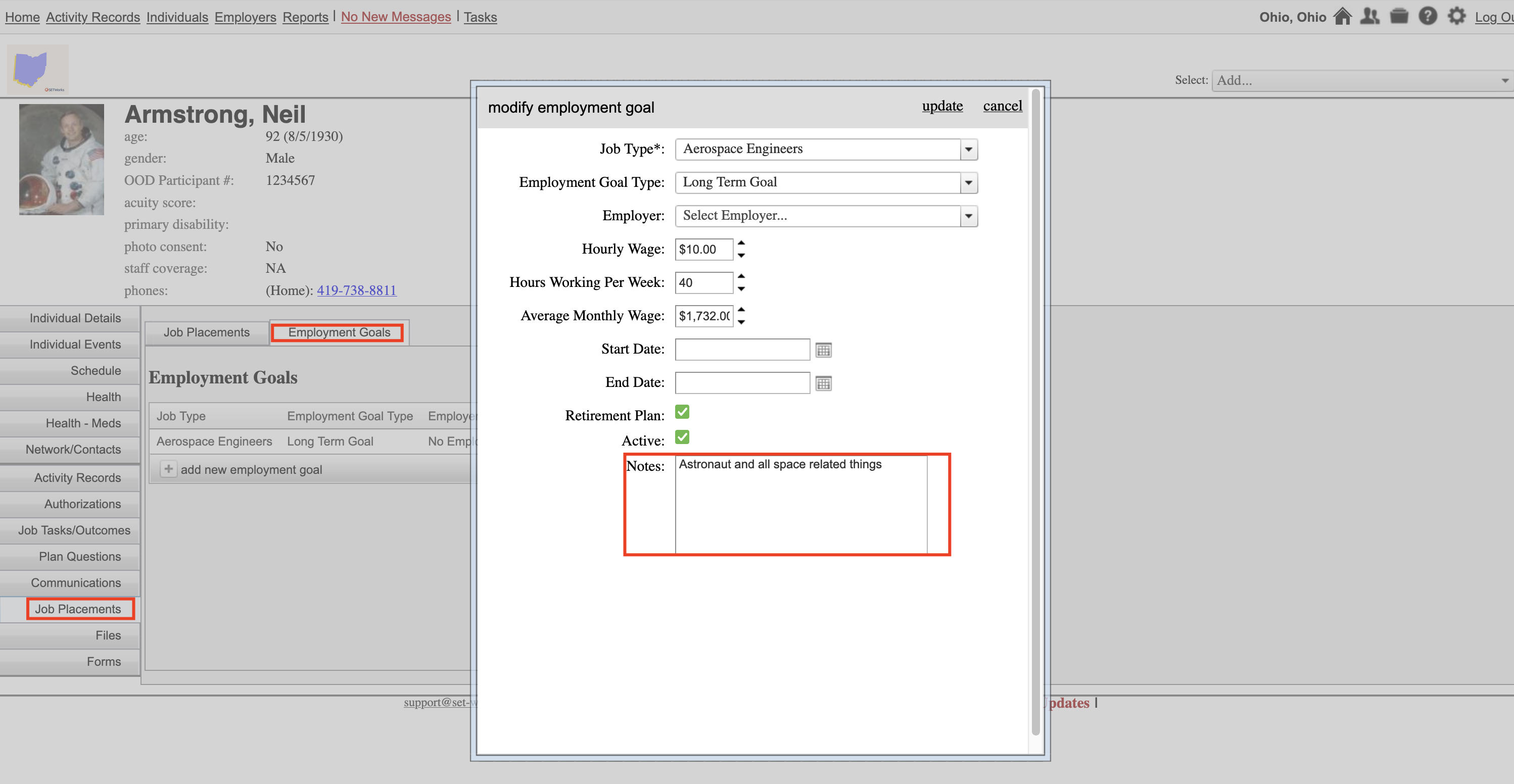
Note: If the goal is not displayed on the bottom of the form, check the goal to ensure notes are entered.
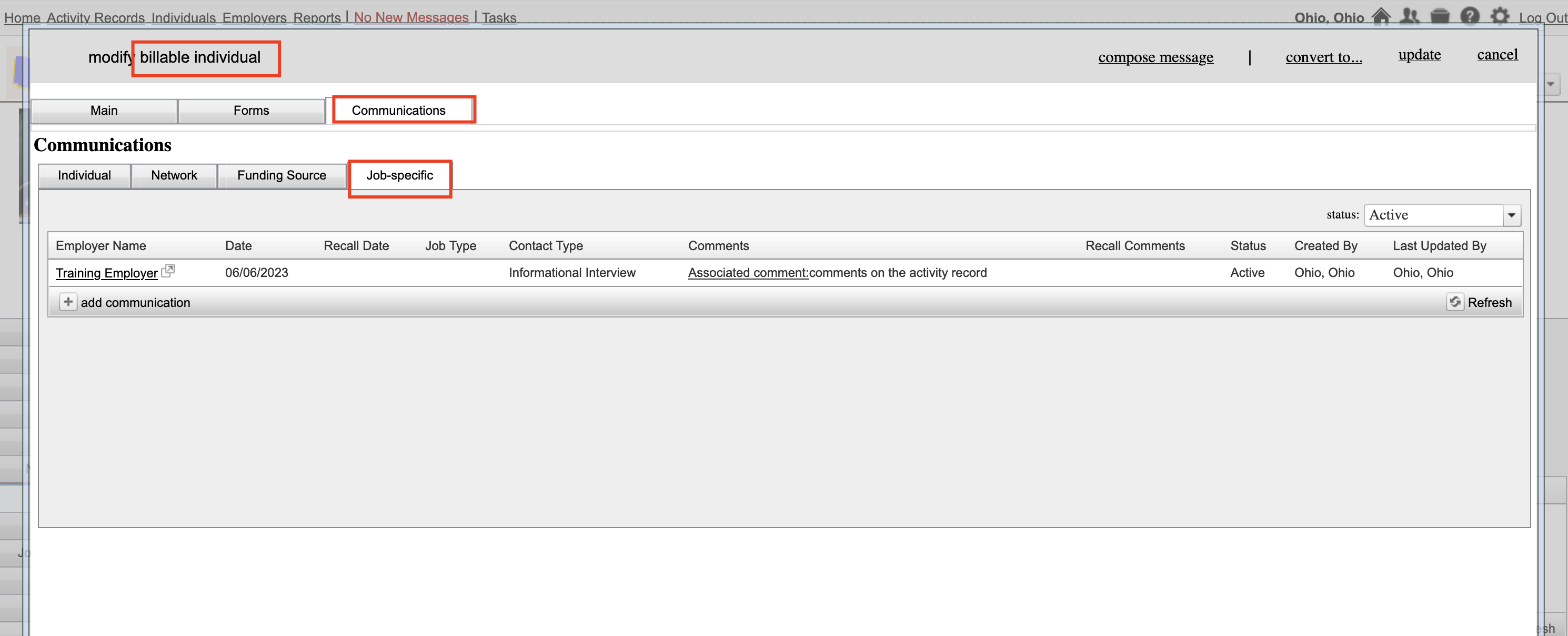
Communications
Must be completed within the Activity Record to generate on the form.
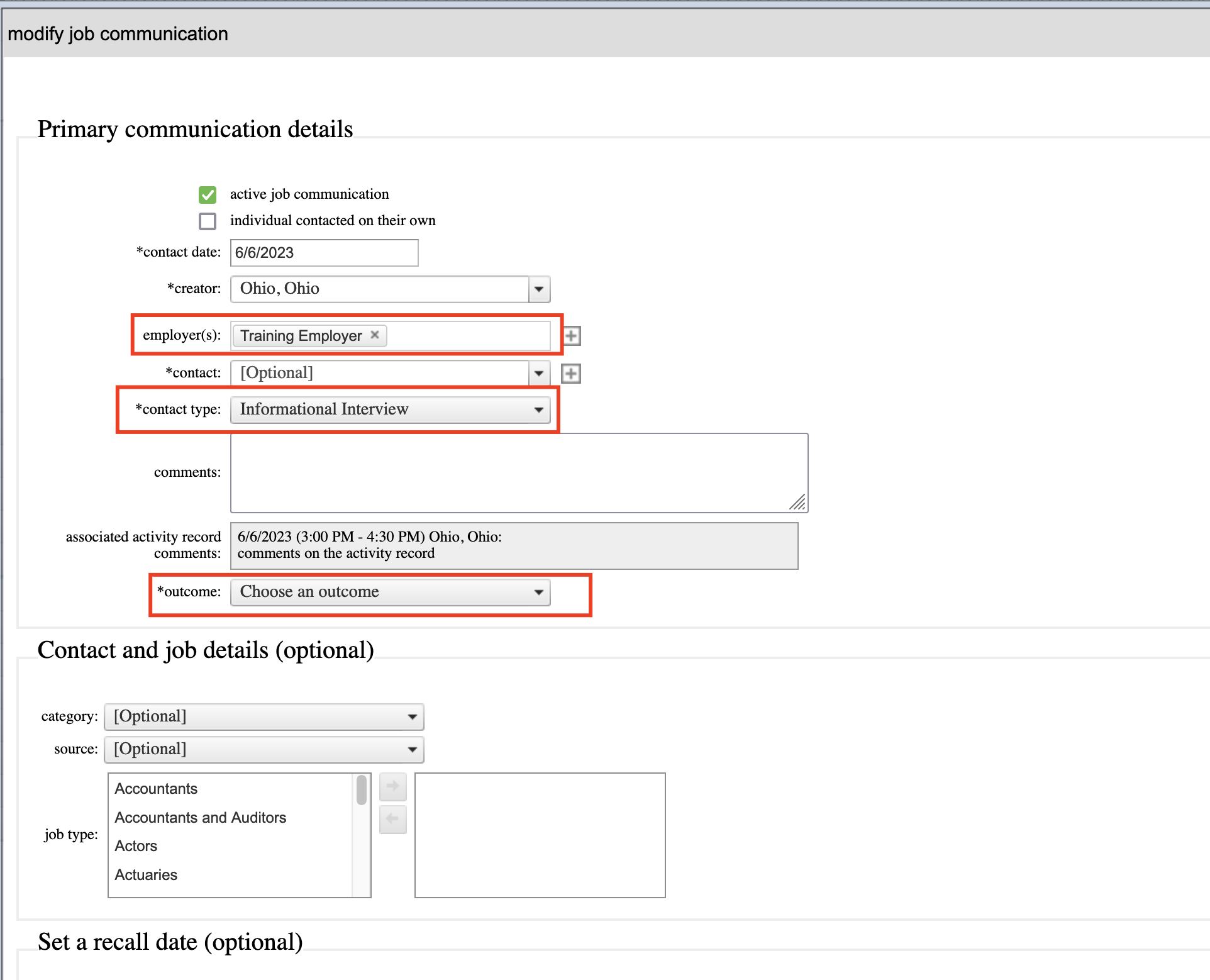
- Job Communications > Contact Type (copied)
- Outcomes should be required and configured to the following: Application, interview, Follow up (copied)
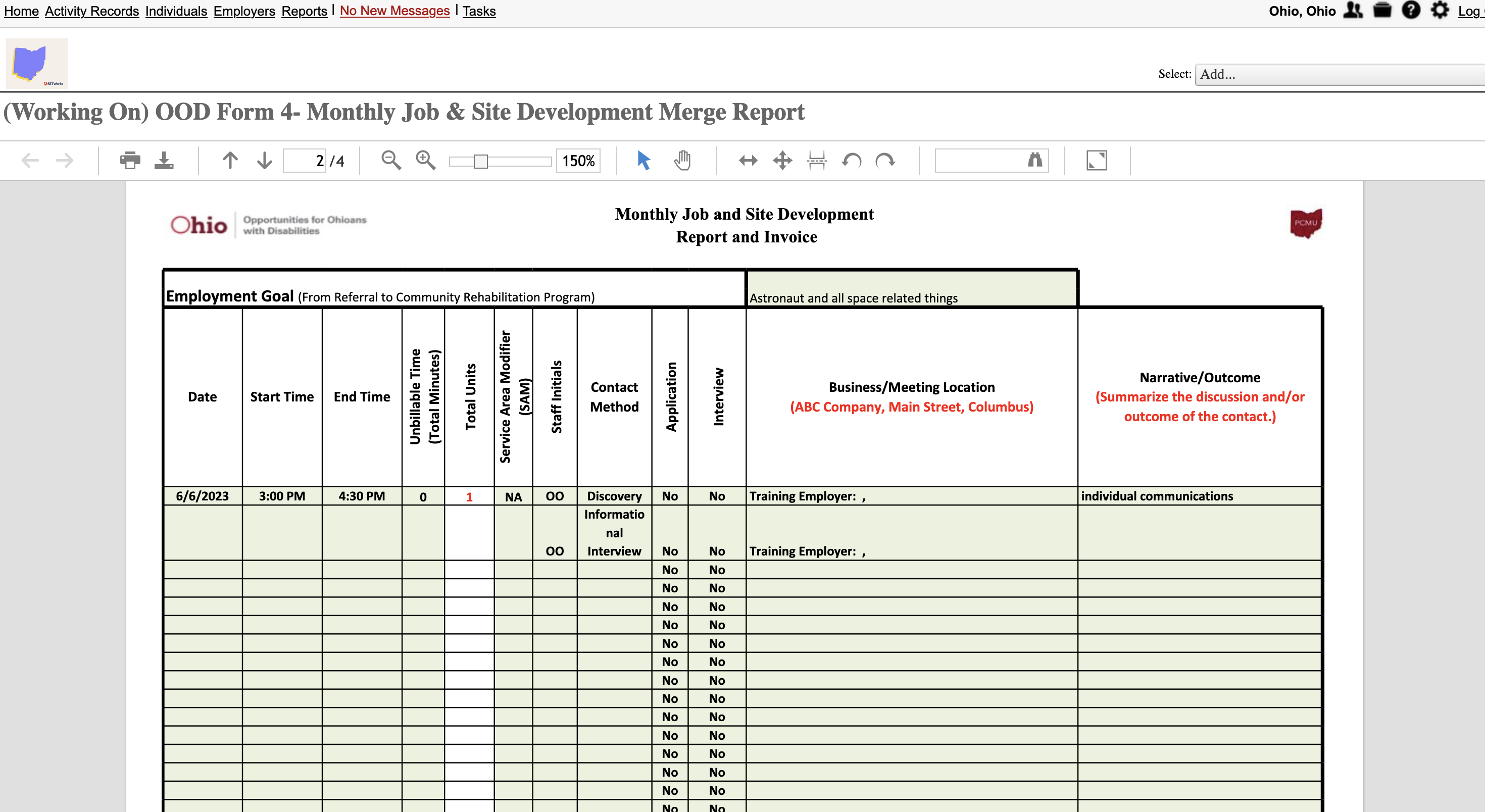
- Employers attached to Job Communications pull into the Business/Meeting Locations on the form
Activity Record Documentation
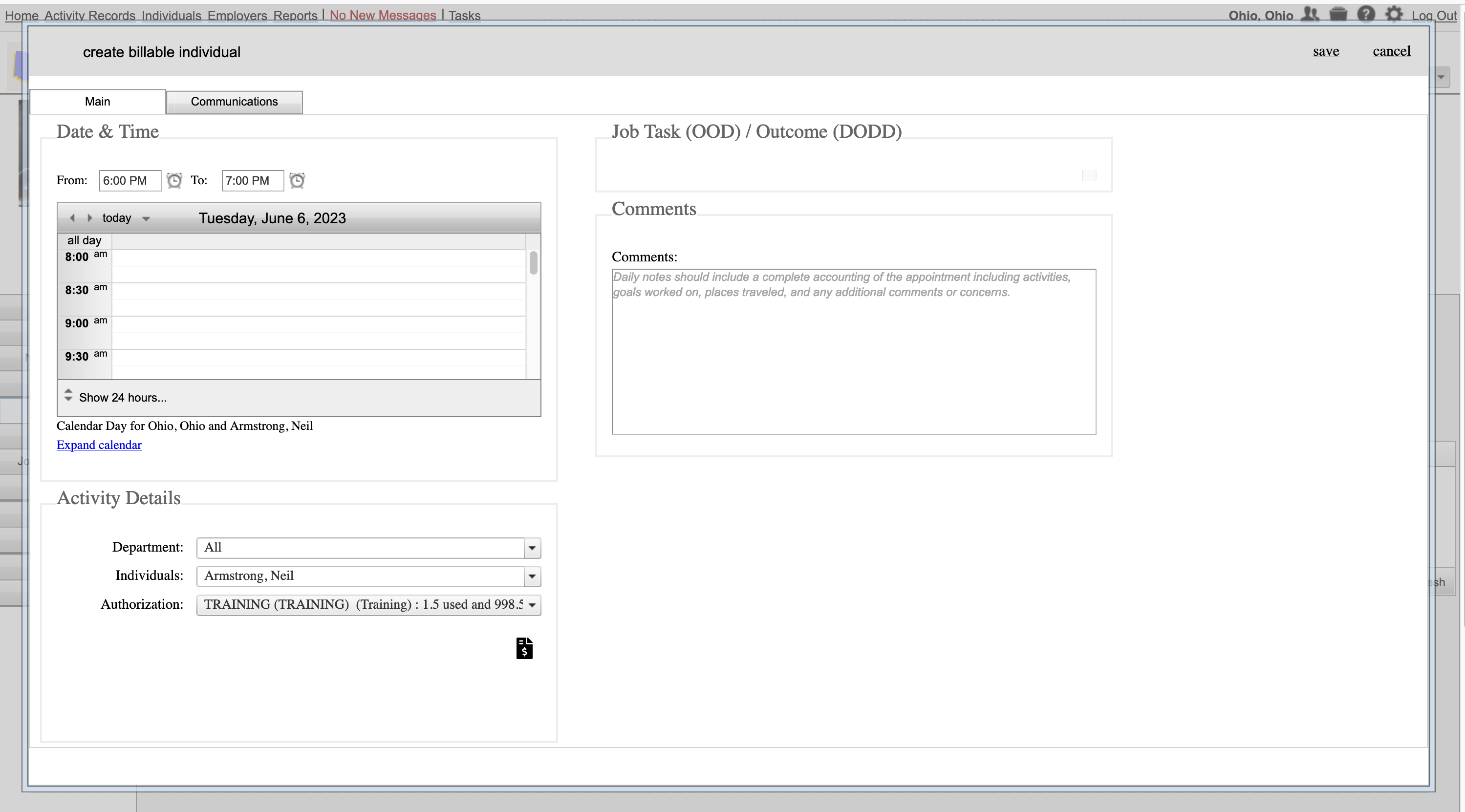
- Create a Billable Individual Activity Record
- Select the date
- Select the time
- Select the department (not required)
- Select the individual served
- Select the authorization
- Include a Comment, as needed
Communication Documentation
- Select the Communications tab
- Document on Individual and Job-specific communications.
NOTE: Employer, Contact type, and Outcome populate onto Form 4 as needed.
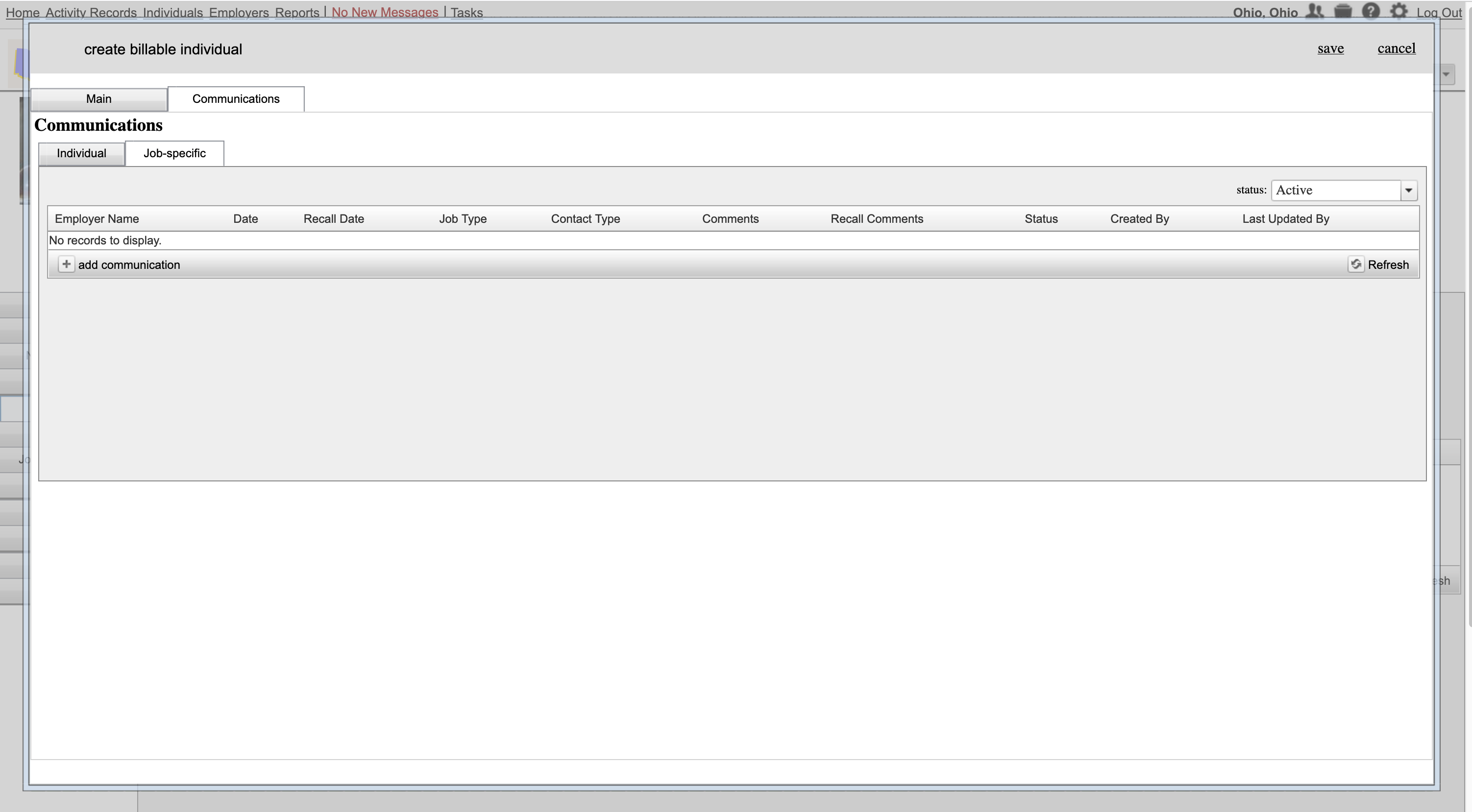
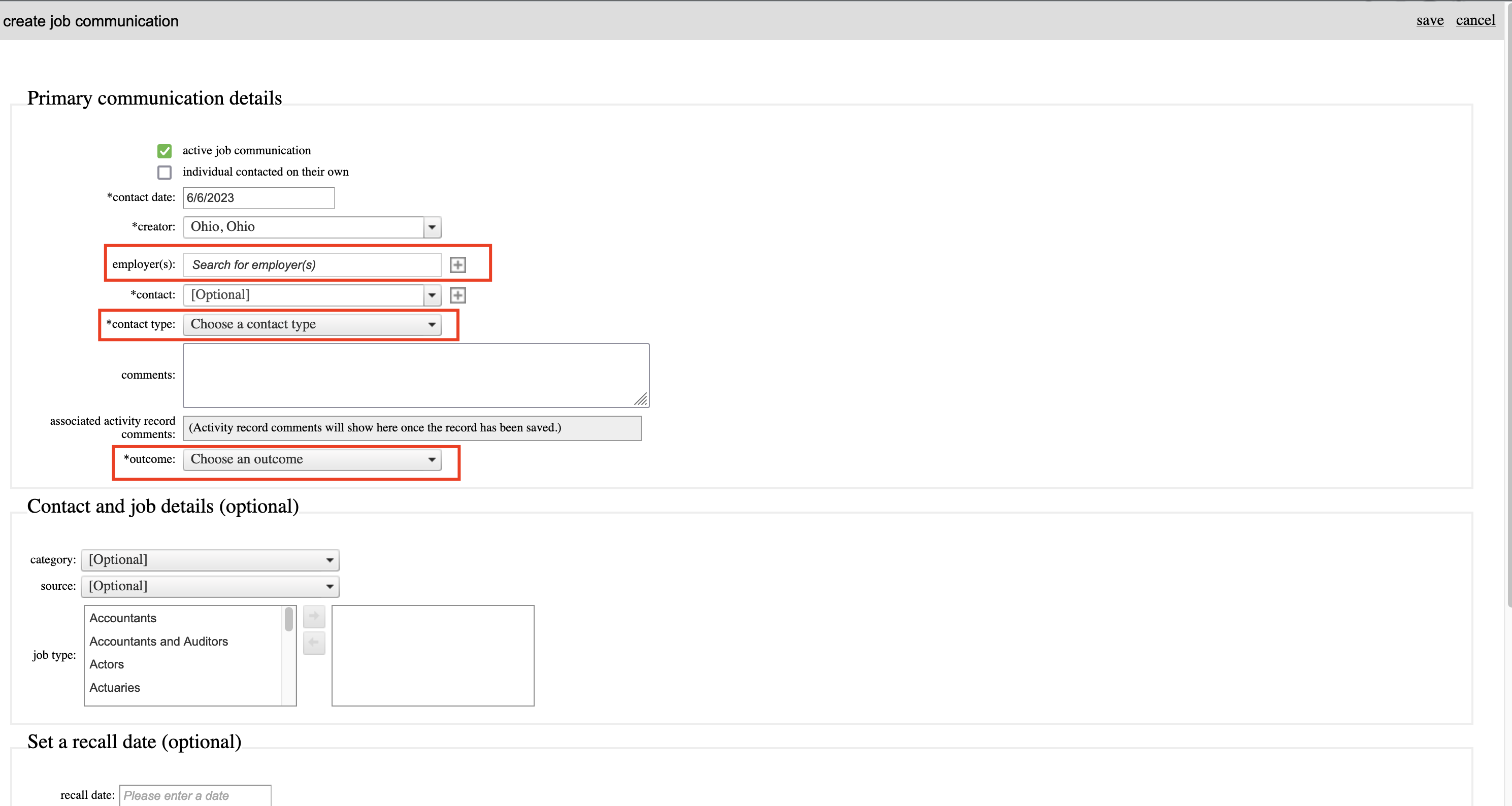
Note: NOTE: Communications must be entered within the Activity Record to be associated to the record on the form. It cannot be entered directly within the Communications tab of the individual's profile.
Form Documentation
- At the end of service, monthly, or as needed, complete the Form in the individual's profile for billing.
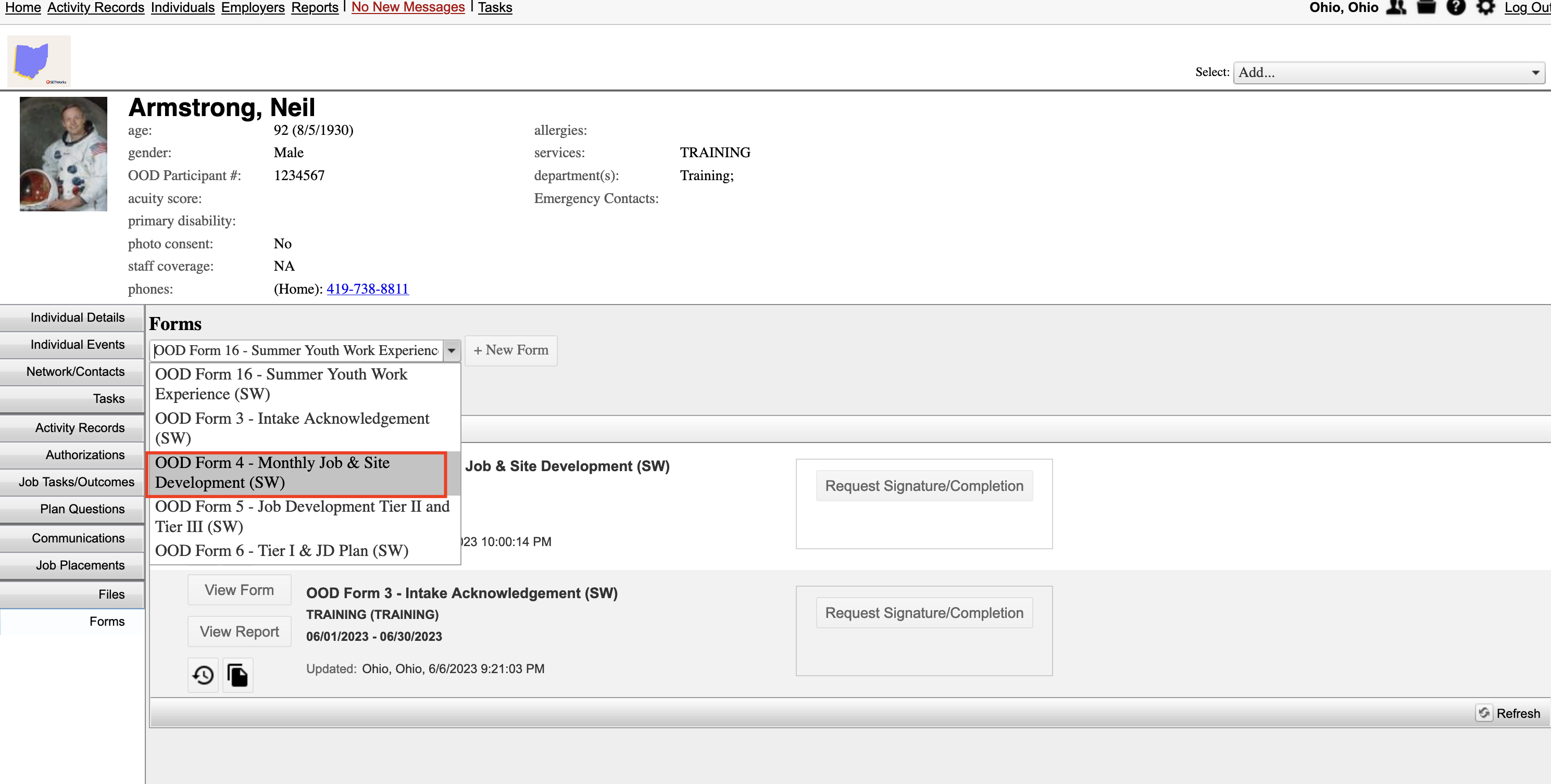
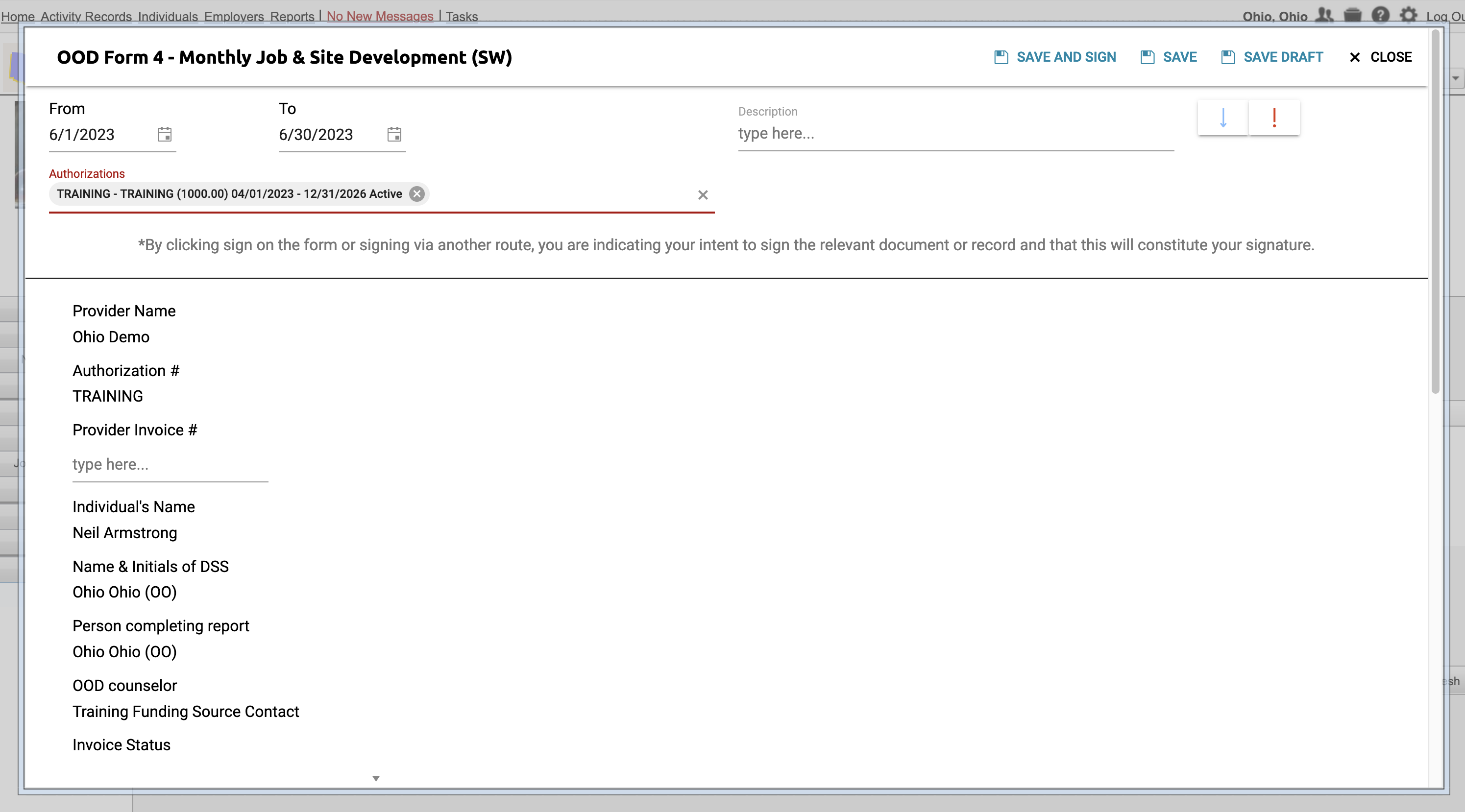
- Select the Date Range
- Select the Authorization
- Complete the form.
NOTE: If predefined answers/fields on the form do not populate, double check configuration recommendations at the top of this document.
Other Notes
- Signatures are not generated on this form; signature configuration is preferential.
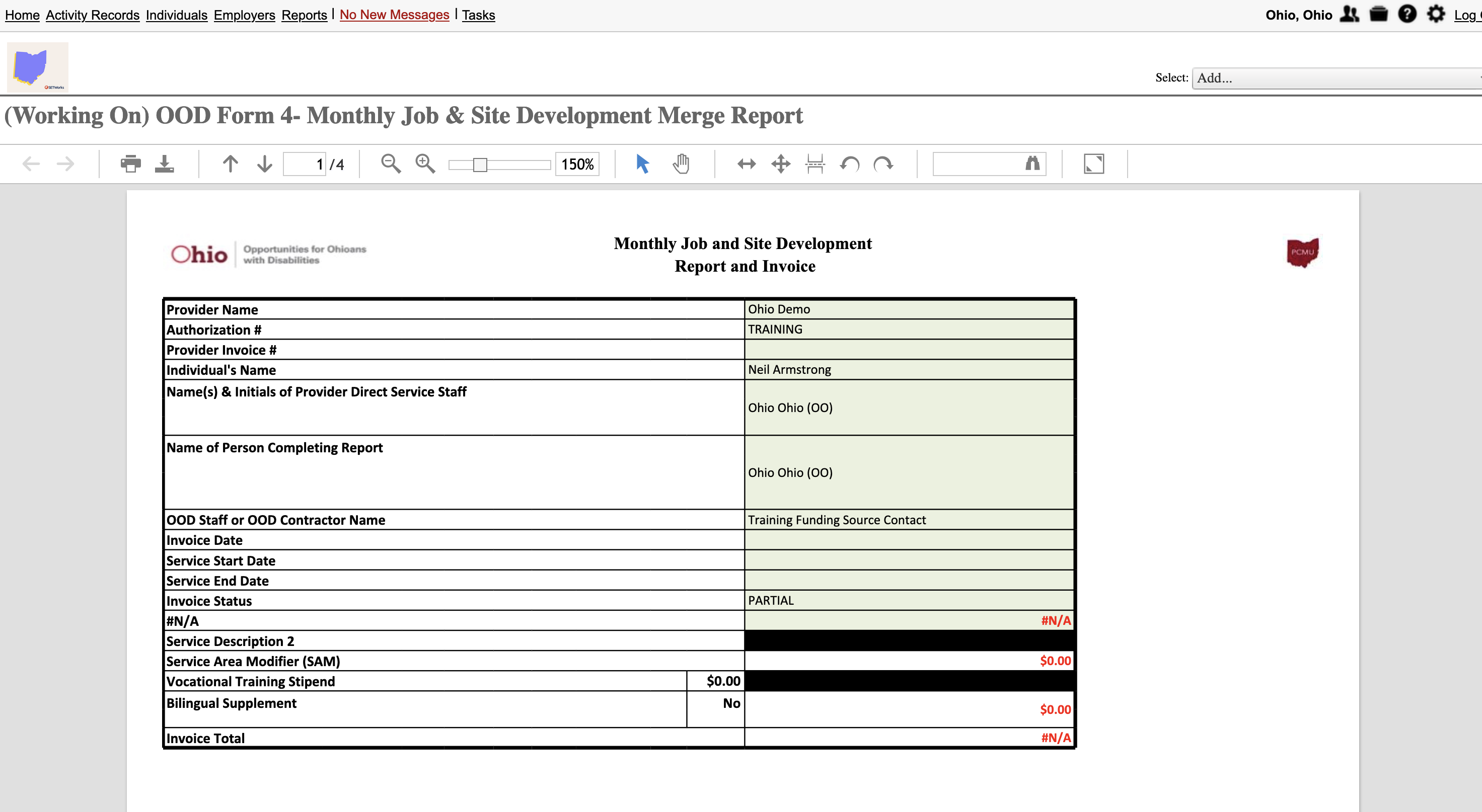
Note: NOTE: If information is missing on the report, review the steps above, update, and save the report.
Note: NOTE: If information is in the database or on the form, but does not appear on the report, contact support@setworks.com .