
How to configure and complete OOD Form 16 - Summer Youth Work Experience
Understanding Form 16
VIDEO CORRECTION: The two services required for Summer Youth, Level 1 and Level 2, are required for the Re-Authorization process (In progress), NOT to generate the billing form. When generating OOD Form 16 in SETWorks, one form can be generated for Level 2 services and the appropriate calculations will occur on the form for billing purposes. If you'd like to retroactively see those changes within SETWorks again, the re-authorization process will handle that.
Configuration
Service/Phase Utility
- Process both services, Level 1 and Level 2
- Service Billing Rule: Weekly unit: rounds any time in a week to one unit, week is defined as Sunday through Saturday
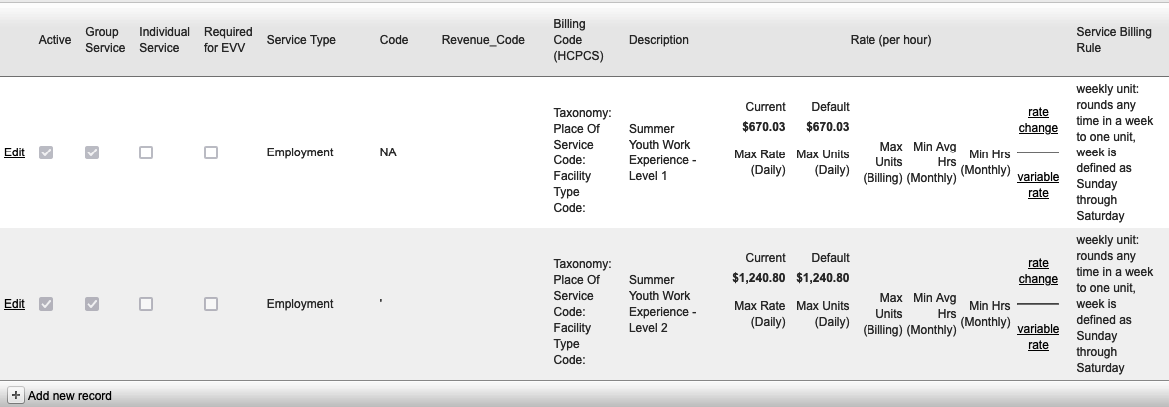
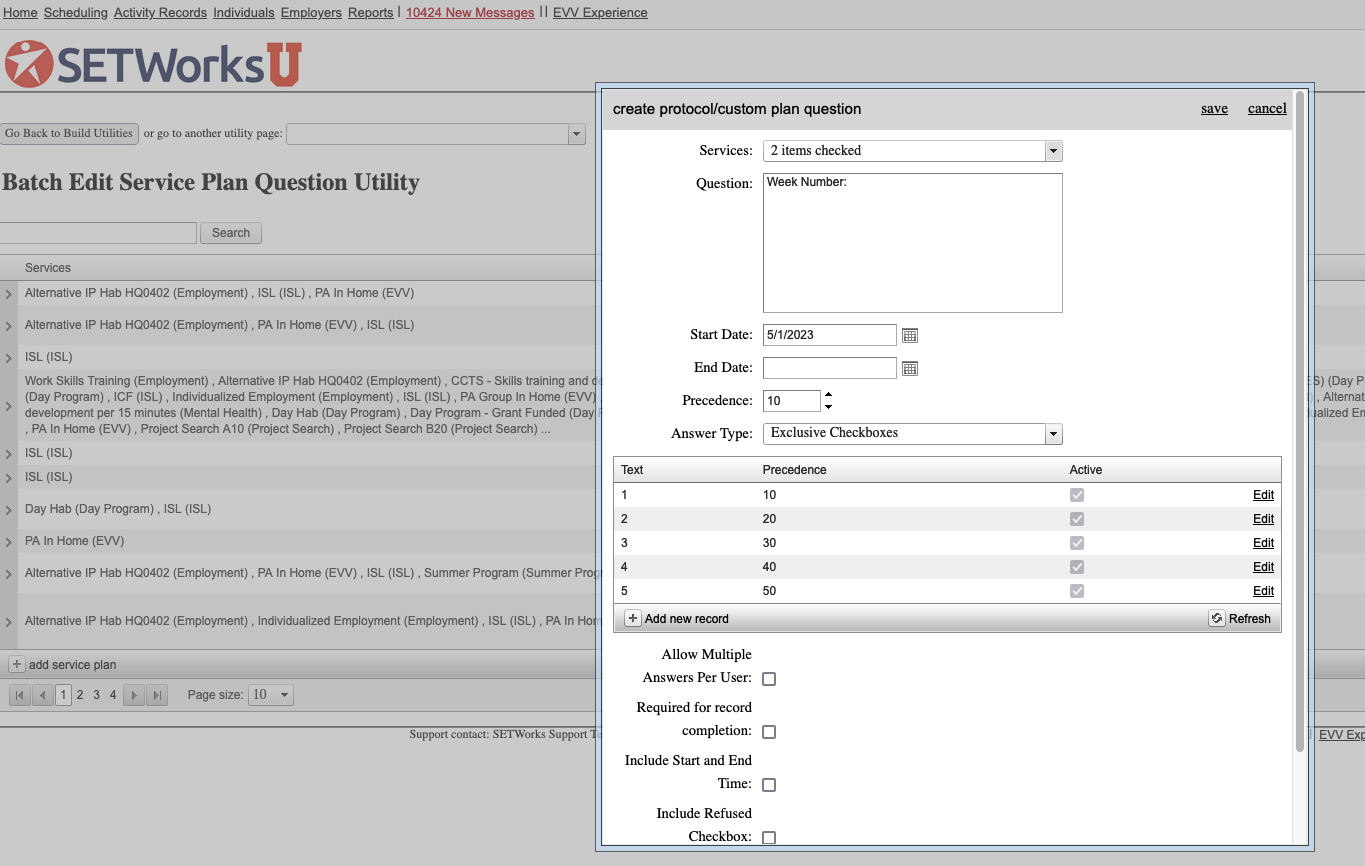
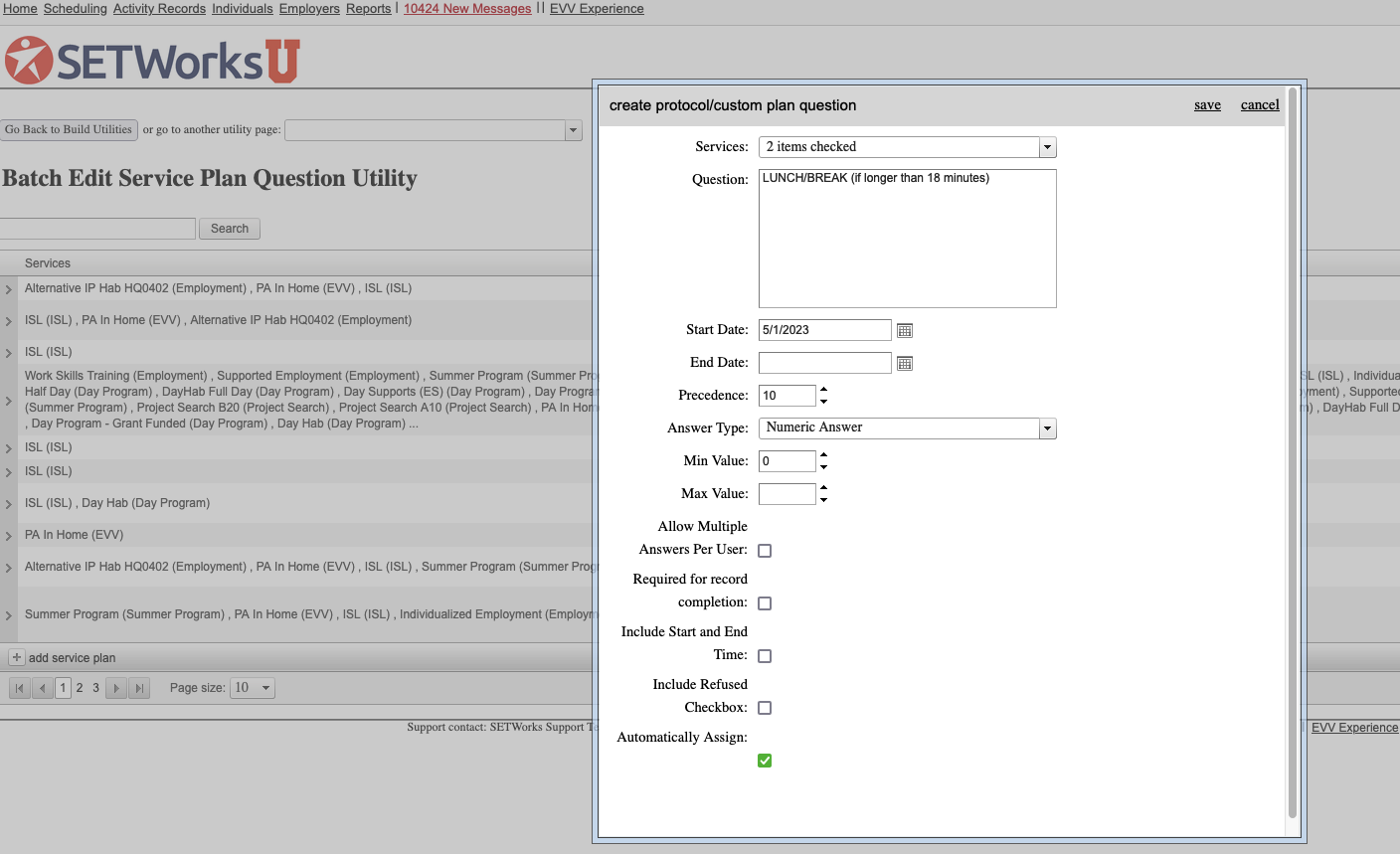
- Plan Question Utility - Process both questions:
1) Week Number (exclusive checkbox): 1, 2, 3, 4, 5
2) Lunch/Break (Numeric Answer)
Week Number
Lunch/Break
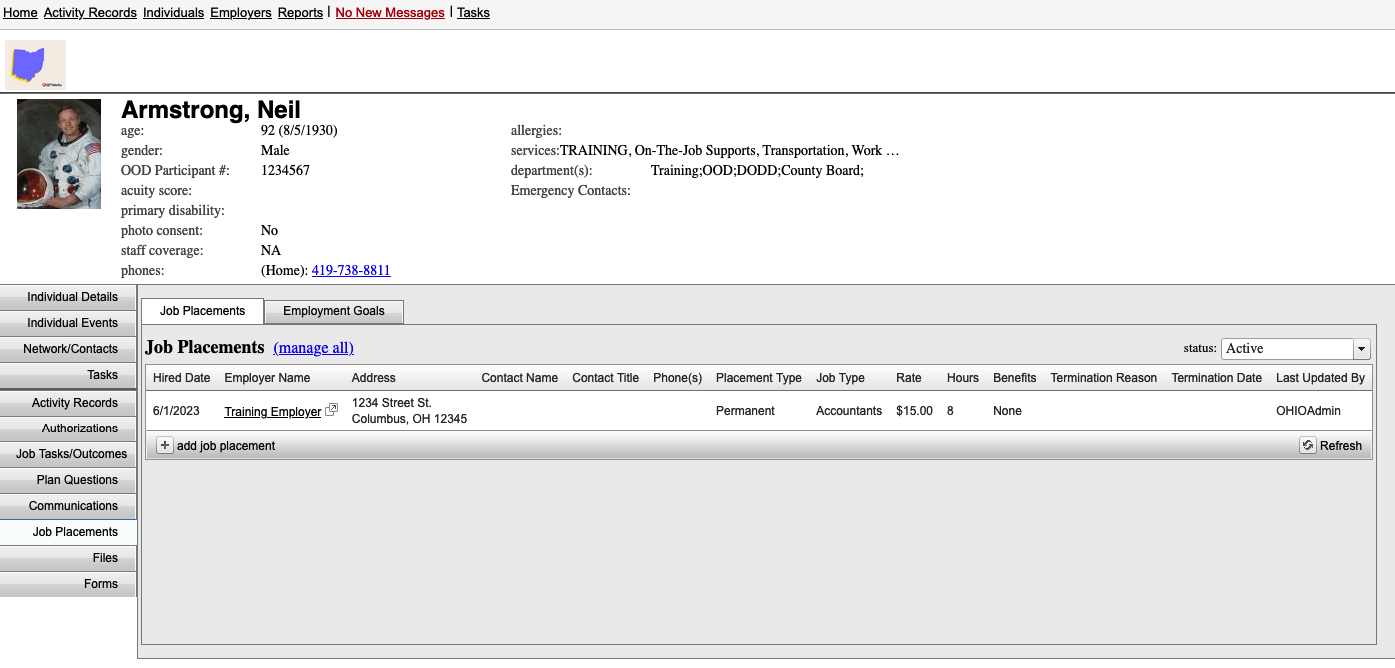
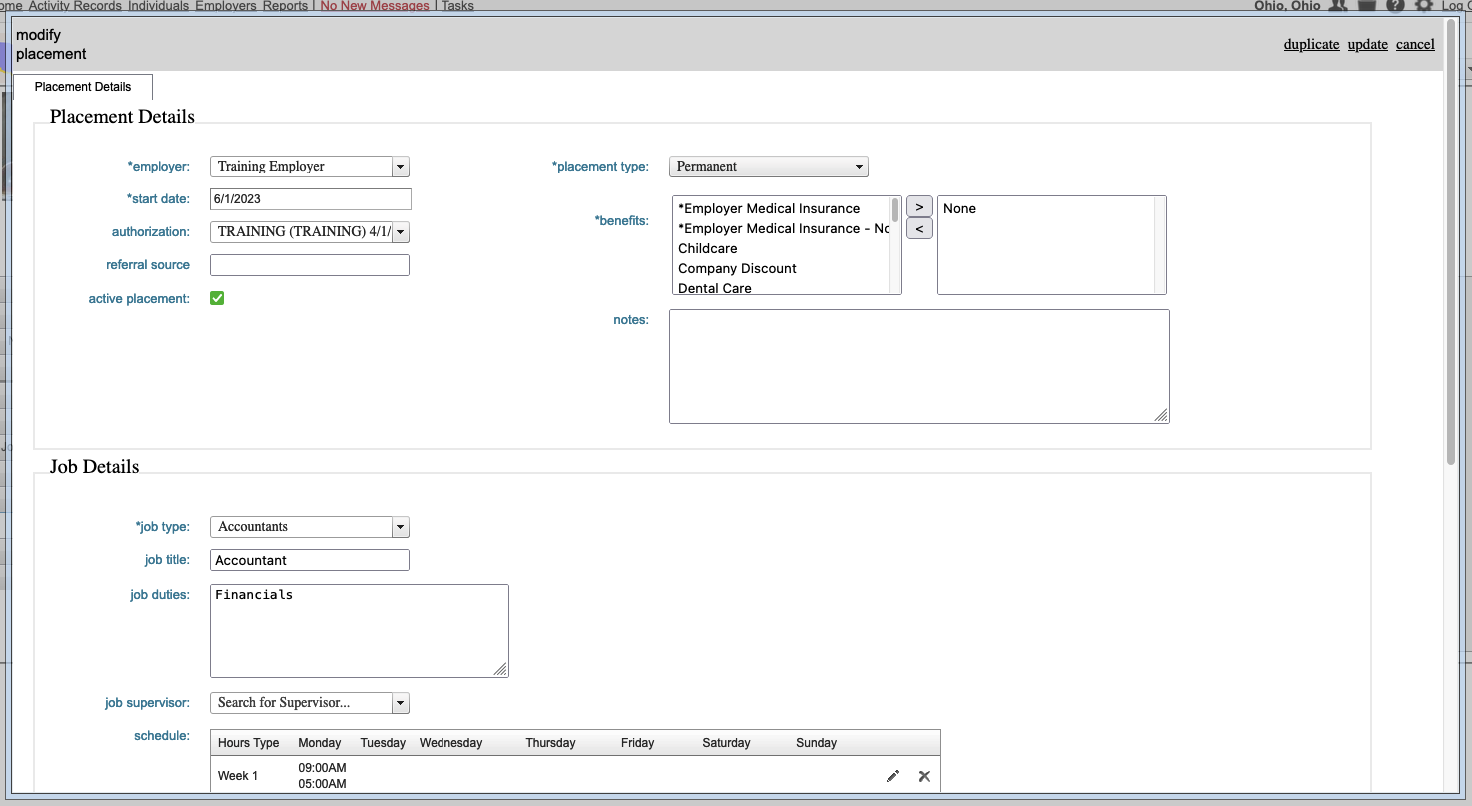
Job Placement
Generating from the Job Placement: Business Name & Address
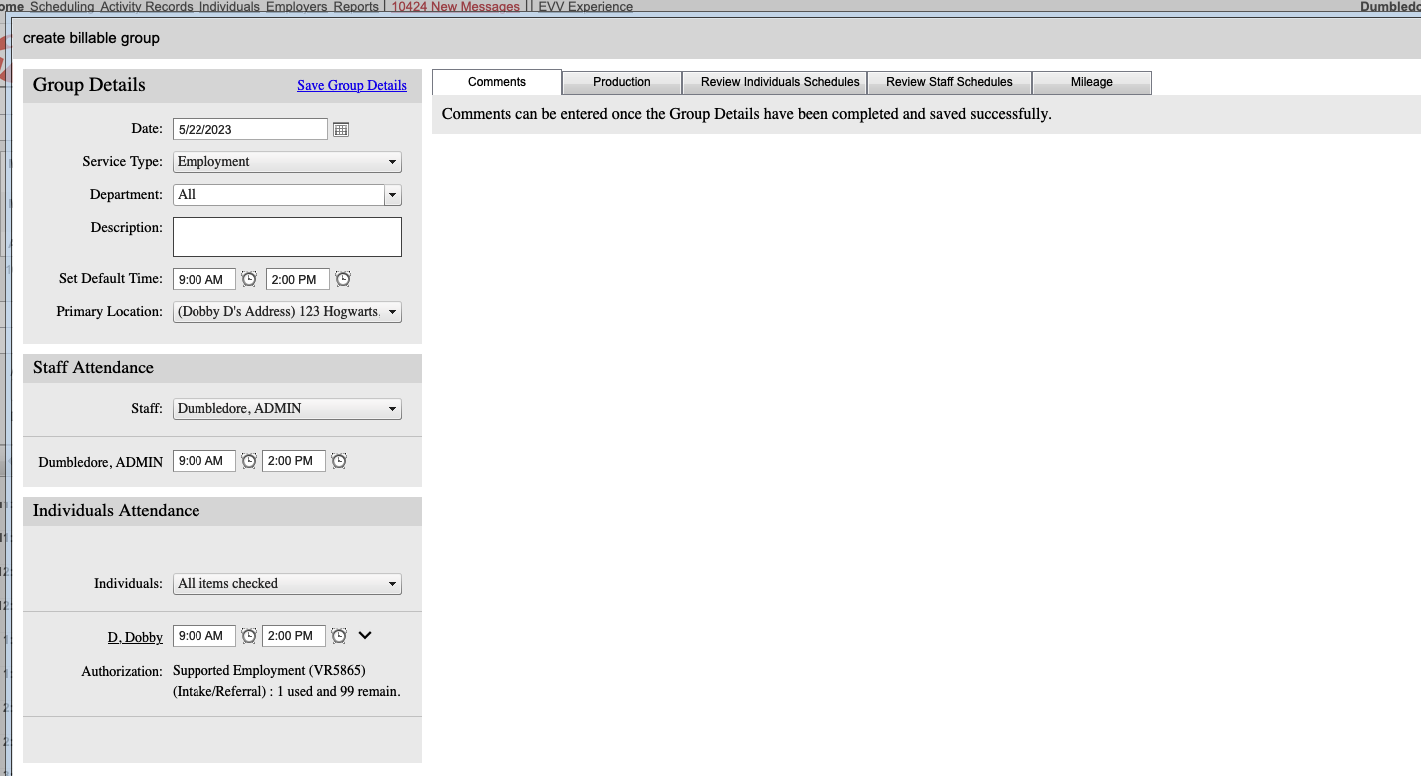
Activity Record Details
- Create a Group Activity Record - or - convert a Group Appointment to a Group Activity Record
- Select the date
- Select the service
- Select the department (not required)
- Include a description (not required)
- Enter the default time (will apply to all staff and individuals on the record for easier entry)
- Select the staff
- Select the individual(s) served
- Select "Save Group Details"
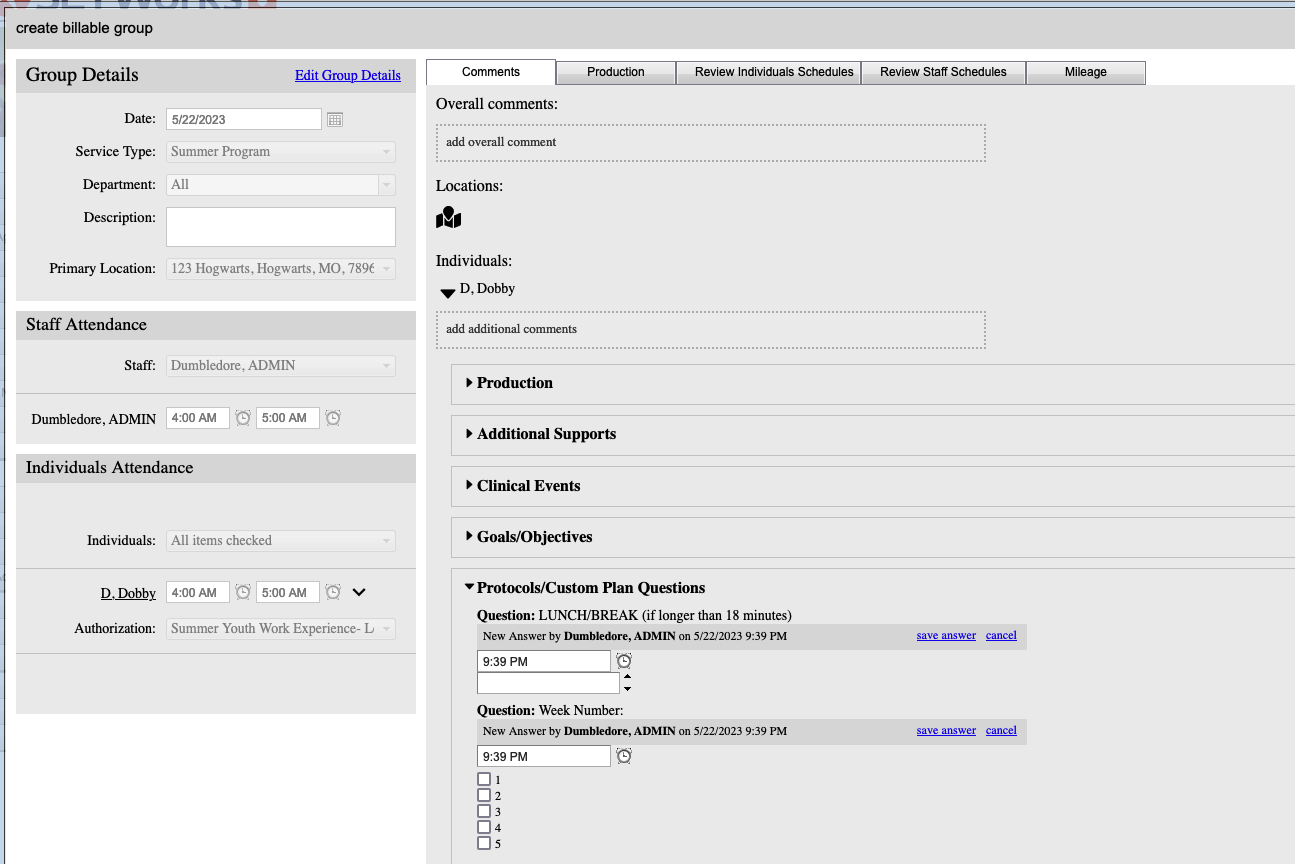
Activity Record Documentation
- Select the arrows to expand individual documentation areas
- Under each individual, add additional comment - used to document the soft skills for the day, how well the person did at completing the job tasks, and any accommodations or tools used, and other notes.
- Under Protocol/Custom Plan Questions
1) Complete the Week Number
2) Complete the Lunch/Break item
Form Documentation
- At the end of service/end of Week 5, complete form in the individual's profile: 2025 OOD Form 16 – Summer Youth Work Experience (SW)
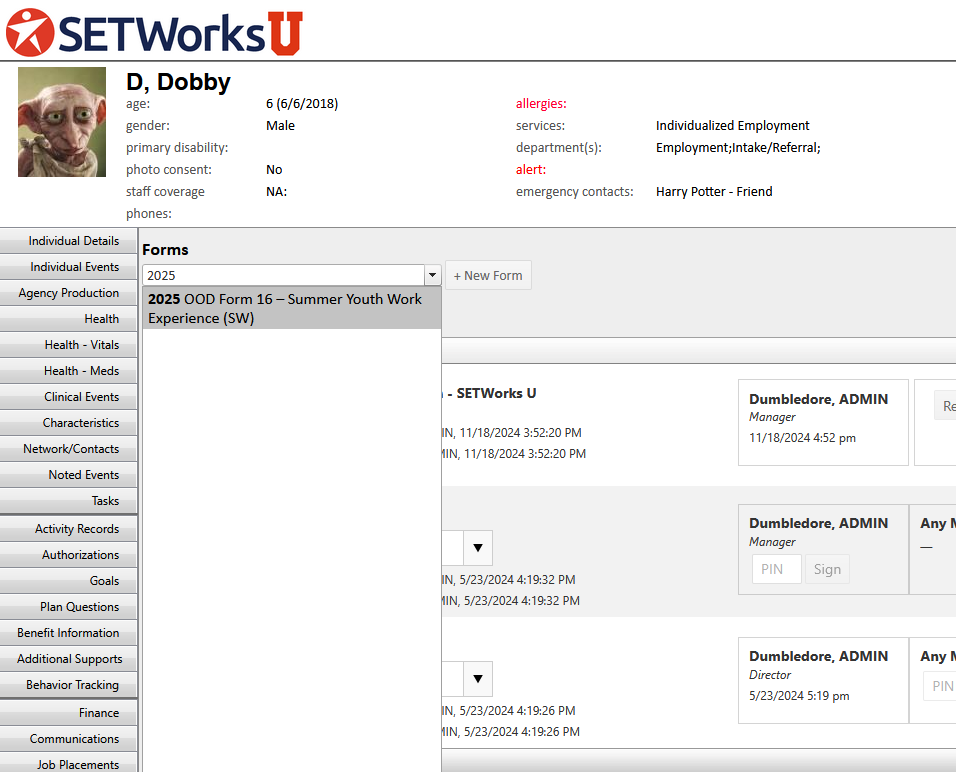
- Select the Authorization
- Select the Job Placement
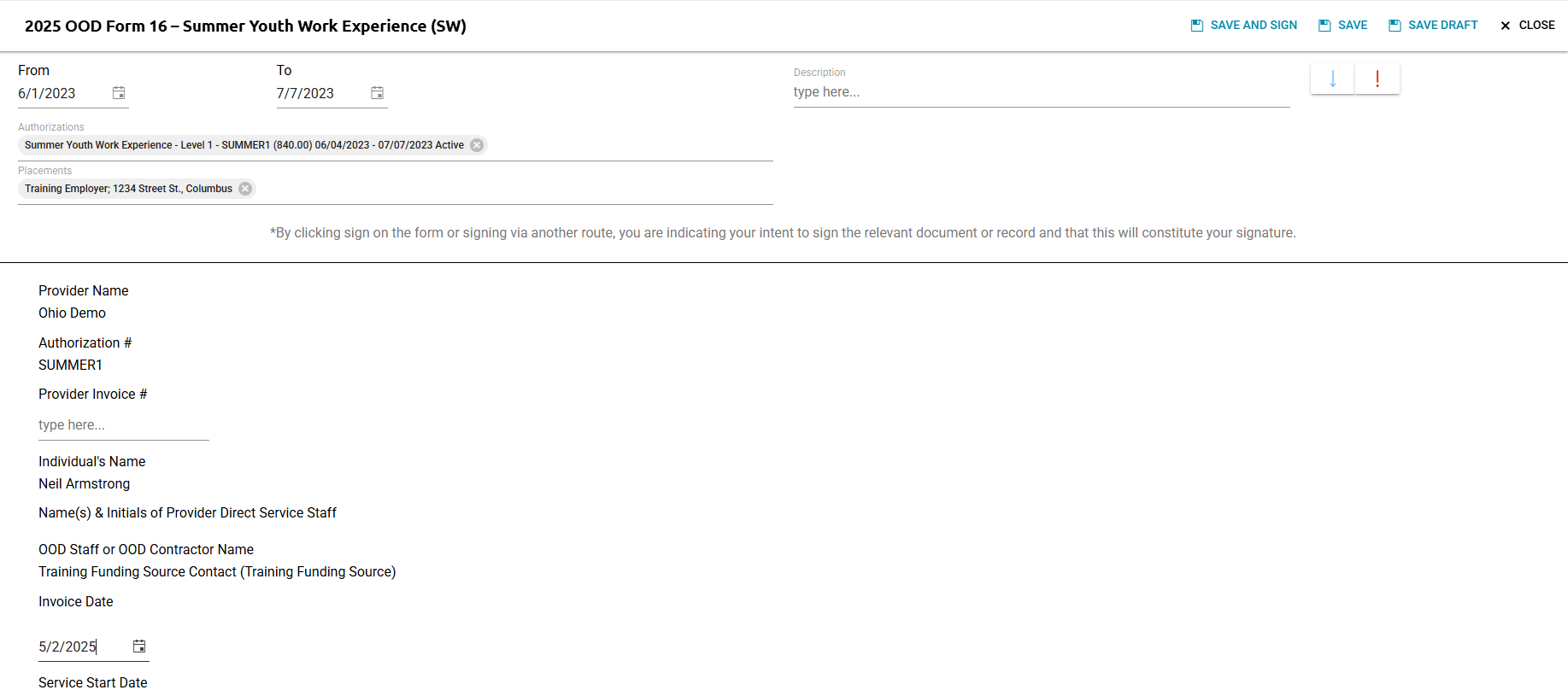
- Answer all required questions with an asterisk (*) beside it
- Save form
- View Report
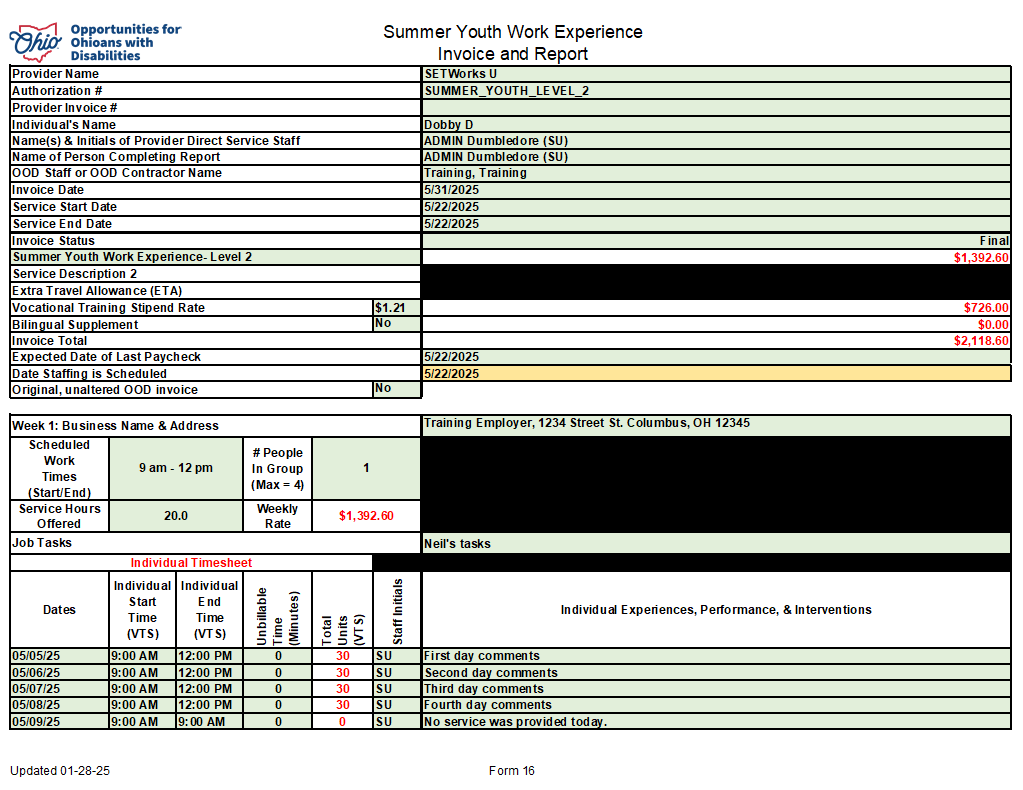
Documenting Absences
If the individual is absent for the day, within the same activity record:
- Zero out the individuals time (e.g., 9 AM - 9 AM = 0 minutes/0 units)
- Note the individual's attendance in the comments (i.e., Was not at services today due to illness).
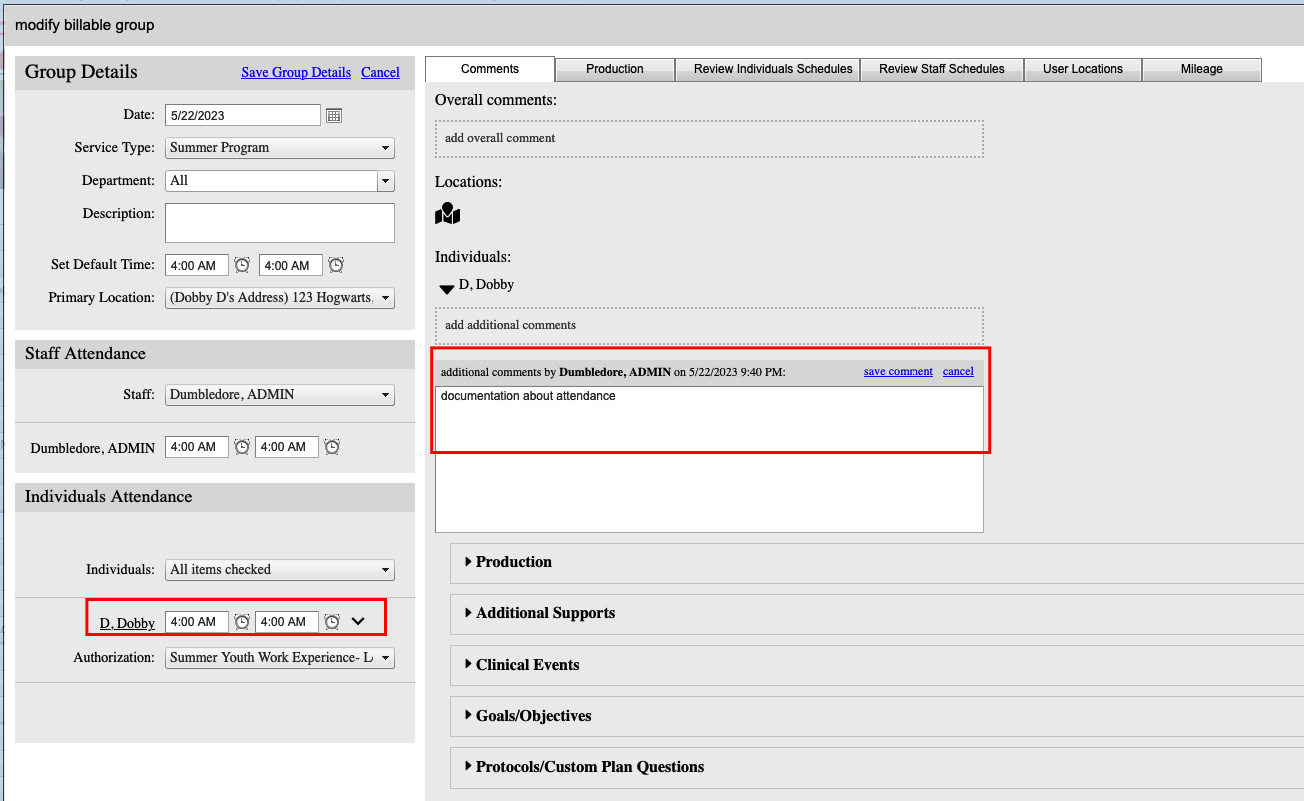
If the Group is absent for the day/no services occurred:
- Create a Group Activity Record - or - convert a Group Appointment to a Group Activity Record
- Include all individuals that usually attends daily services.
- Use the default time to zero out all staff and individual times (e.g., 9 AM - 9 AM = 0 minutes/0 units)
- Note individuals' attendance in the comments (i.e., No services on Friday's)
TIP: Create a recurring Billable Group Appointment to occur the dates services do not occur, and convert them on that date using the default time to zero out time of many individuals at once.
Other Notes
- The group amount is based on the maximum number of individuals per week.
- Week numbers/plan questions are required in order to be successful with placement of AR data on the form report.
- Signatures are not generated on this form; signature configuration is preferential.
- If you would like to be able to pull a Person Served Timesheet for payroll purposes, please reach out to support@setworks.com to have the Person Served Timesheet (SW) made available for your build.
Receive Errors?
Each authorization selected on the form must have activity records within the date range of the report in order for the form to generate a report.
- Are there activity records?
- Do they occur with the date range selected on the form?
- For both/all authorization selected on the form?
Each form must have a placement selected to generate a report.
Note: NOTE: If information is missing on the report, review the steps above, update, and save the report.
Note: NOTE: If information is in the database or on the form, but does not appear on the report, contact support@setworks.com .