What are Appointment Forms and how do I use them?
Administrators
Please review Appointment Forms - Configuring Appointment Forms to learn how to configure your system to use Appointment Forms.
Appointment Forms
Forms can be used to create calendar placeholders on home screens. This is the solution for storing placeholders on staff calendars for individuals medical appointments. A Consumer Medical Appointment form, for example, is visible by any staff in the assigned department serving as a reminder on the exact date and time of the appointment. Works with staff forms, too! Making it easier to create staff-wide appointments for team meetings and trainings.
Creating an Appointment Form
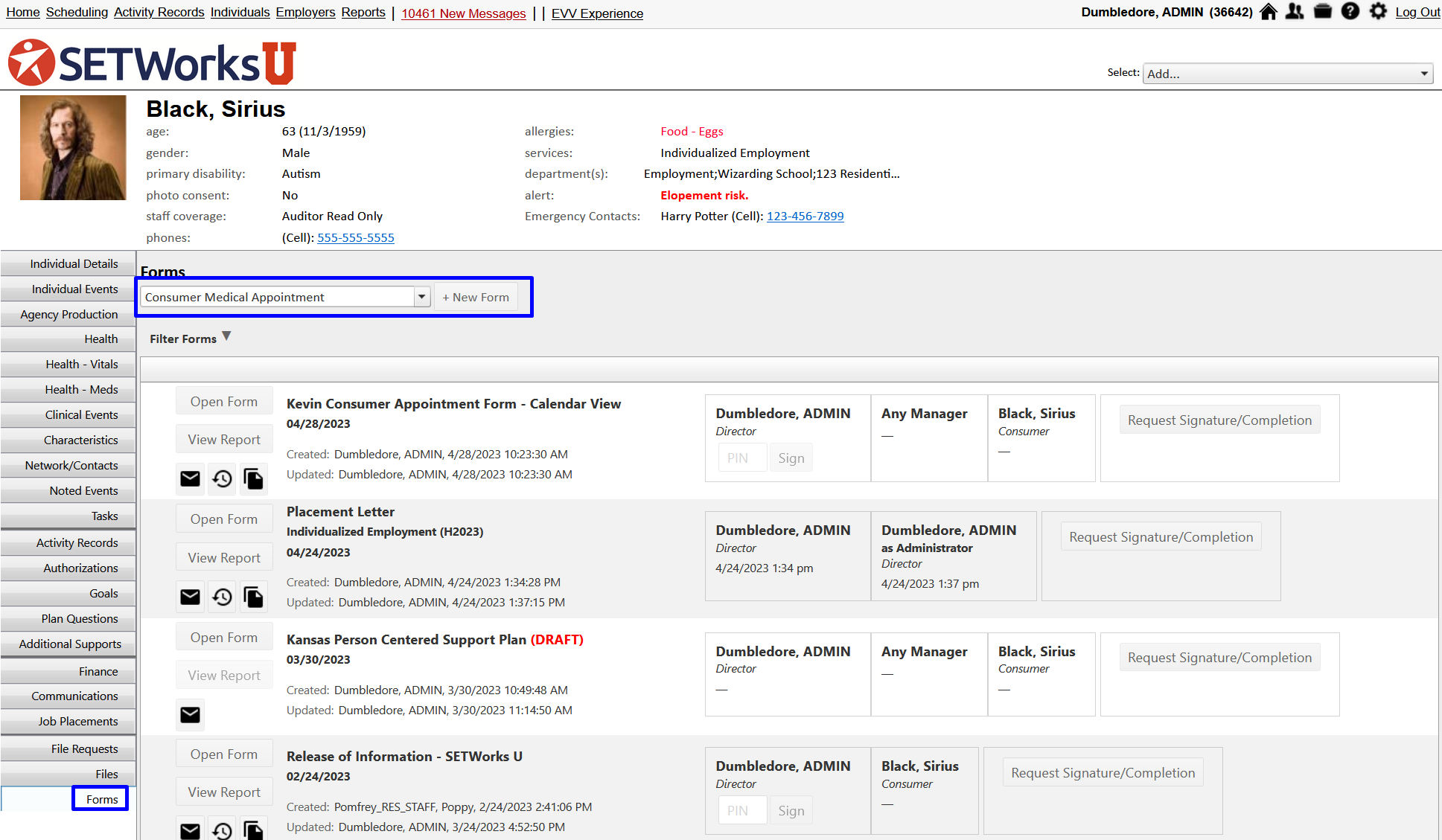
- Navigate to the Consumer's Profile.
- Select the Forms tab.
- Find the applicable form within the Forms drop-down.
- Select + New Form.
Complete the Form
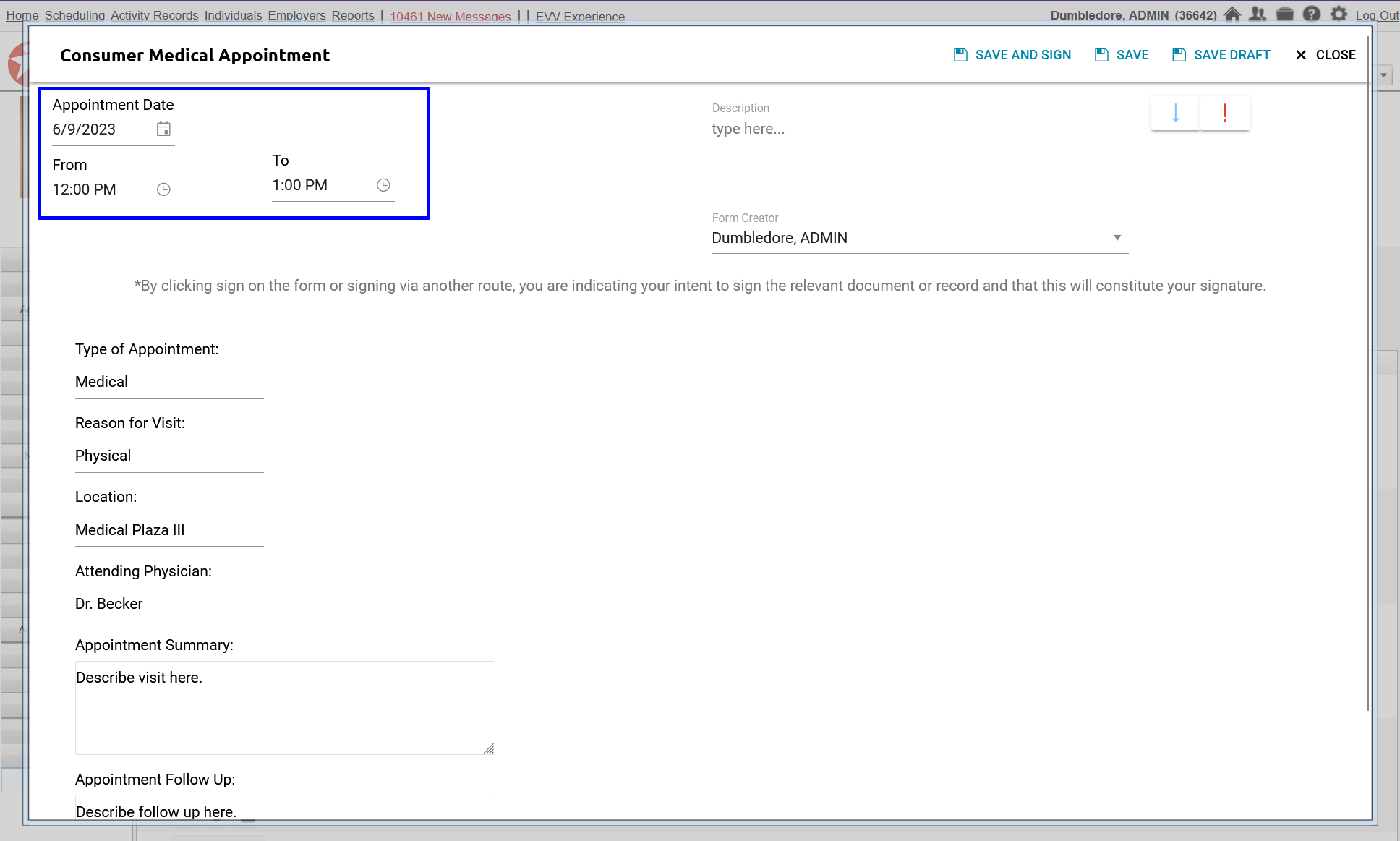
- Input the appropriate date and times. ** The date & times input here are what create the appointment block on the calendar**
- Complete the rest of the form as necessary.
- Click save.
View the Appointment Form on the Calendar
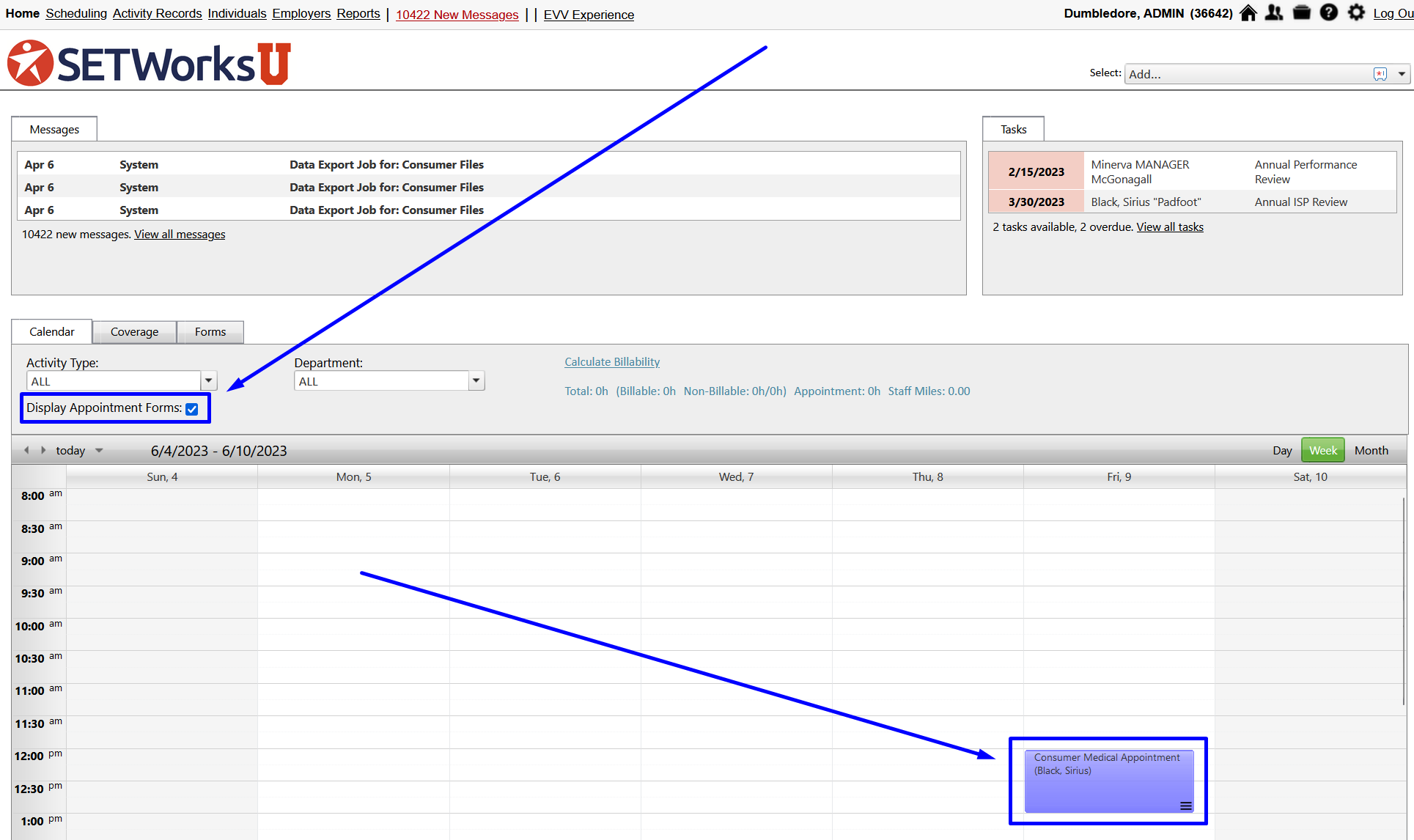
- On the home screen check the Display Appointment Forms: checkbox
Note: Any staff that has access to that consumers' department will be able to view the Appointment Form on the calendar of their home page.
View/Modify the Appointment Form Details
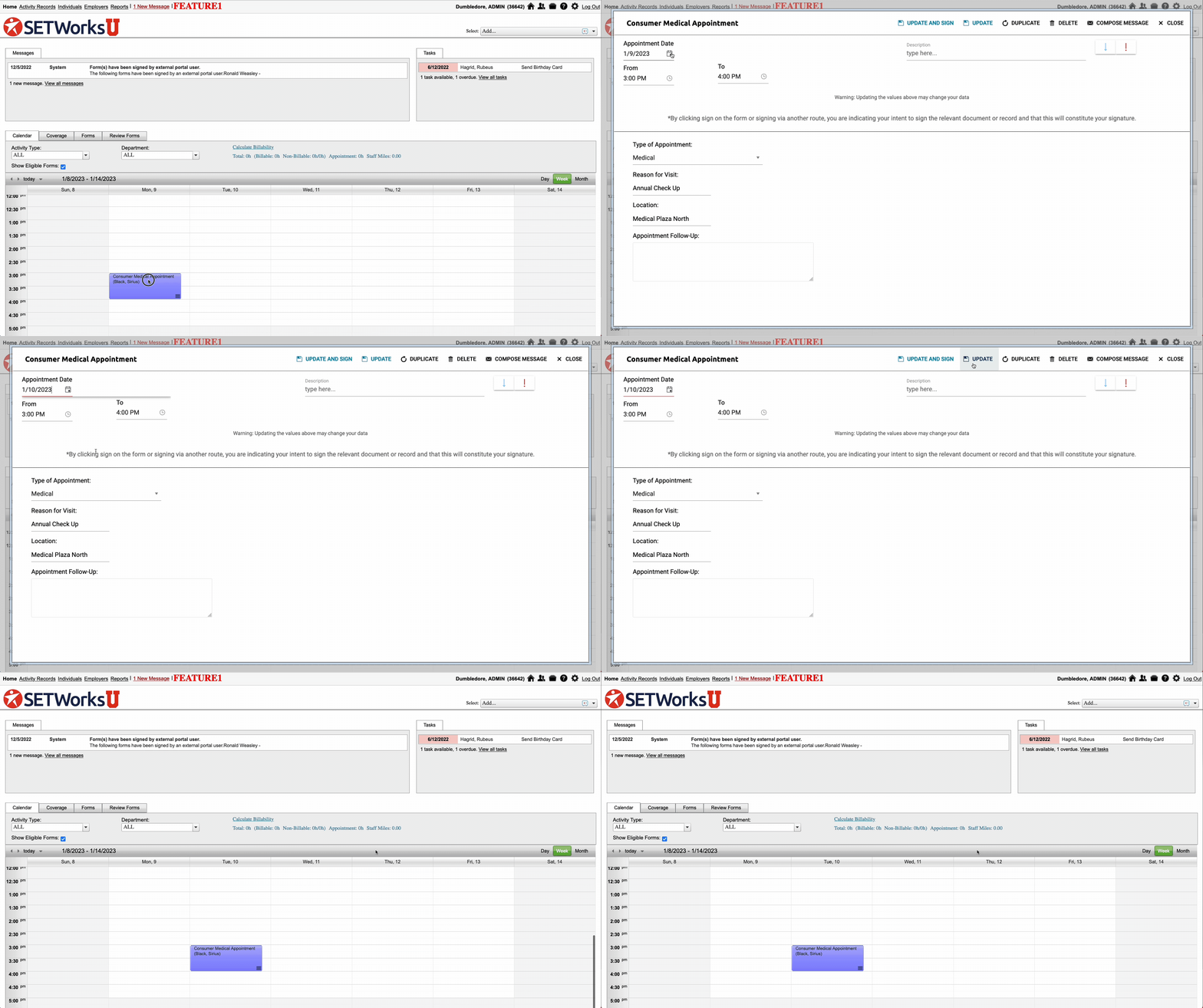
- You can view/modify the details of the Appointment Form by clicking on the appointment block (this will open the form) and modifying the necessary details, including the date/times if the appointment needs to be rescheduled, or if there is additional information (follow-up) that needs to be added.
- You can also click on the hamburger icon to open the form or view the form report.