How do I configure the Consumer Events Type Utility?
Administrators
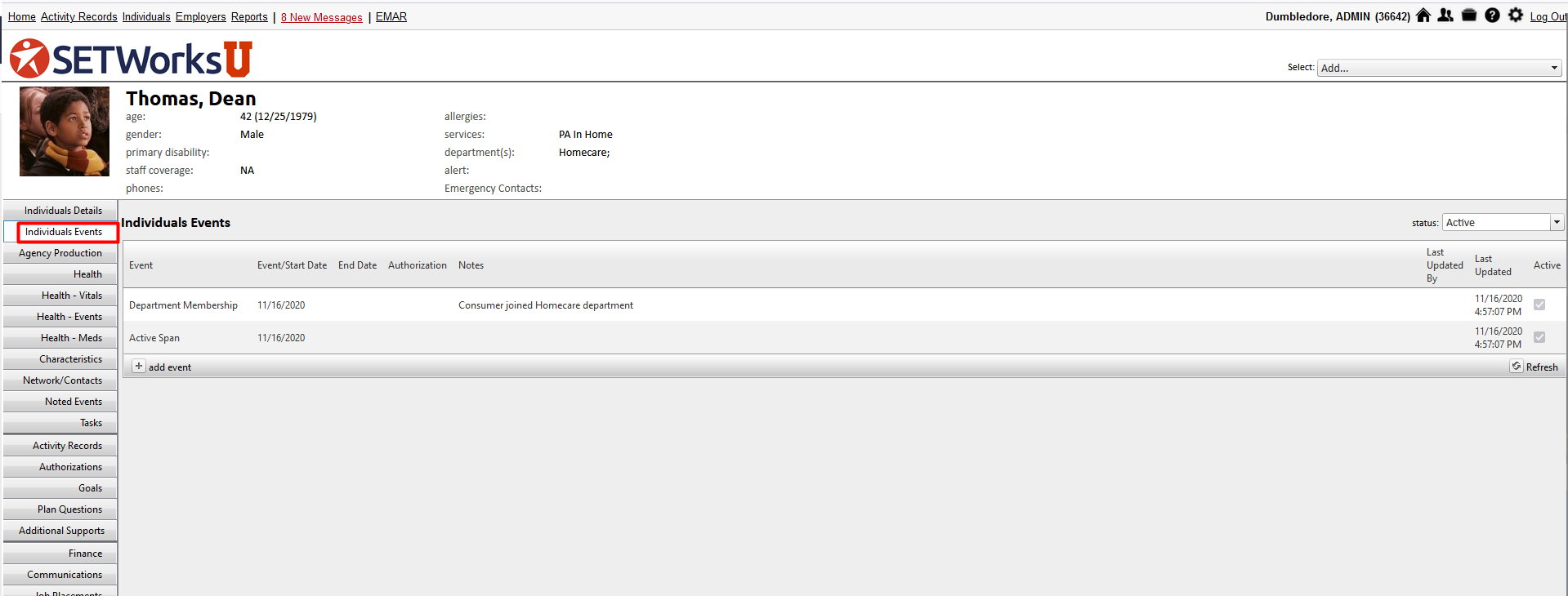
Consumer Events are important dates and events tracked on behalf of individuals. Examples include: Intake Date, Dates of Hospitalization, Date Started x Service, Hire Date, Annual Review Date, etc. If you're interested in triggering Tasks based on a certain date, consider tracking that date as a Consumer Event.
Note: NOTE: The Consumer Event tab in the individual's profile will be renamed in SETWorks to match your organization's language (e.g., Participant Event, Client Event, Person Served Event, Individual Events, etc.)
Consumer Event Privileges
Settings > Provider Build > Maintain Privileges > Consumer Profile:
Note: Enable the Consumer Events tab.
Note: Is able to edit Consumer Events.
Note: Is able to add and edit Consumer Events that are flagged as Read-Only within the Consumer Events Utility.
Access the Consumer Events Utility
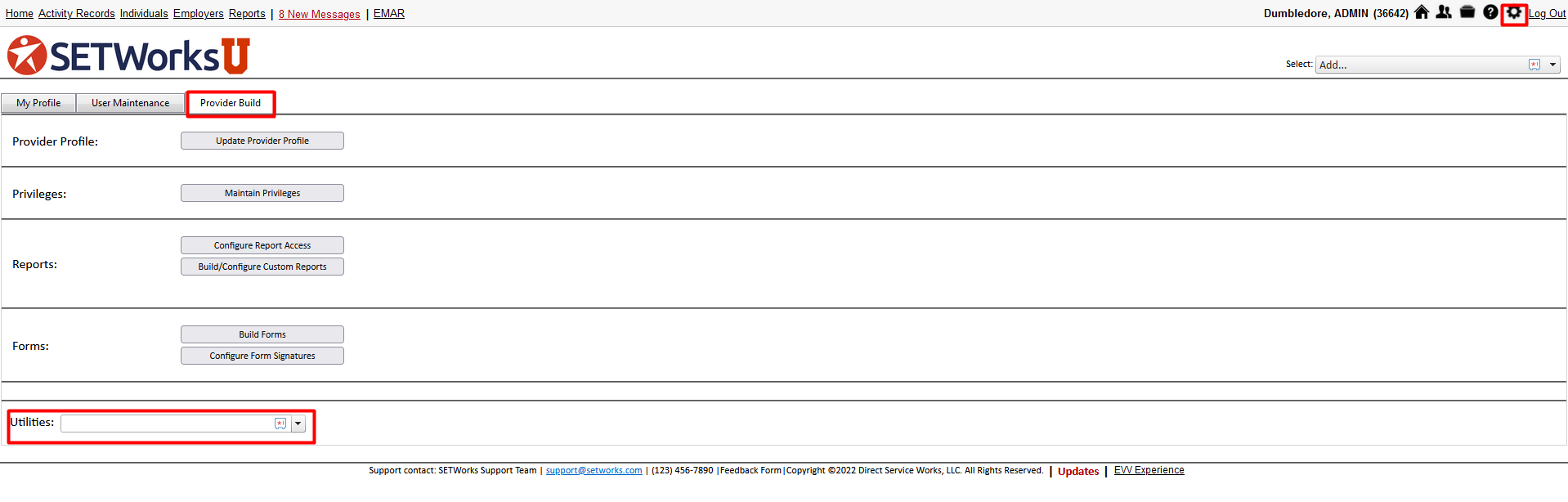
- Select Settings.
- Select Provider Build.
- Select Utilities: Consumer Event Type
Configuring Consumer Event Types
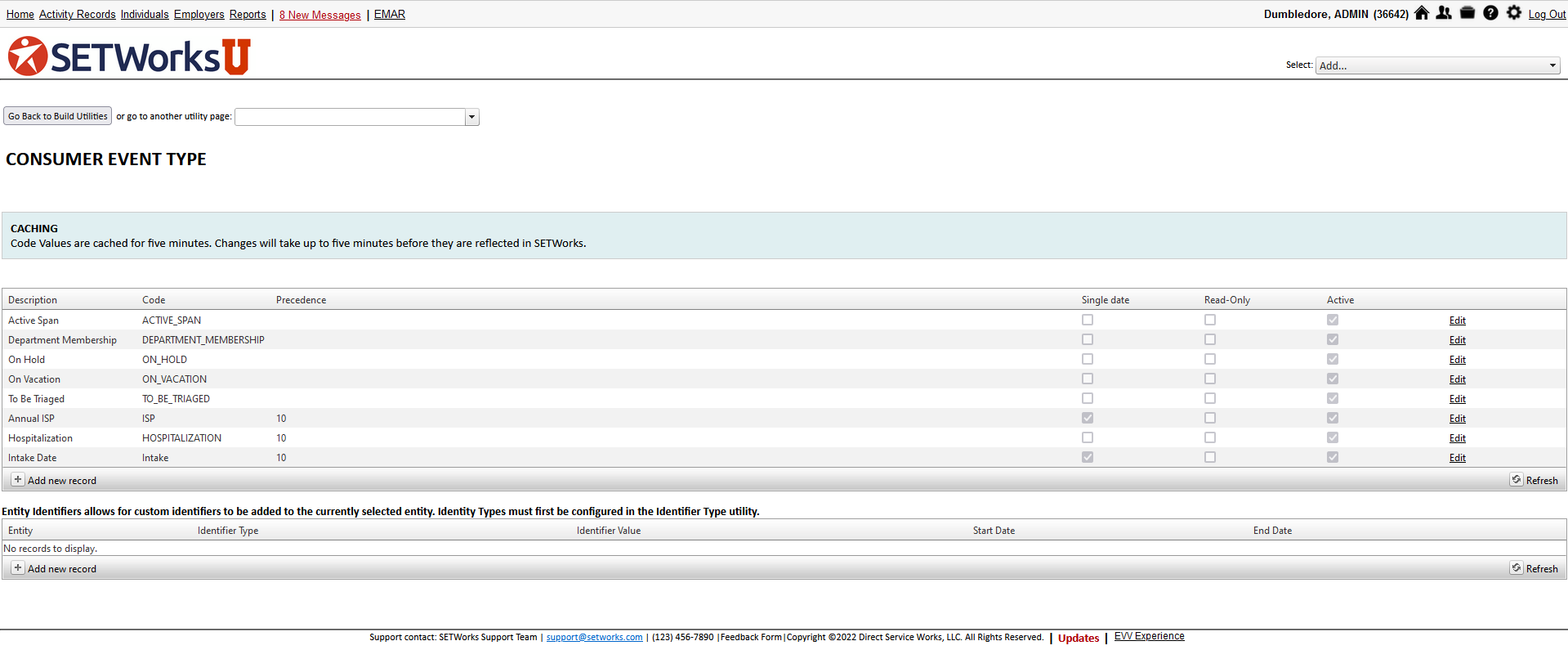
1. Add new record.
2. Utility: Consumer Event Type.
3. Description: Name the consumer event (e.g., Intake Date).
4. Code: Provide a code, typically the description in all caps (e.g., INTAKE_DATE)
5. Precedence: The order in which the event is to occur within the dropdown.
6. Single Date: If a single date (e.g., Jan 1, 2022) is collected versus a date range (Jan 1, 2022 - Dec 31, 2022).
7. Read-Only: If you do not want others to modify this event within the individual's profile.
NOTE: Enable the privilege for roles that can modify this event:
Note: Is able to add and edit Consumer Events that are flagged as Read-Only within the Consumer Events Utility.
8. Insert to save changes.
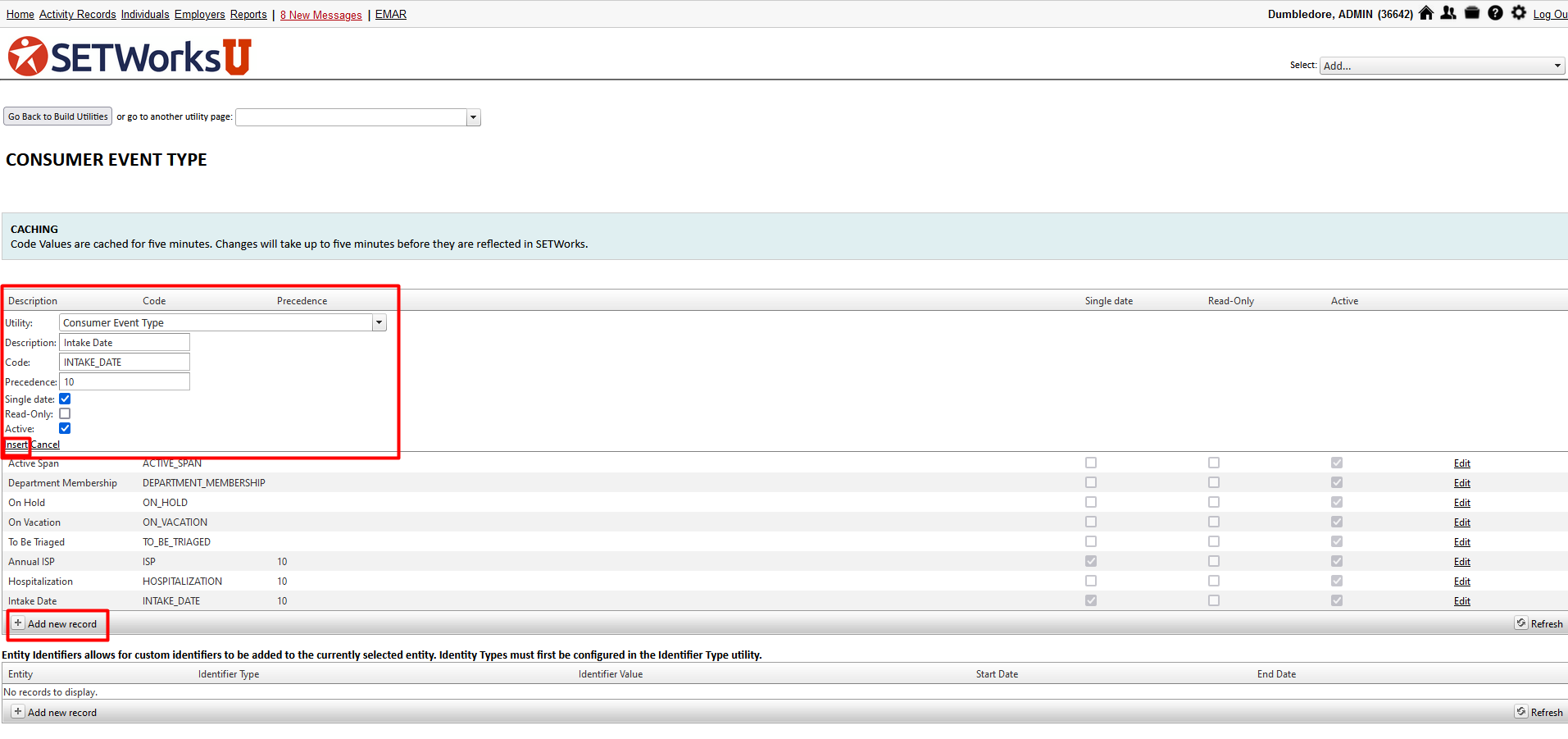
Modifying a Consumer Event Type
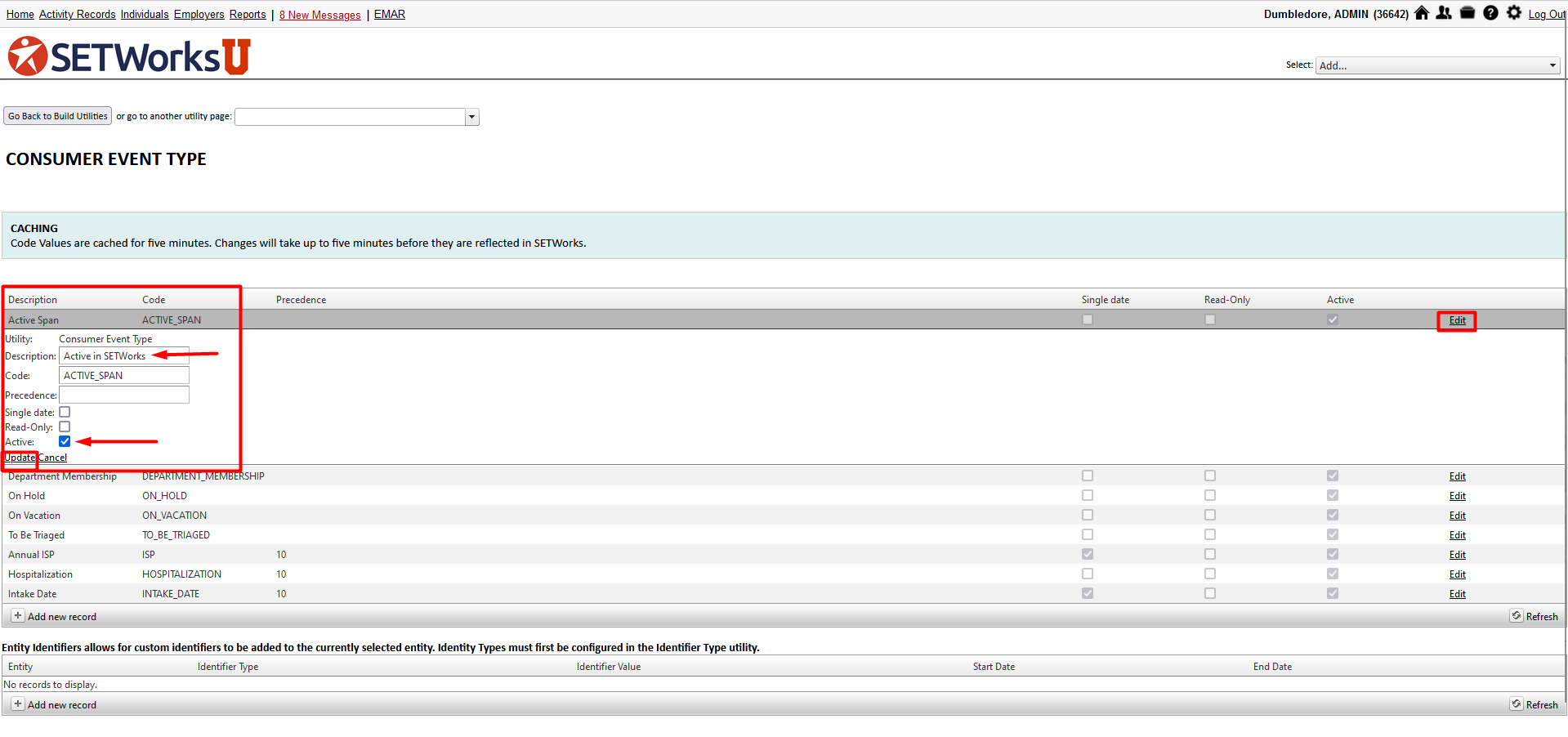
There are consumer events that are created by default that automatically track when an individual was created in SETWorks (Active Span), when an individual is moved departments (Department Membership), when an individual has an address change (Primary Address Change), and additional options created for the Consumer Event dropdown (i.e., On Hold, Vacation, To be Triaged, etc.). These can be disabled or renamed.
- Select Edit for a desired entry.
To Rename: Remove the 'description' and rename it. NOTE: Do not rename the code if you wish these to continue auto-tracking.
To Disable: Deselect the blue checkmark to inactivate.
- Select Update to save changes.