
How to complete a SETWorks Form as an External User
Welcome to SETWorks! As an external user you have been requested to upload a file to a form in SETWorks. You will receive an email invitation to join SETWorks.
Note: Email delivery times can vary depending on your mail service and/or settings along with other factors that SETWorks cannot access or maintain.
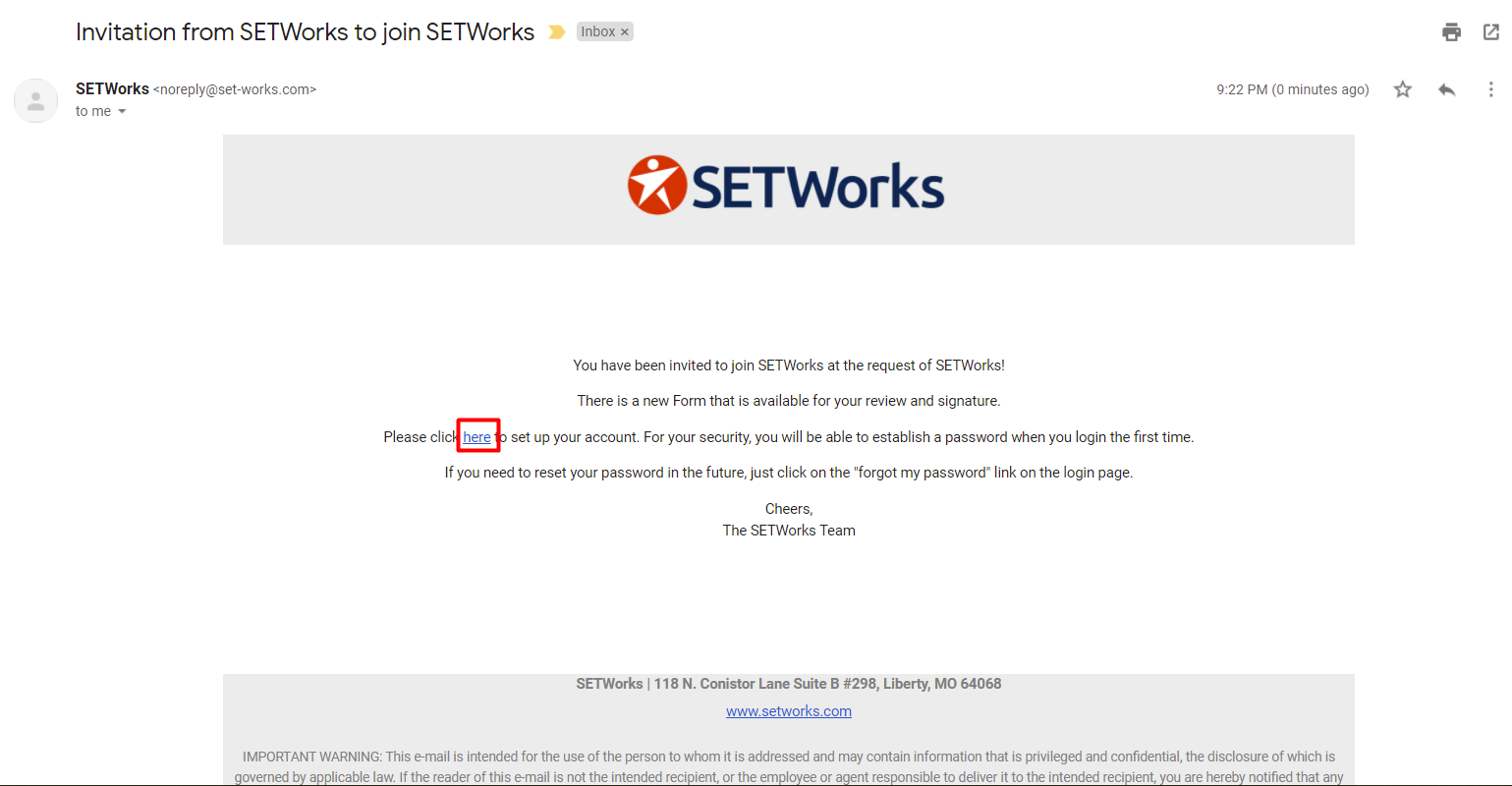
Once you select the link in the invitation to setup an account, you will be redirected to a setup page:
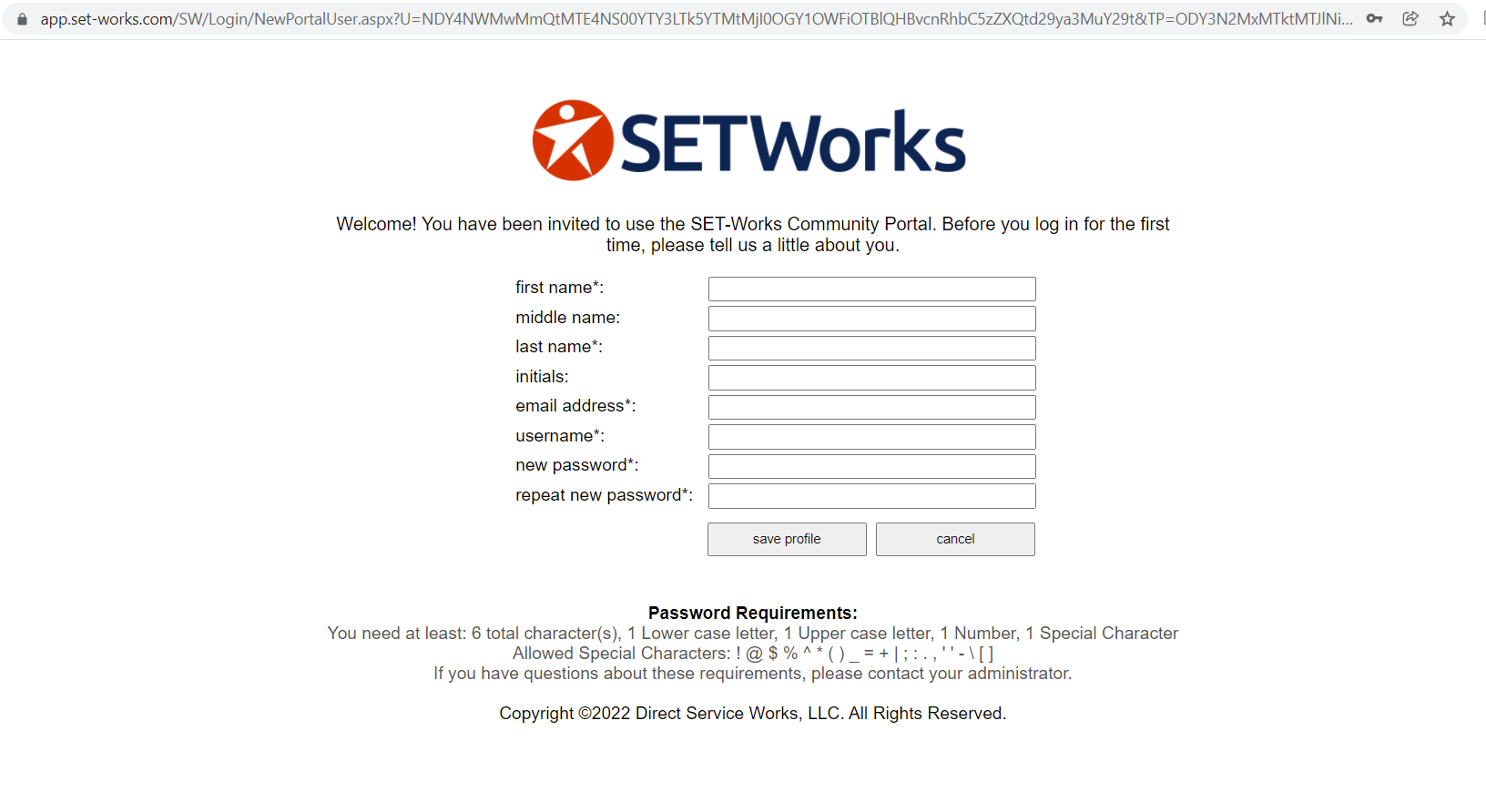
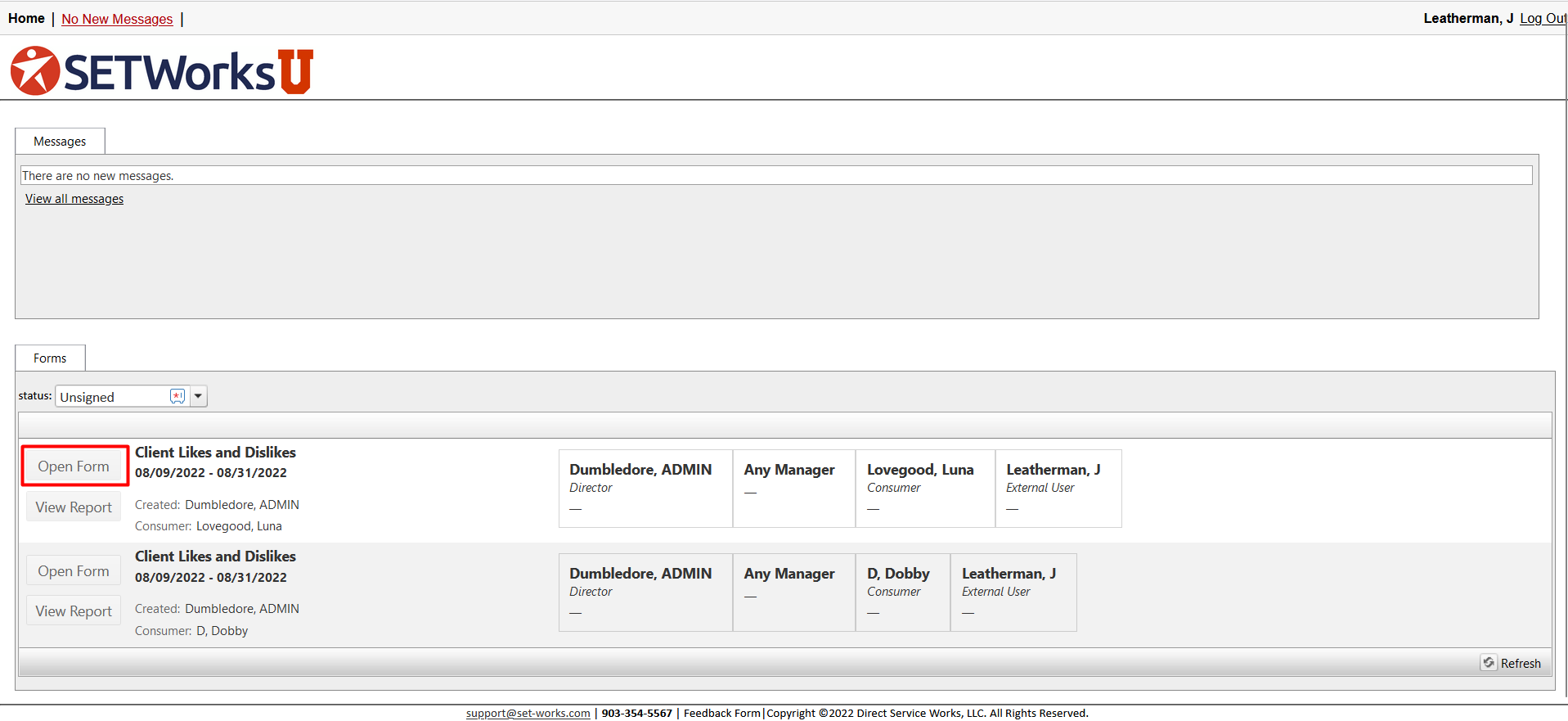
After providing the required information, you will be able to log in and open the form and upload a file.
Status: You can review signed, unsigned, and all forms.
Open Form: Open the form and upload the file.
View Form: View the form before you sign.
View Report: View the completed form report.
Complete a Form
1. Select Open Form.
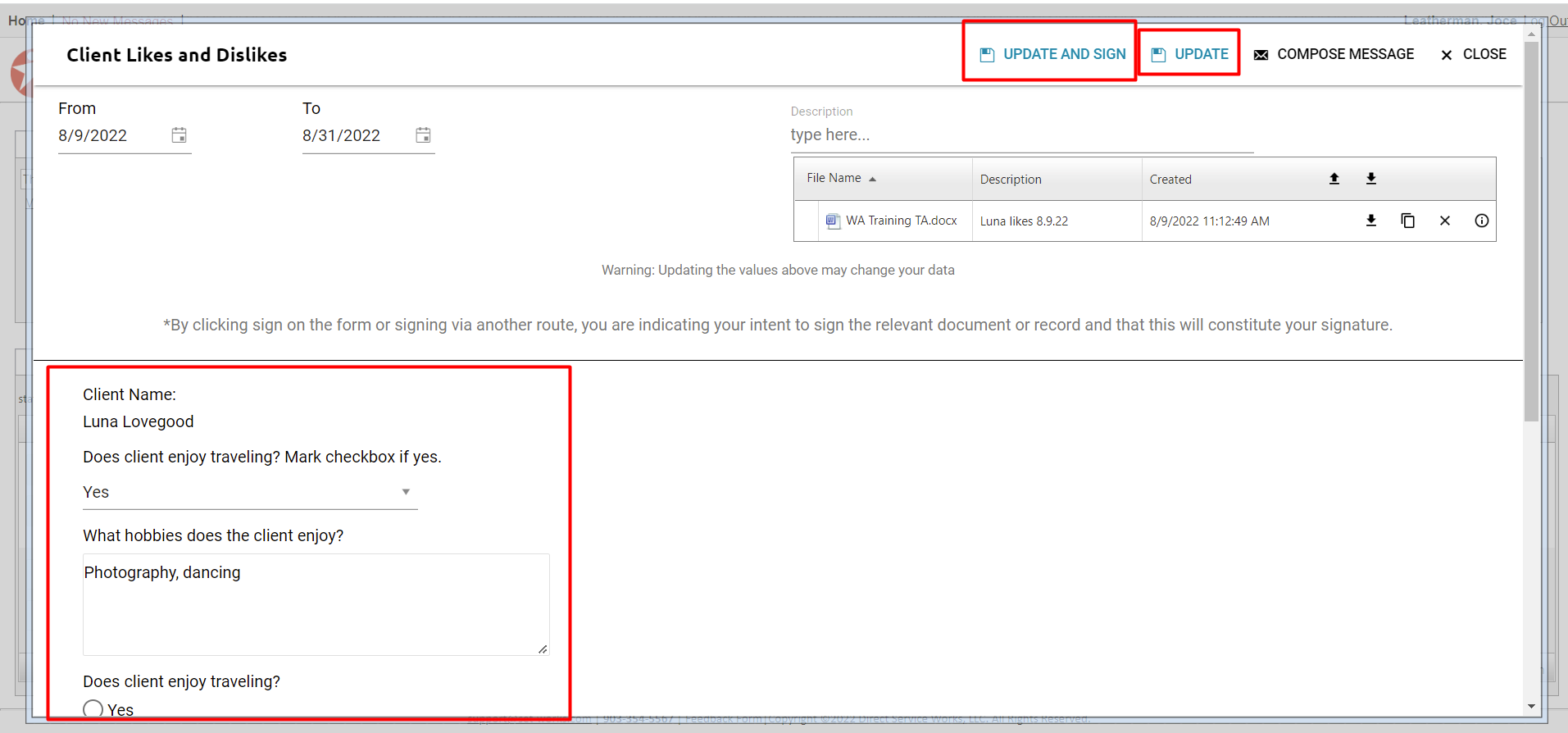
2. Complete the form by filling out the information, text boxes, dropdowns, etc. Update.
3. Select Update or Update and Sign
Learn how to Upload a File as an External User.
Learn how to Sign a Form as an External User.