How can I send an External Portal User (Parent, Guardian, etc.) a SETWorks Form to Complete?
Administrators, Managers, Staff
Privileges
Settings > Provider Build > Maintain Privileges > Forms:
Note: Is able to add additional form signatures.
Note: Enable the ability to request form signatures via email.
Create the Form on the Consumer's Profile
- In order to send a form to an external portal user for completion, the form still needs to be created on the specific consumer's profile.
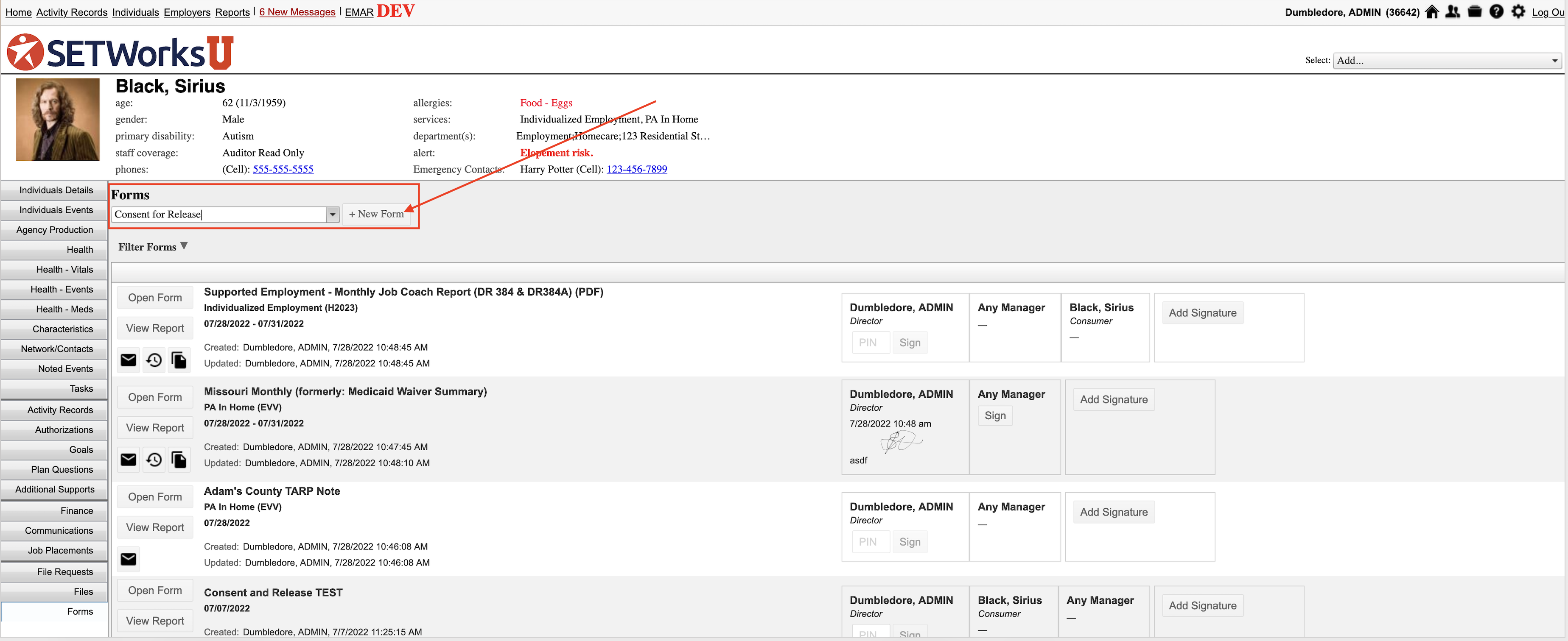
- Navigate to the consumer's profile.
- Open the Forms tab.
- Find the form in the Forms drop-down.
- Select + New Form
- Once the form opens click Save or Save Draft.
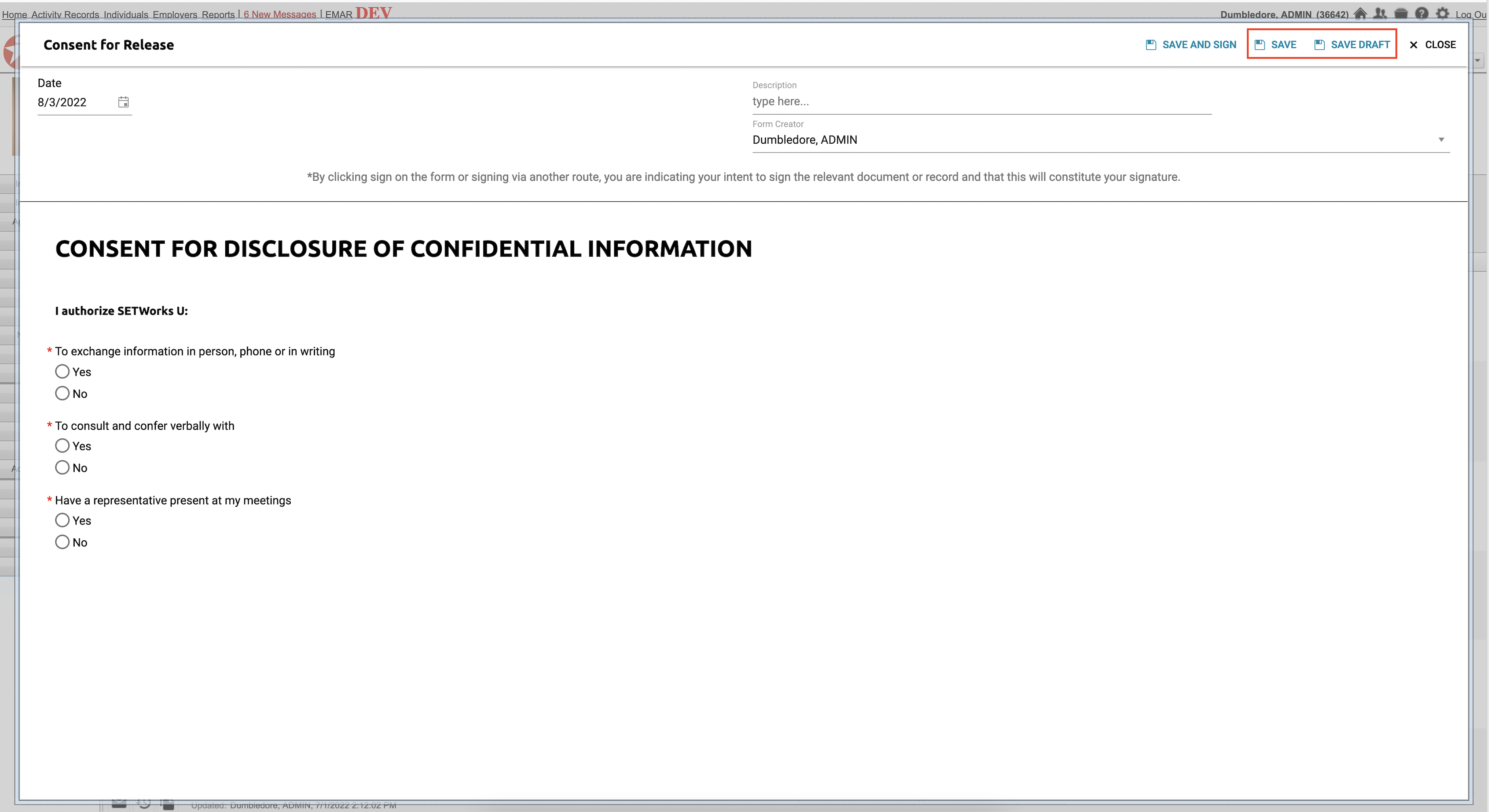
Note: If applicable, you are able to partially complete the form and then send it to be completed by the external user. Or, send the entire form for completion.
Note: If there are required fields on the form you will have to Save Draft in order to send it to the external user.
Sending a Form to the External Portal User for Completion
Note: In this example, since this form has required fields and was saved as a draft, you are not able to add additional signature requests. Request via email will be your only option.
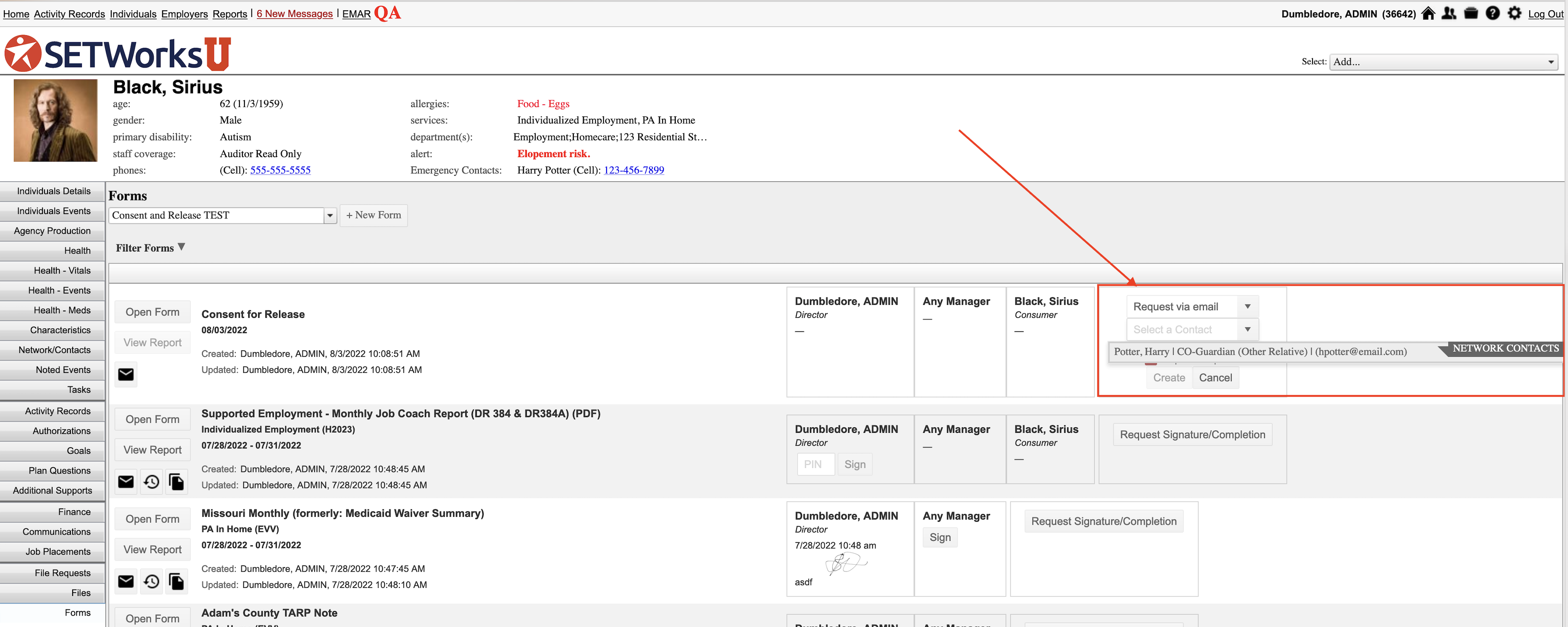
- On the forms index, select Request Signature/Completion.
- Select Request via email (if the form has required fields this will default in and be the only option).
- Either Select a Contact in the bottom drop-down or select Can't find the user/email?
- The Request completion checkbox is automatically selected since this form still has required fields.
- Click Create.
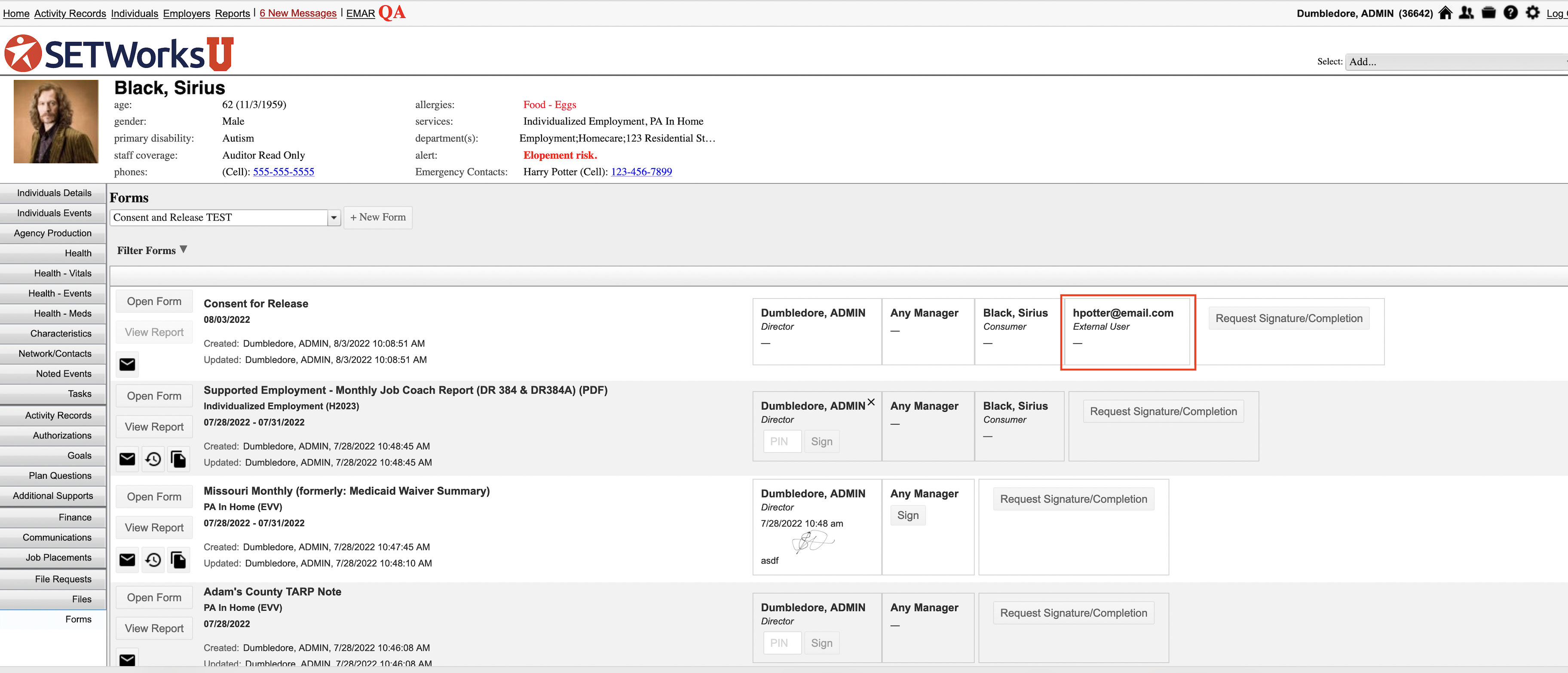
- The form has been sent to the External Portal User for completion.
- Once the form is completed and signed the requesting staff will receive a notification in their Message Center.
Note: External Portal Users who already have an account and have been sent a request for signature or completion for this particular consumer before will appear in the Select a Contact drop-down. Also, the Consumer's Network/Contacts will appear in the Select a Contact drop-down as well, so long as they have an email.