Ohio OOD Authorization Import + Outcome Configuration
Administrators
SETWorks offers a method for OOD Authorizations in a PDF format to be imported directly into the system to auto-create authorizations. For outcome based authorizations, SETWorks uses a feature called Authorization Lines which associated rates with outcome events and completion dates. Configuration is required to use each feature successfully.
Configuring for the OOD Authorization Import
OOD Participant ID
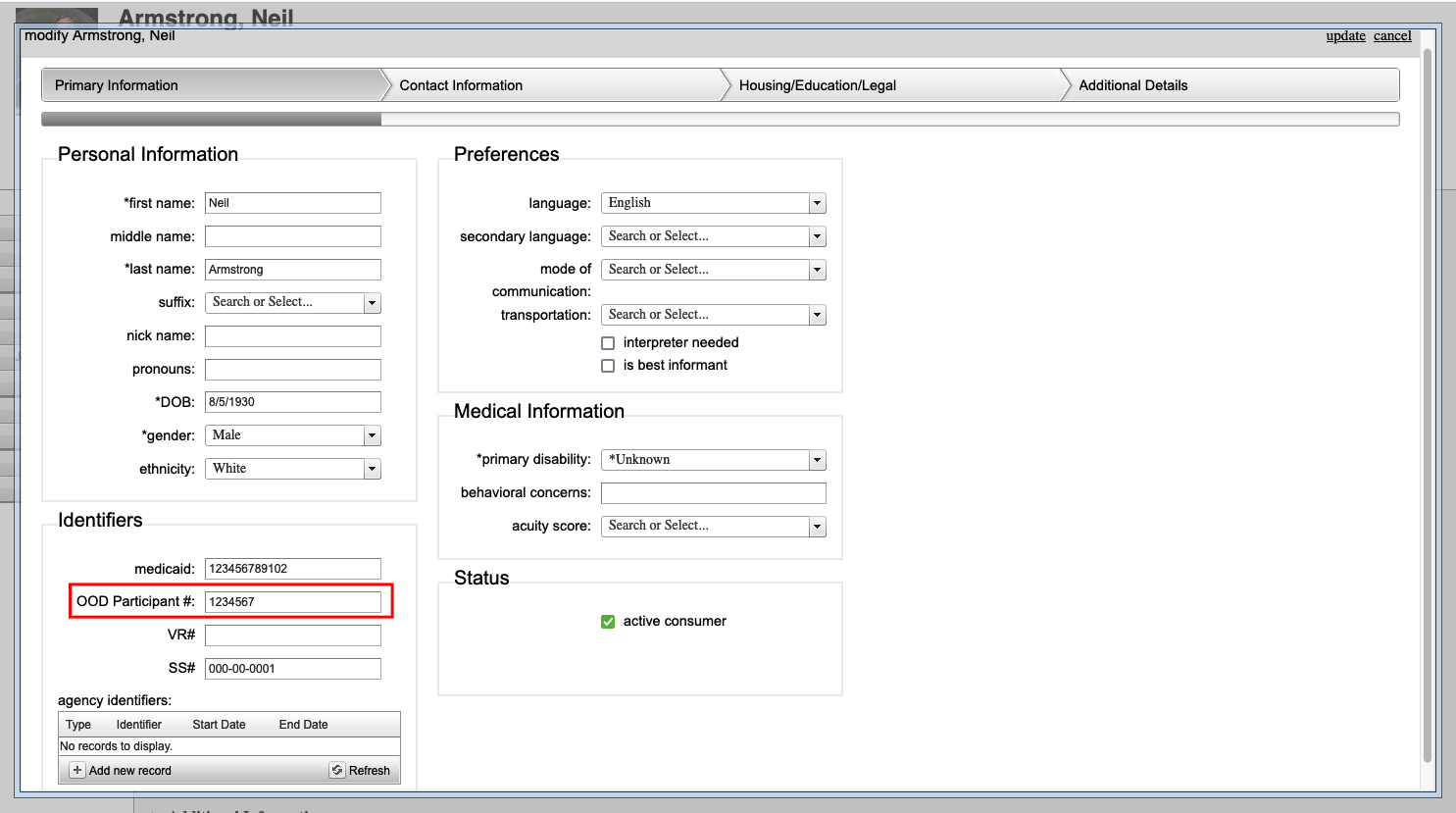
To identify the profile in which the PDF authorization applies, participants must have the OOD Participant ID processed within the individual profile.
NOTE: The DMH field has been renamed to OOD Participant OOD via Field State.
Departments
Authorizations must be assigned to a department upon creation. To identify which department an imported authorization is to be assigned to, there can be a few cases the import can be configured for:
1. Staff Assignment
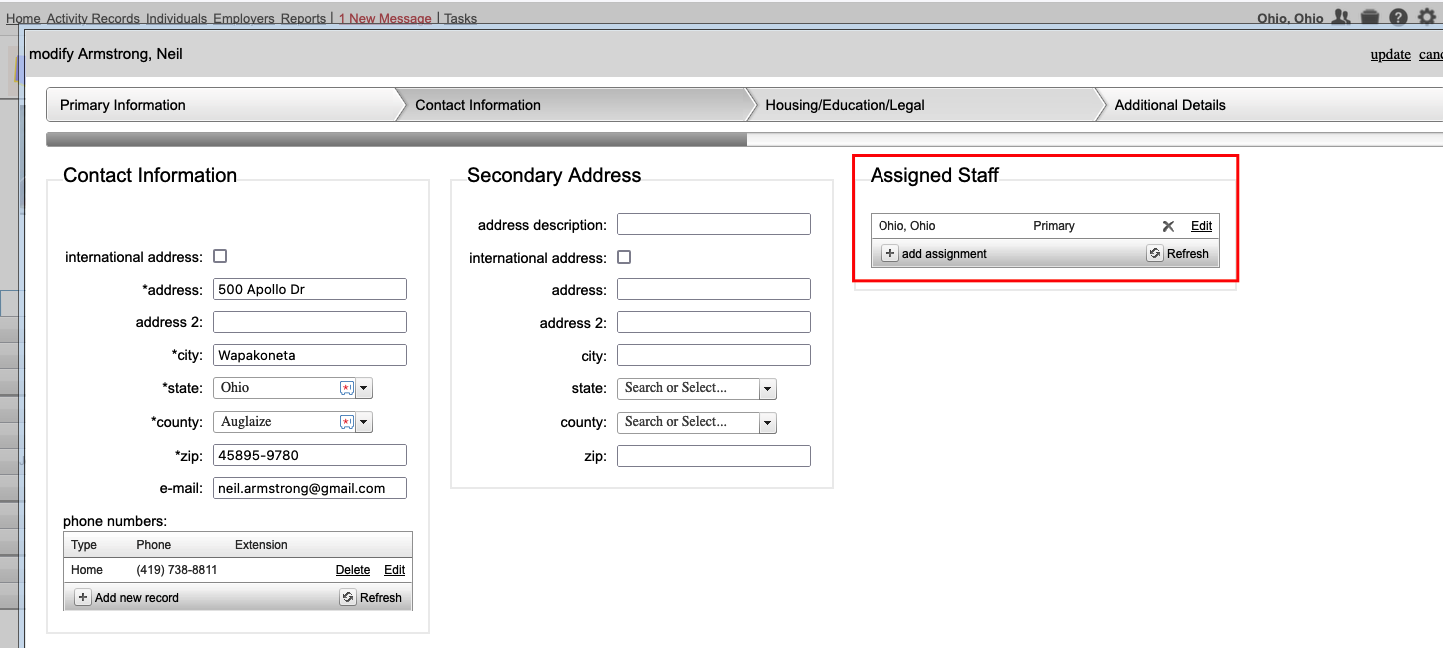
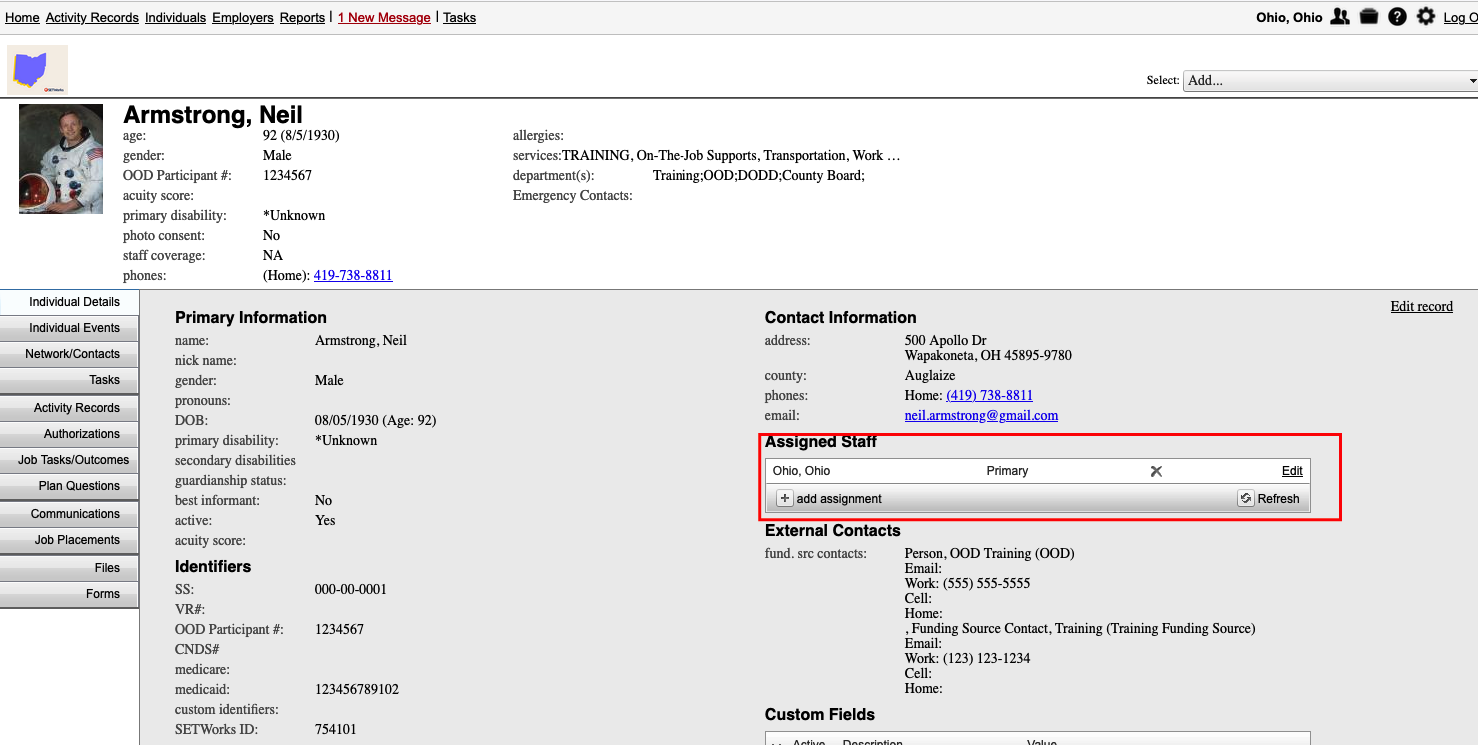
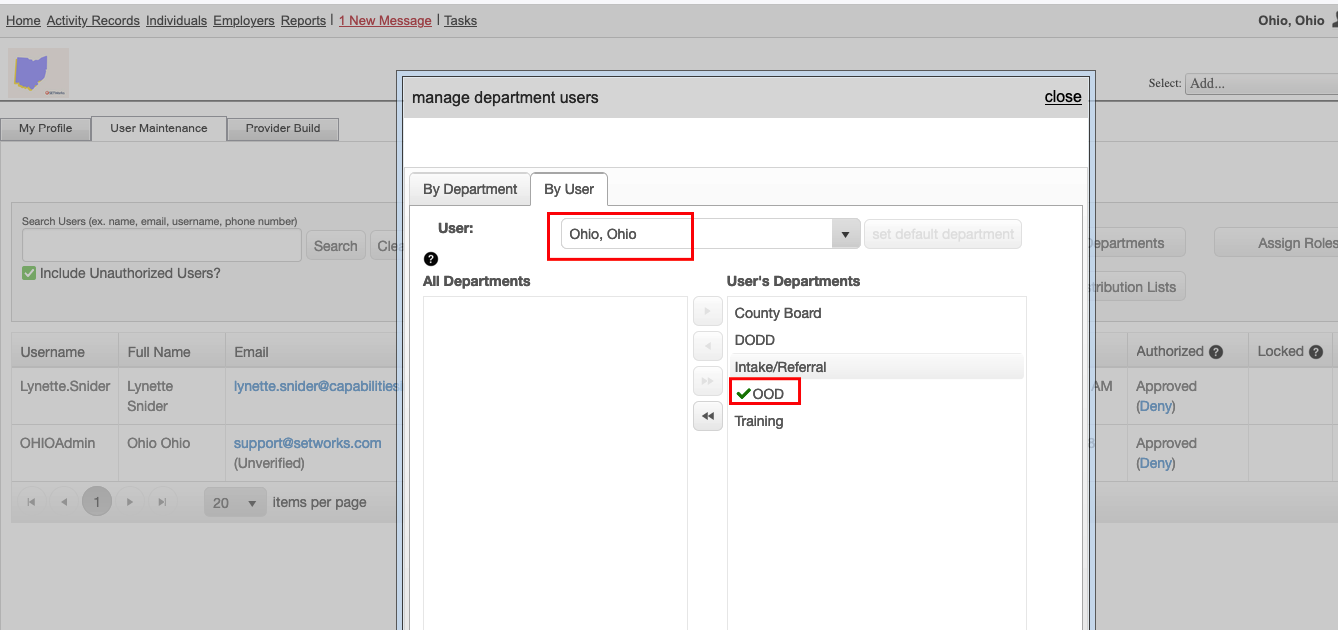
- The consumer in which the authorization is assigned to can have a Staff Assignment (with the code PRIMARY). The authorization would then get assigned to their Primary Staff Assigned's default department.
NOTE: If a staff has not been assigned to a consumer, the import will fail for that occurrence.
2. Department Utility
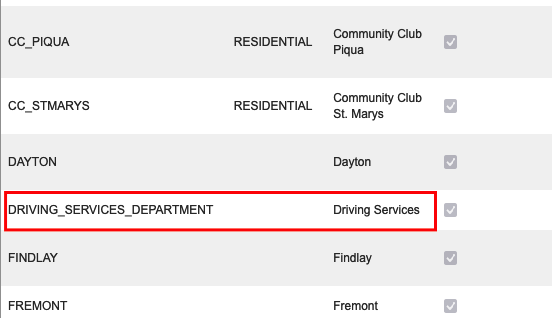
- When a service is a driving service, gets assigned to a driving service/transportation department when the department has a code of: DRIVING_SERVICES_DEPARTMENT
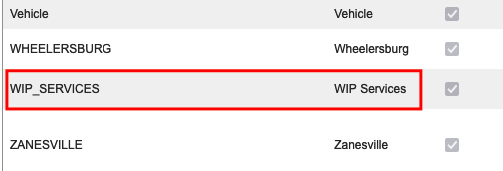
- When a service is a WIP service, gets assigned to a WIP or WIP department if the department has a code of: WIP_SERVICES
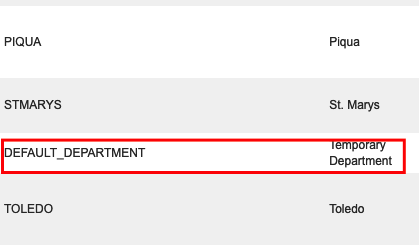
- In the case where the auth importer cannot identify the department the authorization should be assigned based on rules listed or configured above, it will land in any other department with a code of DEFAULT_DEPARTMENT.
NOTE: It is recommended to process a department of Training, Temporary, or Authorization Import, etc. where it can be easily identified when an authorization requires a different department assignment.
Services and AuthLine Types
In the Service/Phase Utility:
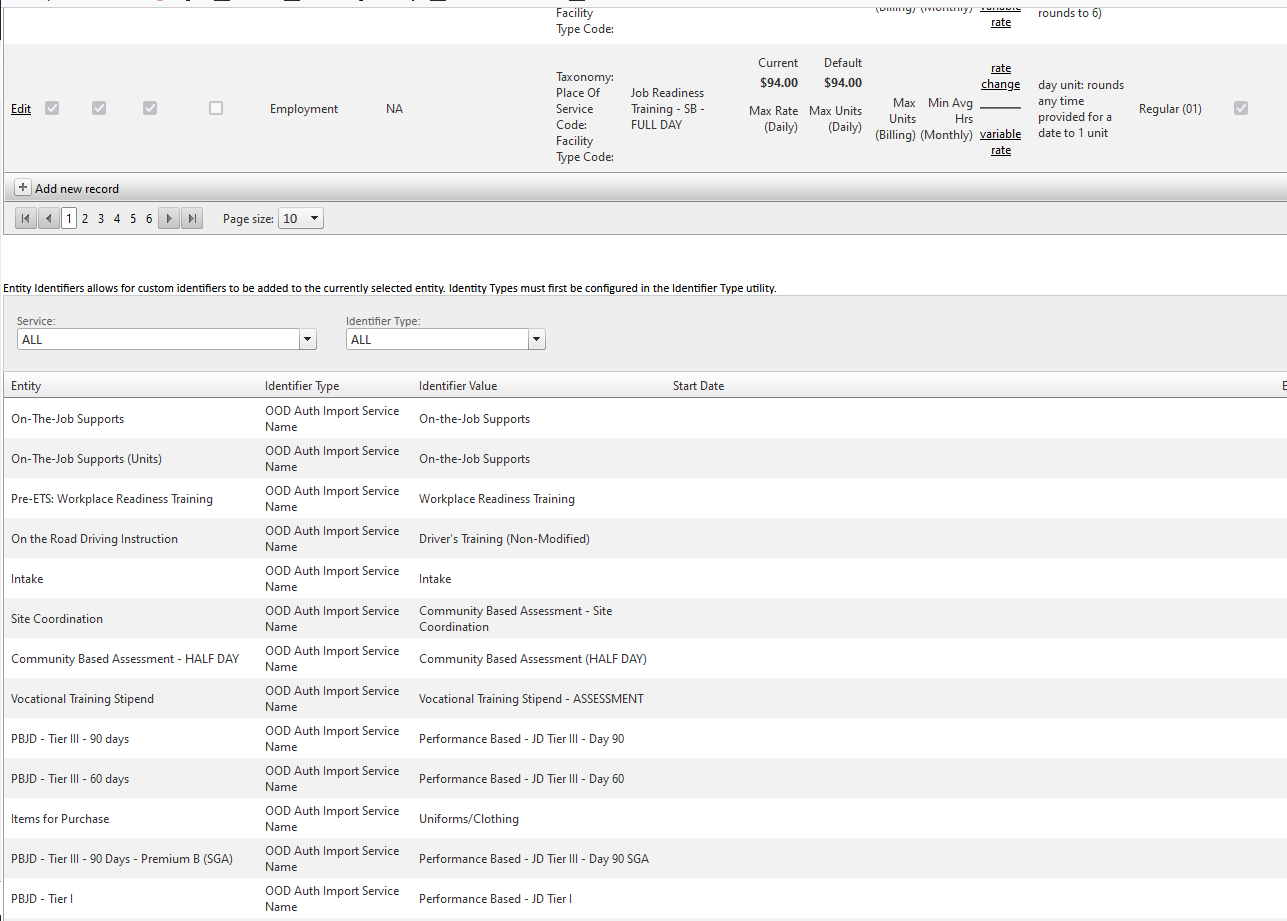
1. At the bottom of the service/phase utility within the Entity Identifier section, each service needs OOD Auth Import Service Name.
- Add New Record
- Select the Entity. These are the services listed within the Service/Phase utility
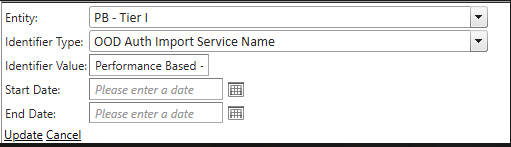
- Select Identifier Type. This should be the OOD Auth Import Service Name from the Identifier Type Utility.
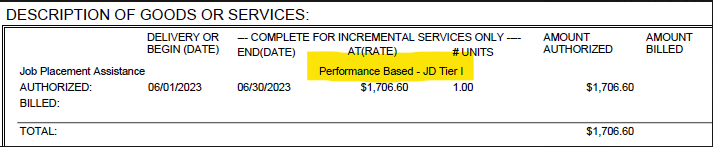
- Insert the Identifier Value. This should include all variations services listed on the PDF version of the authorization.
Note: NOTE: For those authorizations failing on the import, you must process the name of service that shows on the PDF as the Identifier Value.
Example:
PDF Authorization Received
Navigate to the bottom of the Service/Phase Utility to add a new record.
To be processed as a Identifier Type

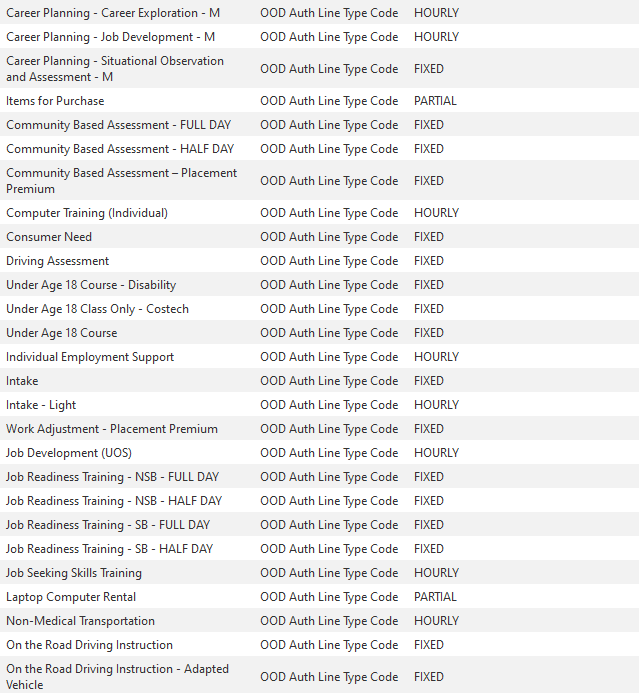
2. In that same Entity Identifier section, each service needs OOD Auth Line Type Code. Please identify whether each service should have auth lines that are FIXED or HOURLY and attach to an Identifier OOD Type of Auth Line Type Code Example:
Note: NOTE: If you're receiving an error on import, check configuration with the steps above. Also, ensure the items all have an 'active' status.
Authorization Code
The Authorization Number populates into the Authorization Code field. No configuration required.
Funders, Contracts, and Funding Source Contacts
A funder/contract is also required for an authorization to be created and saved. To auto-assign a contract or funder, the following are options:
- Funder = OOD
- Funder = Opportunities for Ohioans with Disabilities
- Contract = OOD
A Funding Source Contact is pulling from the Counselor assigned to the PDF.
NOTE: In the case a counselor doesn't match the Funding Source Contacts configured in SETWorks, the importer will create a new contact.

Configuring Outcomes for Billing
Outcome-based authorizations in SETWorks also use the feature called Authorization Lines (AuthLines). AuthLInes help you to identify outcomes associated with an authorization as well as rates for achieving those outcomes. To configure outcomes to services, follow the steps below.
In the Authorization Outcome Event utility:
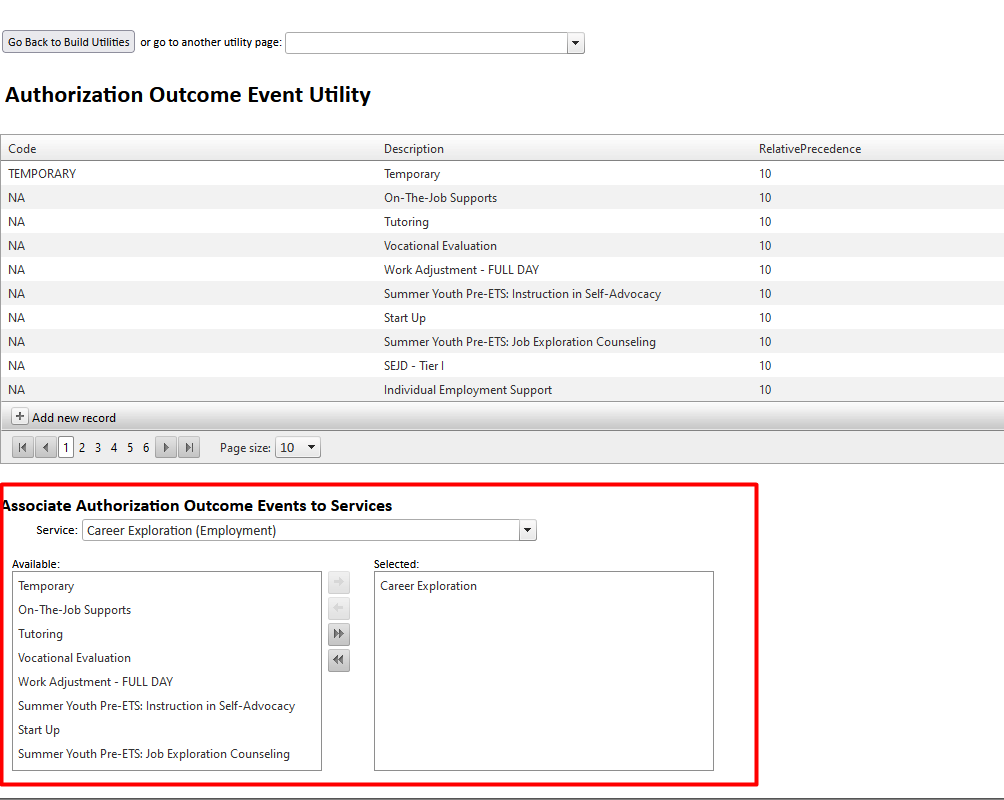
1. Each service needs to be associated with an active outcome event. Please select the service from the dropdown, and ensure it has an outcome event in the ‘selected’ box: