
this article needs to be updated with new screenshots and details - type code is no longer required its a checkbox now
Managing Residential Departments in SETWorks
Administrators
Did you know you can use SETWorks for Residential Department Management?
Use the following article as a reference guide during configuration to get started.
Privileges
First, visit the Maintain Privileges section and ensure that the appropriate staff have access to the Department Management area.
Settings > Provider Build > Maintain Privileges > Global:
Note: Enable Department Management.
This will activate an icon shaped like a house at the top right of your screen.

In addition, review the privileges located under Settings > Provider Build > Maintain Privileges > Department Management to control with Role(s) are able to view and make changes.
Department Utility
Next, navigate to the Department Utility.
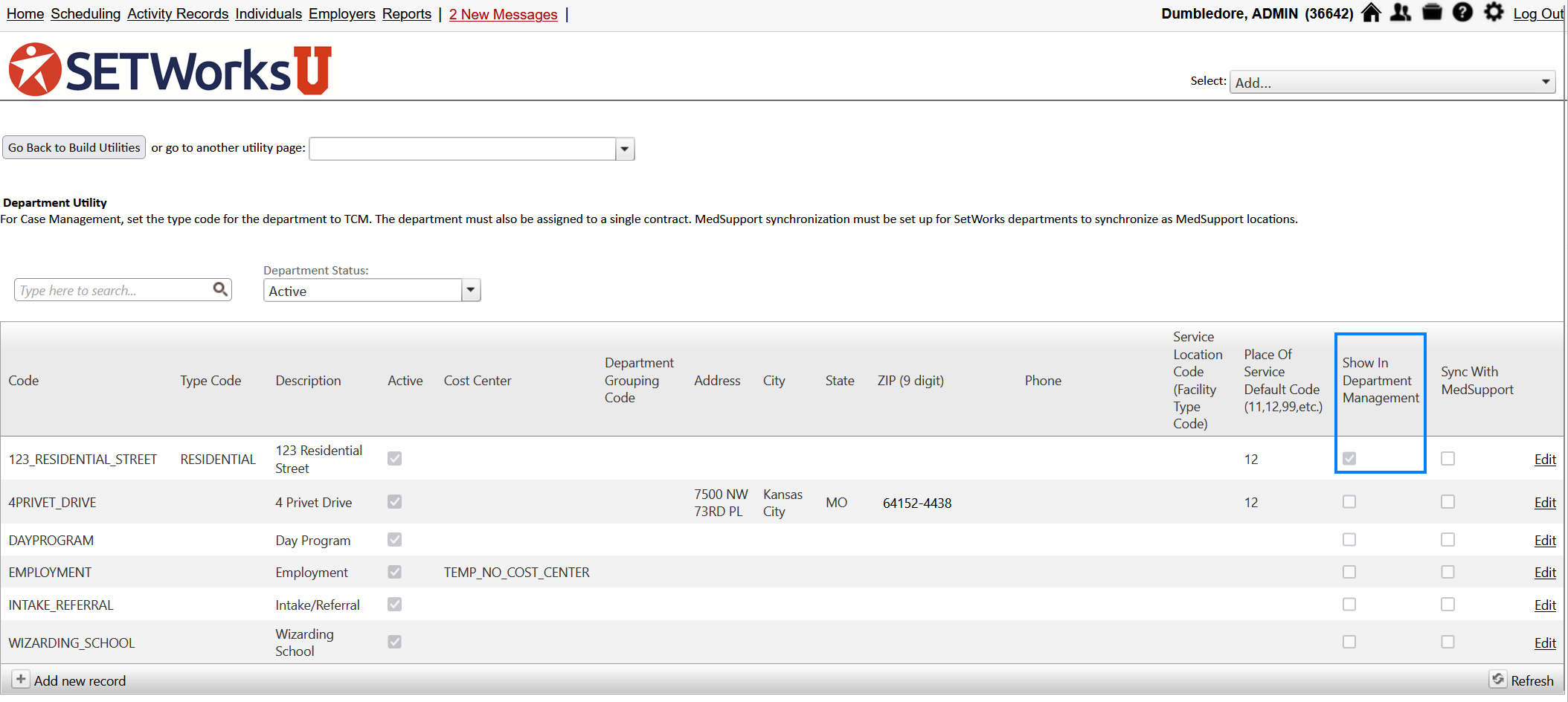
Ensure that the department(s) have the "Show In Department Management" checkbox selected:
Also ensure that every Residential Department has the following Type Code entered:
RESIDENTIAL
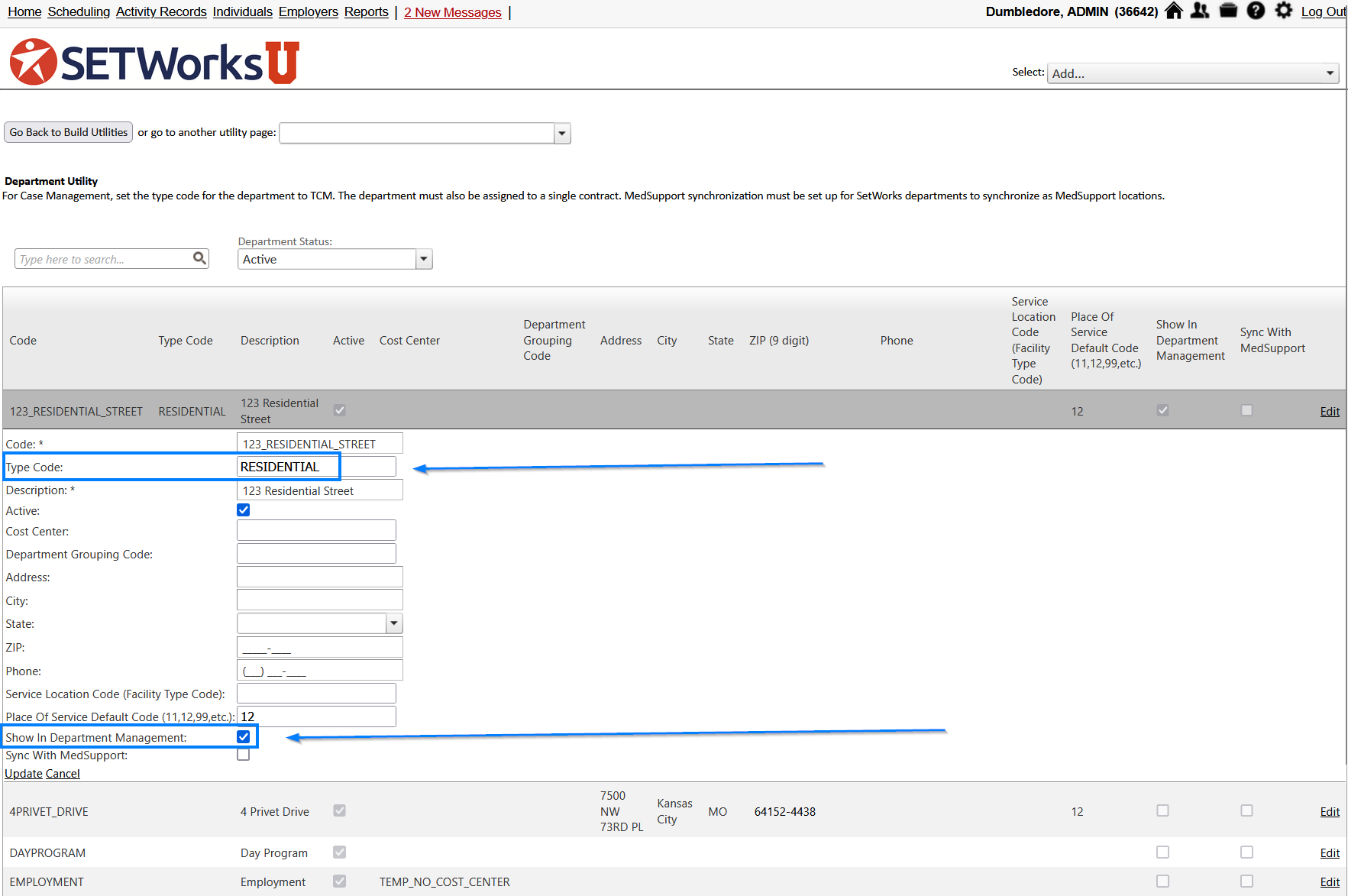
Note: For Residential Services please use the typecode of RESIDENTIAL.
Note: Only departments that have the "Show In Department Management" checkbox selected will appear in the residential department management view.