
How do I Add, Update, or Remove a Consumer's Photo?
Administrators, Managers, Staff
Users are able to upload a photo for each consumer to be viewed on the Consumer Index and within the consumer's profile. The photo can also be pulled into various reports.
Adding a Consumer Photo
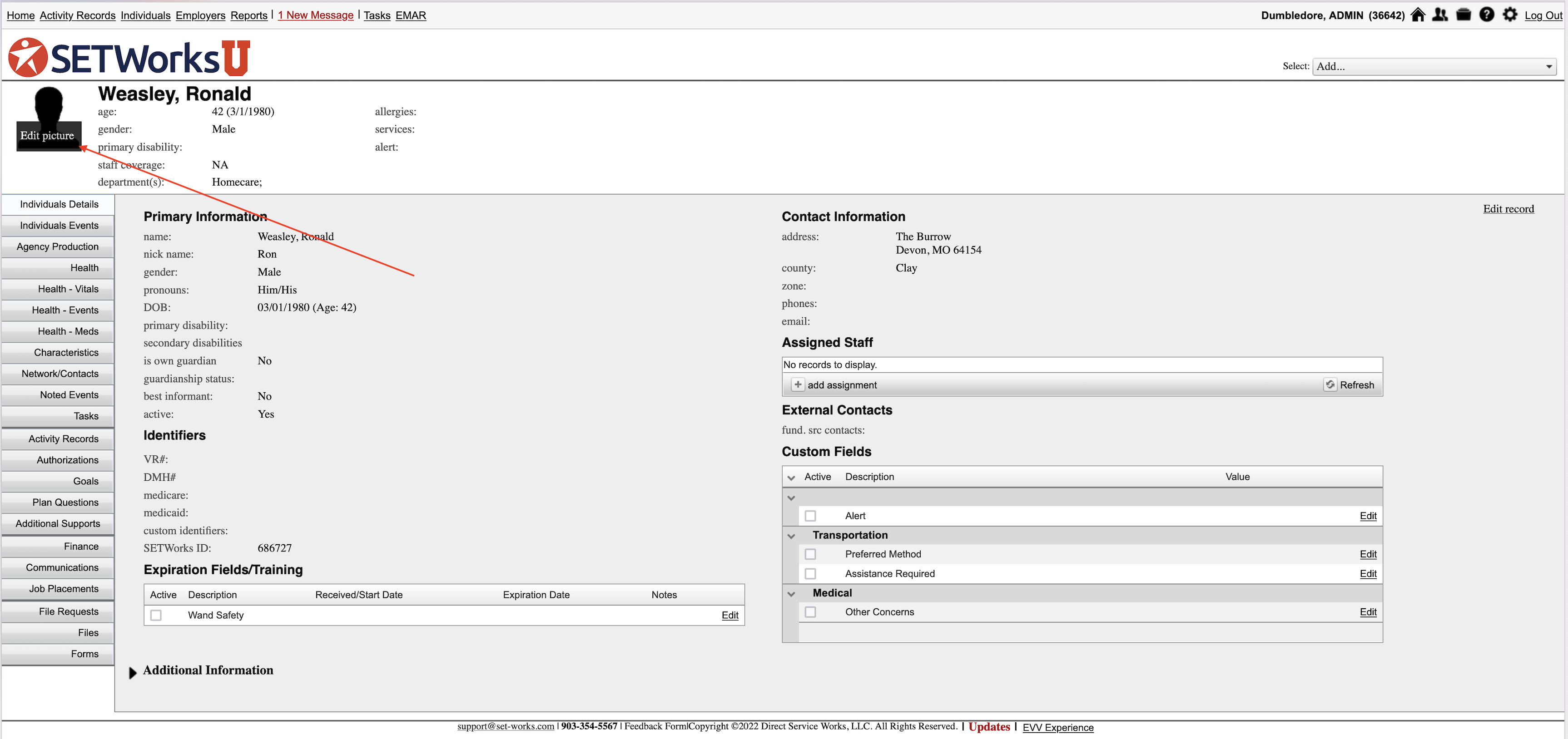
- Navigate to the Consumer's Profile.
- Hover over the generic silhouette placeholder in the top left.
- Click on Edit Picture.
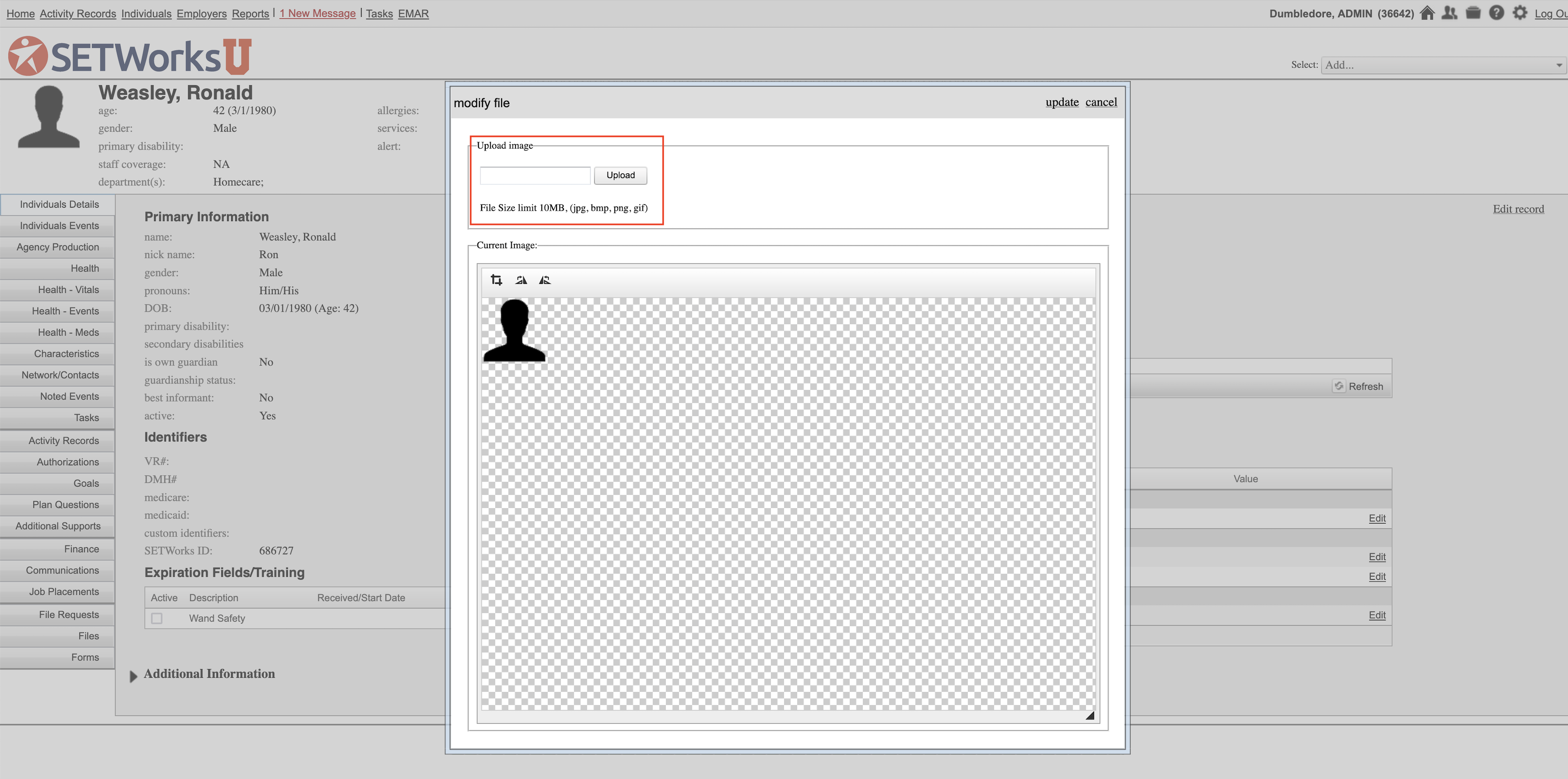
- Click Upload. Search for the photo you wish to upload.
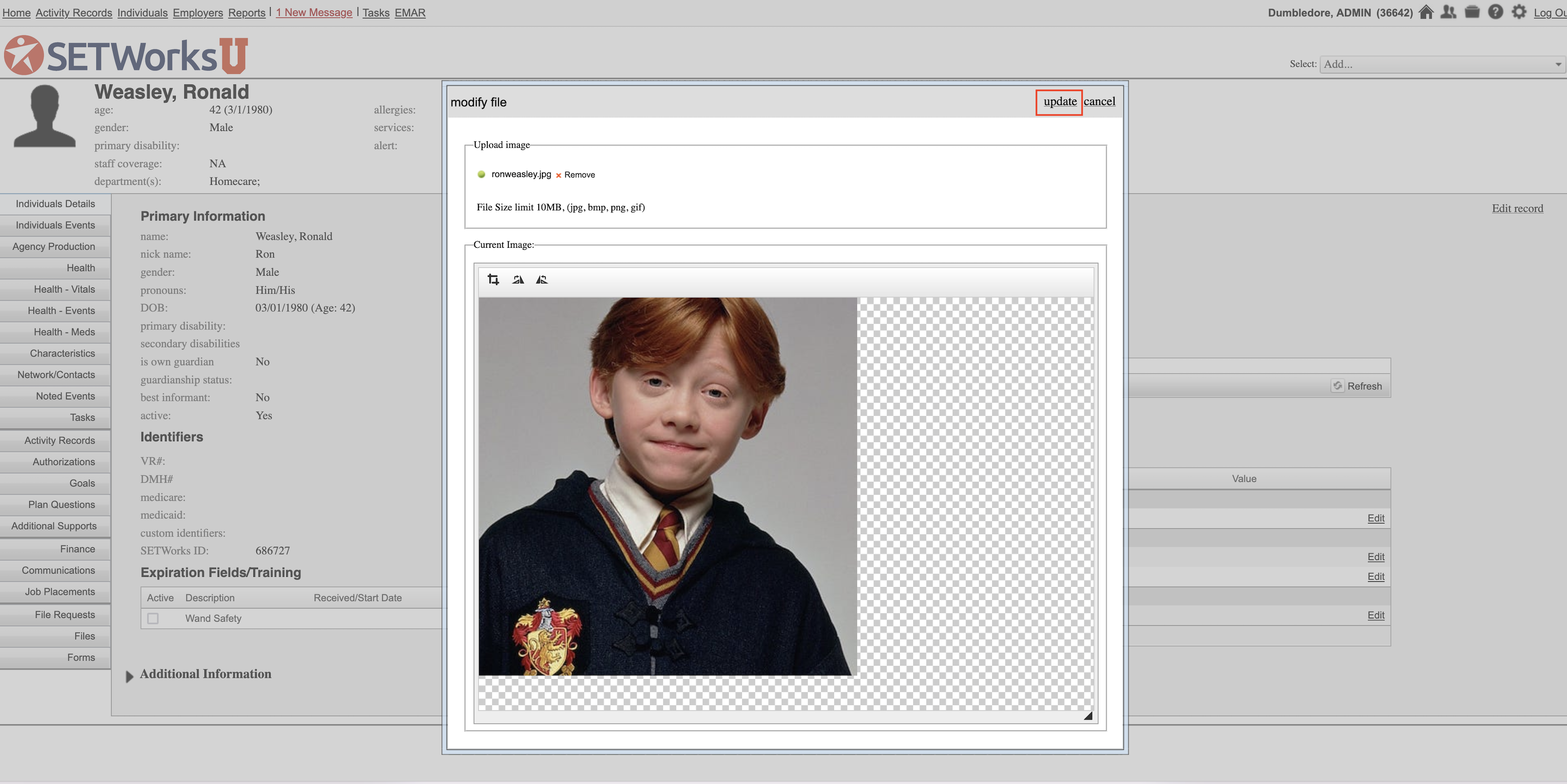
- Click Update.
Updating / Removing a Consumer Photo
- Navigate to the Consumer's Profile.
- Hover over the generic silhouette placeholder in the top left.
- Click on Edit Picture.
- Click Upload. Search for the photo you wish to upload.
- Click Update.
Note: You are not able to remove a photo once one has been added. If you no longer wish to have a photo of the consumer we recommend replacing it with a generic silhouette to act as a placeholder.