
How do I set up File Request?
Administrators
To learn when what a file request is or when your organization would use it: File Requests - Start Here
File Request Privileges
Settings > Provider Build > Maintain Privileges:
Note: Enable the global file request review window
Note: Show consumer file requests tab within consumer profile
Note: Show the staff file request tab within the staff management area
File Request Utilities
Settings > Provider Build > Utilities:
- File Utility
- File Type Utility
- Email Template Utility
- File Request Type Utility
File Utility
This utility allow you to create folders within the entity type (e.g., Consumer or Staff) that will apply to all consumers or staff. If your organization has a folder/file structure or wants all consumer/staff profiles to have the same folders available, learn more here.
File Type Utility
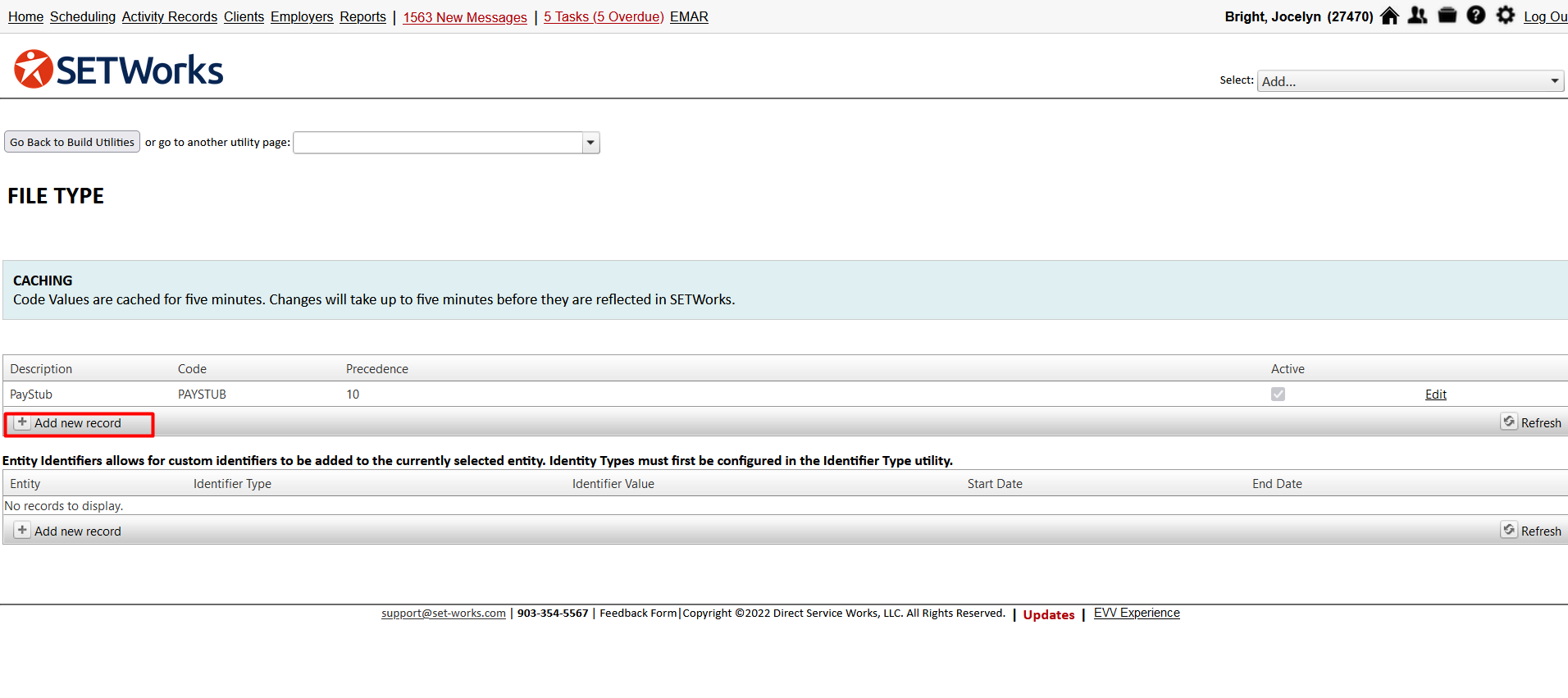
Identify different types of files you'll be sending within the File Types Utility.
- Add new record
- Utility: File Type
- Description: Name of the File Type (e.g., Paystubs, Social Security Letters)
- Code: Name of the File Type in all caps (e.g.e, PAYSTUBS, SOCIAL_SECURITY_LETTERS)
- Precedence: Order in which this file type appears on the list (e.g., 10 appears before 20, etc.).
- Active: Active File Type
Email Template Utility
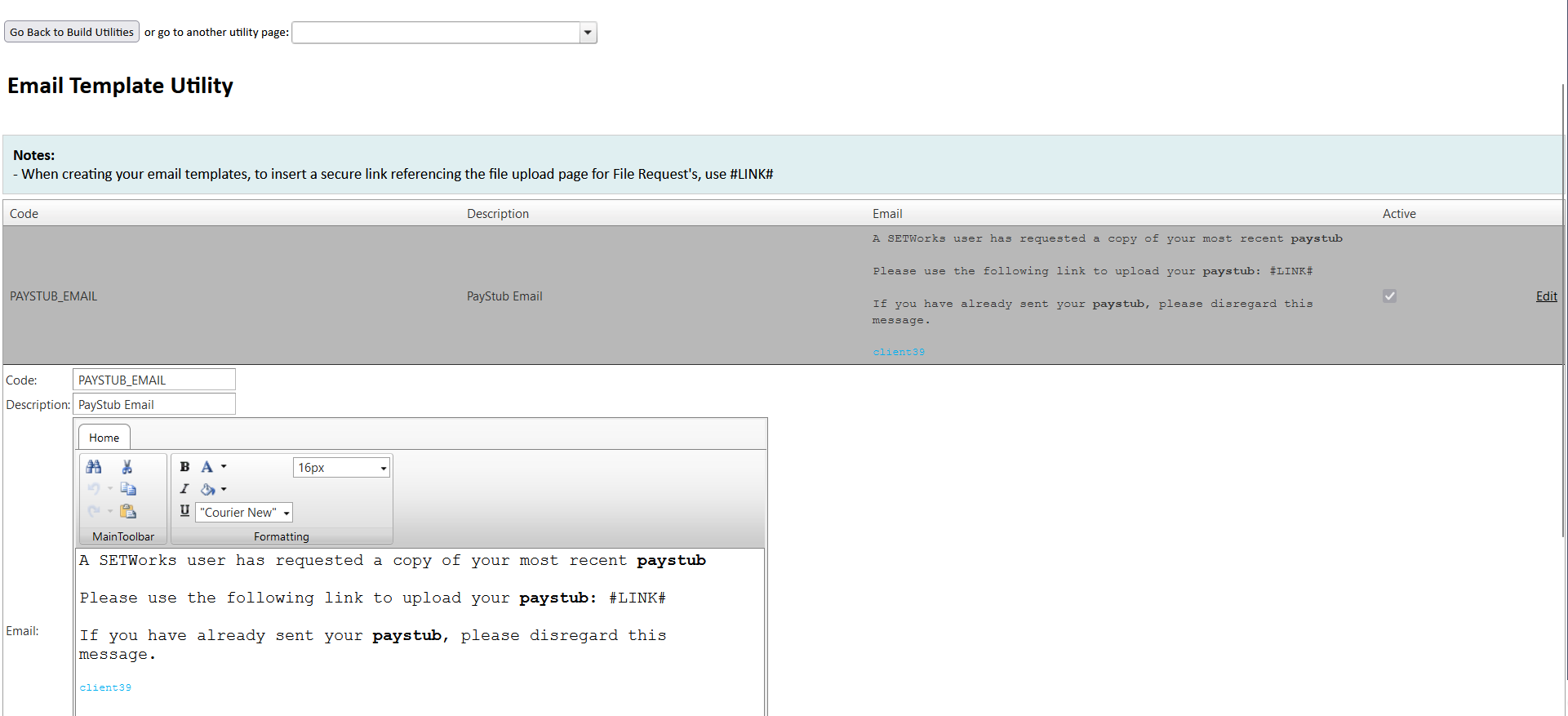
Design the email template that the end user will receive within the Email Template Utility.
- Add new record
- Code: Name of the template in all caps (e.g., PAYSTUB_EMAIL)
- Description: Name of the template (e.g., Paystub Email)
- Email: Format and include the content of the email.
- Active: Active template
File Request Type
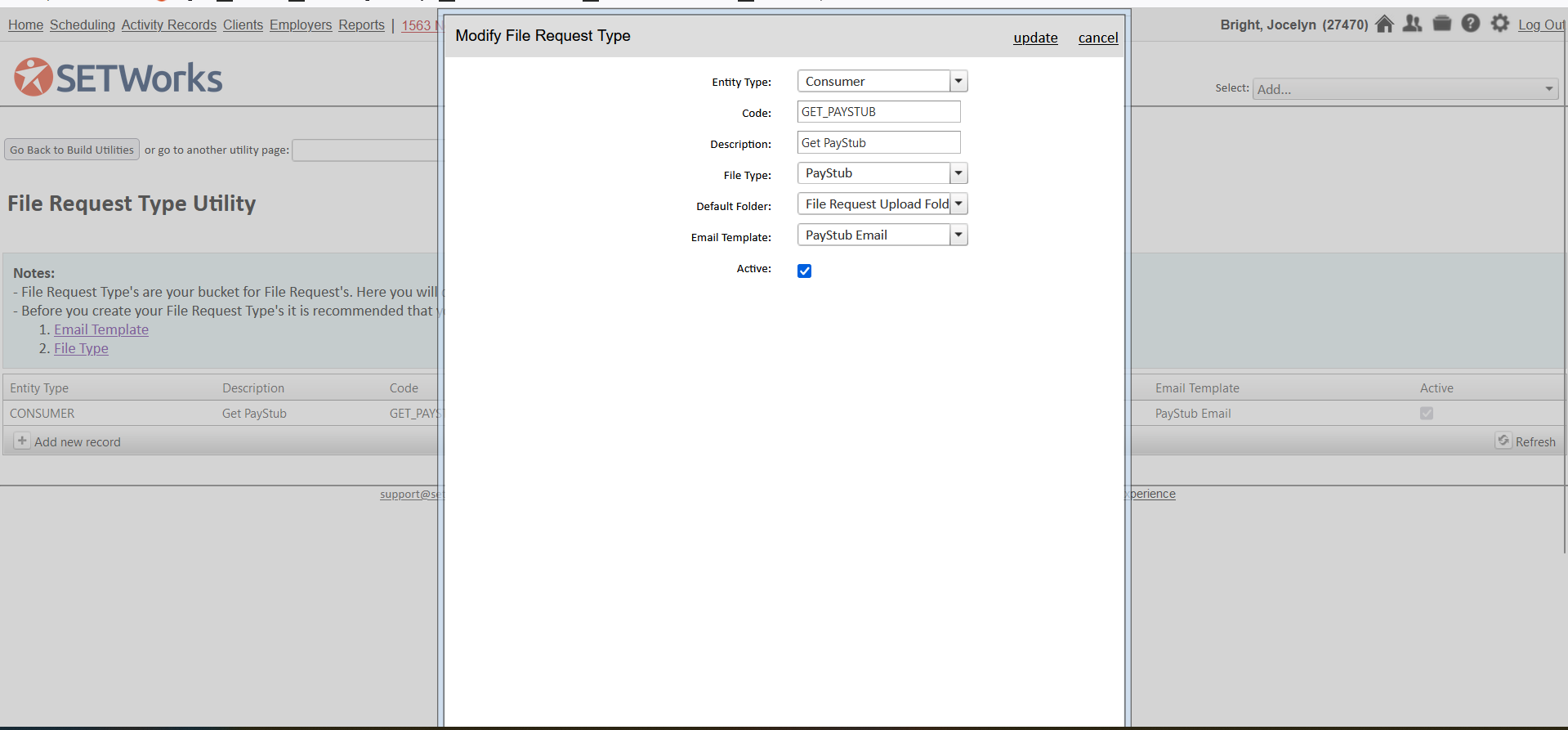
Build the file request including the type of file, the folder the file is to be stored upon retrieval, and the email template used to send the file within the File Request Utility.
- Add new record
- Entity Type: Consumer relates to the consumer, User relates the staff.
- Code: Name of the File Request in all caps (e.g., GET_PAYSTUB)
- Description: Name of the File Type (e.g., Get Paystub)
- File Type: Identify the file type, the list configured within the File Type Utility
- Default Folder: Identify the folder in which the file is to be stored, created manually or using the File Utility.
- Email Template: Identify the email template that is to be sent.
- Active: Active File Request
Send a File Request
You're ready to send the file request! Learn how: Sending a File Request