How do I edit the tab options within the Consumer Add/Edit Wizard?
Administrator
The view within the add/edit consumer wizard can be modified to support your organization's intake process. If you need to capture more questions upon intake than the default SETWorks add/edit wizard allows, tabs can be added that encourage your staff to process that information including Authorizations, Custom Fields, Forms, etc.
Consumer Add/Edit Wizard
Note: Terminology can be modified within SETWorks to better fit the needs of your organization. If the terminology in our articles are not the same on your site, talk to your local administrator to assist in translation.
Consumer Add/Edit Privileges
Settings > Provider Build > Maintain Privileges > Global:
Note: Is able to add new Consumers.
Settings > Provider Build > Maintain Privileges > Consumer Profile:
Note: Is able to edit a consumer's profile.
Configuring Consumer Add/Edit Tabs
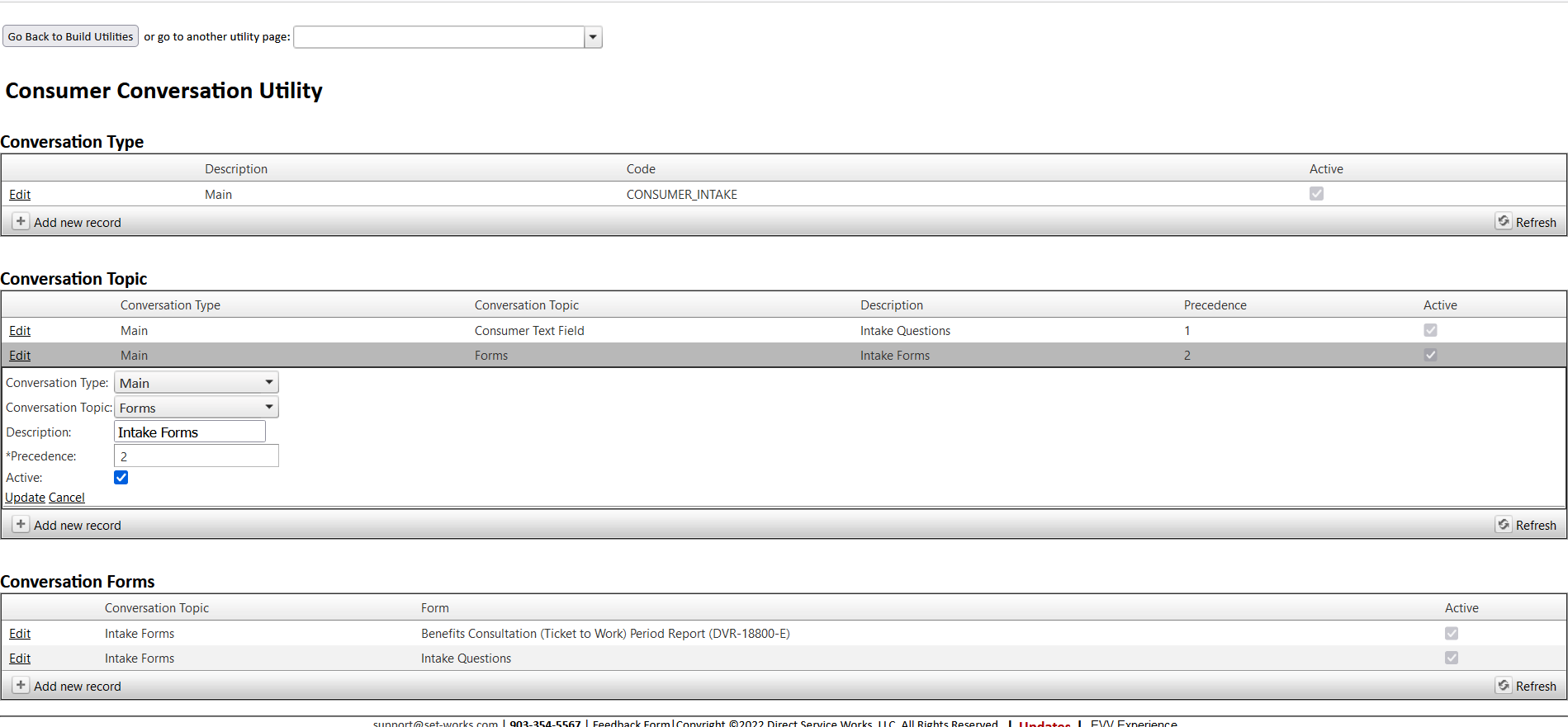
Navigate to Settings > Provider Build > Utilities: Consumer Flow
NOTE: Also known as Consumer Conversation Utility
Conversation Type
1. The 'Main - CONSUMER_INTAKE' type is default. Does not need any modifications.
Conversation Topic
1. Add new record.
2. Conversation Type: Main
3. Conversation Topic: Select the tab you'd like to see in the edit/intake wizard. e.g., Authorizations, Consumer Text Field, Forms, etc.
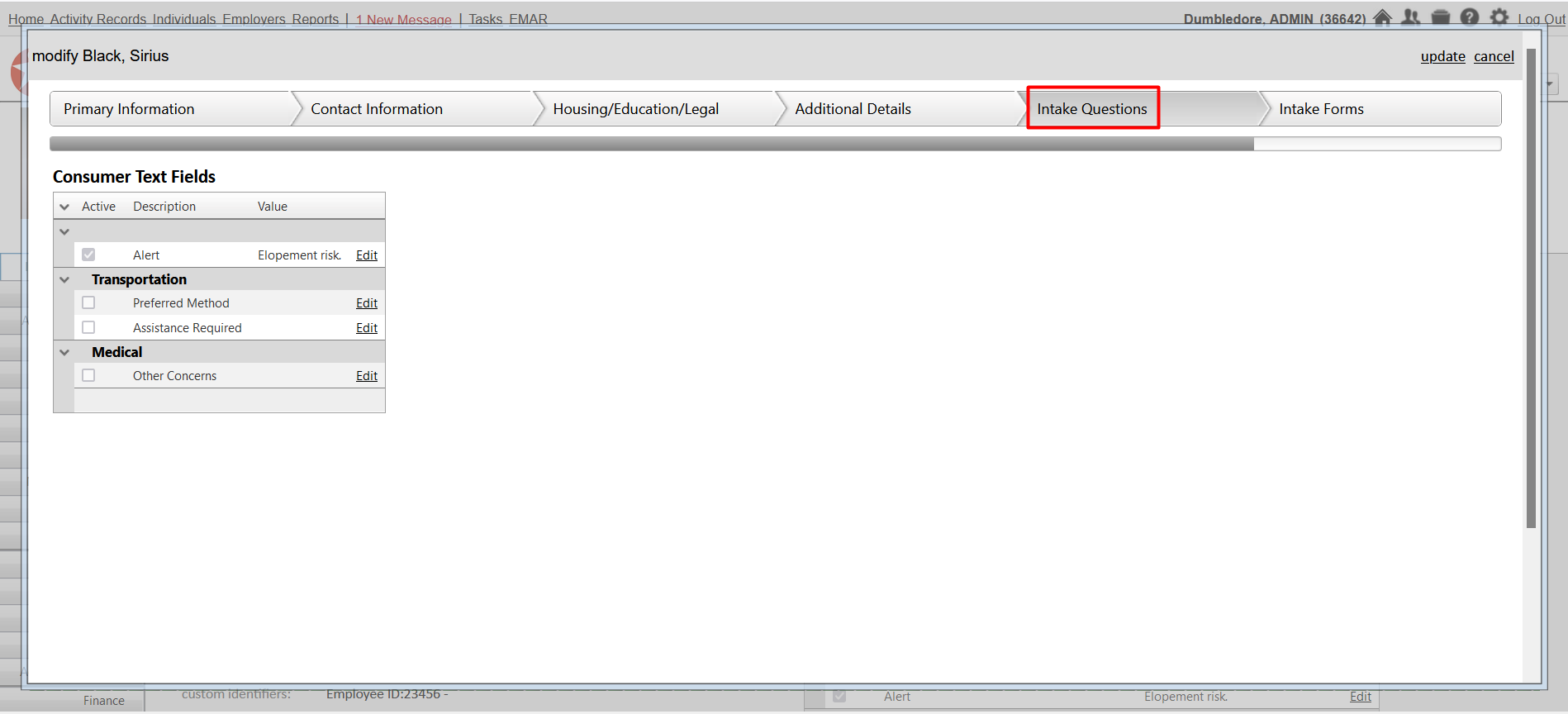
4. Description: The name of the newly added tab to the edit/intake wizard. e.g., Intake Questions
5. Precedence: The order in which you want the tab to appear amongst the additional tabs added.
6. Active: Enable if this tab should appear.
7. Insert.
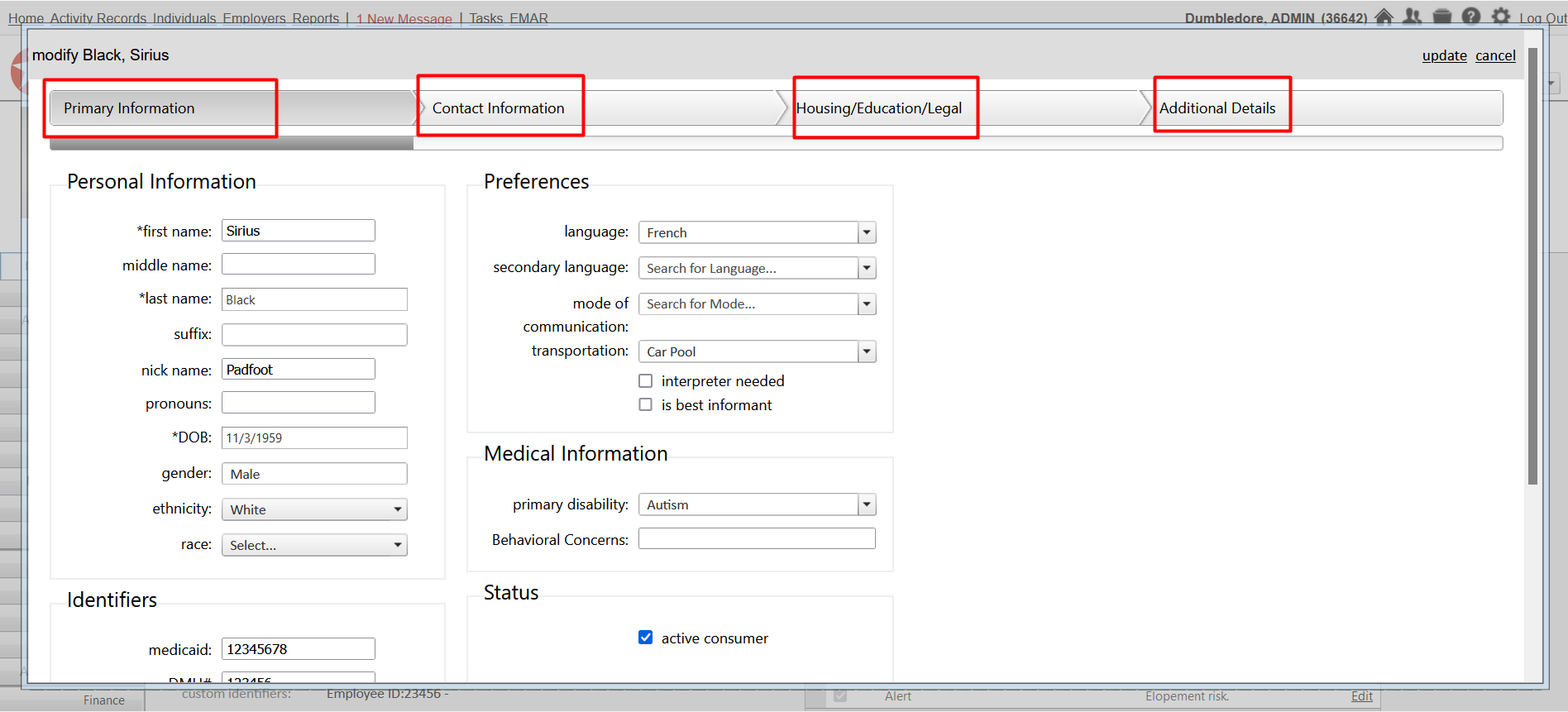
Note: NOTE: The default tabs cannot be removed or reordered (i.e., Primary Information, Contact Information, Housing/Education/Legal, Additional Details), however, certain fields within these tabs can be hidden. Contact support@setworks.com to hide certain fields.
Conversation Forms
1. Add new record.
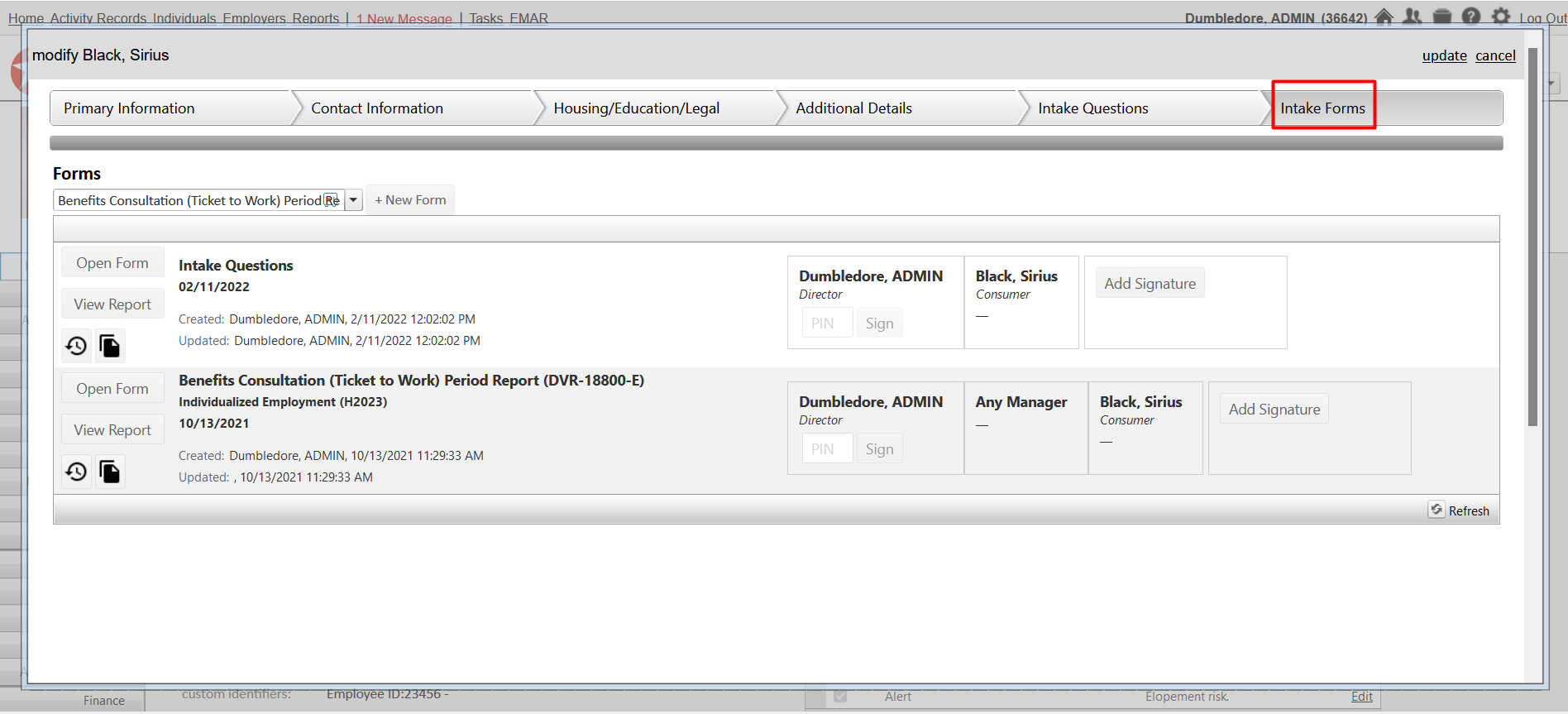
2. Conversation Topic: Select Intake Forms.
NOTE: Intake Forms would be added as a Conversation Topic in order for Forms to appear.
3. Form: Select the forms that should appear within the dropdown.
4. Active: Enable if this form should appear.
5. Insert.
View Configured Consumer Add/Edit Wizard Tabs
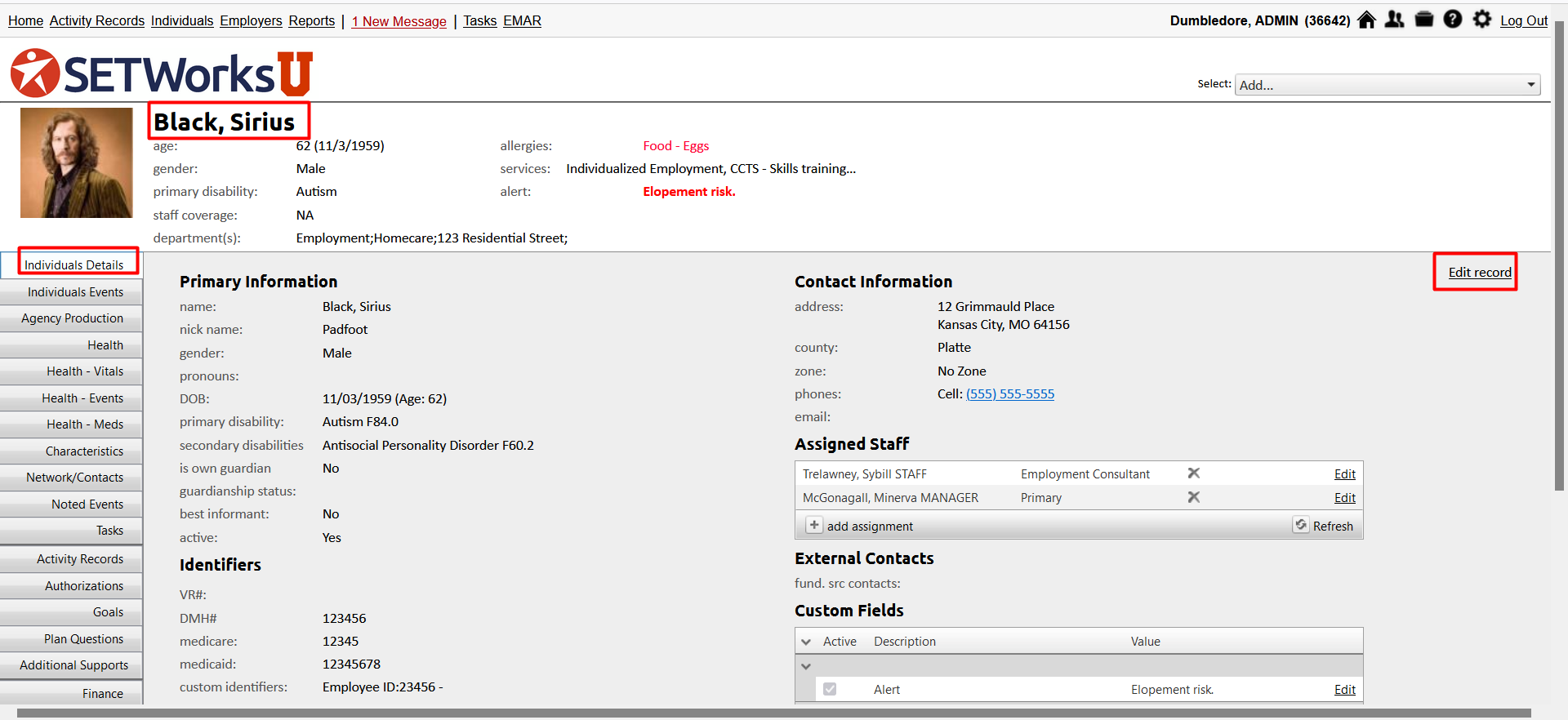
1. Navigate to a consumer's profile.
2. Within the Details tab, select Edit Record.
3. Observe the newly added tabs within the Consumer Add/Edit Wizard.