OOD Form 23 - Start Up
Form 23 has multiple sources of data: Billable Group Activity Records (including Protocol/Custom Plan Questions), Data Extractor, and the Form.
NOTE: Throughout this document, "Merge Report" is used to refer to the Form 23 output. "Form" is used to refer to form creation within SETWorks.
As a General Rule:
If the data on the form is correct and is not appearing on merge reports - this is an engineering problem. Submit a Jira.
If the data on the form matches the merge report but the content is wrong - this is a data entry problem. Refer to the form.
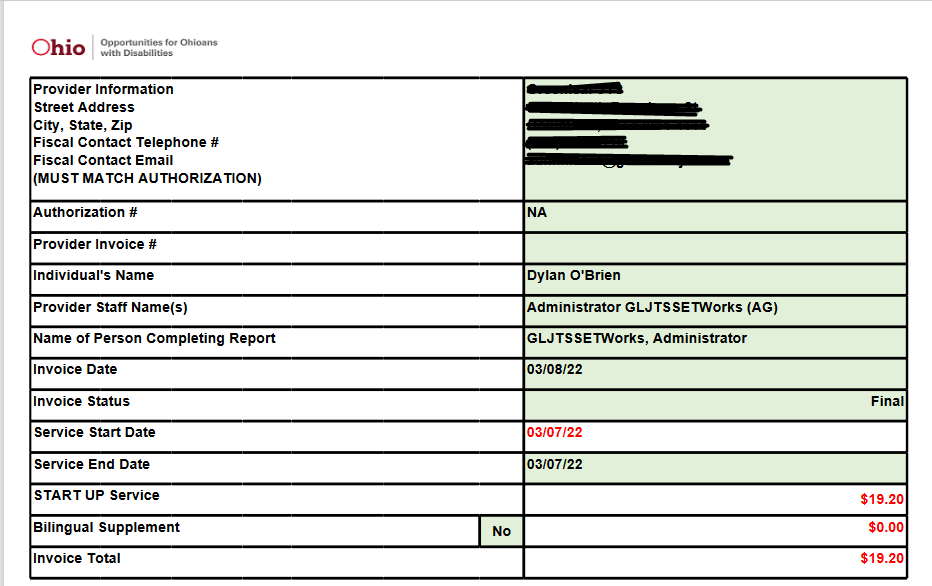
Merge Report: Billing (top section)
Data appears as predefined query answers on the form from various parts of the site or from the data extractor.
Top Row: Generated from Settings > Provider Build > Provider Profile.
Calculations: automatically calculates on the excel sheet.
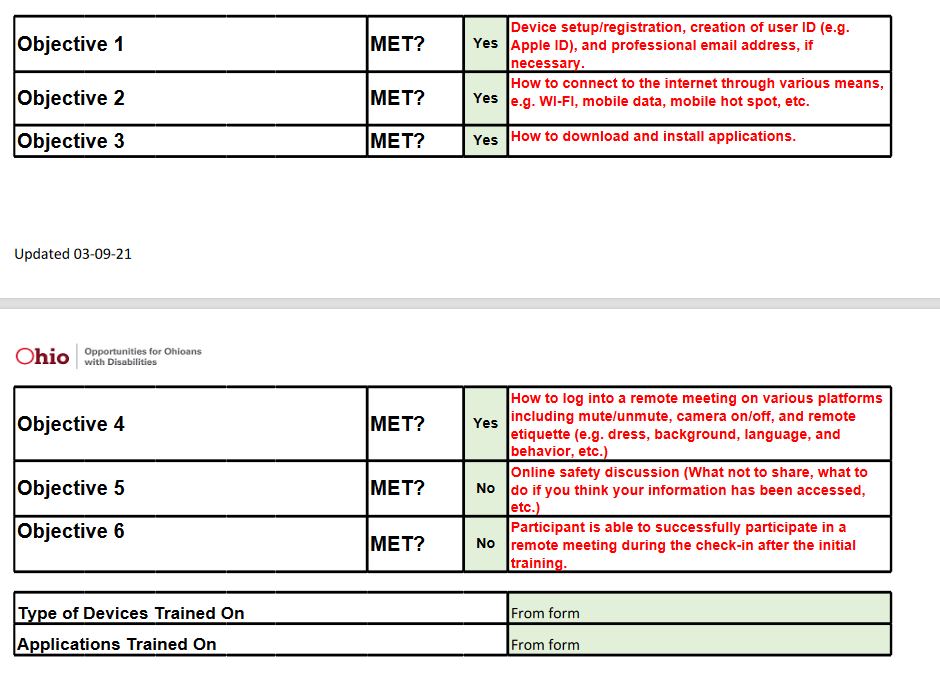
Merge Report: Met?
Fields are from the form.
Troubleshooting: Refer to the Form. If there is a discrepancy, refresh the form or create a new one.
Could also be 'field doesn't update on refresh' in the form builder - can update in the form builder.
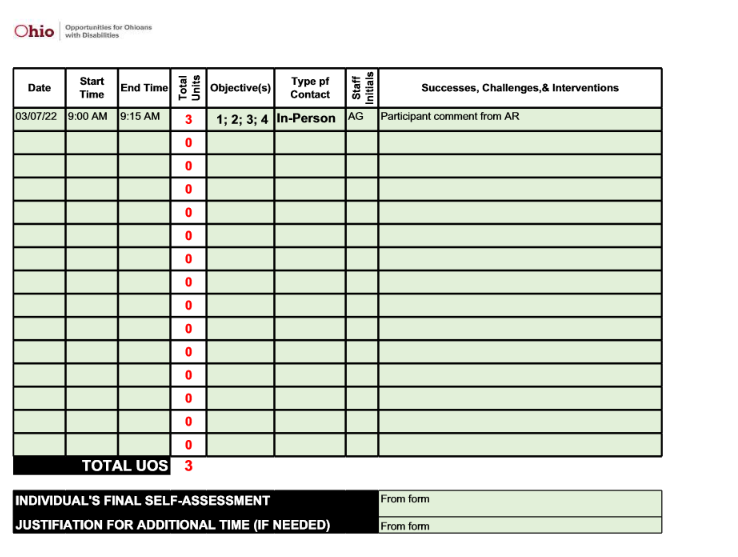
Merge Report: Activity Record Table & End Questions
All of this data comes from the Activity Records considering Authorization and date range.
Total Units: Automatically calculates on the excel sheet
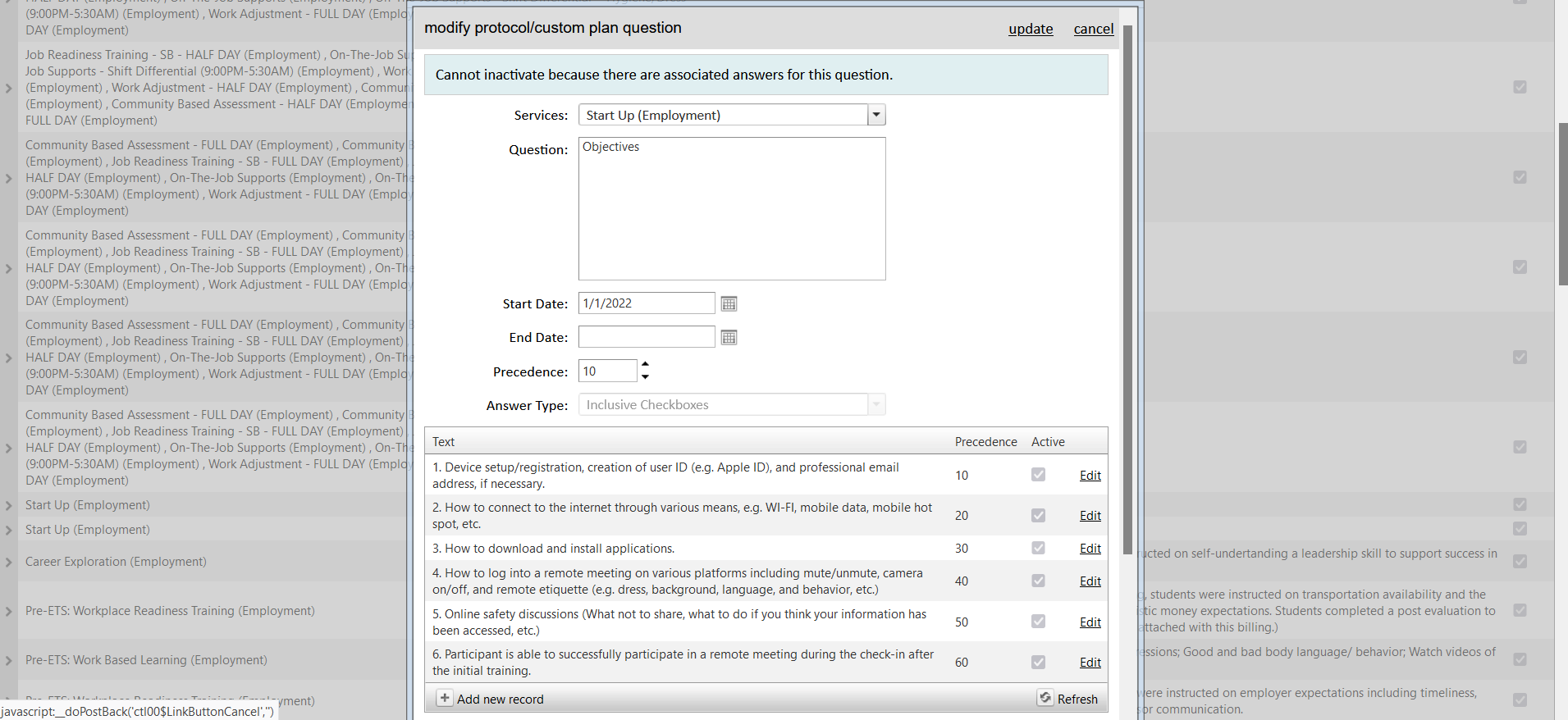
Objective(s): Protocol/Custom Plan Questions (see next section to learn more)
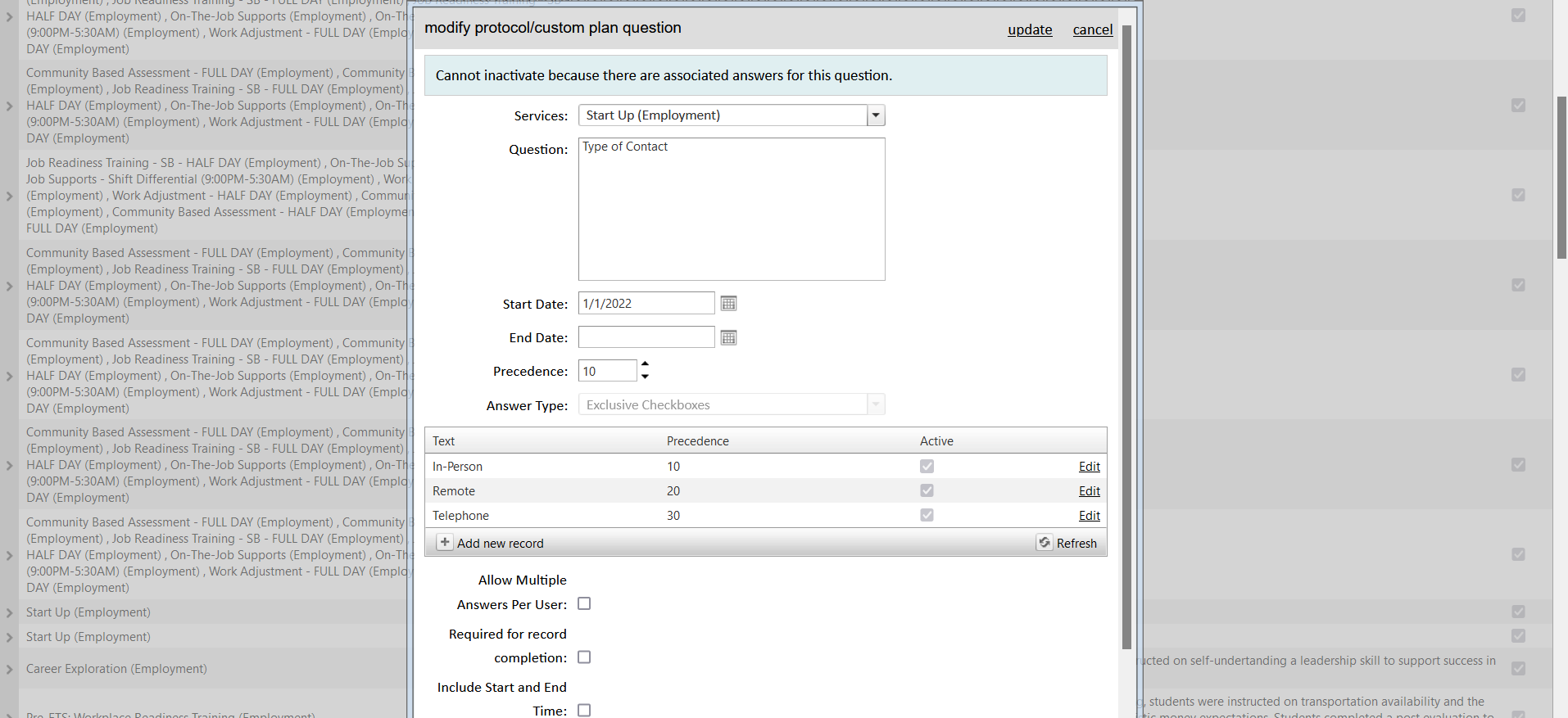
Type of Contact: Protocol/Custom Plan Questions (see next section to learn more)
Successes, Challenges, & Interventions: Consumer comment on Group Activity Record
Total UOS: Automatically calculates on the excel sheet
Individual's Final Self-Assessment: Completed on the form
Justification for Additional time (If Needed): Completed on the form
Troubleshooting: Refer to the Activity Records, or form dates. If there is a discrepancy, refresh the form or create a new one.
Configuring Protocol/Custom Plan Questions
1. Settings > Provider Build > Utilities: Batch Edit Service Plan Questions
2. Find the plan questions assigned to Start Up services.
3. Select to open. Plan Questions appear on the Group ARs and populate into the AR table above.