How do I configure Signatures for Billable Group Activity Records?
Administrators
The Billable Group Signature Utility is used to create & maintain your agencies signature configuration for Billable Group Activity Records. The configured signature configuration will allow staff to sign Billable Group Activity Records once complete. This article will explore how to configure signatures for Billable Group Activity Records.
Access the Activity Record Group Utility
- Click on the Settings
 icon in the top right of the navigation bar.
- Select the Provider Build tab.
- Expand the Utilities drop-down and search for the "Billable Group Signature Utility" utility.
Adding Signatures to Billable Group Activity Records
- Select + Add new signature configuration.
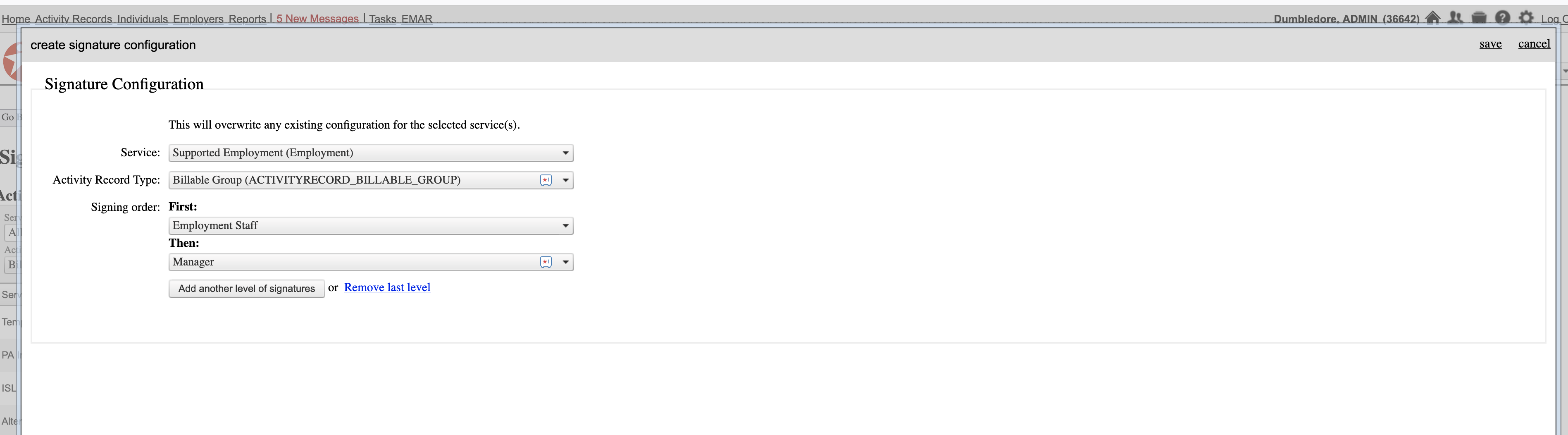
- Complete the necessary fields:
- Service: Select which specific service(s) to configure the signing order.
- Activity Record Type: Defaults to "Billable Group (ACTIVITYRECORD_BILLABLE_GROUP)". Don't change.
- Signing Order: Select Add another level of signatures and select the appropriate role(s) that should sign first.
- Continue to Add another level of signatures until the signing order configuration is complete.
- Select Save in the top right.