
How do I configure Assigned Staff Types?
Administrators
The Assigned Staff Type Utility is used to create & maintain your agencies Assigned Staff Types. Staff can be assigned a staff type from the Consumers Details tab of the Consumer's Profile. This article will explore how to configure the Assigned Staff Type dropdown when adding Assigned Staff to a consumer.
Access the Assigned Staff Type Utility
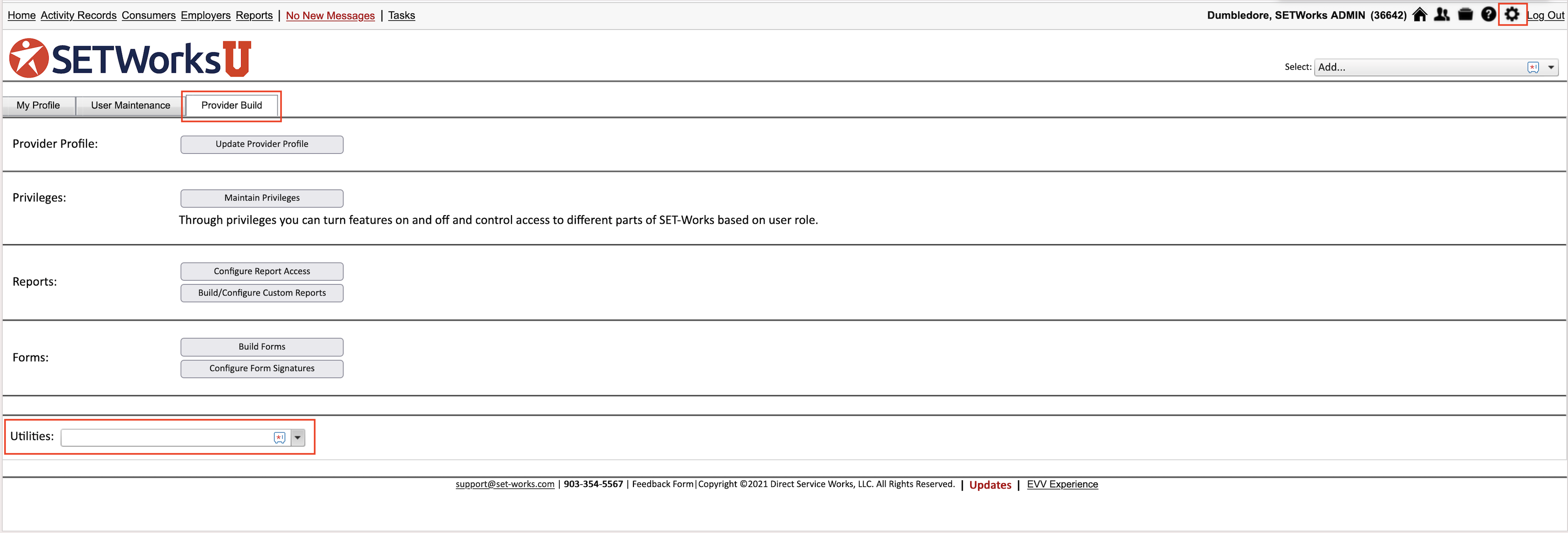
- Click on the Settings
 icon in the top right of the navigation bar.
- Select the Provider Build tab.
- Expand the Utilities drop-down and search for the "Assigned Staff Type" utility.
Adding Assigned Staff Types
- Select + Add new record.
- Complete the necessary fields:
- Code: a unique internal code needed for SETWorks configuration. Best practice is to simply copy the description in ALL CAPS. **Certain reports pull data based on specific codes. Reach out to SETWorks support if you have any questions.**
- Description: The name of the Assigned Staff Type that will display when adding an Assigned Staff to a Consumer.
- Precedence: The order, from top to bottom, that the Assigned Staff Type will display within the Assigned Staff dropdown.
- Entity Code: Can either be Consumer or User.
- Active: Ensure this is selected if you want this to be enabled in your domain.
- Click Insert
The Entity Code can either be Consumer or User. If you wan to add an assignment to a Consumer's Profile (e.g. Support Coordinator) then select Consumer. If you want to add an assignment to a Staff's Profile then select Staff (e.g. Manager).