How do I create a new Custom / Text Field?
Administrator
Custom text fields can be configured on a master level in the utilities and configured to appear in various parts of SETWorks. Custom fields work well if you have information needing collected where a field does not already exist for you to collect that information. Custom fields can also be grouped together with a header to categorize the different custom fields.
Note: Terminology can be modified within SETWorks to better fit the needs of your organization. If the terminology in our articles are not the same on your site, talk to your local administrator to assist in translation.
Custom Field Question Privileges
Settings > Provider Build > Maintain Privileges > Consumer Profile:
Note: Is able to edit Custom Fields.
Settings > Provider Build > Maintain Privileges > Staff Management:
Note: Is able to edit Custom Fields.
Configuring Custom Fields
Navigate to Settings > Provider Build > Utilities: Custom / Text Field
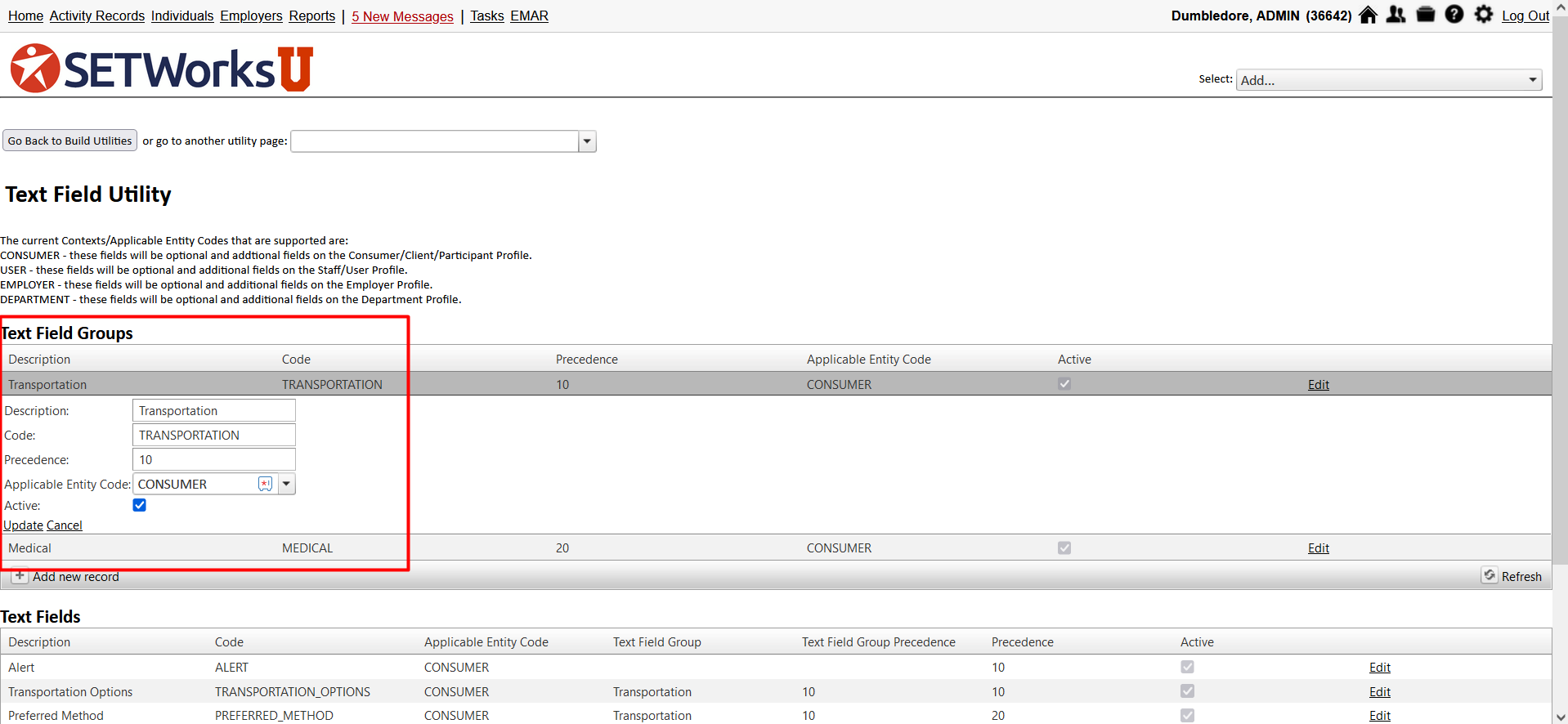
Text Field Groups
Custom fields can be grouped together with a header to help manage the many custom fields.
Note: NOTE: Text Field Groups are not required in order to create Text Fields.
1. Add new record.
2. Description: The name of your group. e.g., Transportation
3. Code: The name you used above but in all caps. e.g., TRANSPORTATION
4. Precedence: The order you want this group to appear in the list.
5. Applicable Entity Code: Where this group applies or where you want it to appear in SETWorks. Follow the guide at the top of the utility page.

6. Active: Make the group active if you want it to appear.
7. Insert.
Text Fields
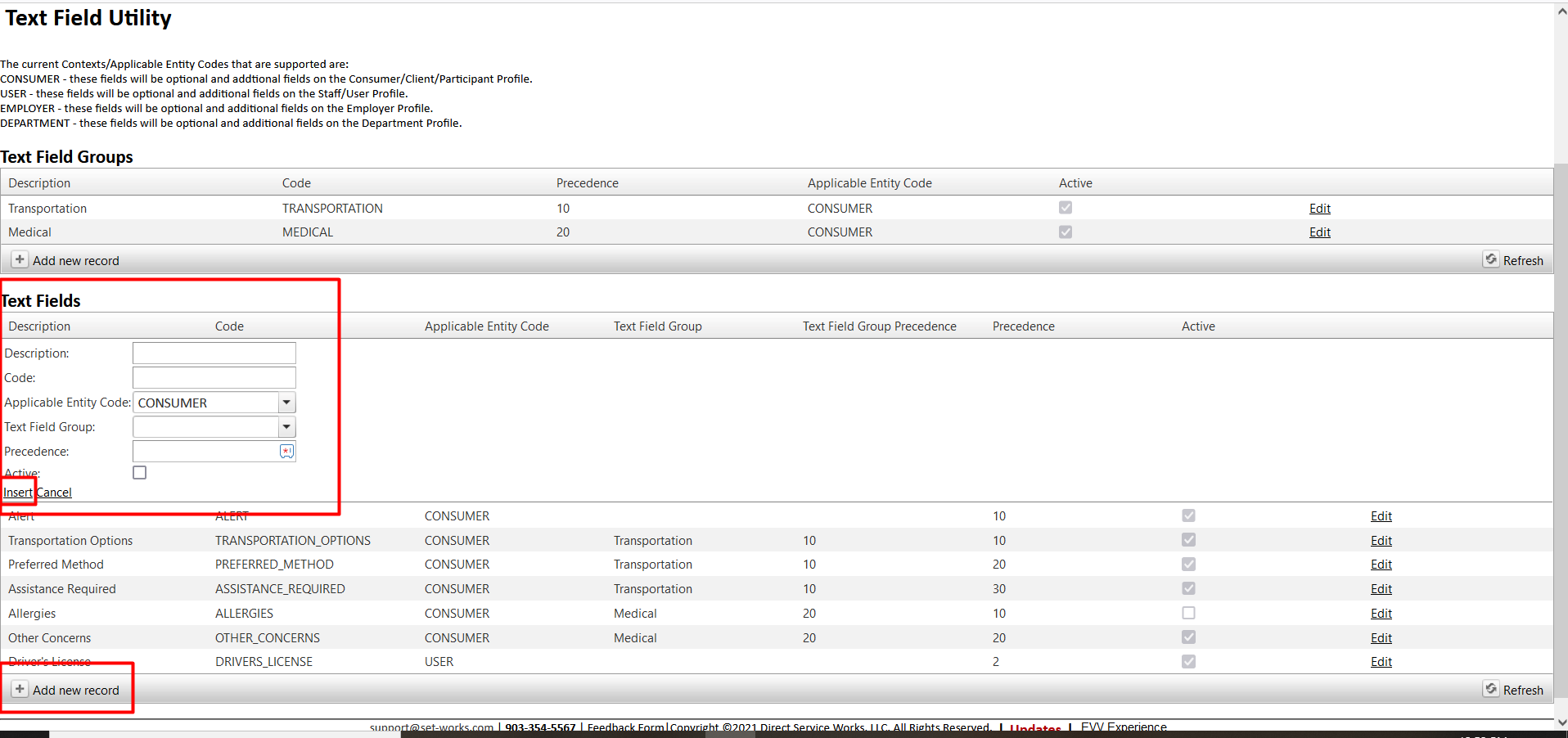
Text Fields are the individual fields needed to collect information.
1. Add new record.
2. Description: The name of your field. e.g., Transportation Options
3. Code: The name you used above but in all caps. e.g., TRANSPORTATION_OPTIONS
4. Applicable Entity Code: Where you want the field to appear in SETWorks. Follow the guide at the top of the utility page.
5. Text Field Group: Select the Group in which this field applies. e.g., Transportation
6. Precedence: The order you want this group to appear in the list.
7. Active: Make the group active if you want it to appear.
8. Insert.
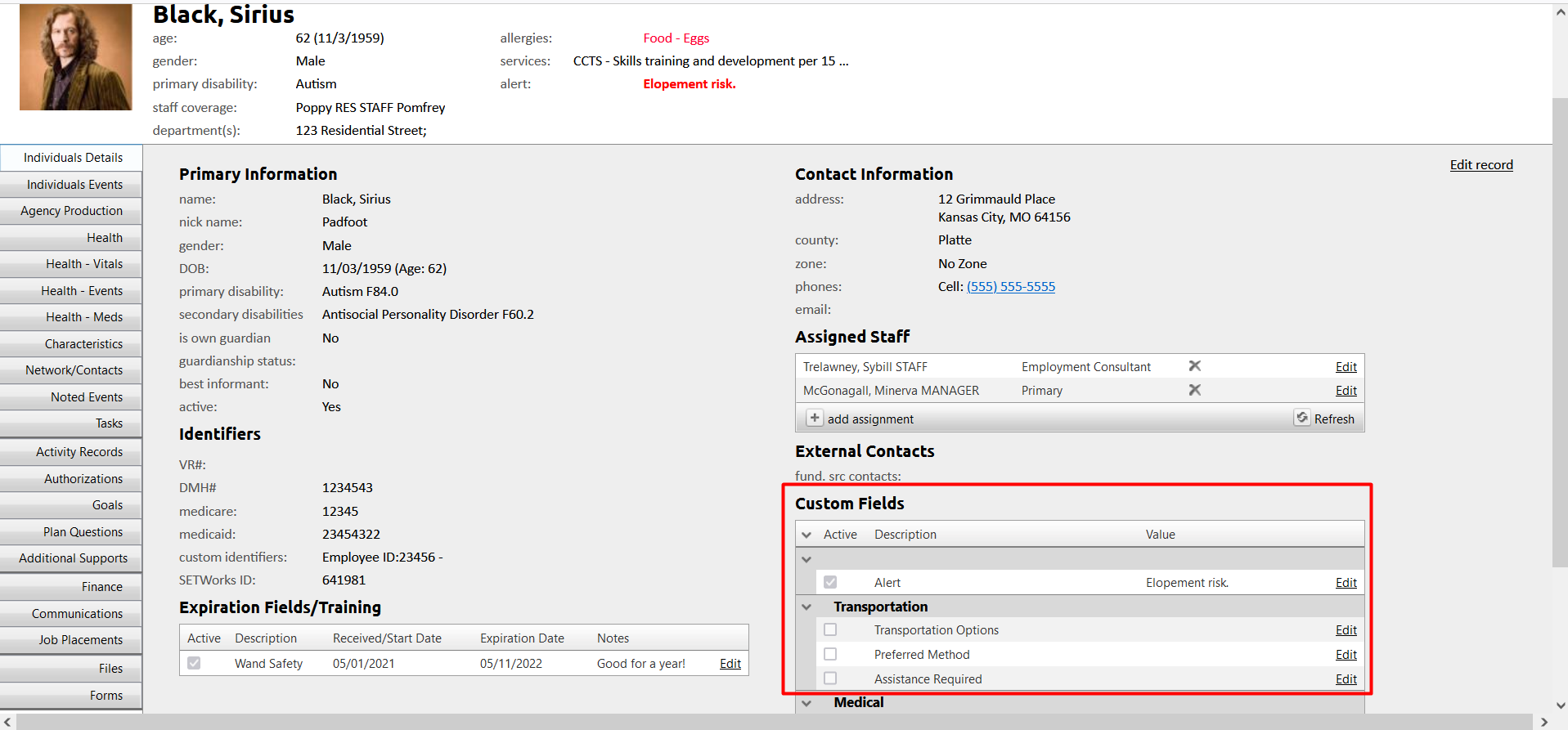
Applicable Entity Code Types
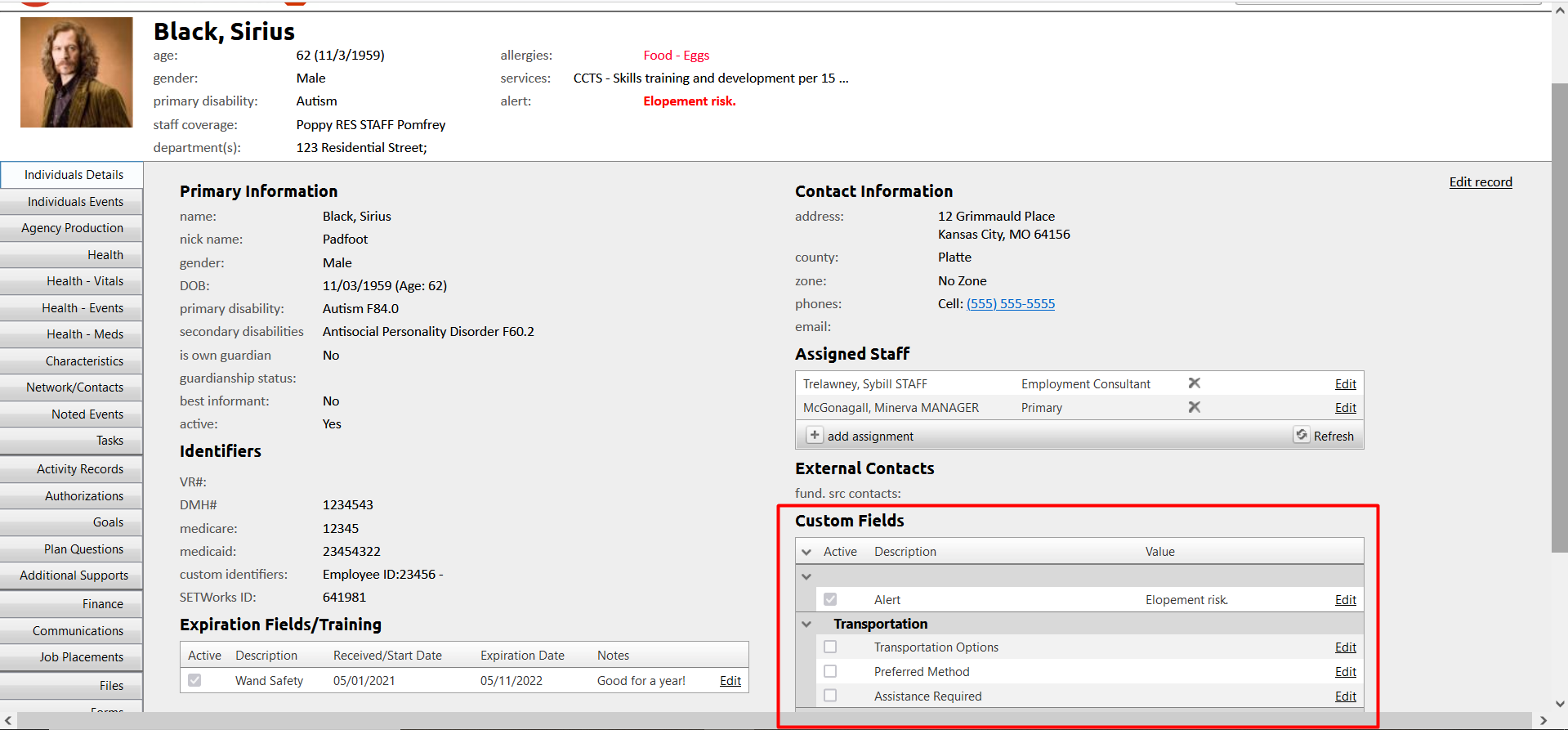
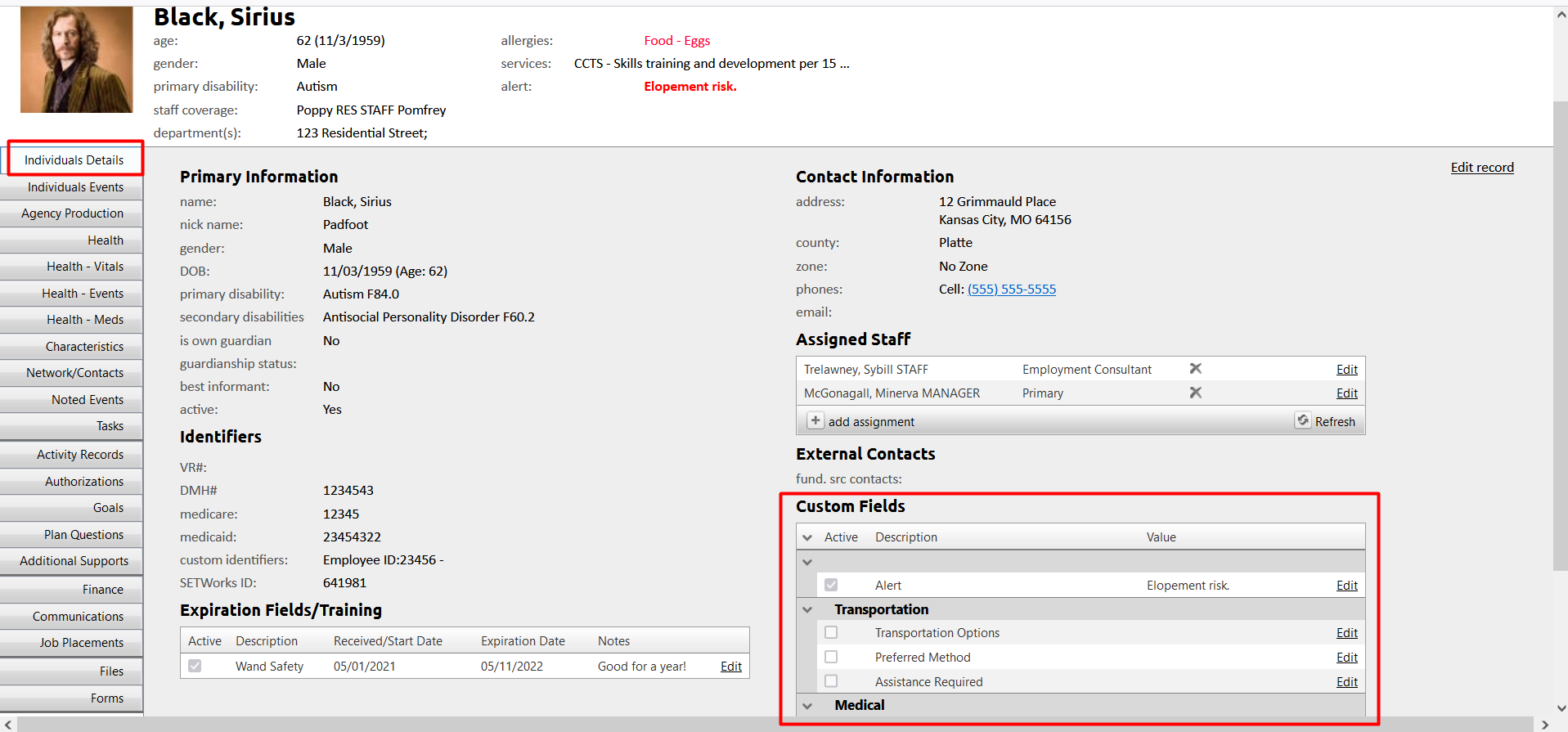
Consumer: Appears in the individual's profile within the Individual's Details tab > Custom Fields header
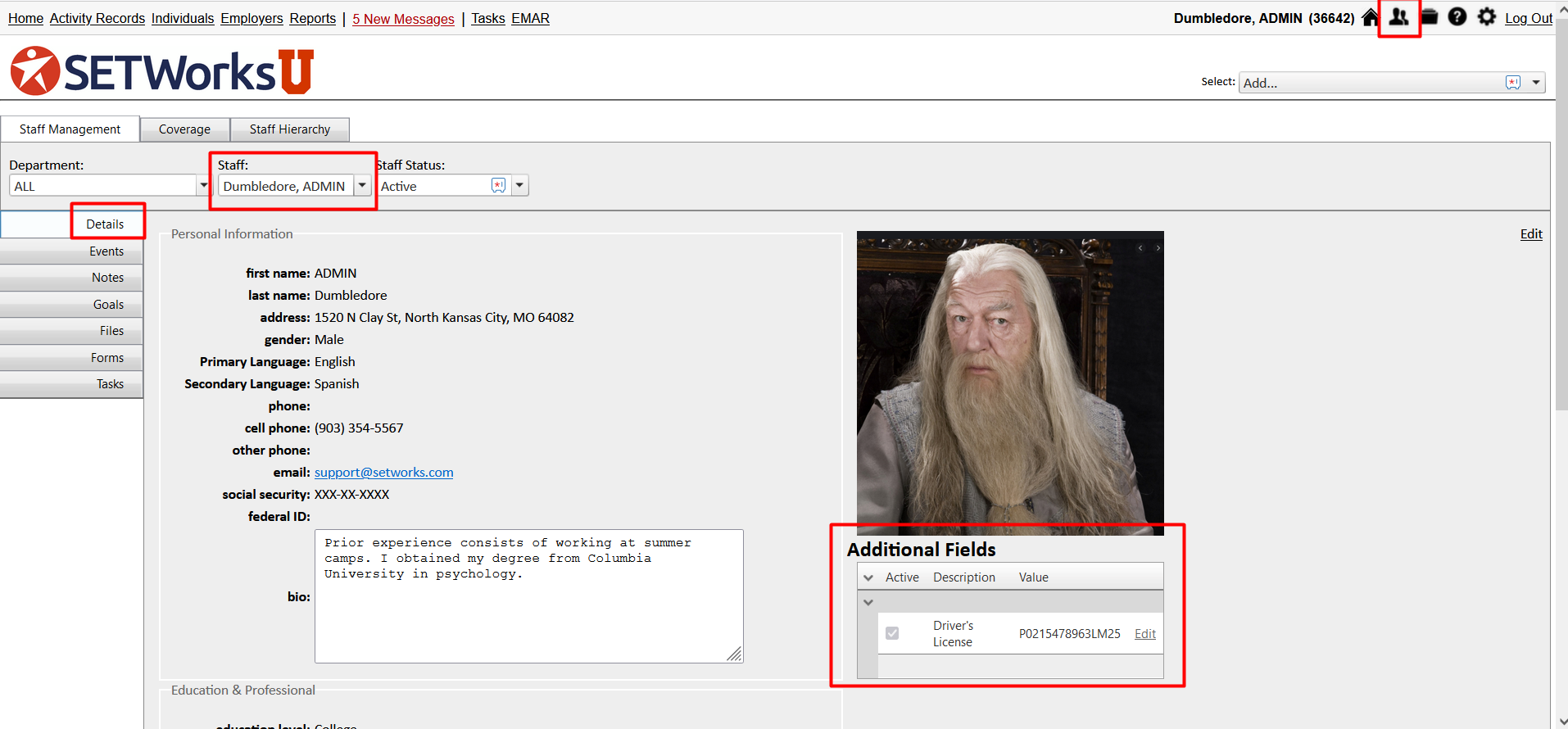
User: Appears within Staff Management within each individual staff's profile Details tab > Additional Fields header
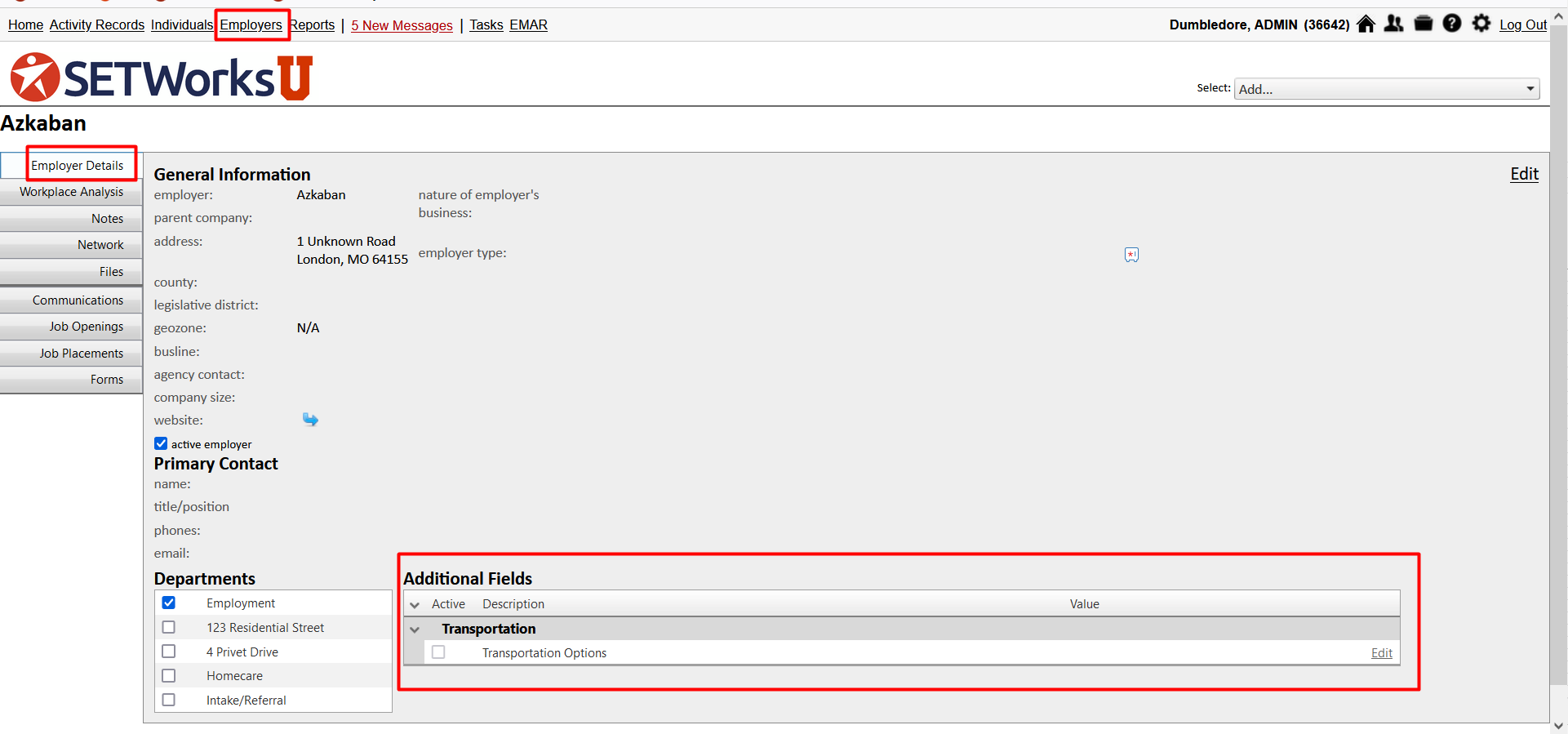
Employer: Appears within the Employers index > Employers Details tab > Additional Fields header
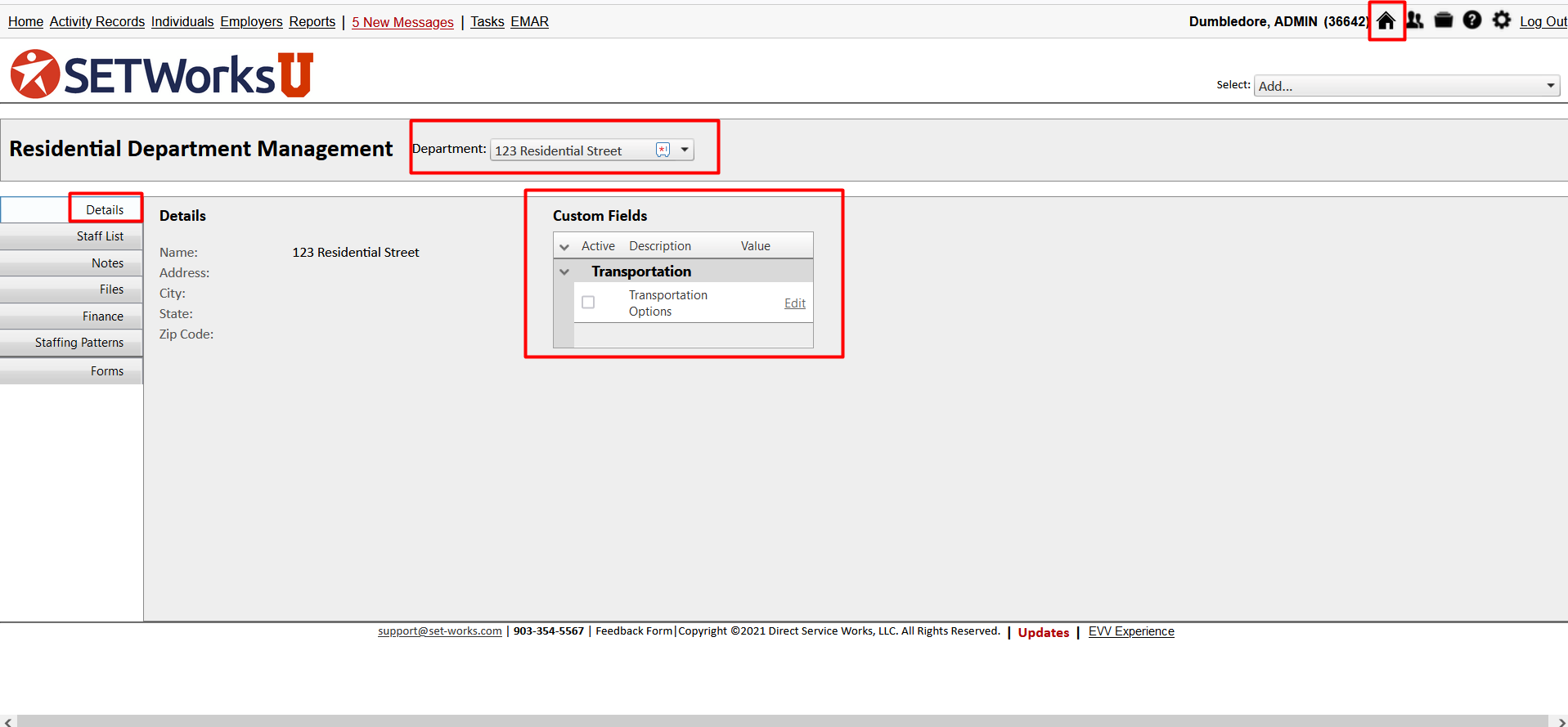
Department: Appears within Department Management within each individual department's Details Tab > Custom Fields header
Custom Text / Field Reporting
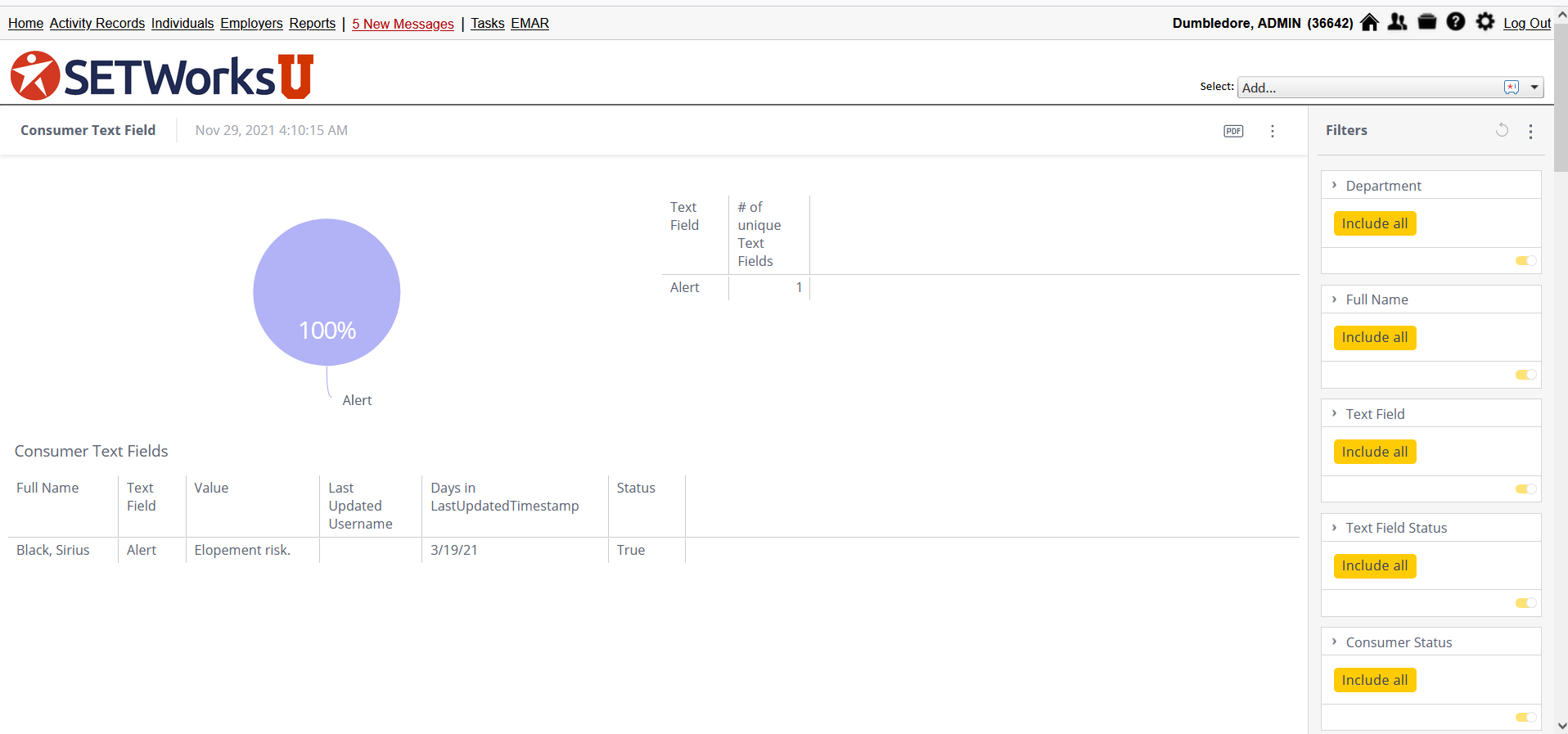
Consumer Text Field report
Department Text Field report