How do I create and assign Plan Questions?
Administrator
Learn 'The What' of Plan Questions and benefits. Protocol/Custom Plan Questions can be created about one individual within the individual's profile. They can also be created on the master level within a utility and be batch assigned to multiple individuals receiving the same service.
Plan Question Privileges
Note: Show Plan Questions Tab on Consumer Profile.
Creating and Assigning for one Individual
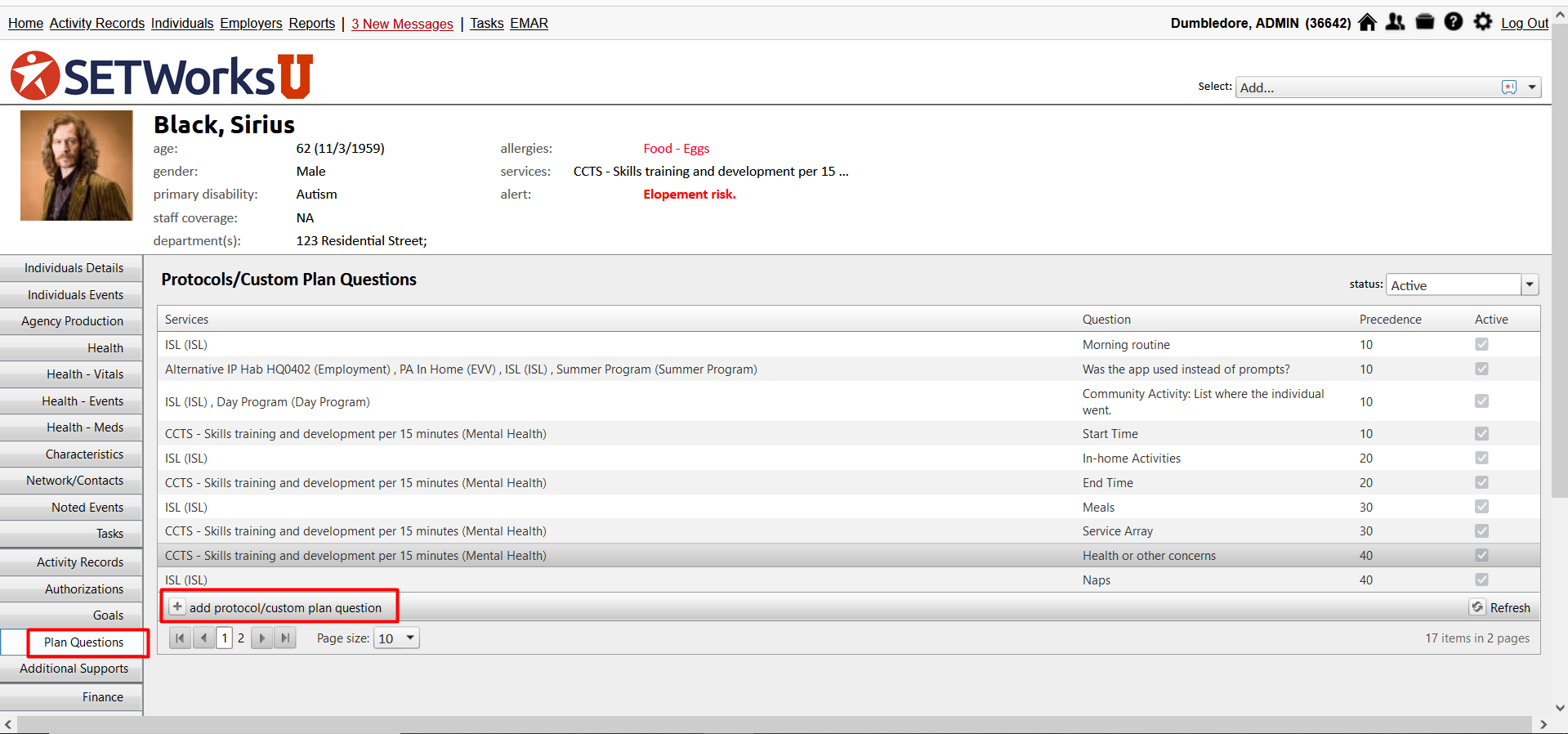
- Navigate to the individual's profile
- Select the Plan Questions tab
- Select + Plan Question
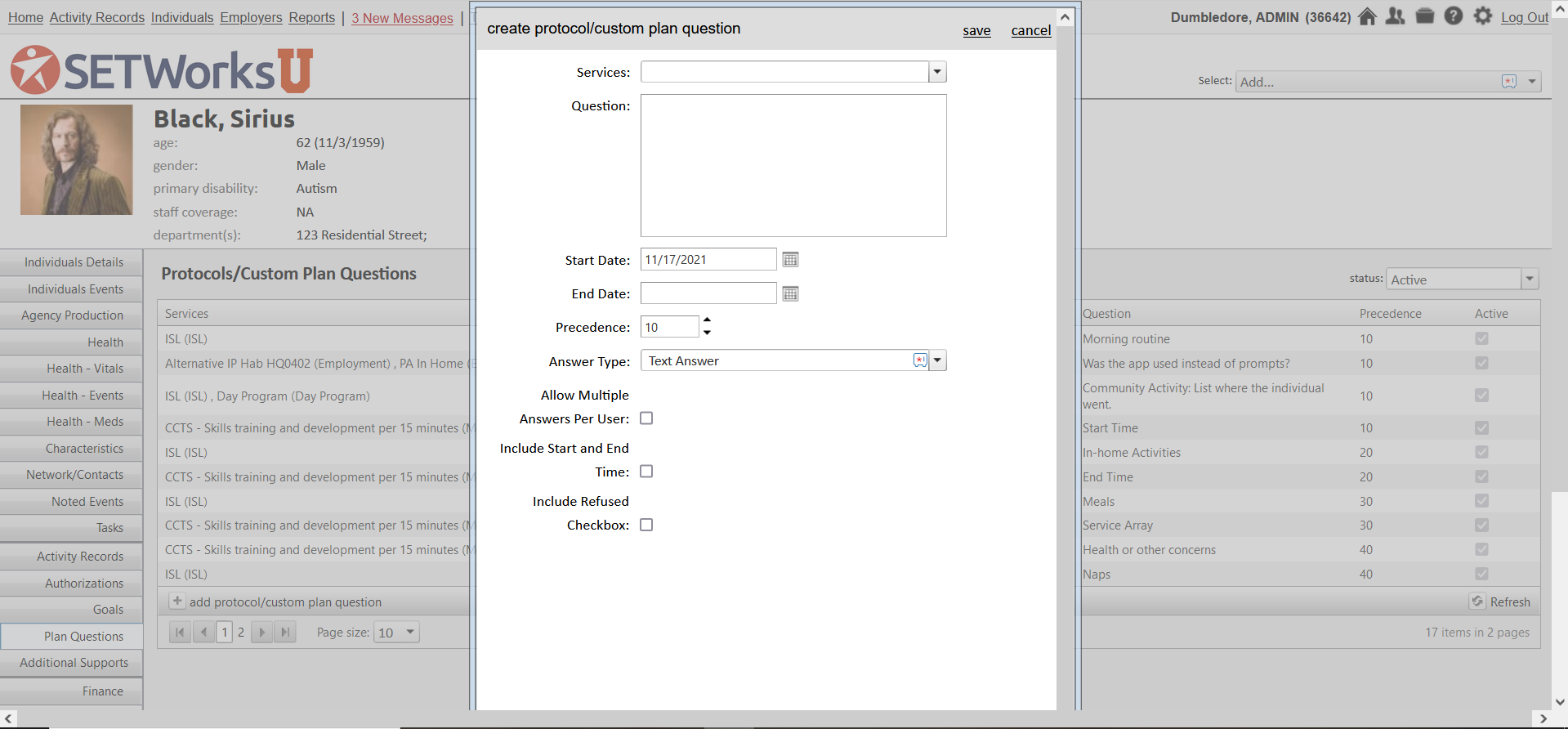
- Select the Service
NOTE: Plan Questions work similarly as Outcomes/Goals/Steps in that the service controls when the plan question is to appear in the Group Activity Records to be documented.
- Type the Question (e.g., Did a behavior Occur?)
- Select a Start Date - the date in which this plan question begins
- Select an End Date - the date in which this plan question ends, if applicable.
- Select an Answer Type
Text: Free text response
Inclusive Checkboxes: Select all that apply
Exclusive Checkboxes: Select one of the following
Numeric: Number response
NOTE: Upon selection of the Answer Type, additional fields populate for further set-up based on the selection. For Inclusive and Exclusive Checkboxes, the 'dropdown' options much be configured. For example, for the question 'Did Behaviors occur?', the exclusive checkbox options could be "Yes" and "No". For the question "Which Types of Behaviors Occurred?", inclusive checkboxes options could be "Spitting", "Kicking," "Hitting," etc.
- Allow Multiple Answers Per User - Select if you'd like multiple answers per user
(e.g., for a Meals question, four answers could be documented to capture Breakfast, Lunch, Dinner, Snacks).
- Include Start and End Time - Select if you'd like to capture Start and End Time with the response.
(e.g., Bed Checks - what times were the bed checks completed)
- Include Refused Checkbox - Select if you'd like the option to capture refusal
Creating for multiple Individuals
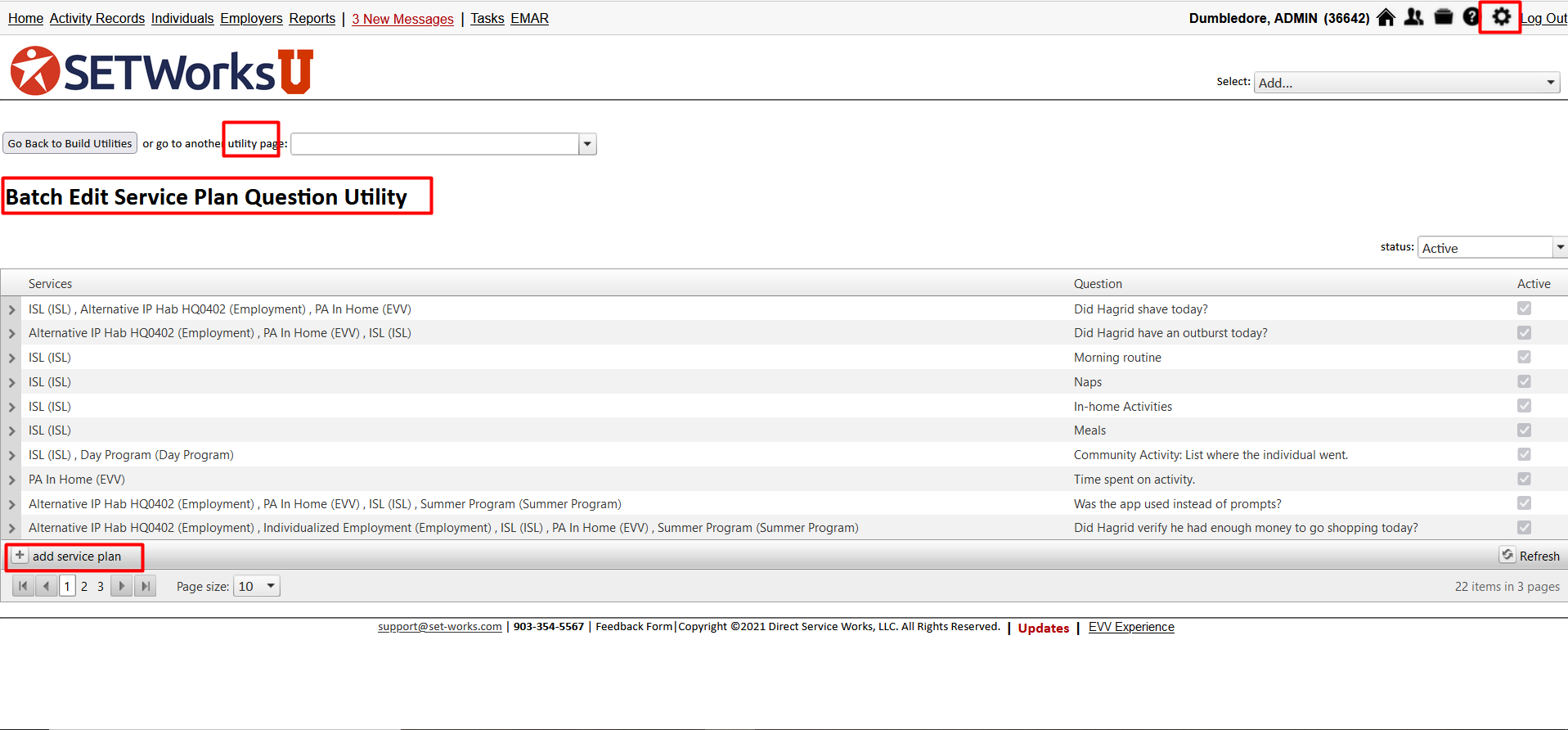
- Navigate to Settings > Provider Build > Utilities: Plan Question Utility
- Select + Add Service Plan
- Select the Service
NOTE: Plan Questions work similarly as Outcomes/Goals/Steps in that the service controls when the plan question is to appear in the Group Activity Records to be documented.
- Type the Question (e.g., Did a behavior Occur?)
- Select a Start Date - the date in which this plan question begins
- Select an End Date - the date in which this plan question ends, if applicable.
- Identify Precedence - which order this question should appear in the list of questions.
- Select an Answer Type
Text: Free text response
Inclusive Checkboxes: Select all that apply
Exclusive Checkboxes: Select one of the following
Numeric: Number response
NOTE: Upon selection of the Answer Type, additional fields populate for further set-up based on the selection. For Inclusive and Exclusive Checkboxes, the 'dropdown' options much be configured. For example, for the question 'Did Behaviors occur?', the exclusive checkbox options could be "Yes" and "No". For the question "Which Types of Behaviors Occurred?", inclusive checkboxes options could be "Spitting", "Kicking," "Hitting," etc.
- Allow Multiple Answers Per User - Select if you'd like multiple answers per user
(e.g., for a Meals question, four answers could be documented to capture Breakfast, Lunch, Dinner, Snacks).
- Include Start and End Time - Select if you'd like to capture Start and End Time with the response.
(e.g., Bed Checks - what times were the bed checks completed)
- Include Refused Checkbox - Select if you'd like the option to capture refusal
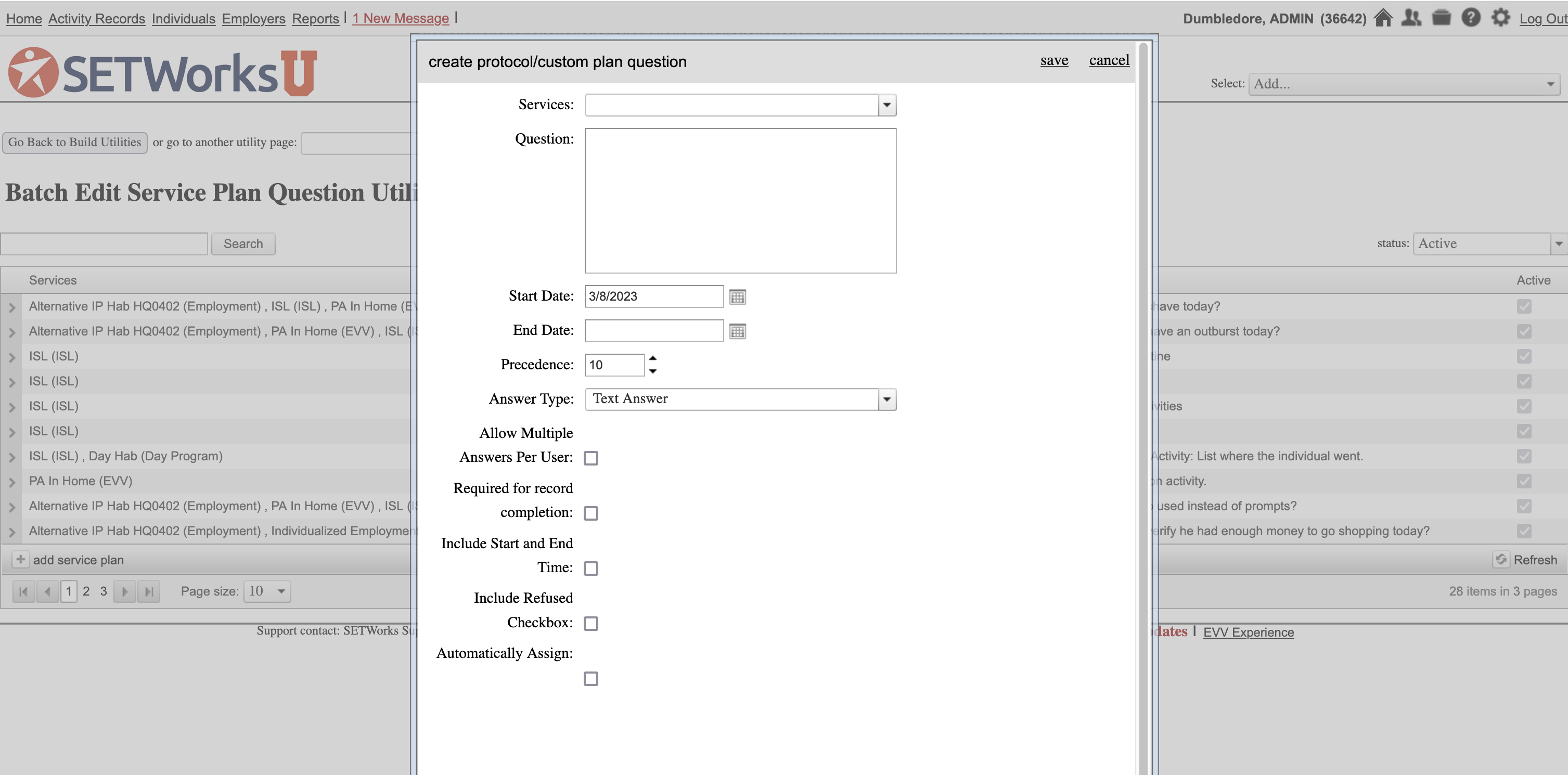
- Automatically Assign - Automatically Assigns the plan question to individuals when service criteria is met
Batch Assign to Multiple Individuals
- Navigate to Settings > Provider Build > Utilities: Plan Question Utility
- Find the Plan Question you wish to assign and either:
1) Open the plan question and select Automatically Assign (image 1) - or -
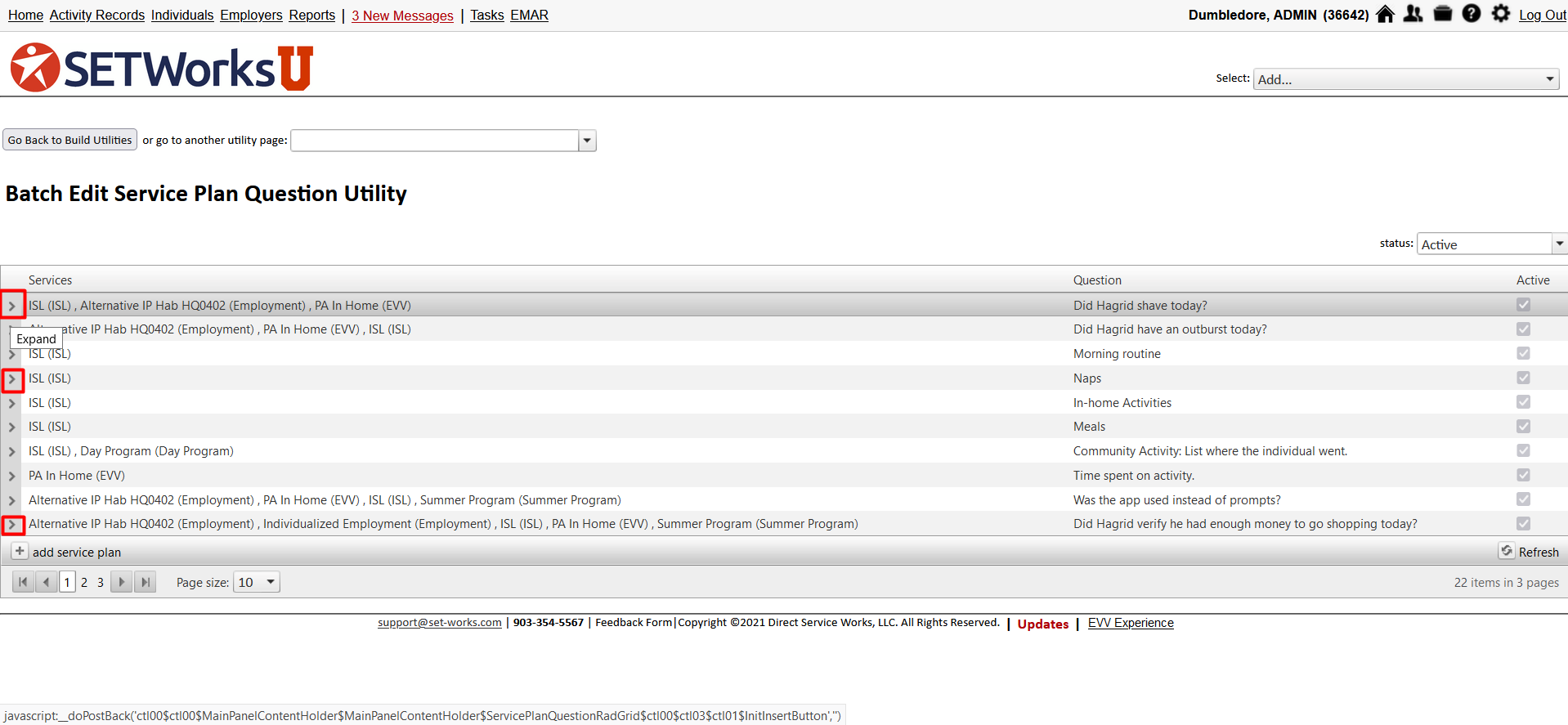
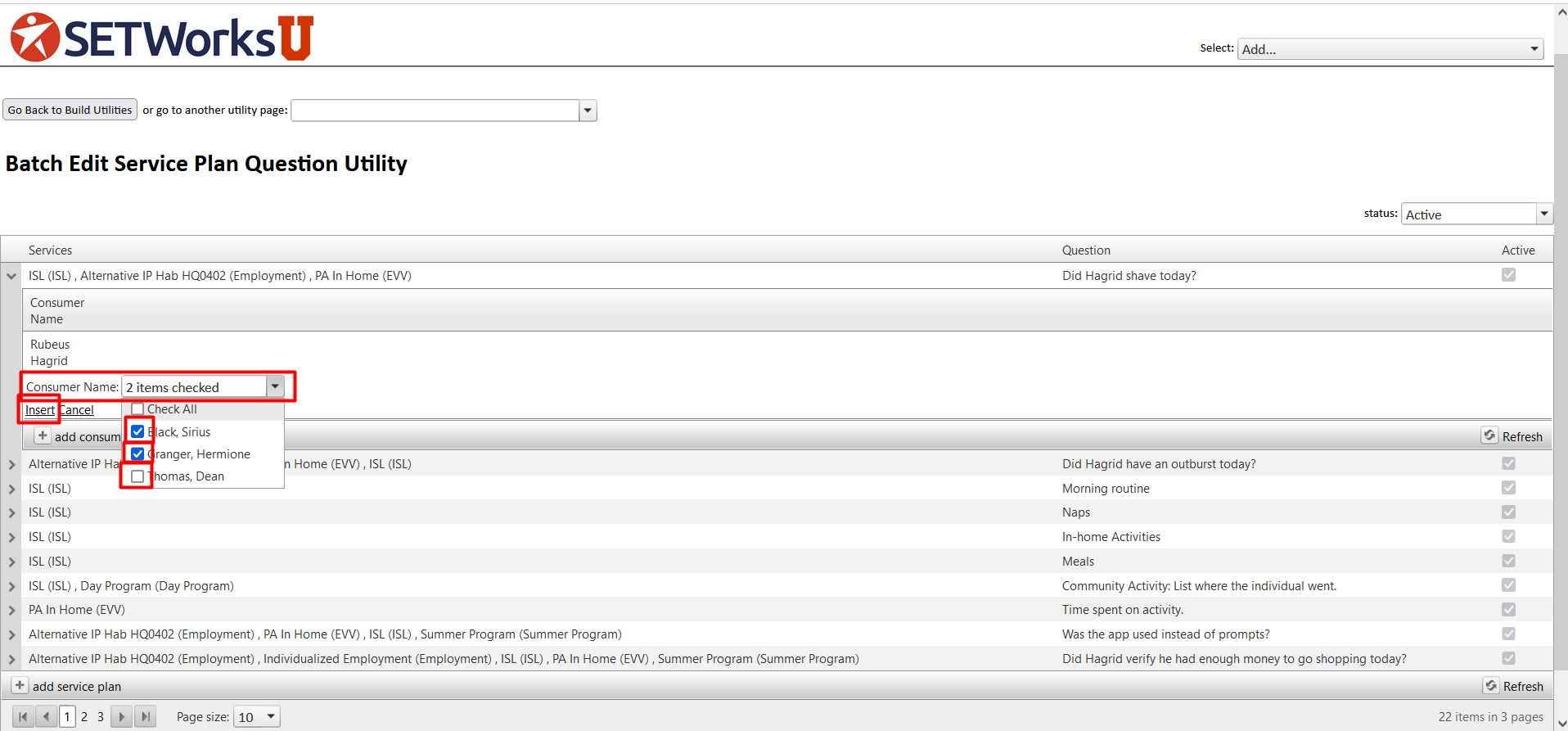
2) Manually assign by select the expand icon to the left of the plan question (image 2+)
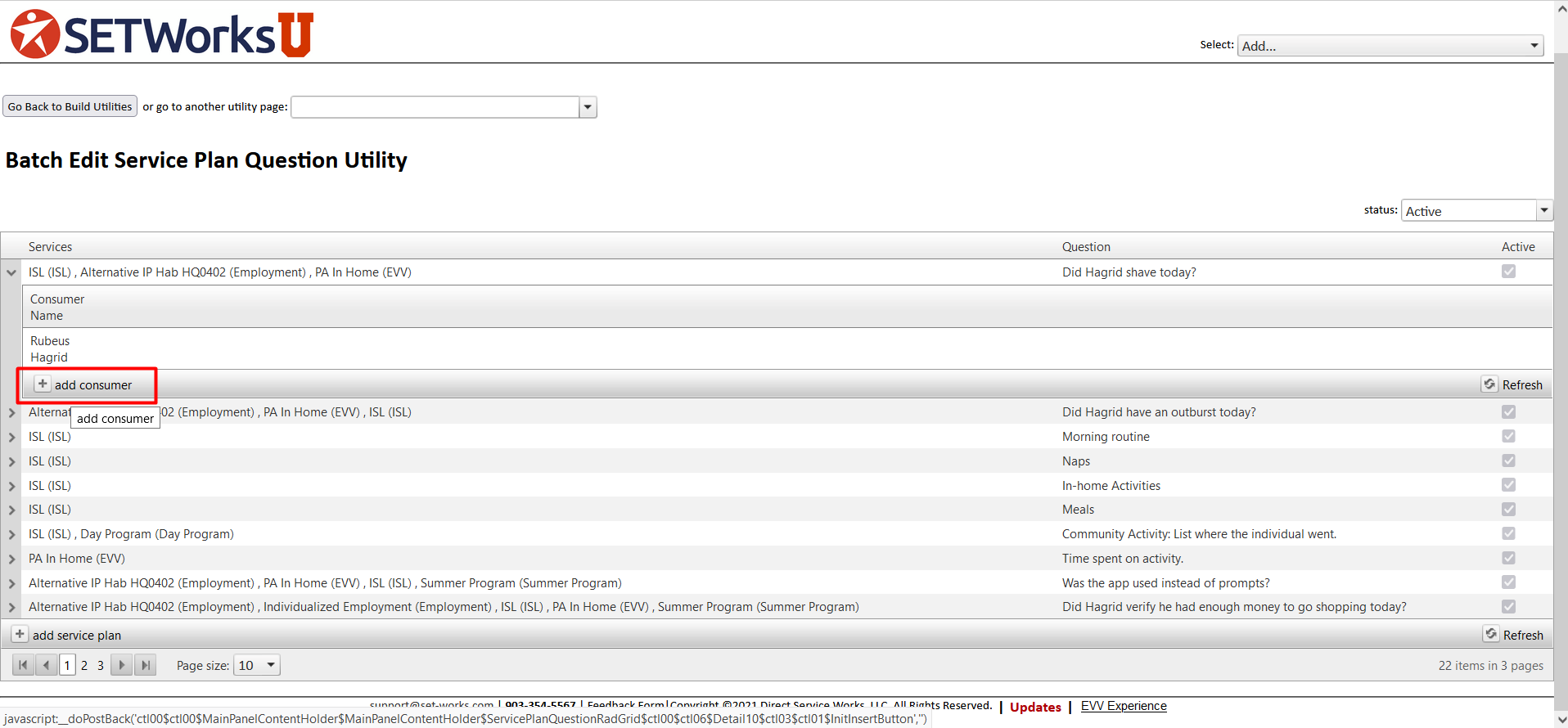
- Select Add Consumer
- Select the individuals' names from the dropdown.
- Insert.
NOTE: Names only appear in this dropdown if the individual has an active authorization assigned of this same service.
- Upon Inserted, navigate to the individual's profile and observe the plan questions appear in the Plan Questions tab.
Note: For each new individual added to SETWorks, they must be manually added via the Plan Questions Utility add consumer method ONLY IF the plan question is not set to automatically assign.
Image 1. Automatically Assign Plan Question
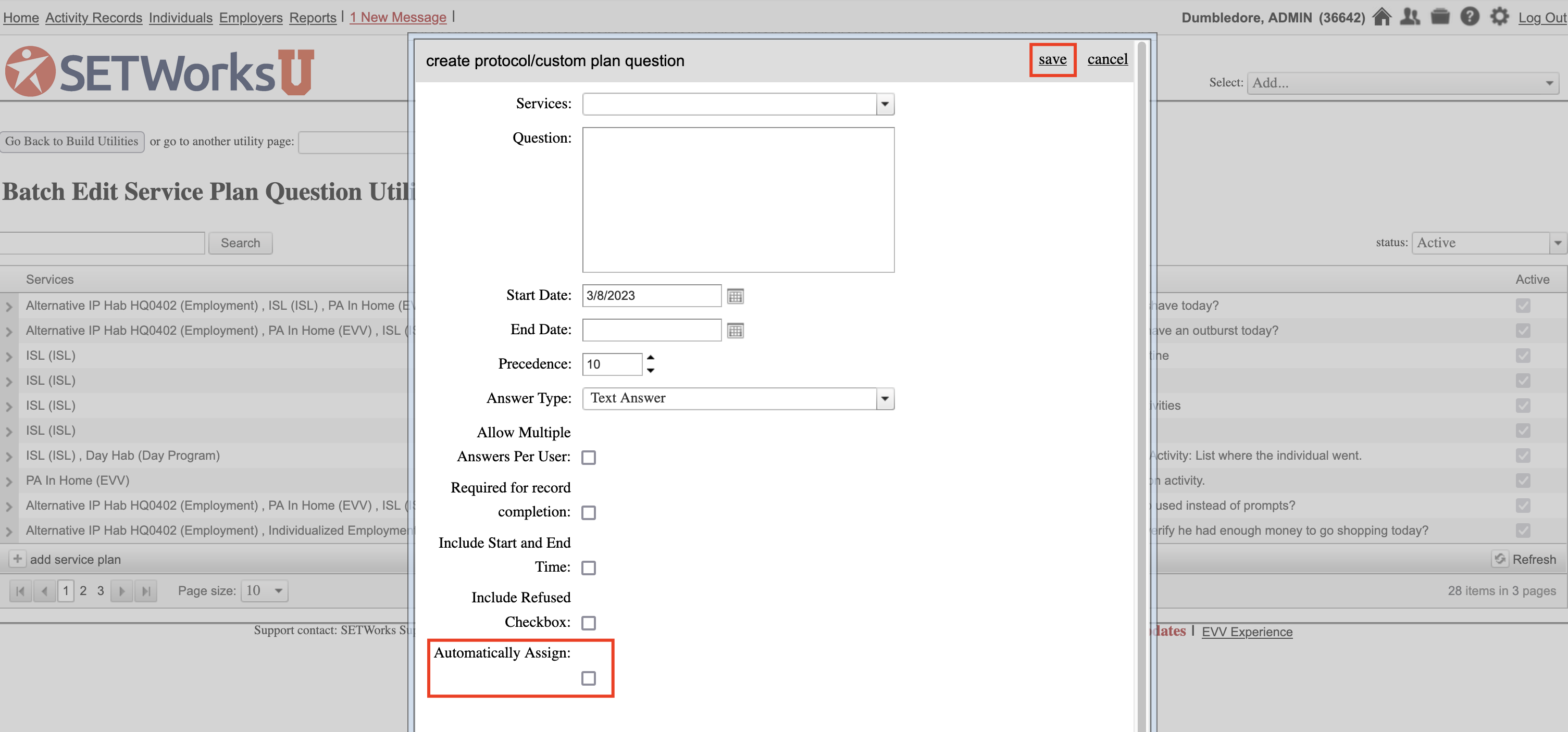
Image 2+. Manually Assigning Plan Questions to a number of individuals.
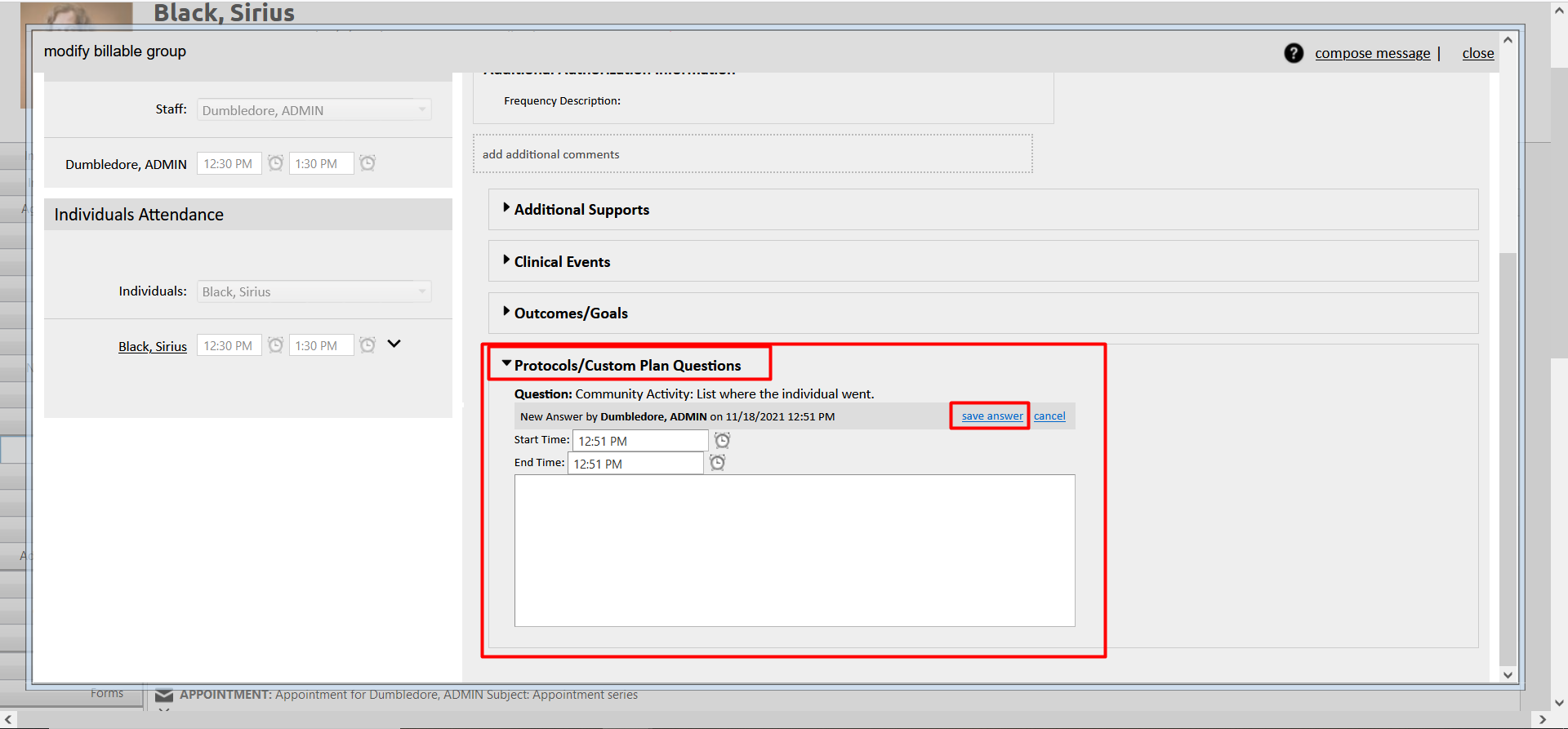
Protocol/Custom Plan Questions in the Billable Group Activity Record
Plan questions are documented on within the Billable Group Activity Record.
NOTE: The Billables Group Activity Record might have been renamed in your site but looks like the image below.
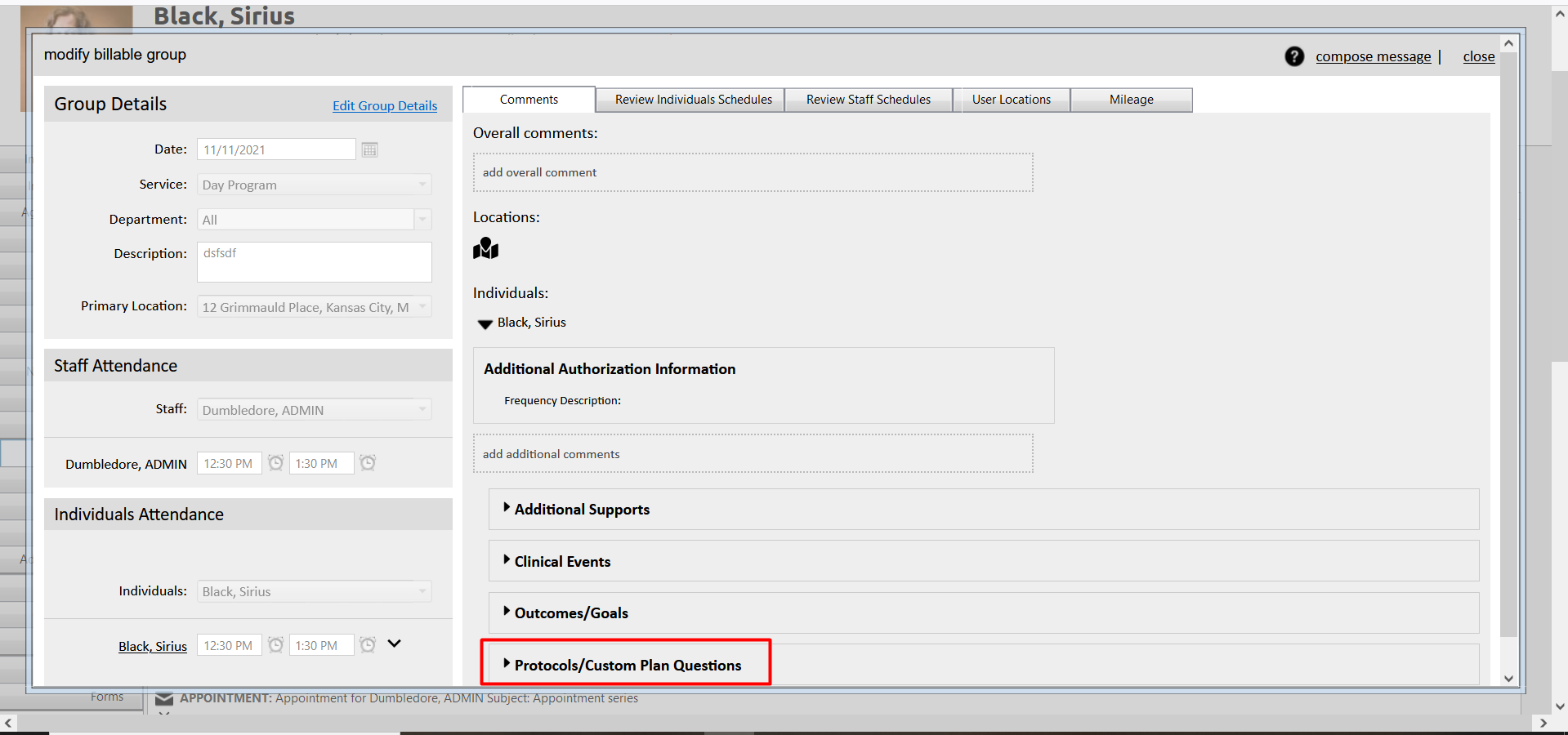
To document on Protocol/Custom Plan Questions
- Create an activity record.
- Fill out the required fields on the left side including service, staff, consumer, etc.
- Save Group Details.
- Find Protocol/Custom Plan Questions
- Select the expandable arrow to open the questions.
- Select the box below the question to document. Fill it out to completion.
- Save answer.
NOTE: Each answer much have 'save answer' selected to save the content.
Note: Troubleshooting: If the question does not appear within the documentation, check the Start Date of the Plan Question as well as the service assigned to the individual and the plan question.