How do I configure Clinical Events?
Administrators
The Clinical Event Category Utility is used to create & maintain your agencies Clinical Events (Health - Events). Clinical Events allow staff to capture additional, supplemental documentation within Group Activity Records. This data is available both inside the group record as well as the consumer profile. This article will explore how to configure Clinical Events.
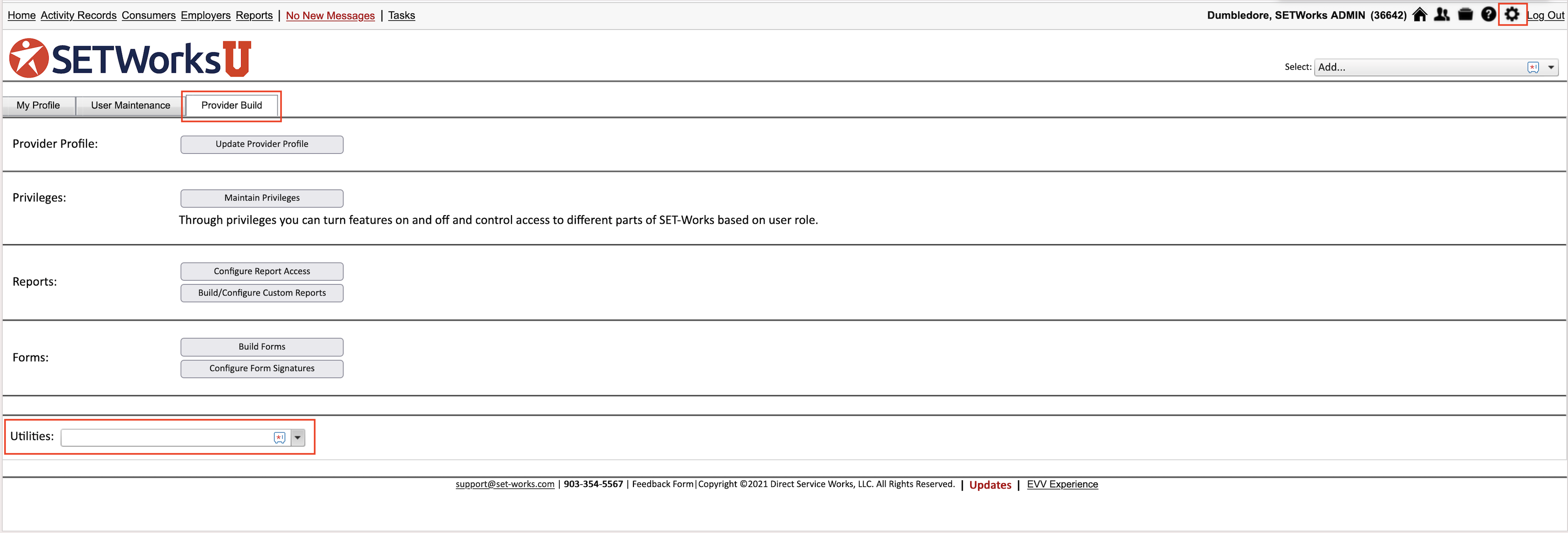
Access the Clinical Event Category Utility
- Click on the Settings
 icon in the top right of the navigation bar.
- Select the Provider Build tab.
- Expand the Utilities drop-down and search for the "Clinical Event Category" utility.
Adding Clinical Events
Note: There are two primary workflows within this utility to be able to configure the Clinical Events. First, create the Clinical Event Category (tab). Second, create the fields for documenting within the category (tab).
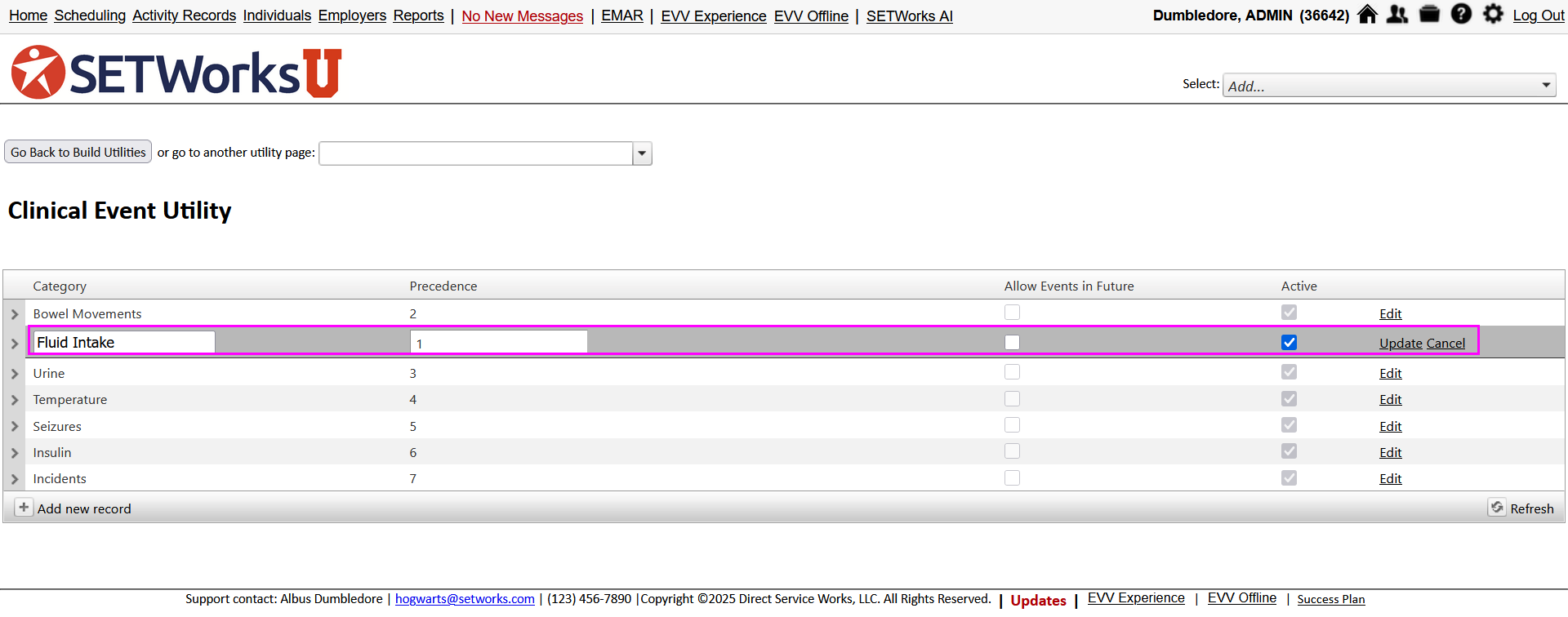
Creating the Clinical Event Category
Select + Add new record.
Complete the necessary fields:
Category: The name of the tab that will display when staff document on Clinical Events.
Precedence: The order (from left to right) the category (tab) will display (in relation to the others in the utility).
Allow Events in Future: Select this if staff should be able to document an event that has a future date.
Active: Ensure this is selected if you want this to be enabled in your domain.
Click Insert
Creating Fields within the Category
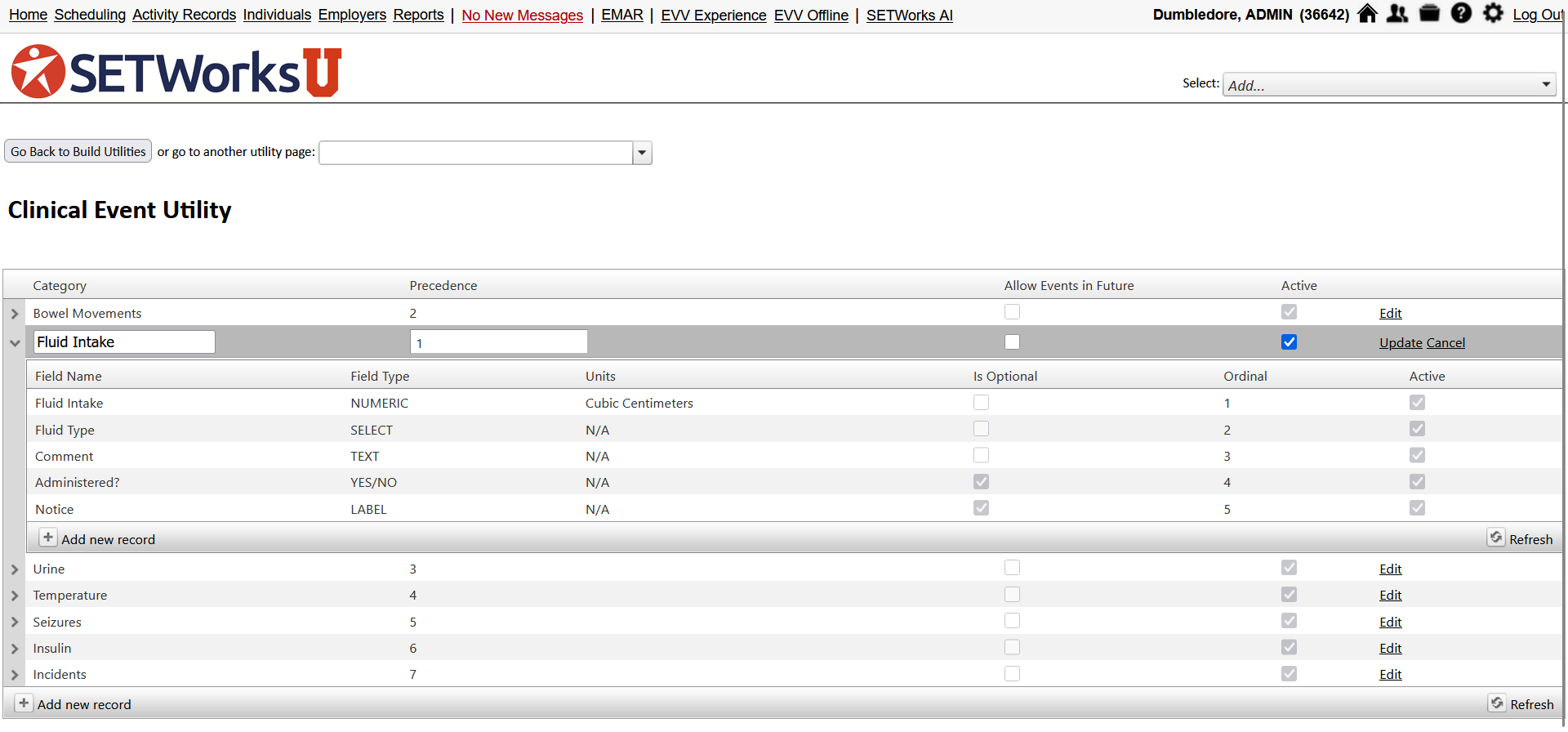
Click on the caret right icon that is to the left of the category you just created. This will expand the category so that more options appear.
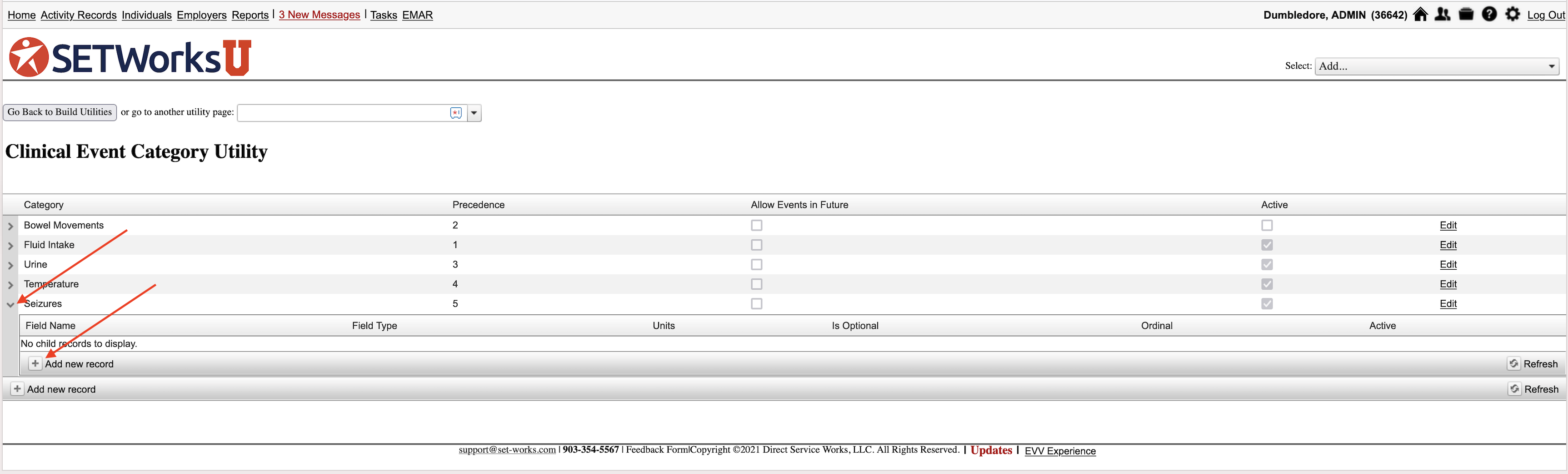
Click Add new record within the newly expanded area.
Complete the necessary fields:
Name: The name/question that will display for staff.
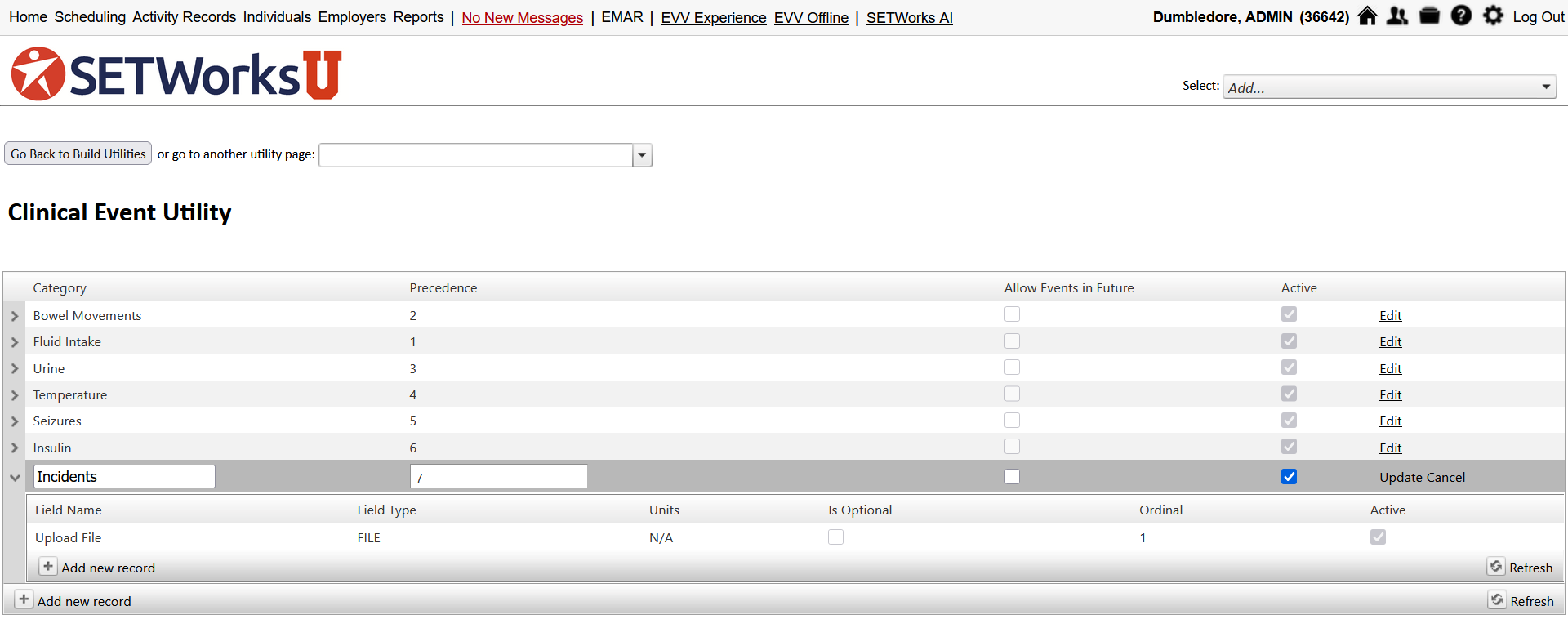
Field Type: Select the appropriate type of question formatting. Clinical Events support the following:
Yes/No: populates a Yes/No drop-down.
Image: allows staff to upload an image to the documentation (e.g. image of a wound) (jpg, png, etc. files accepted)
Numeric: displays a numeric counter for staff to input strictly numeric documentation.
Select: allows you to create a discrete list of responses for staff to select in a dropdown list format.
Text: allows staff to input free-text narrative.
Label: used to display informative information to the user (i.e. instructions on how to document).
File: allows staff to upload a file including documents, spreadsheets, multiple page pdfs, images, etc.
Is Optional: Select this if documenting on this is not required.
Ordinal: The order (top to bottom) question (Field Type) will display (in relation to the others in the utility).