How do I configure Intervention & Assessment Keys for Billable Group Activity Records?
Administrators
The Activity Record Group Utility is used to create & maintain your agencies Intervention & Assessment Keys for Billable Group Activity Records. Intervention & Assessment Keys allow staff to capture discrete assessment and intervention data per goal for each consumer. This article will explore how to configure the Intervention & Assessment Keys for the Billable Group Activity Records.
Access the Activity Record Group Utility
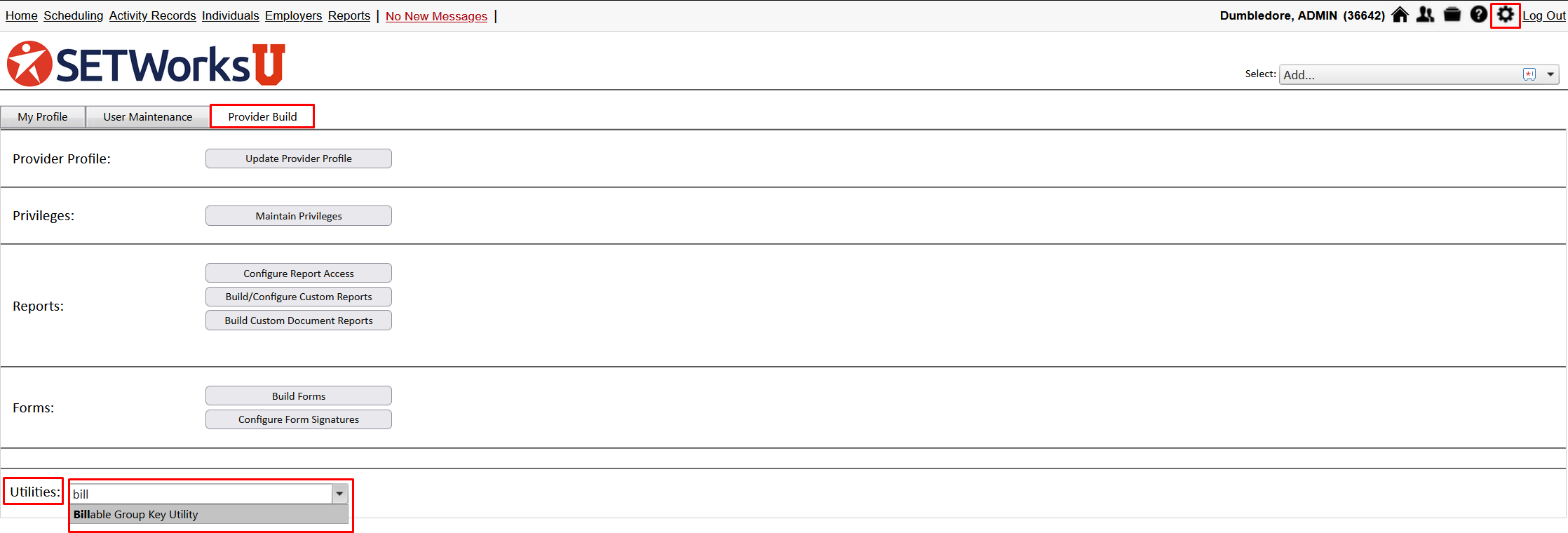
- Click on the Settings
 icon in the top right of the navigation bar.
- Select the Provider Build tab.
- Expand the Utilities drop-down and search for the "Billable Group Key Utility".
Adding Intervention & Assessment Keys
Note: There are two primary workflows within this utility to be able to configure the intervention and assessment keys. First, create a library of all possible intervention and assessment keys that could be utilized within a Billable Group Activity Record. Second, associate each applicable intervention & assessment key to the appropriate service(s).
Creating Intervention & Assessment Keys (creating the library of options)
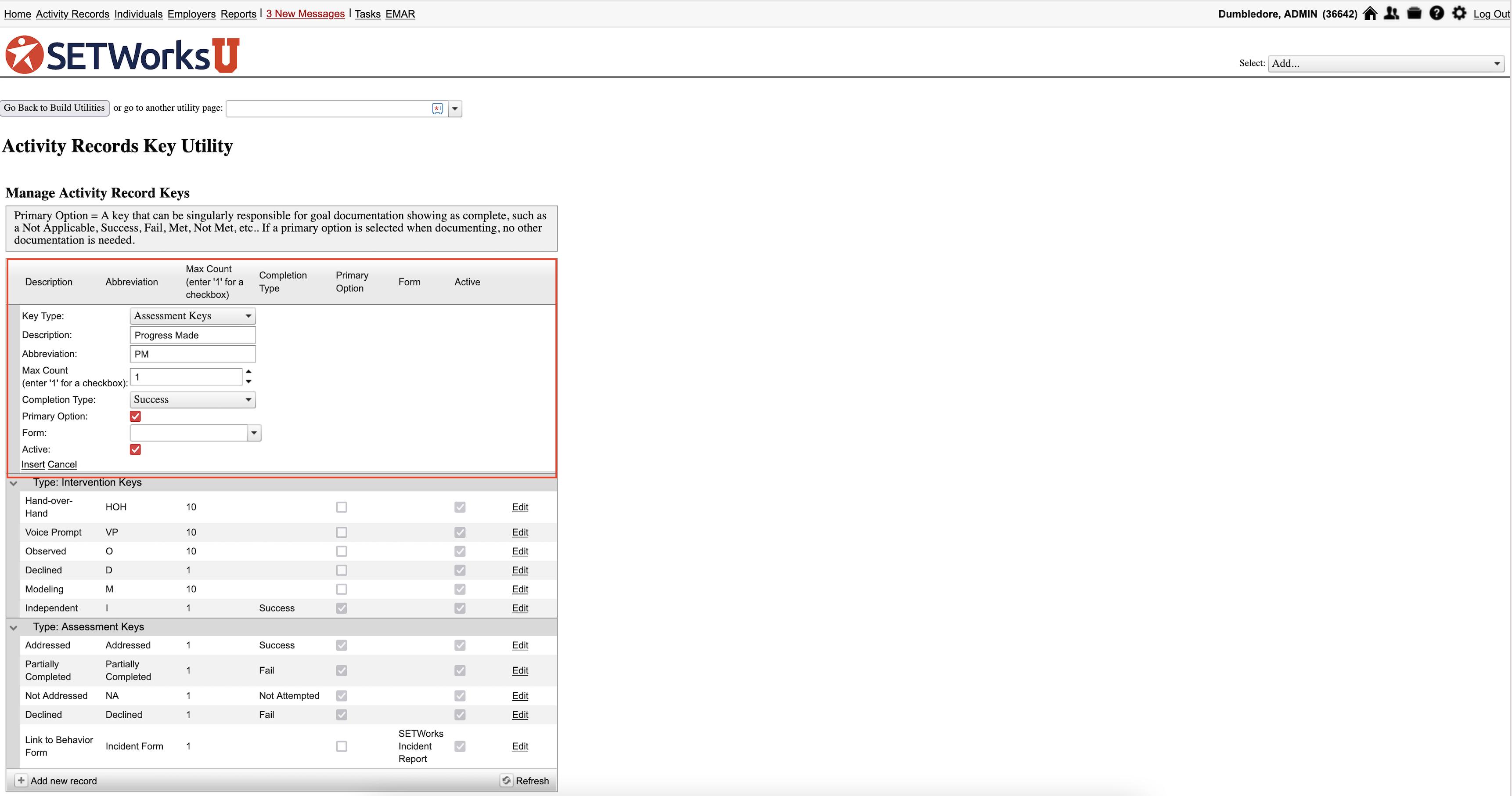
Manage Activity Record Keys
- Select + Add new record under Manage Activity Record Keys.
- Complete the necessary fields:
- Key Type: Determine whether you are creating an Intervention or Assessment Key
- Description: The description of the Intervention/Assessment Key. This is what will display when staff hover over the key within the Billable Group Activity Record.
- Abbreviation: What will display face up within the Billable Group Activity Record.
- Max Count: Can be 1-99. Input 1 if it should be a checkbox. Input 2-99 if the field should be a counter (allows staff to input numeric values e.g. 3 Verbal Prompts).
- Completion Type: Strictly used for reporting. Determines if/how this Intervention/Assessment Key should show on reports.
- Primary Option: Determines whether this Key should be responsible for goal documentation as being complete. ** Works if the following privilege is enabled "Billable Records: Only an Assessment selection (or Primary Option for groups) is required for a goal to be considered as complete".**
- Form: Enables a specific form to appear and be completed based on a staff selecting this Key.
- Active: Ensure the Key is active
- Click Insert
Settings > Provider Build > Maintain Privileges > Activity Record Group:
Note: Billable Records: Only an Assessment selection (or Primary Option for groups) is required for a goal to be considered as complete
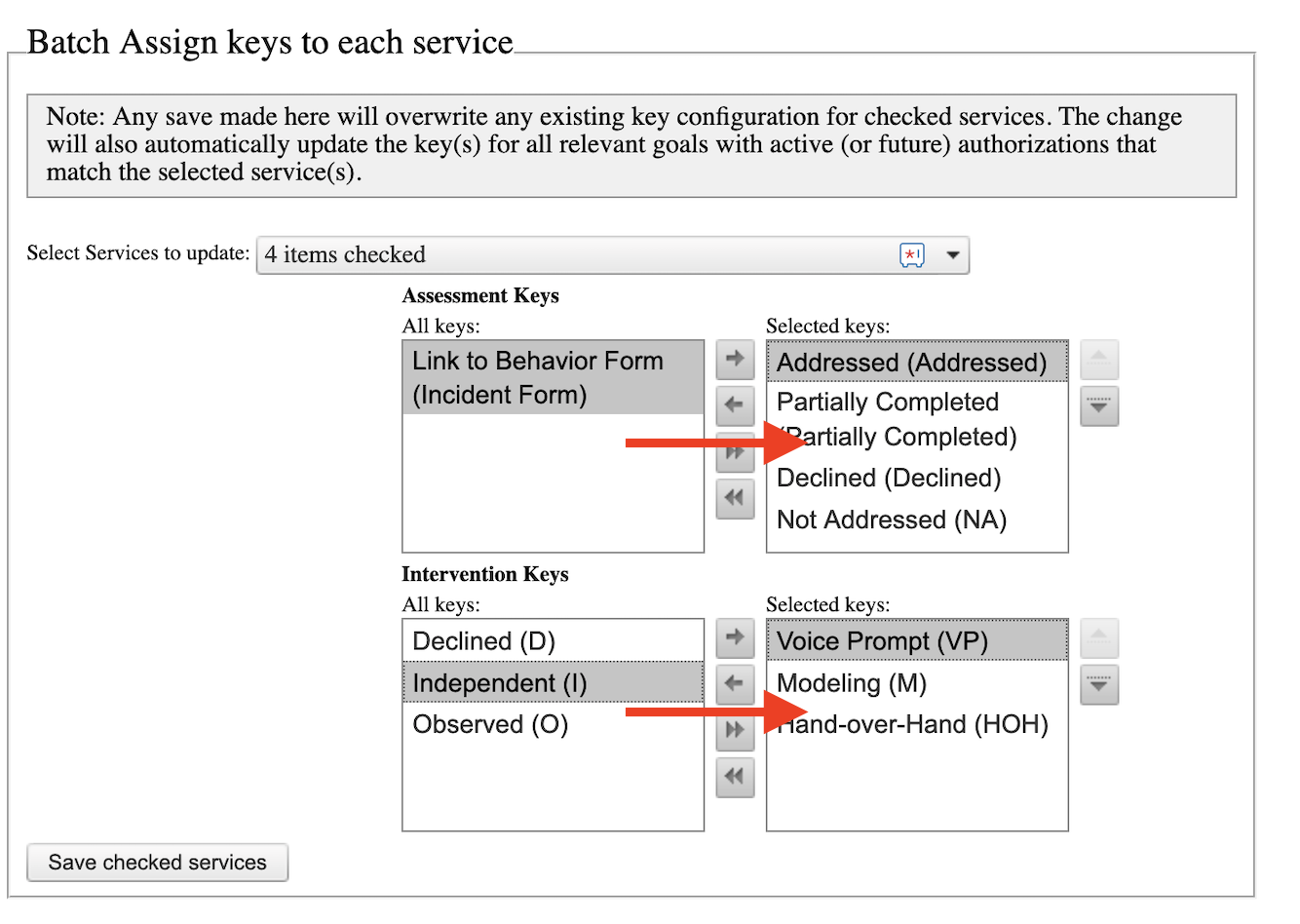
Batch Assign Keys to Each Service
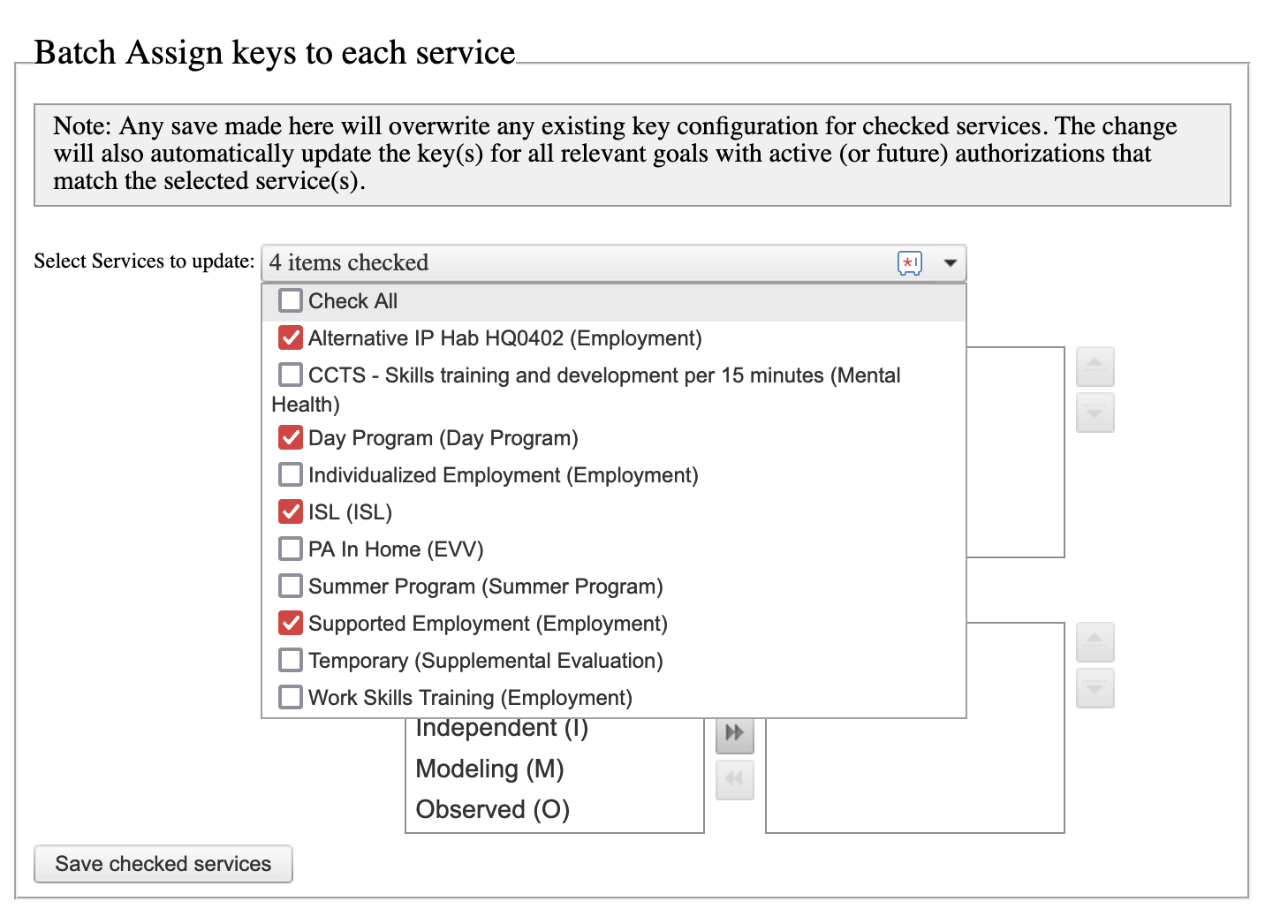
You are able to configure the same Intervention & Assessment Key format for multiple services at once.
- Expand the Select Services to update: drop-down to view a list of all services configured for your domain.
- Select the appropriate services to configure.
- Move from left (All keys) to right (Selected keys) the applicable Assessment and Intervention Keys for the services you selected in step 2 above.
- Click Save checked services.
Note: In step 3, the order from top to bottom in which the Intervention & Assessment Keys are displayed within the "Selected keys" box is how they will display to staff from left to right within the Billable Group Activity Record.
Assign Keys to One Service at a Time
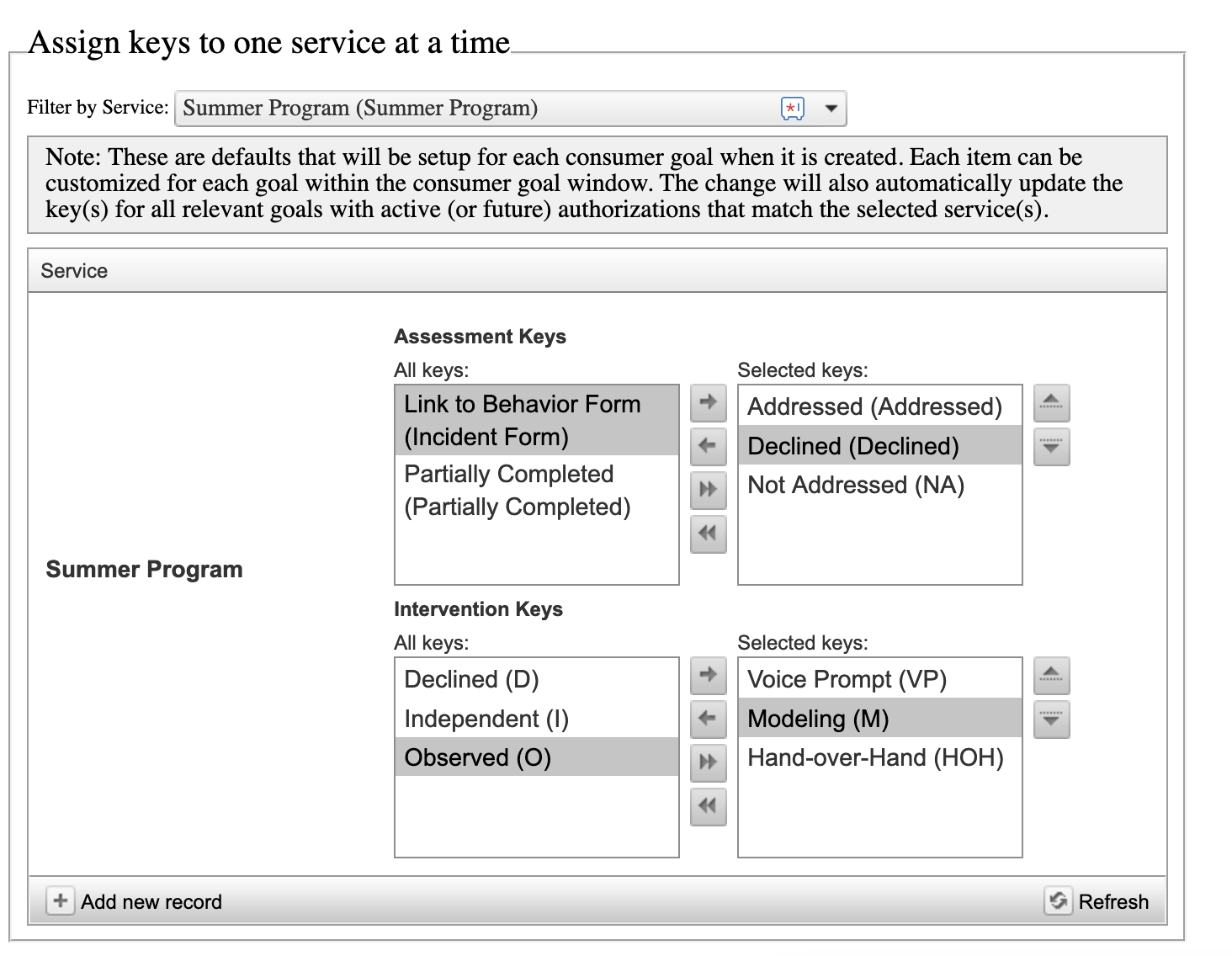
You are able to configure Intervention & Assessment Keys for one service at a time.
- Expand the Filter by Service: drop-down to filter the list to the specific service you wish to configure.
- Move from left (All keys) to right (Selected keys) the applicable Assessment and Intervention Keys for the service you selected in step 1 above.
Note: This configuration is automatically saved for you. There is no button to save.
Note: In step 2, the order from top to bottom in which the Intervention & Assessment Keys are displayed within the "Selected keys" box is how they will display to staff from left to right within the Billable Group Activity Record.