How do I add a new user into SETWorks?
Administrator, Manager
People that log into SETWorks are referred to as 'Users' in SETWorks.
Note: Terminology can be modified within SETWorks to better fit the needs of your organization. If the terminology in our articles are not the same on your site, talk to your local administrator to assist in translation.
Adding New Users Privileges
Settings > Provider Build > Maintain Privileges > Settings Configuration:
Note: Enable the User Maintenance tab.
Note: Is able to add new users within the User Maintenance tab.
NOTE: User Maintenance will provide access to all users. It is recommended access to this page only be given to those that can see and manage all staff and their SETWorks information.
Adding a New User
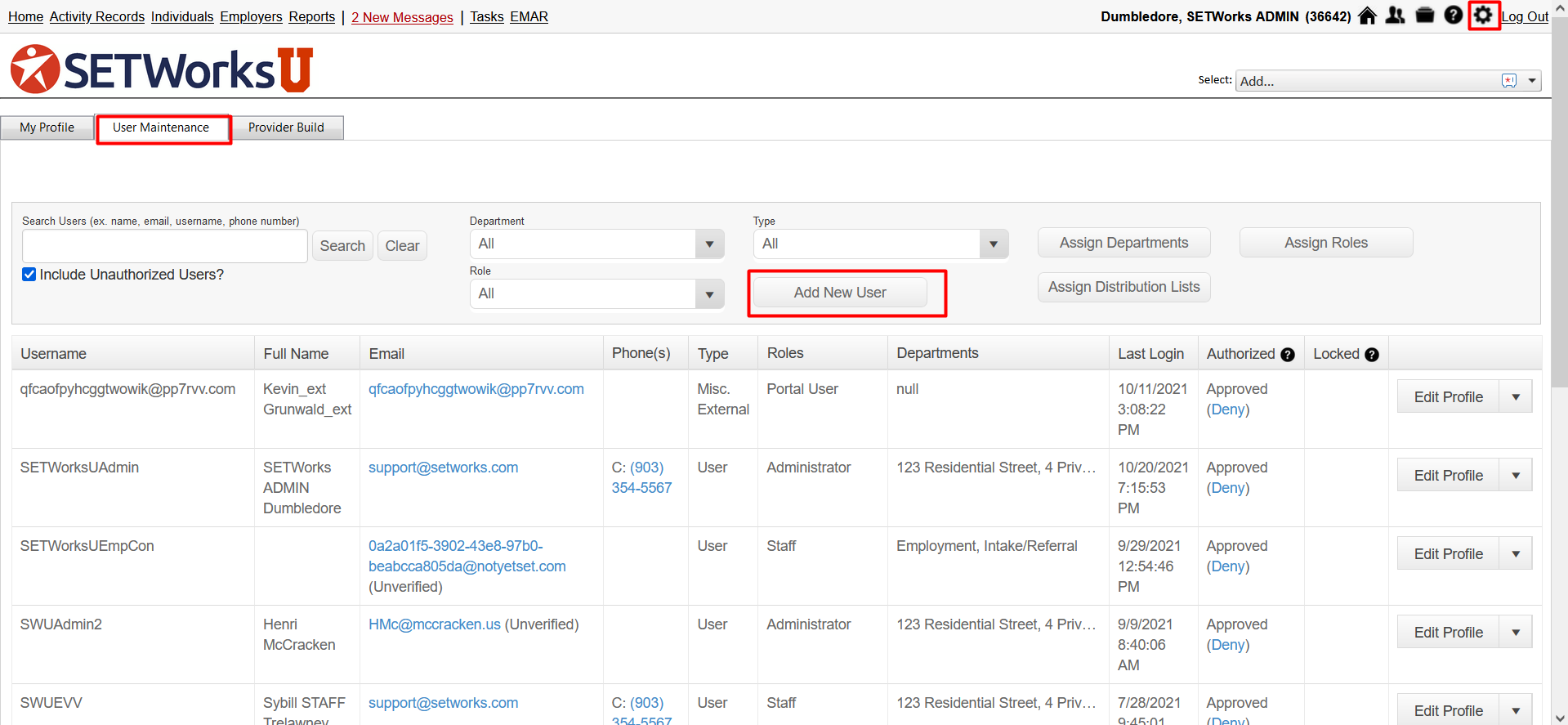
1. Navigate to Settings.
2. Select User Maintenance
3. Add New User.
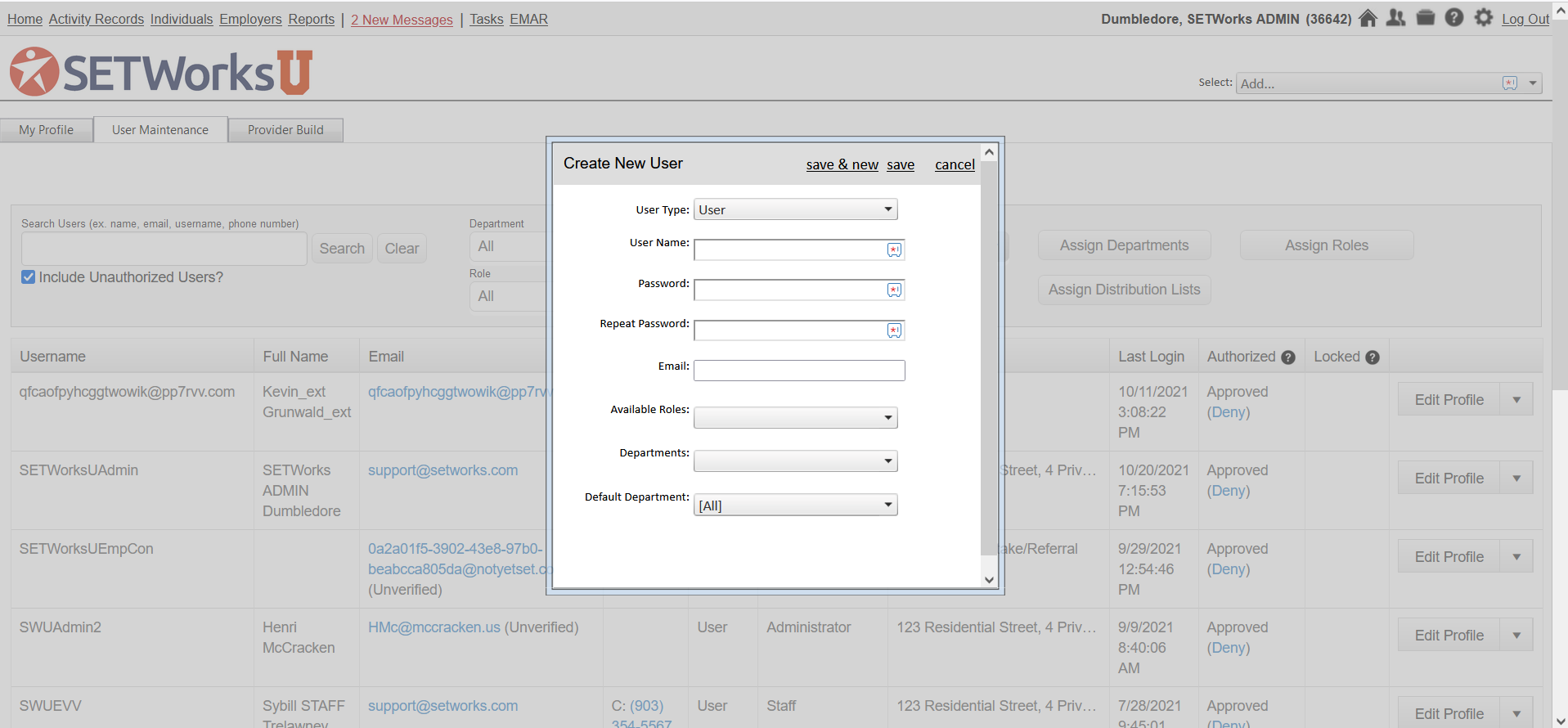
User Type: User
User Name: Create a unique username with at least 8 characters. e.g., ronaldweasley4233; ronaldweasley@email.com; rweasleyHW87
Password: Create a default password with at least 8 characters, one number, one symbol. e.g., Hogwarts123!
NOTE: The user will be required to reset it upon login.
Repeat Password: Re-type the default password
Email: Insert the user's email.
Available Roles: Select a role. Roles determine what the user can see and do in SETWorks.
Department: Select the department(s). Departments determine which individual's the user can see.
Default Department: Select a department that the user will work out of the most. Filters around SETWorks can auto-set to the default department to make navigation quicker for users.
Save or Save & New: Saves.
The user can now log in using the User Name and Password.