Can I use Topaz Signature Devices with SETWorks?
Administrators
SETWorks offers the ability to provide a handwritten signature using a Topaz device.
NOTE: Topaz will not work with mobile devices as it requires a USB to connect.
Note: Terminology can be modified within SETWorks to better fit the needs of your organization. If the terminology in our articles are not the same on your site, talk to your local administrator to assist in translation.
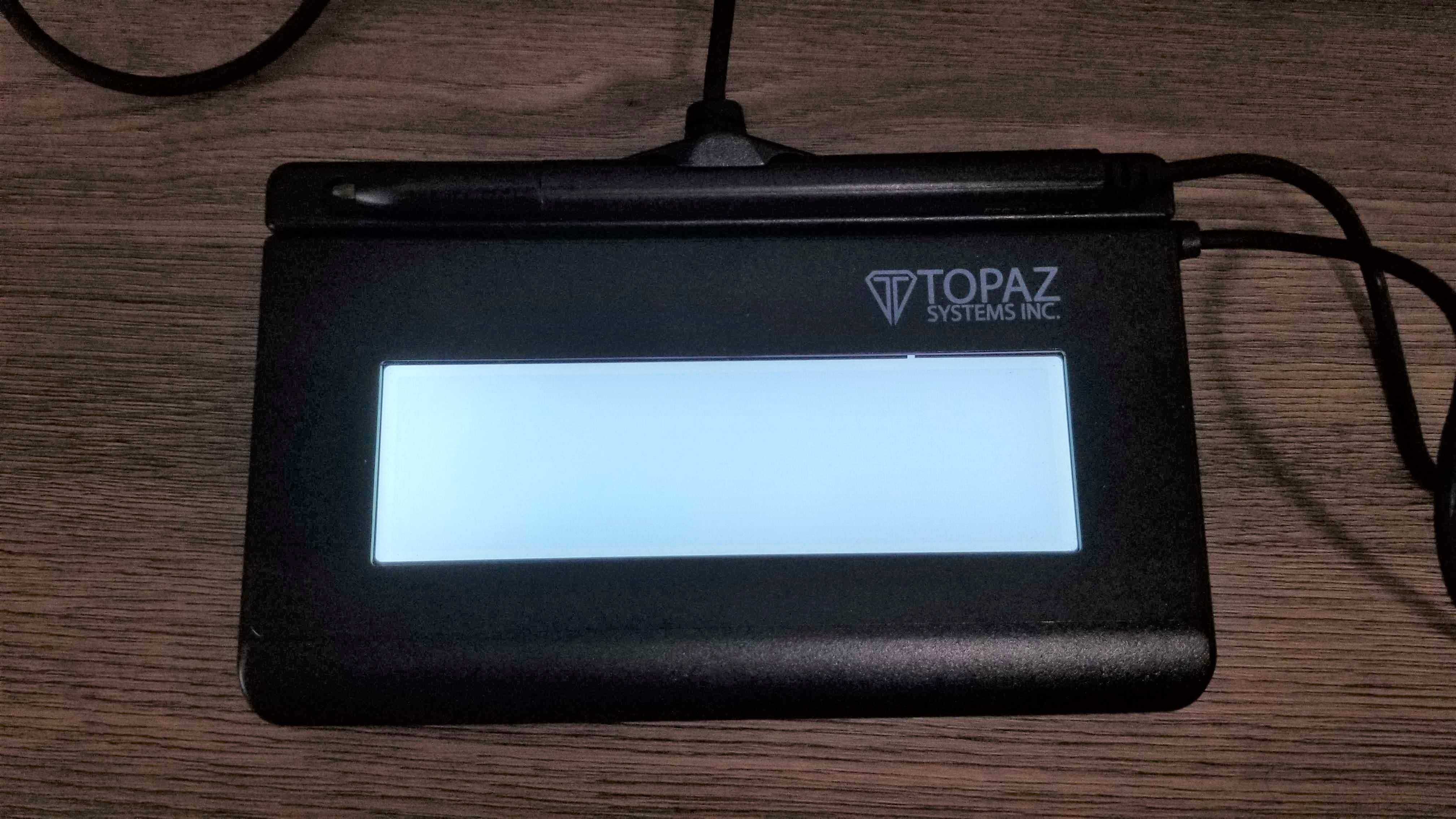
What is a Topaz Device
A topaz device is a signing tool.
Topaz Signature Privileges
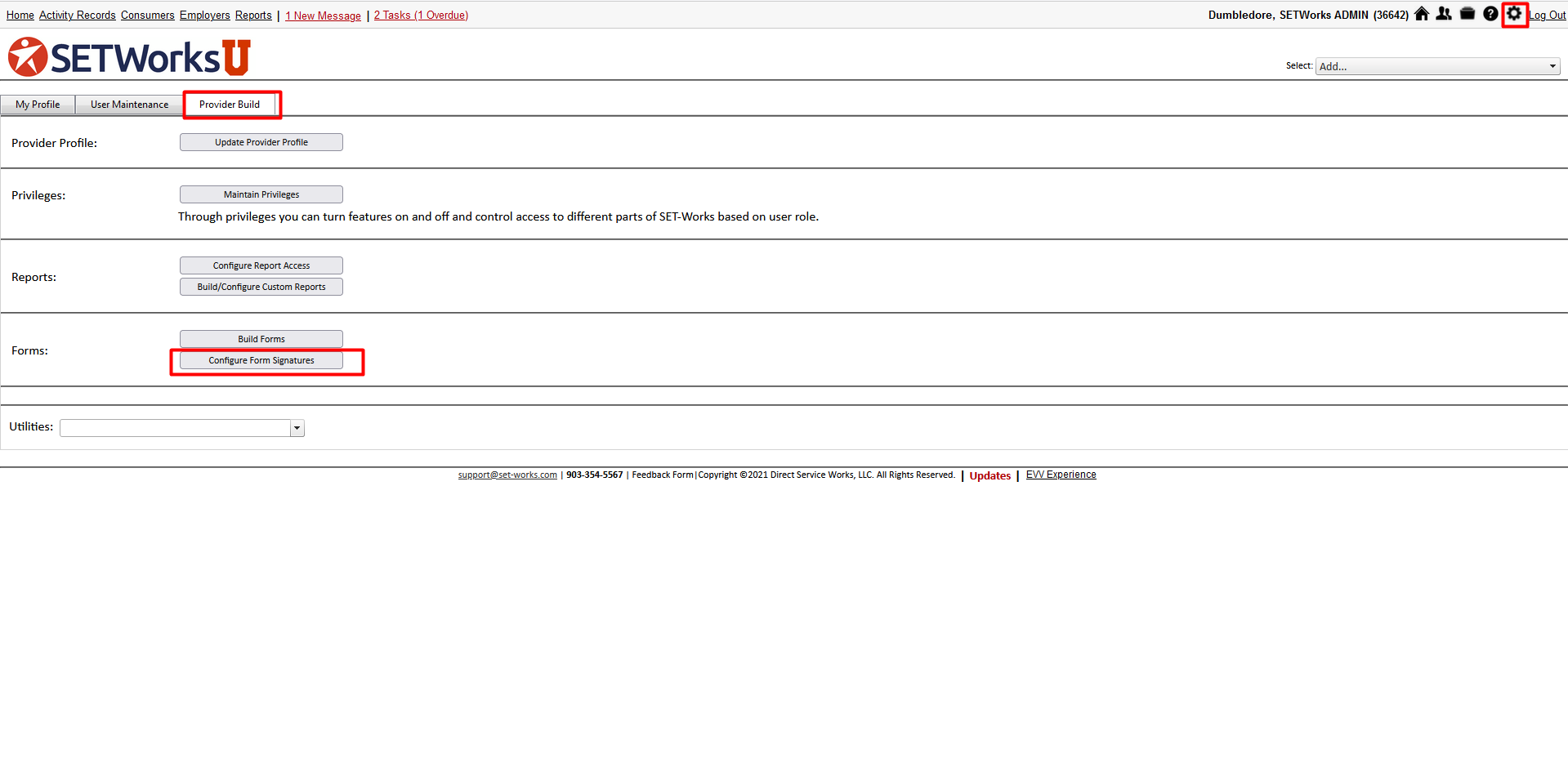
Settings > Provider Build > Maintain Privileges > Global:
Note: Enable signing with Topaz device.
Configuring for Handwritten Signatures
Settings > Provider Build > Configure Form Signatures
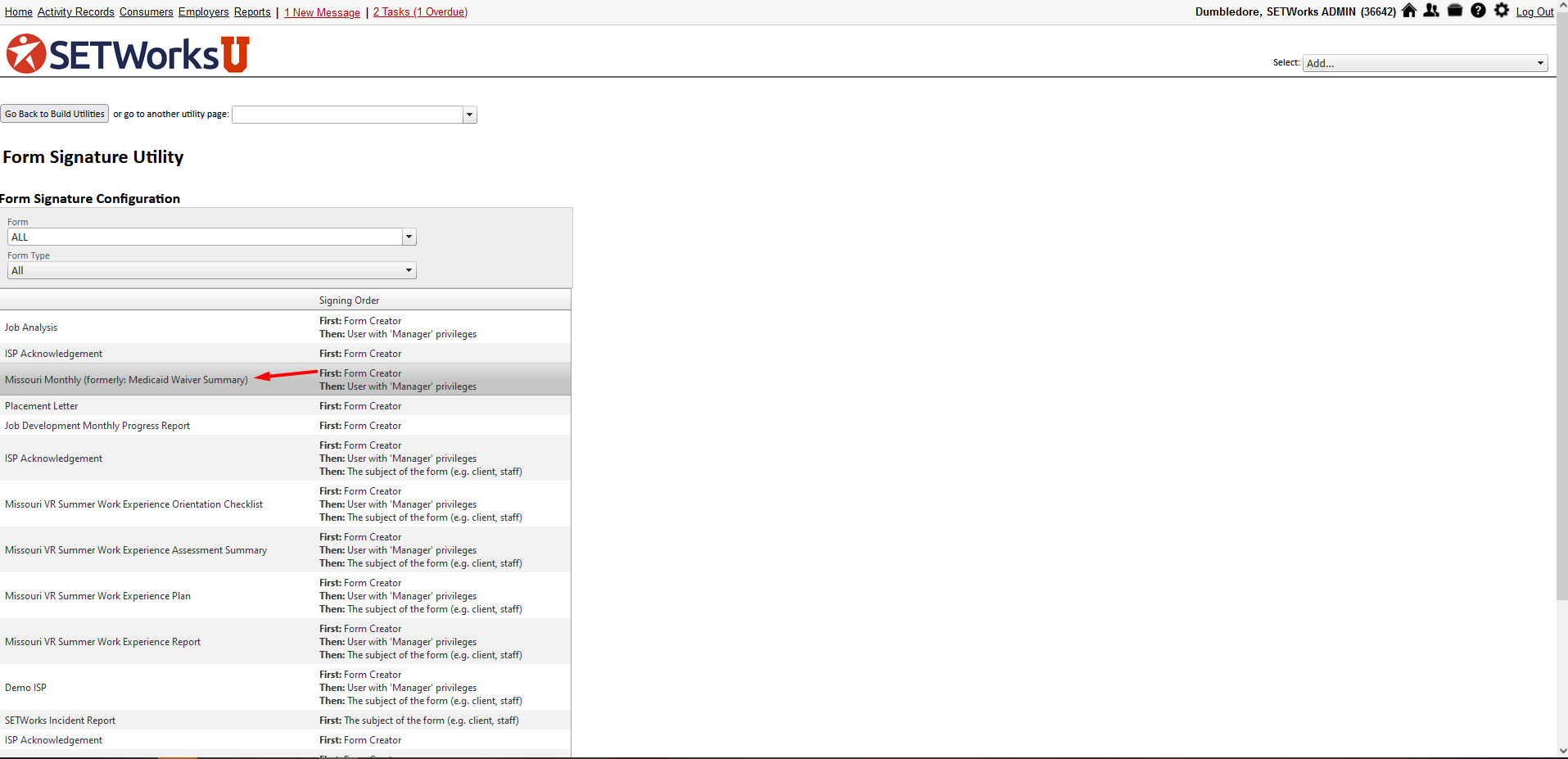
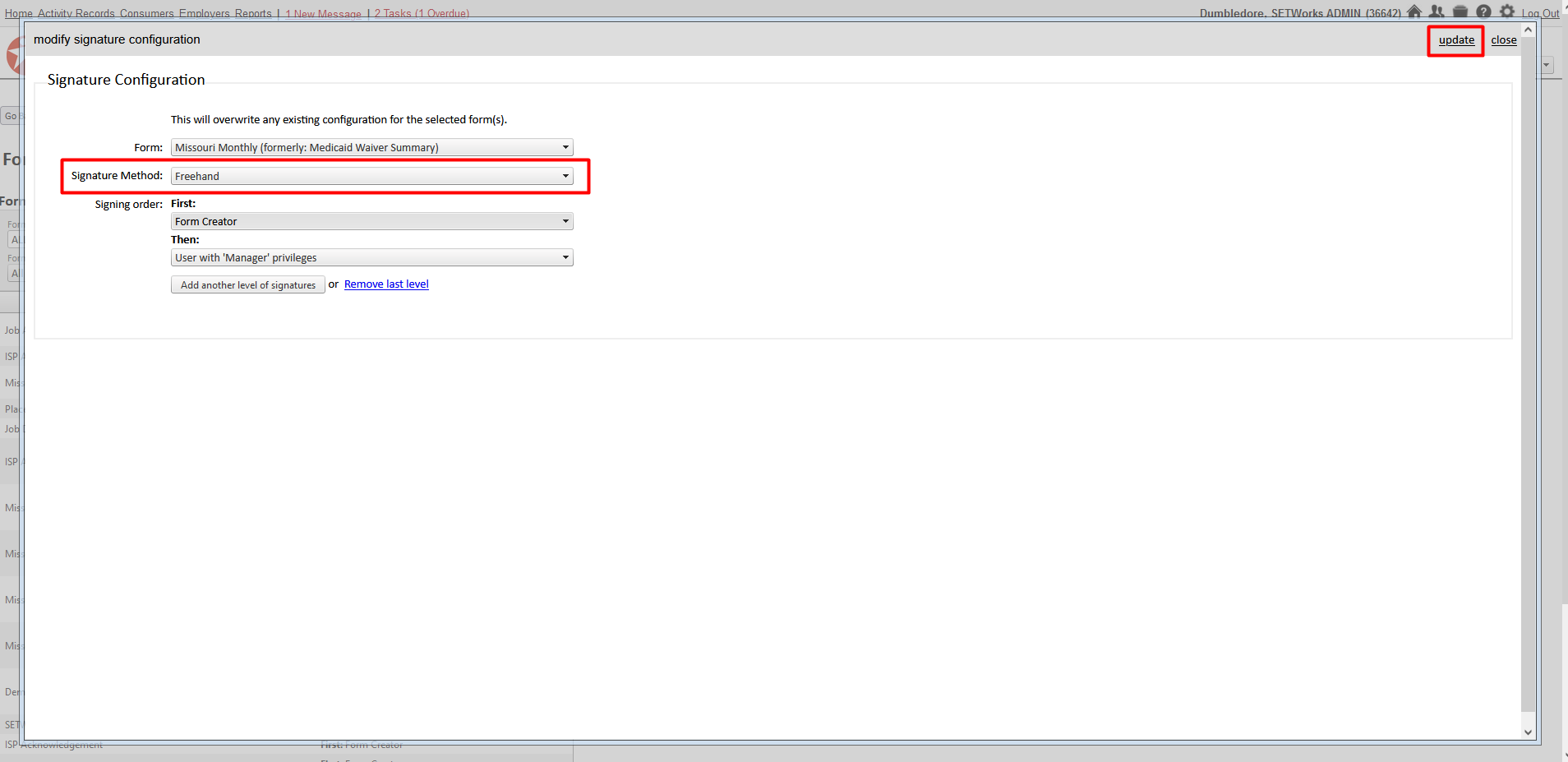
1. Select your form
2. Within Signature Method, select "Freehand"
3. Update.
NOTE: Handwritten signatures are only available for SETWorks forms currently.
Set-up: Sign a document
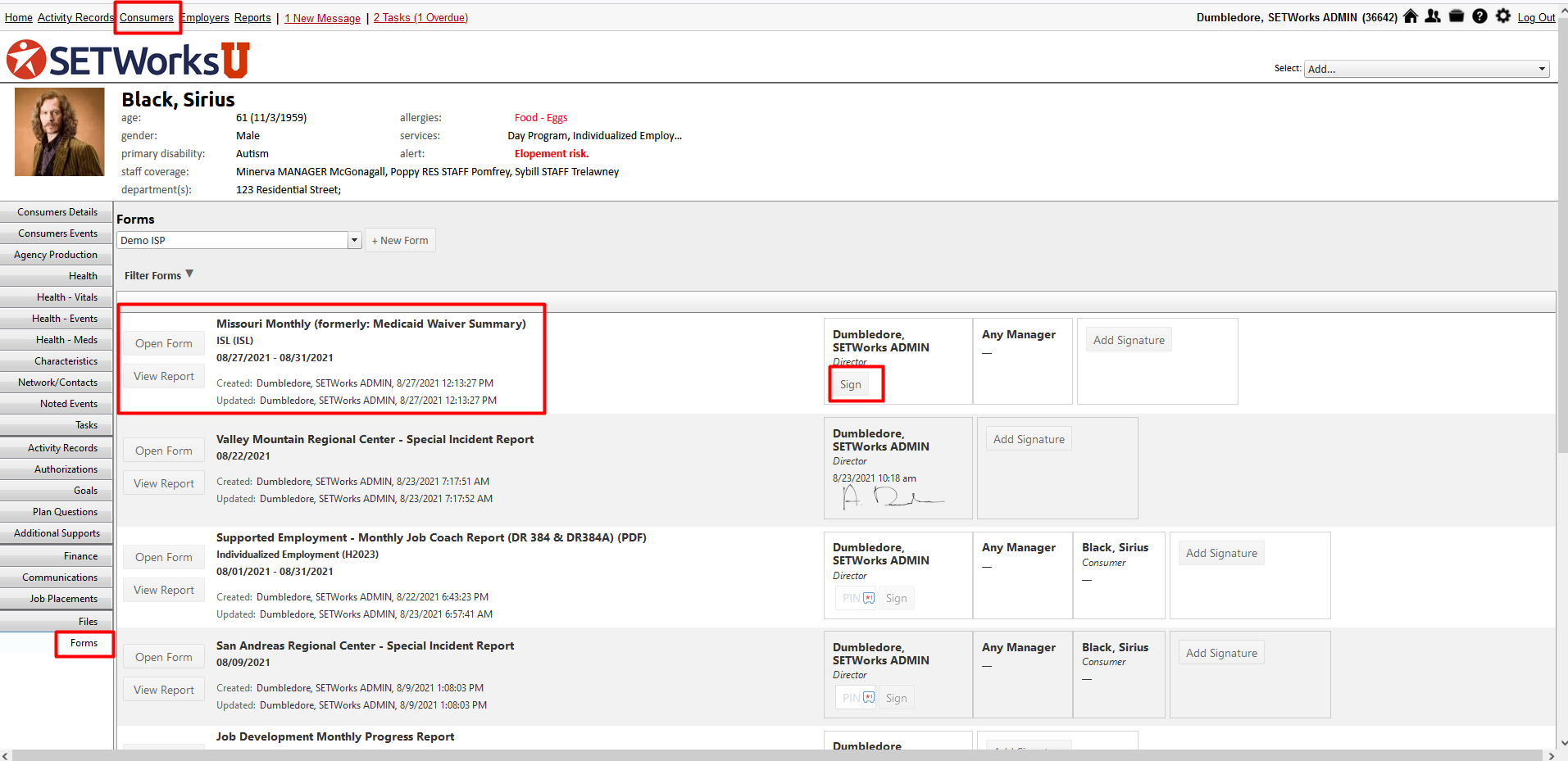
1. Navigate to the Consumer Profile (or wherever is configured to sign this form; e.g., Staff Management).
2. Select Consumer.
3. Access the Forms tab.
4. Confirm your Topaz device is plugged in or connected to the device where you're accessing SETWorks.
5. Create a form that has a handwritten signature configured.
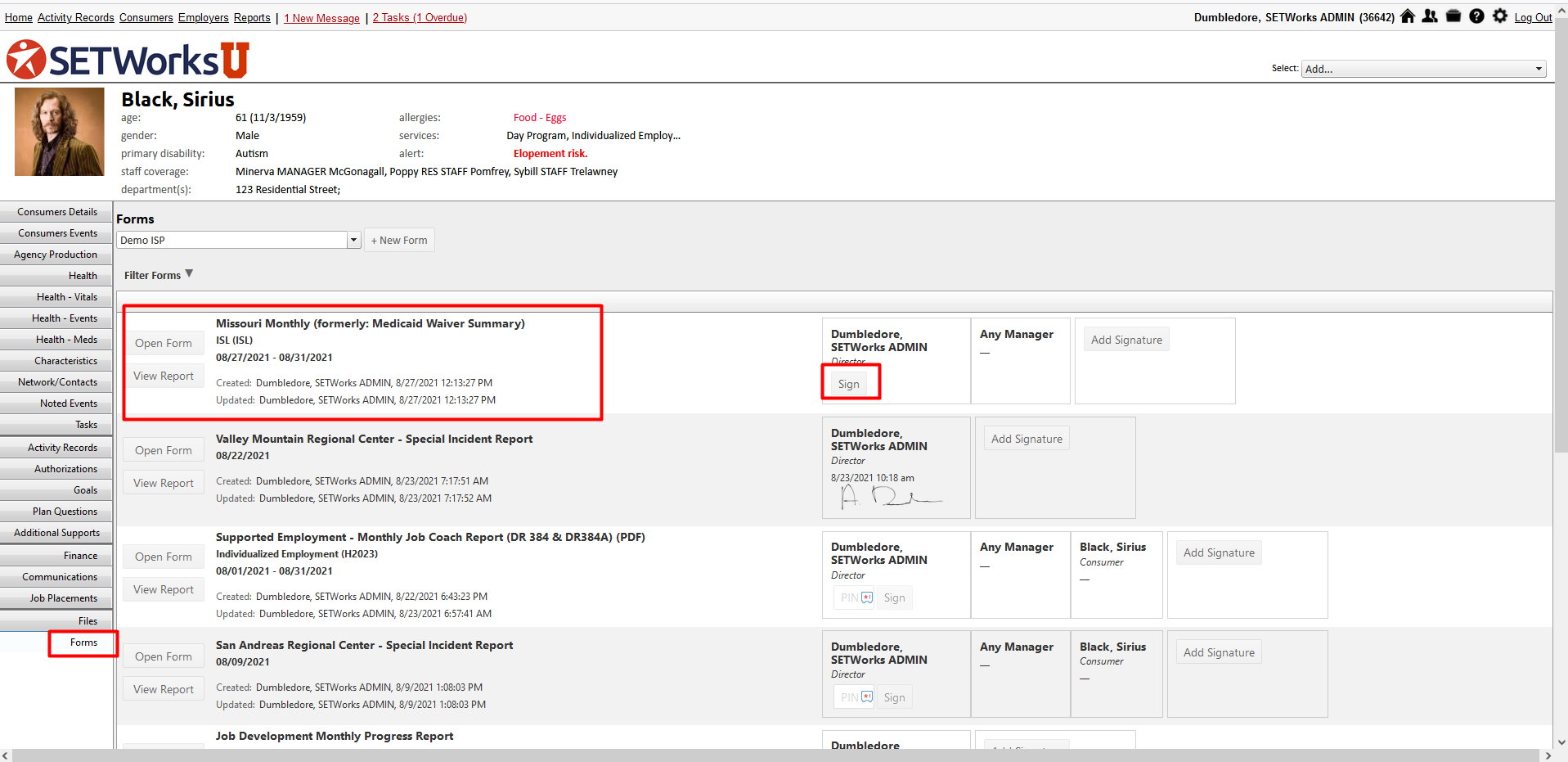
6. Select 'Sign' on the form.
7. The screen will show to sign using a mouse, select "https://www.topazsystems.com/software/sigweb.exe" to download the SigWeb software
NOTE: This is needed to connect to the device.
NOTE: Topaz will not work with mobile devices as it requires a USB to connect.
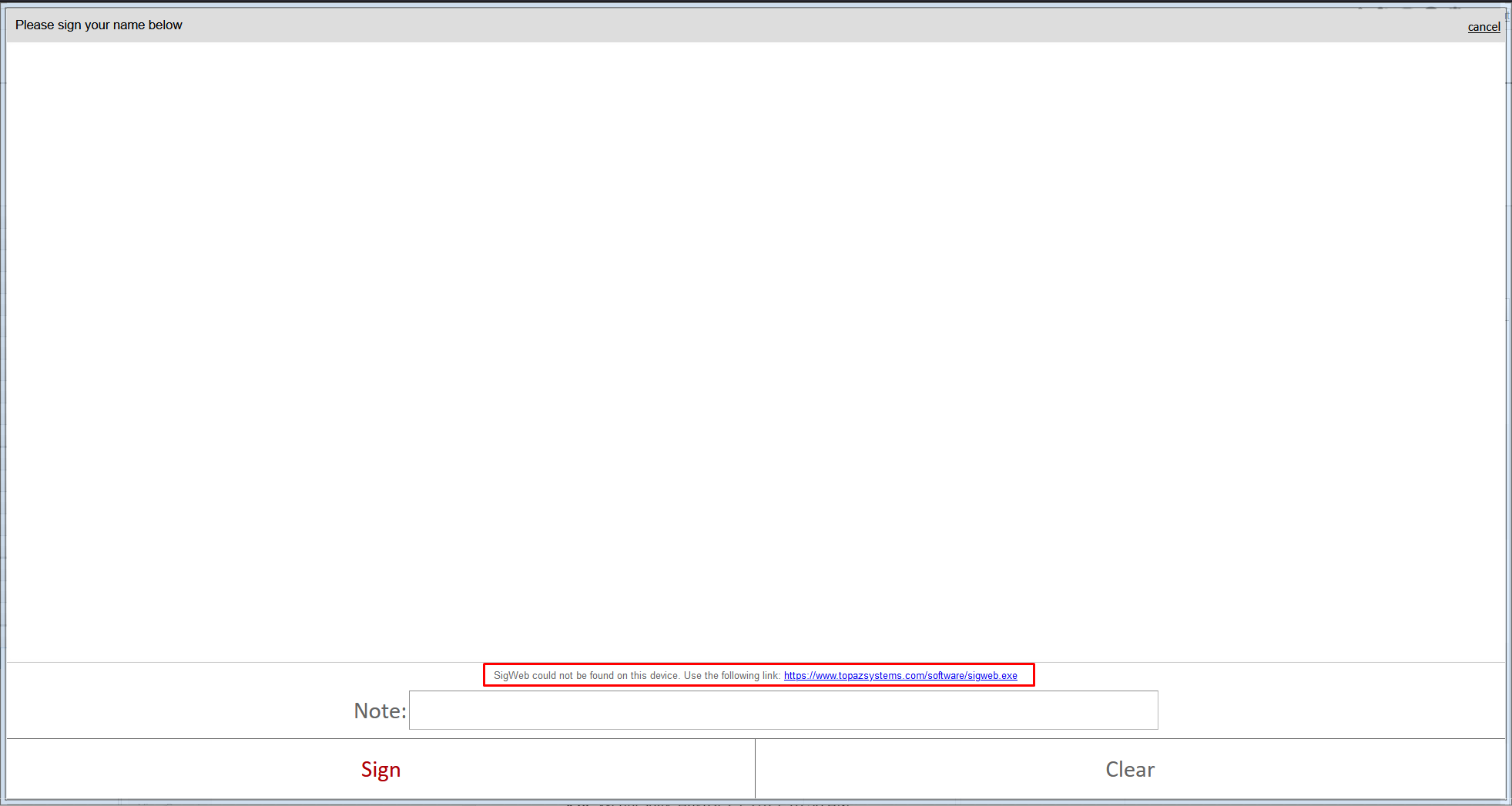
Downloading SigWeb
1. Save File (if the pop-up occurs).
2. Open SigWeb.exe (this may be in your web downloads folder)
3. Read and accept the terms in the License Agreement
4. Next
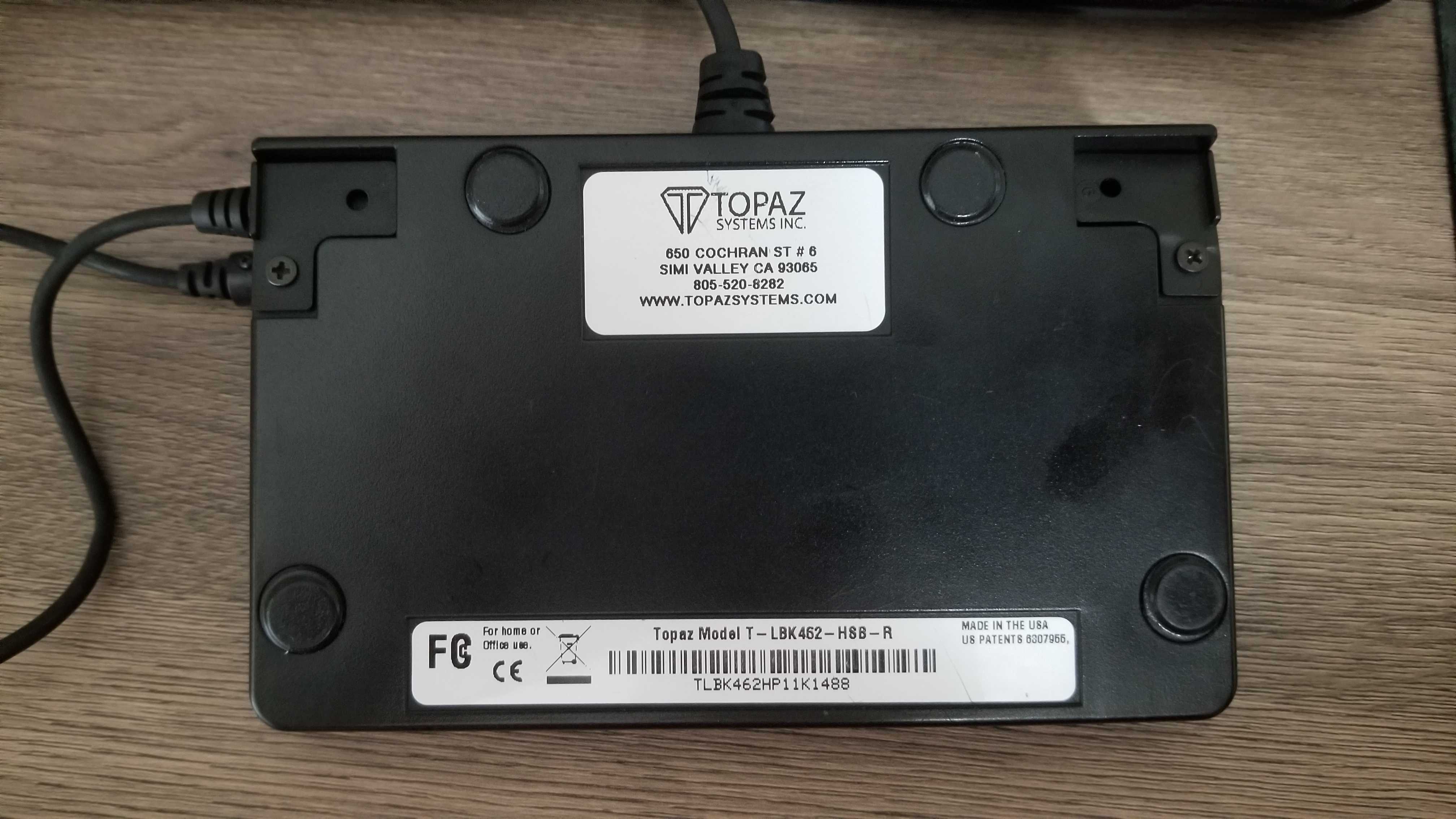
5. Insert the Model number from your device. Insert the Prefix, Model Serves, Suffix
6. Next
7. Next again
8. Product Install Path: it is recommended to leave as is.
9. Next
10. Install
11. Finish
Sign a document using Topaz
1. In SETWorks, close the signature window used for set-up.
2. On the handwritten form, select sign.
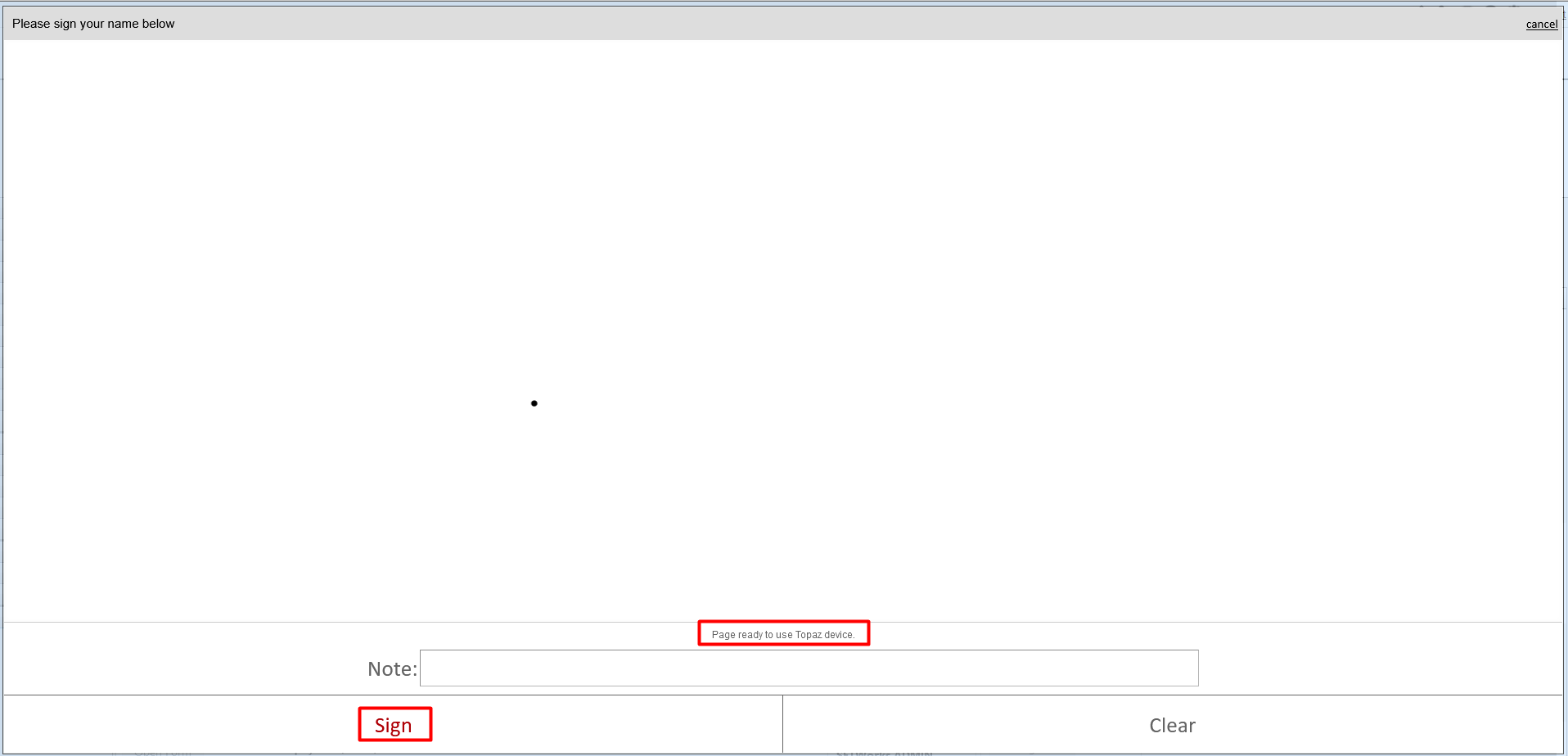
3. SETWorks reads 'Page ready to use Topaz device' in the signature window.
4. Sign document.
5. Select Sign.