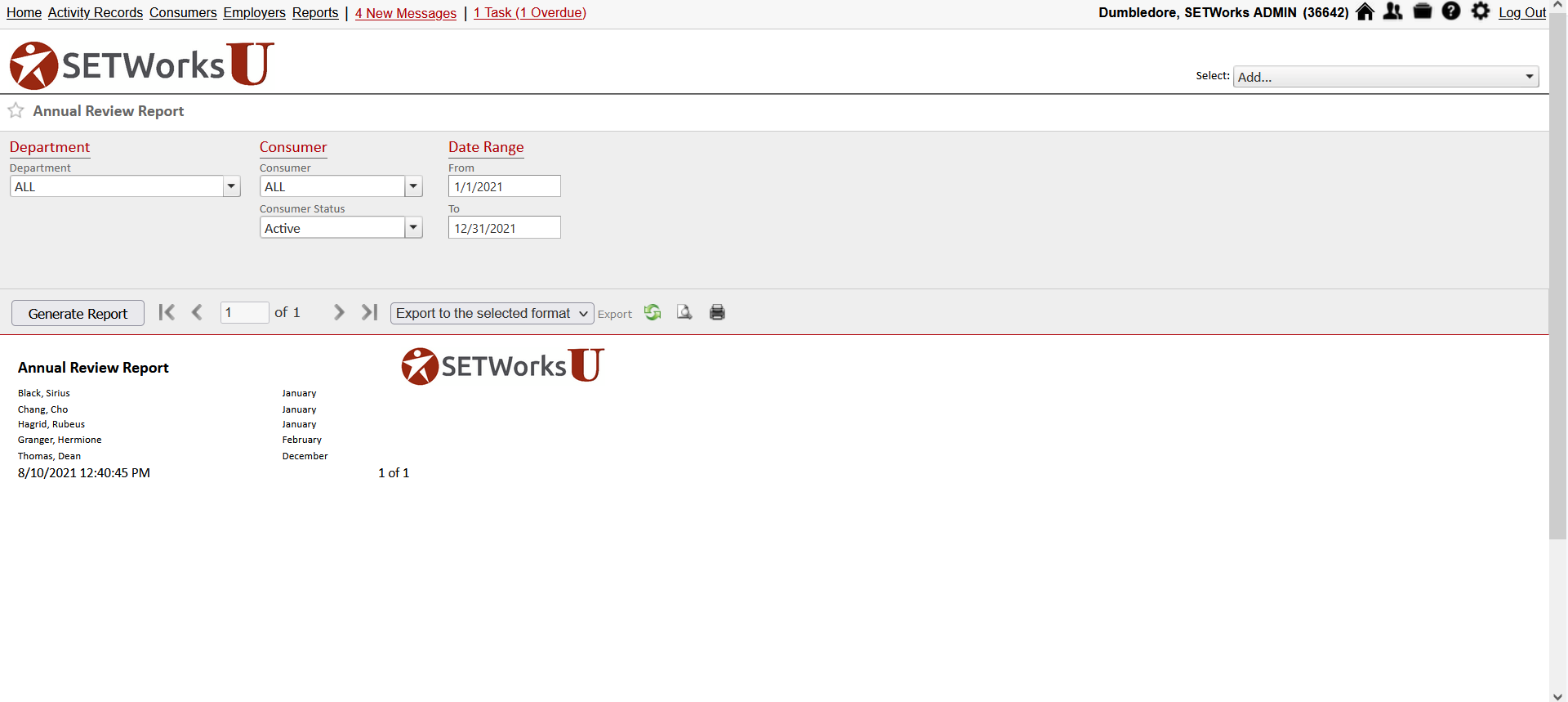
How is the recommended way to track ISP Annual Review Dates in SETWorks?
Administrators, Directors, Managers
ISP tracking in SETWorks is simple using a Annual Review field on Consumer profile and a single report.
Note: Terminology can be modified within SETWorks to better fit the needs of your organization. If the terminology in our articles are not the same on your site, talk to your local administrator to assist in translation.
Consumer Profile - Tracking Annual Review Dates
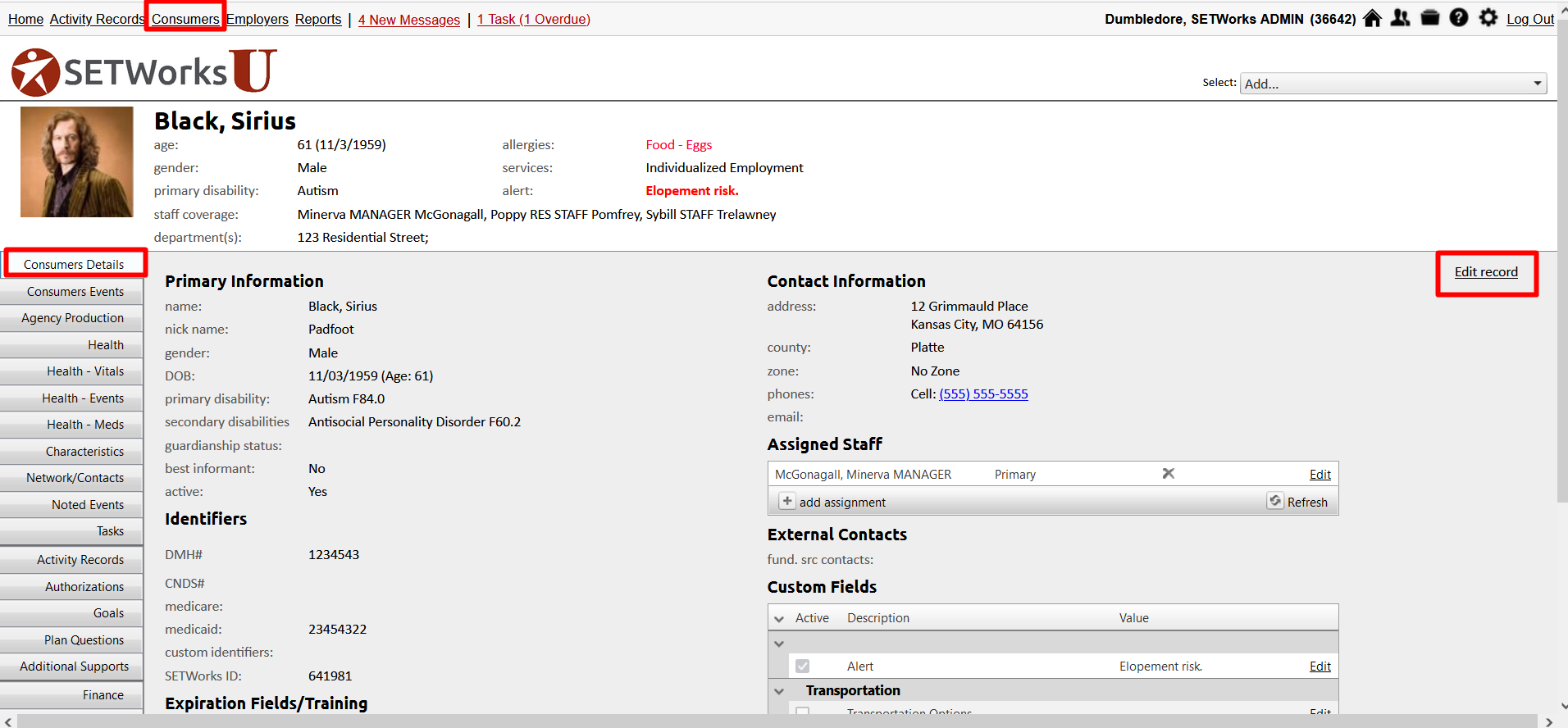
1. Navigate to Consumers.
2. Select a consumer.
3. Navigate to the Consumer Details tab.
4. Edit record.
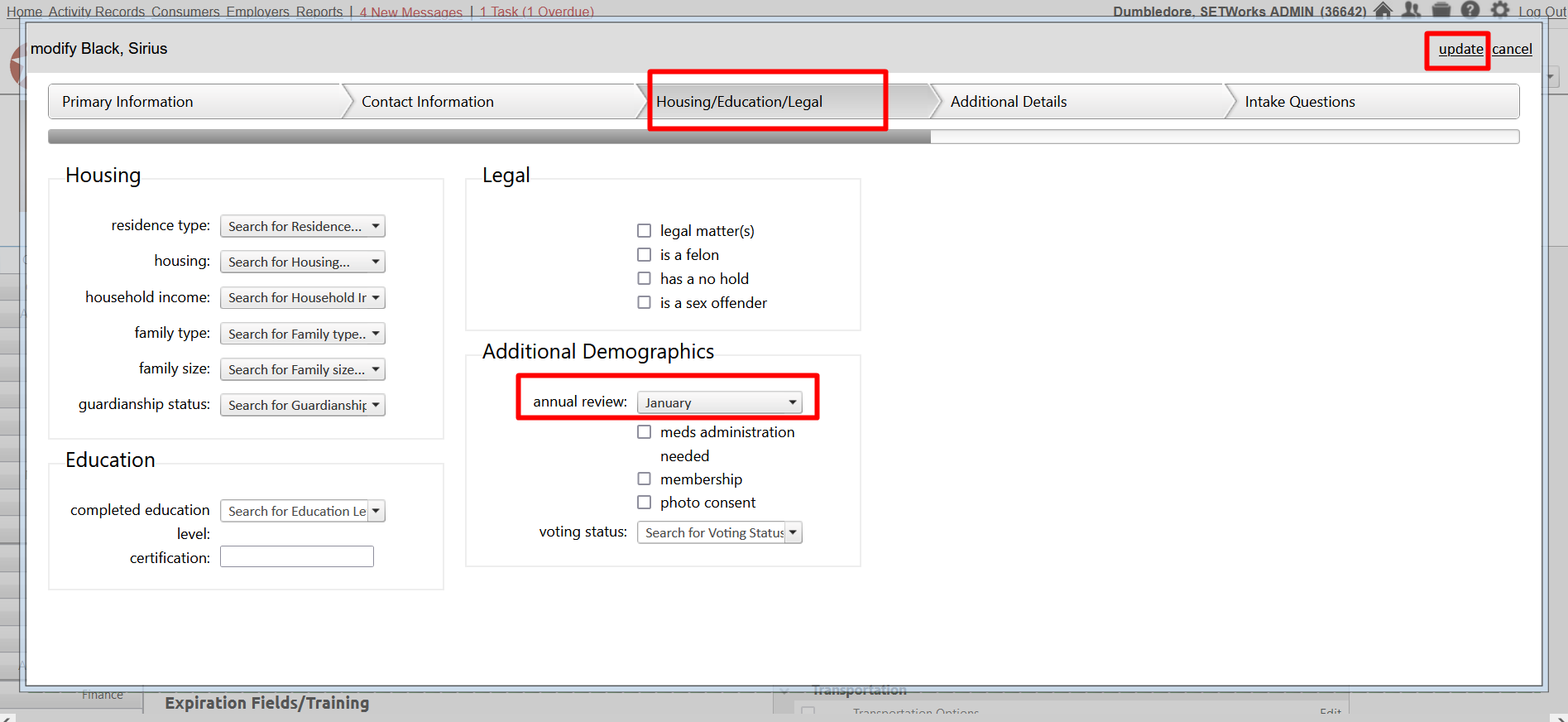
5. Navigate to the Housing/Education/Legal tab.
6. Observe under Additional Demographics the 'Annual Review' field.
NOTE: If you do not see this field, contact SETWorks Support to assist.
7. Select the month in which the ISP is effective.
8. Update.
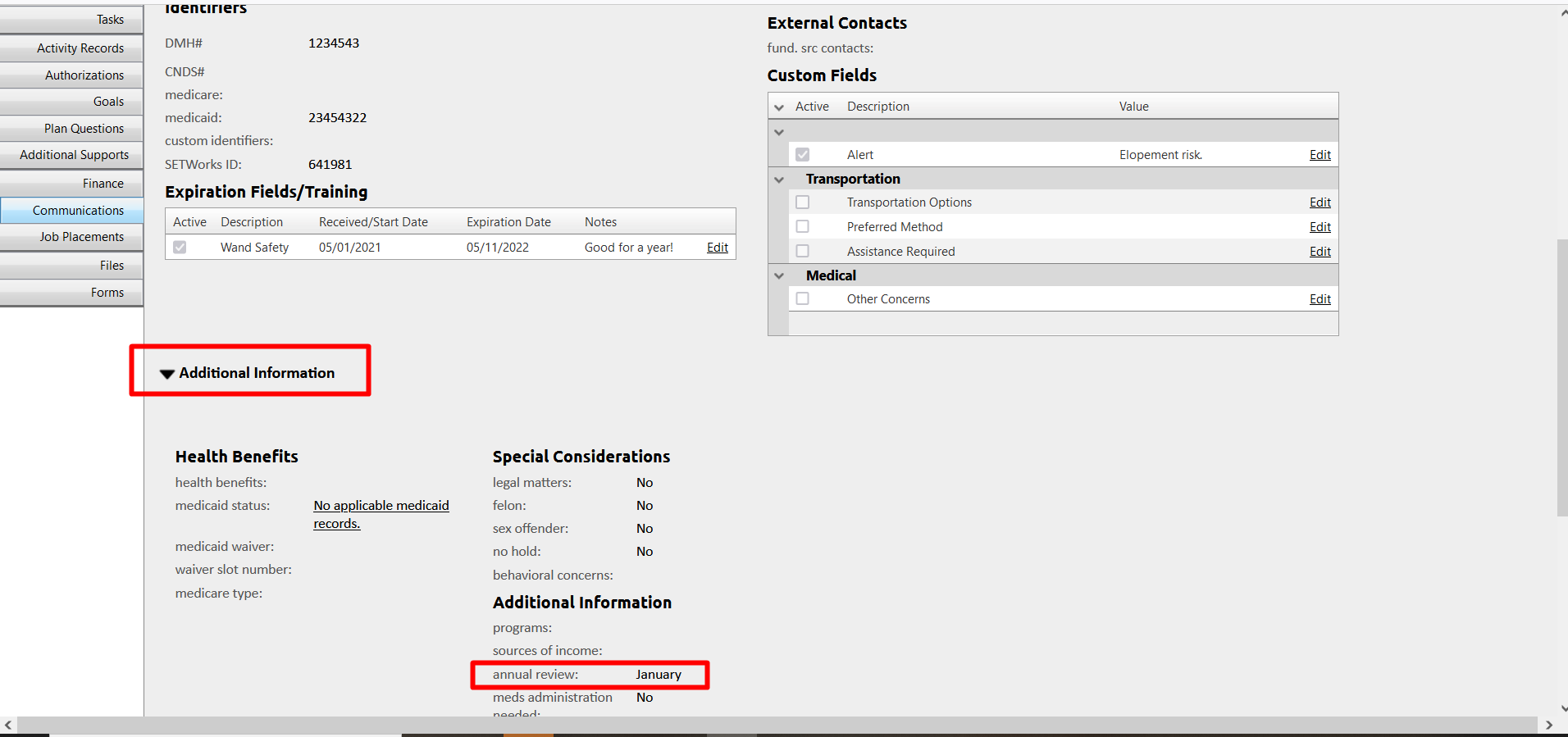
The Annual Review field lives on the Consumer Details screen > scroll down to Additional Information.
Annual Review Reporting
Settings > Provider Build > Configure Report Access > Search: > Enable per Role
Note: Annual Review Report