What is the recommended way to collect acknowledgements for ISPs?
Administrators, Directors, Managers
NEW! Learn more about our new recommended way using File Acknowledgement.
NOTE: The original way as listed in this article is also still an option although the above route is recommended.
SETWorks offers two general ISP Acknowledgement forms that will help you track when your staff has acknowledged and signed off on reading a consumer's Individual Service Plan (ISP). The SETWorks recommendation is to track these acknowledgments via Consumer Forms in SETWorks, collect user electronic signatures, and use signature reporting to track staff names and dates.
Note: Terminology can be modified within SETWorks to better fit the needs of your organization. If the terminology in our articles are not the same on your site, talk to your local administrator to assist in translation.
General Information - ISP Acknowledgement Forms
There are two general ISP Acknowledgement forms that the SETWorks Support Team can enable for your team to use. Please email support@set-works.com with the form name to enable the forms.
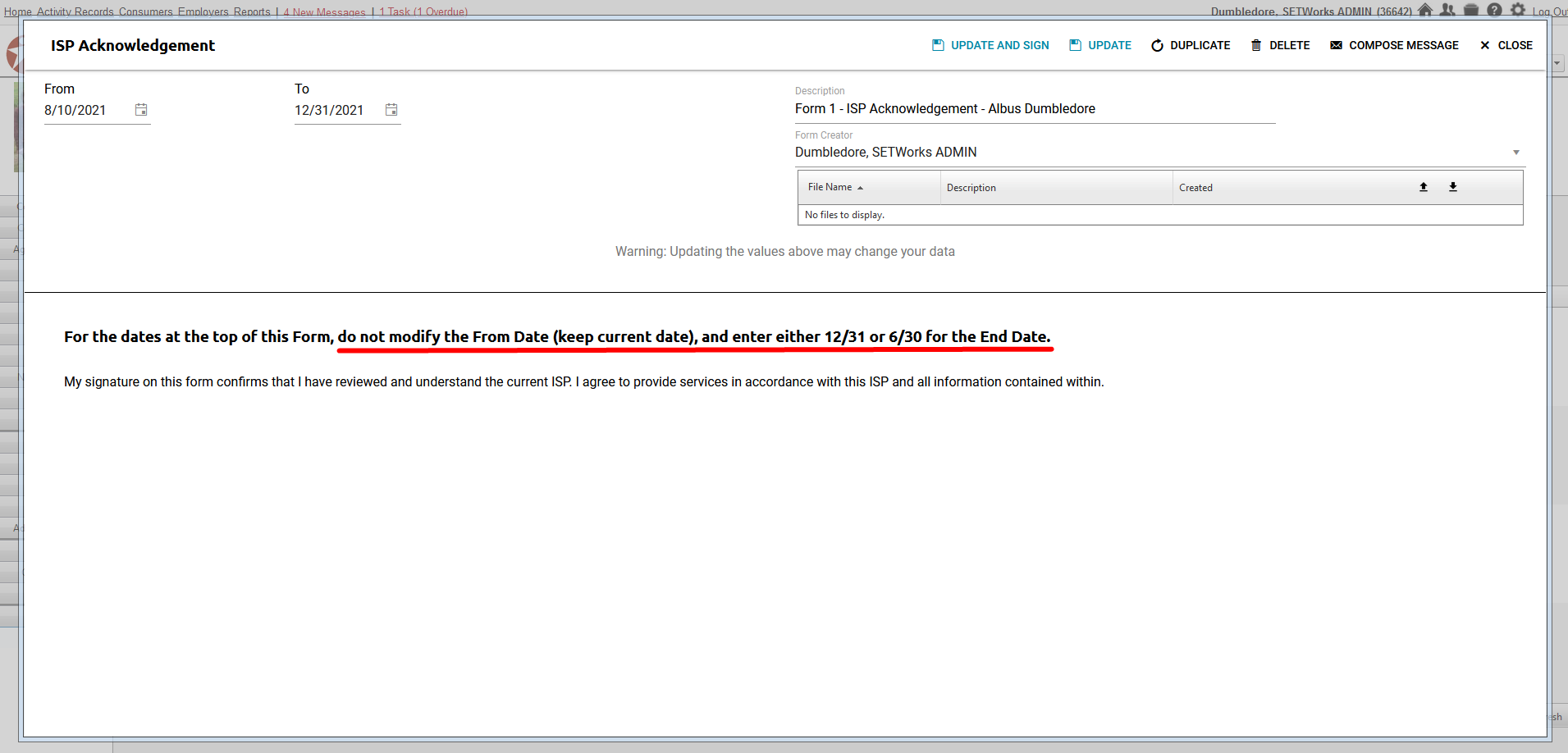
Form 1 - ISP Acknowledgement - through Mid/End of Year
One form per staff signature.
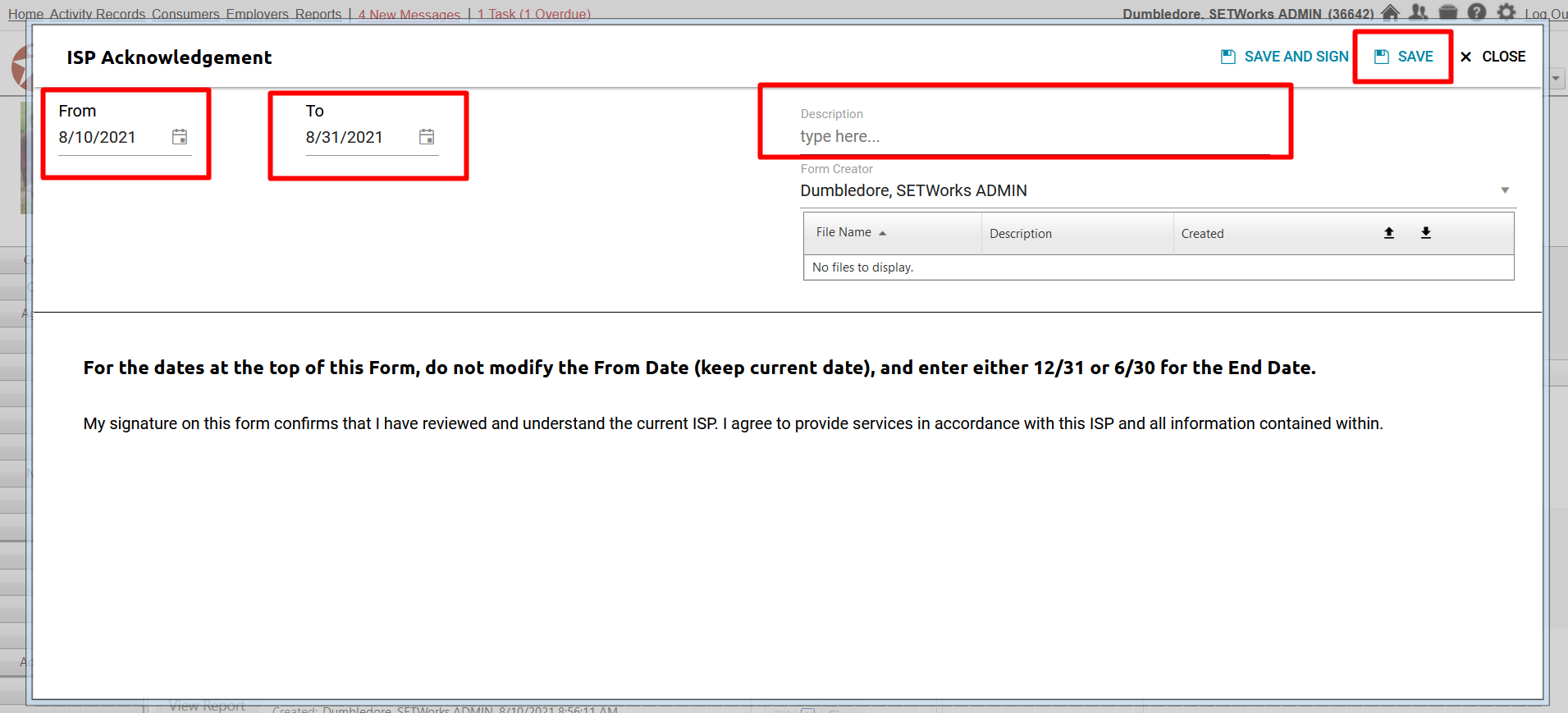
The first form uses the From Date as 'today's date' and asked to enter for the To Date to indicate the expiration date, either mid-year (6/30) or end of year (12/31). Each staff creates and signs their own form with a new 'From Date'.
This form also collects a Description. It is recommended the Staff/User name be included in the description for easy finding later.
This form also allows for a file upload.
Form 2 - ISP Acknowledgement - with ISP Effective Date
One form with multiple staff signatures.
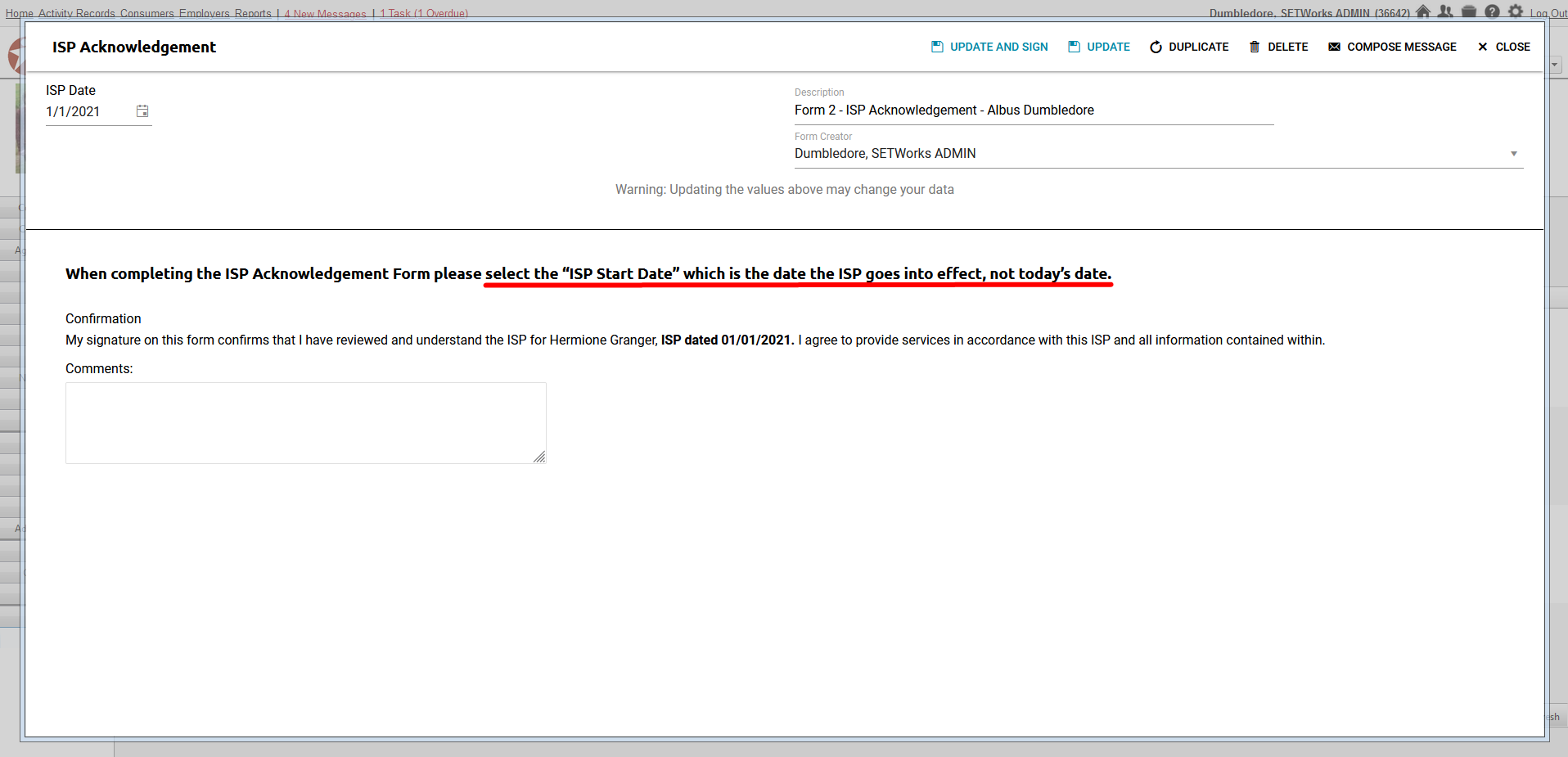
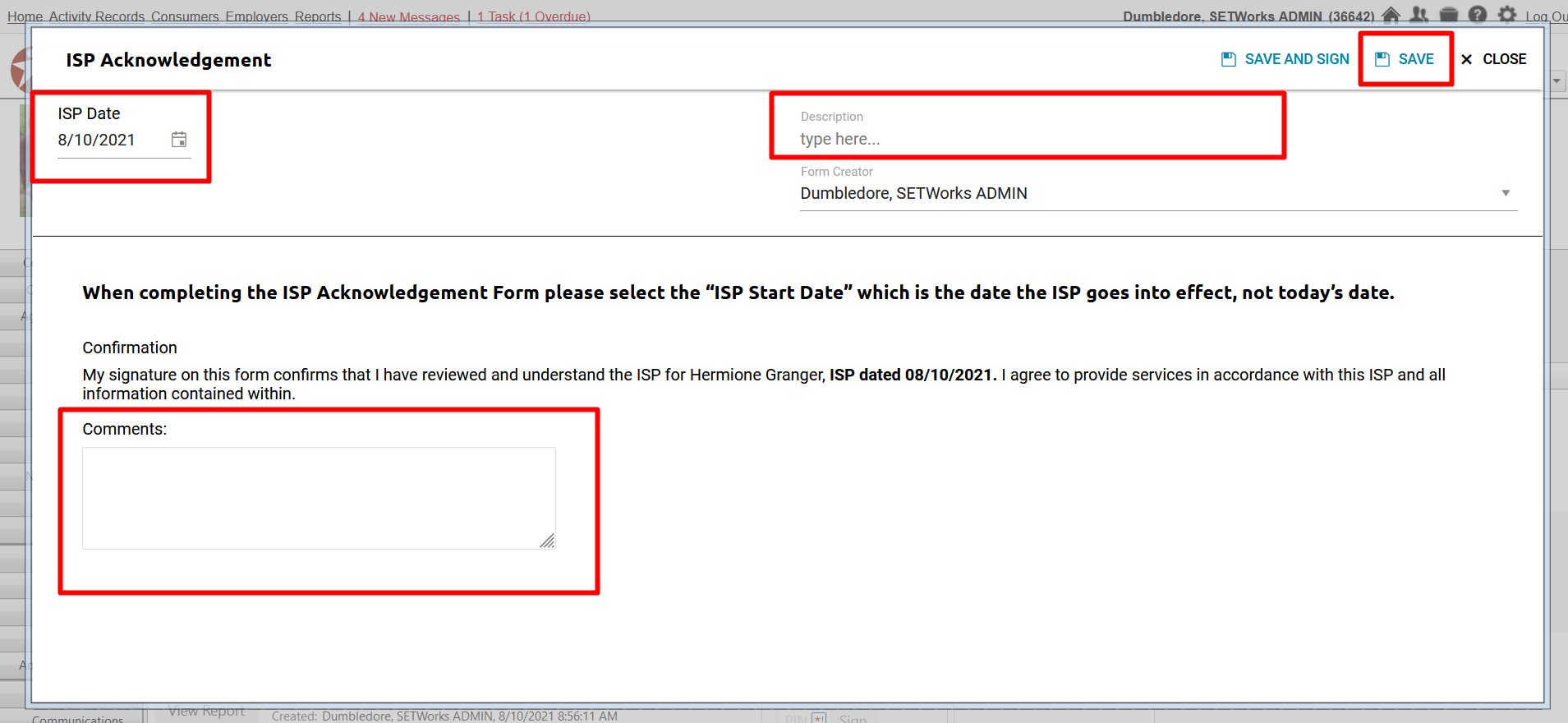
The second form uses the ISP Date as the date that the ISP goes into effect and has each staff sign the same form when they read the ISP.
This form also collects a Description.
This form also allows for consumer-specific comments to be included on the form (e.g., allergies, supports needed, etc.).
Configure Form Signatures
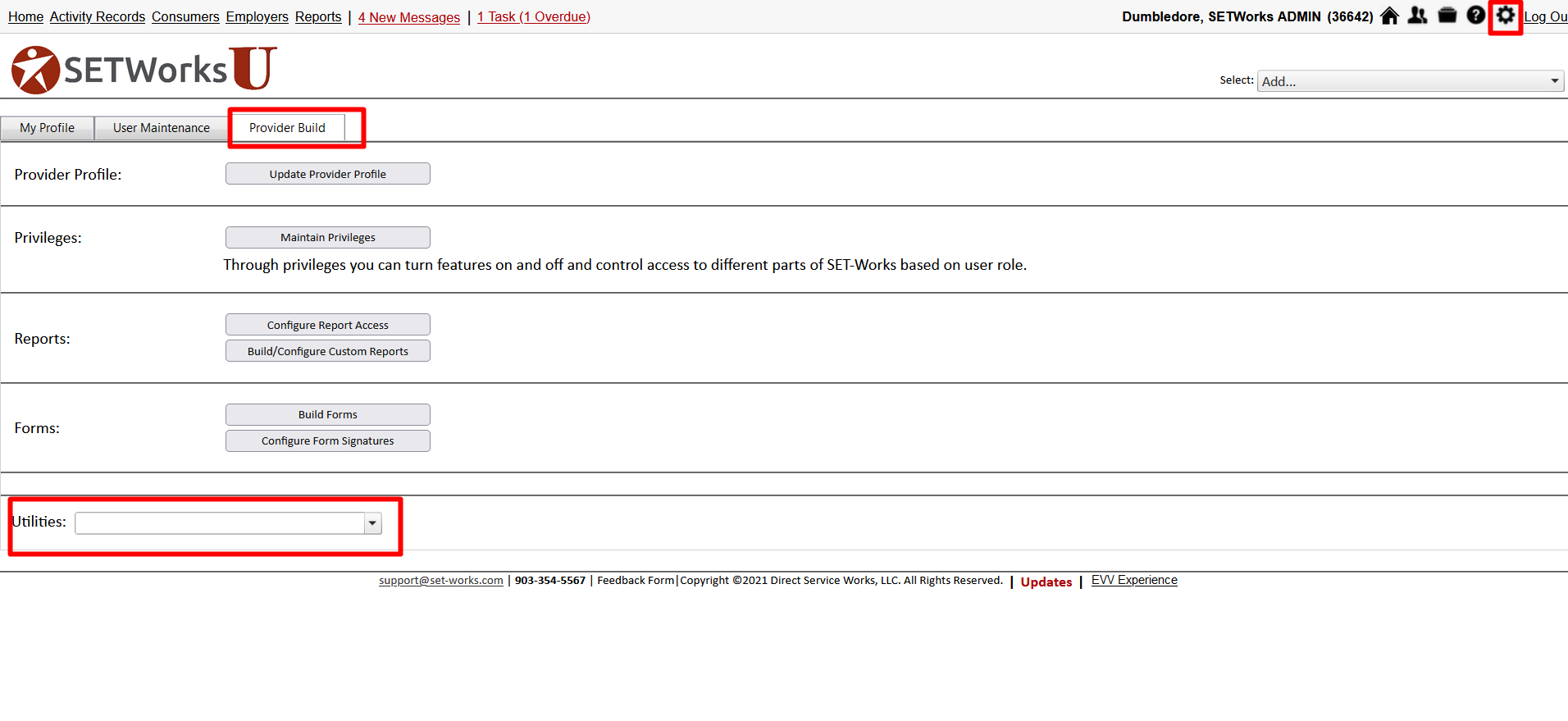
Settings > Provider Build > Utilities: Form Signature Utility
1. Navigate to the Form Signature Utility
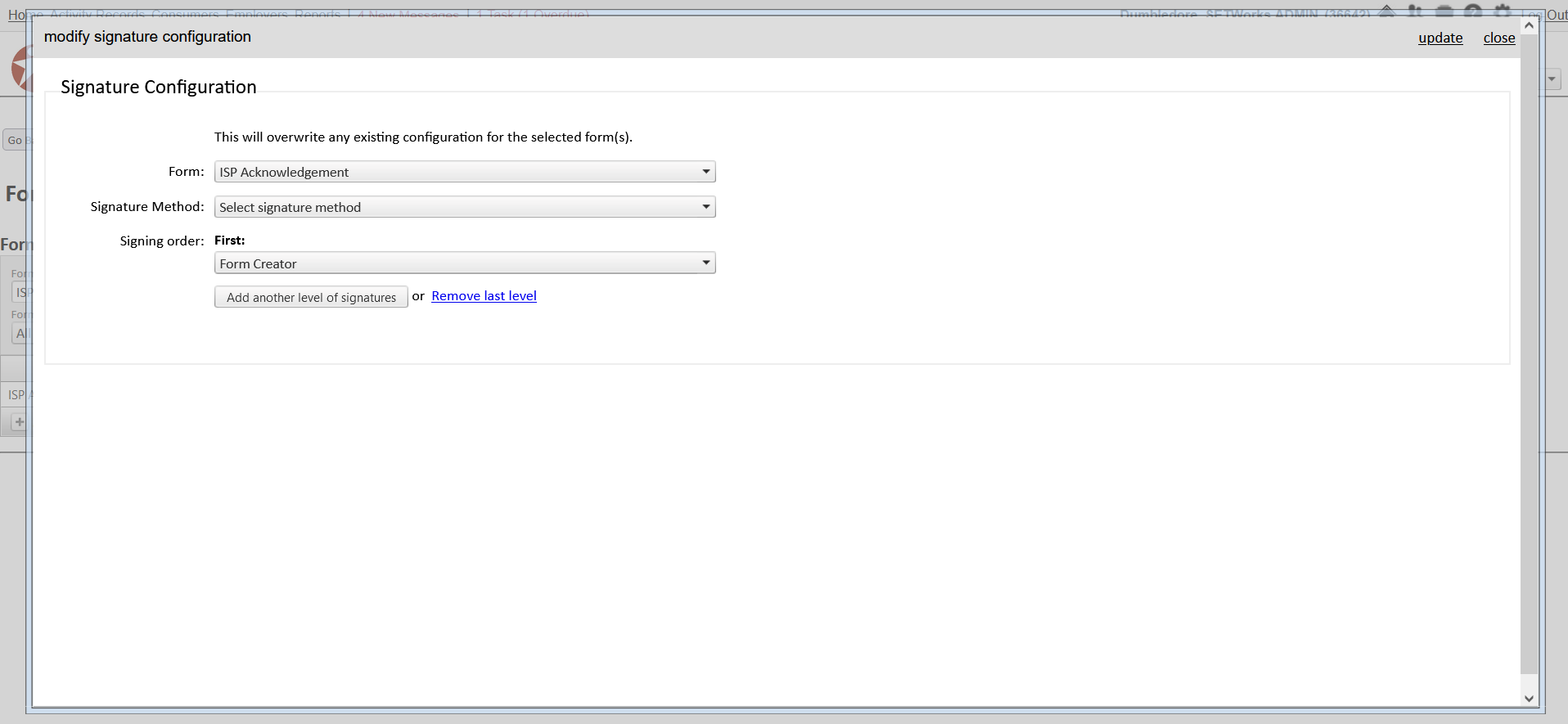
2. Select the ISP Acknowledgement - with ISP Effective Date from the dropdown.
3. Select 'ISP Acknowledgement - with ISP Effective Date' or the form name to open.
4. Select the Signature Method.
PIN = Uses the Staff/User's PIN number to collect an electronic signature
Freehand = Allows the Staff/User to sign their name using a signature device such as a mouse
5. Creating the signing order depending on your preferences or as recommended below per form.
NOTE: Signing order allows you to indicate a certain order of signatures such as the person that created the form followed by a manger or director level.
Form 1 - ISP Acknowledgement - through Mid/End of Year | One form per staff signature.
Signing order: Form Creator
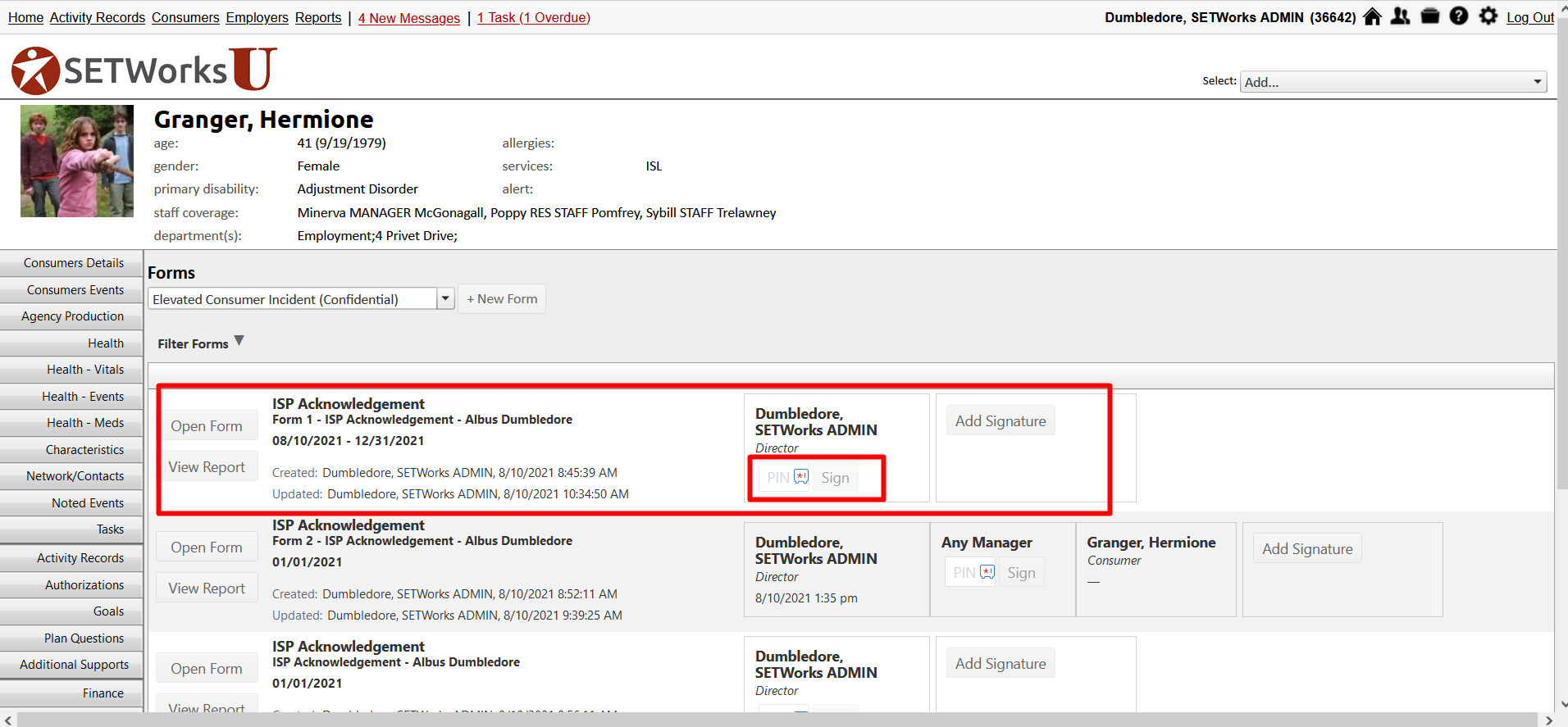
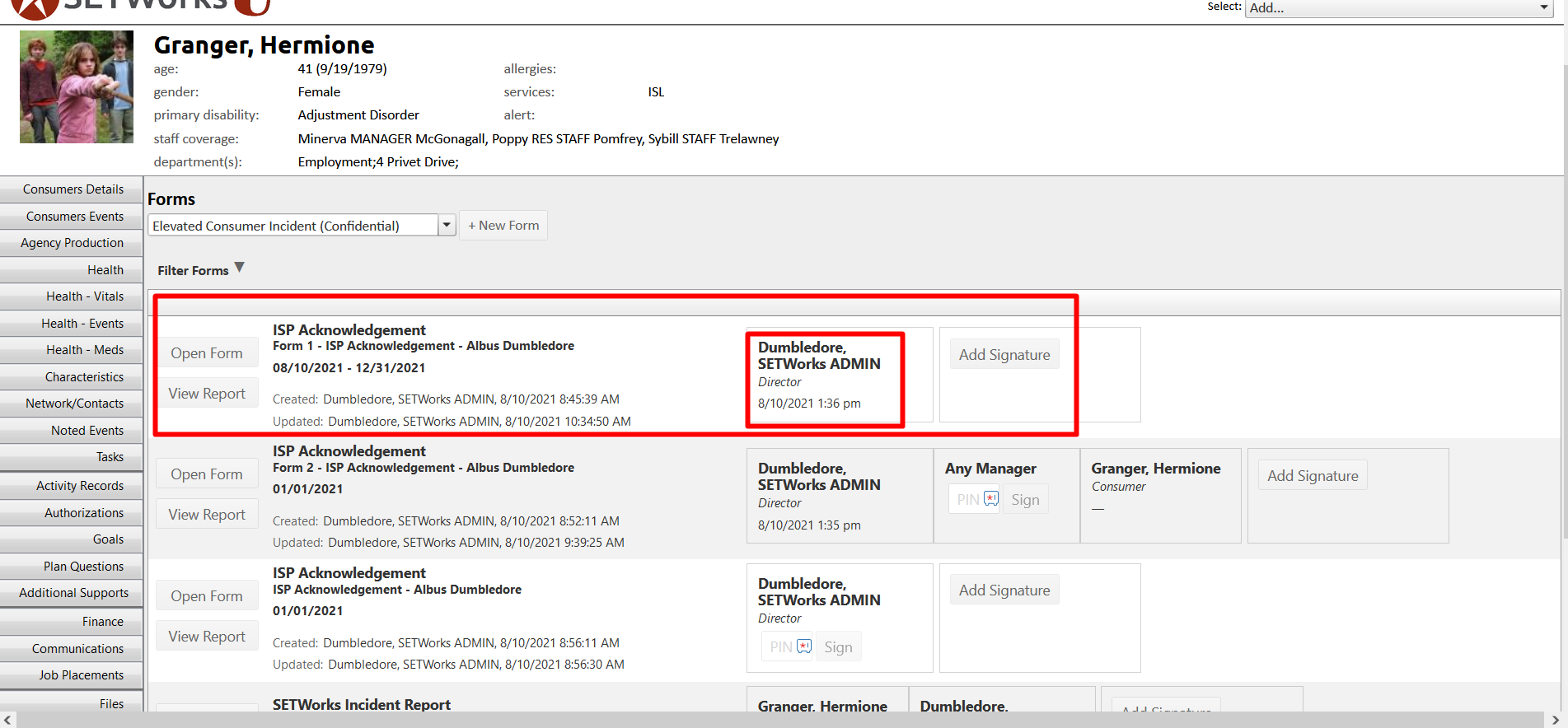
Staff will navigate to Consumer > Forms > and create their own ISP Acknowledgement - through Mid/End of Year form > Sign
Form 2 - ISP Acknowledgement - with ISP Effective Date | One form with multiple staff signatures.
Signing order: Configure multiple levels of staff roles in order
- OR -
Enable this privilege (and skip the form signature utility configuration):
Settings > Provider Build > Maintain Privileges > Forms:
Note: Can add form signatures.
Form 1 - Creating and Signing an ISP Acknowledgement
ISP Acknowledgement - through Mid/End of Year | One form per staff signature.
1. Navigate to Consumers.
2. Select the Consumer.
3. Navigate to the Forms tab.
4. From the Forms dropdown, select ISP Acknowledgement - through Mid/End of Year
5. Select +Form
6. Enter the From Date and To Date as instructed on the form.
7. Create a description. Recommendation: Include the name for easy finding later.
8. Save.
9. Sign.
Form 2 - Creating and Signing an ISP Acknowledgement
Form 2 - ISP Acknowledgement - with ISP Effective Date | One form with multiple staff signatures.
Create the form.
1. Navigate to Consumers.
2. Select the Consumer.
3. Navigate to the Forms tab.
4. From the Forms dropdown, select ISP Acknowledgement - with ISP Effective Date
5. Select +Form
6. Enter the ISP Date as instructed on the form.
7. Create a description.
8. Update.
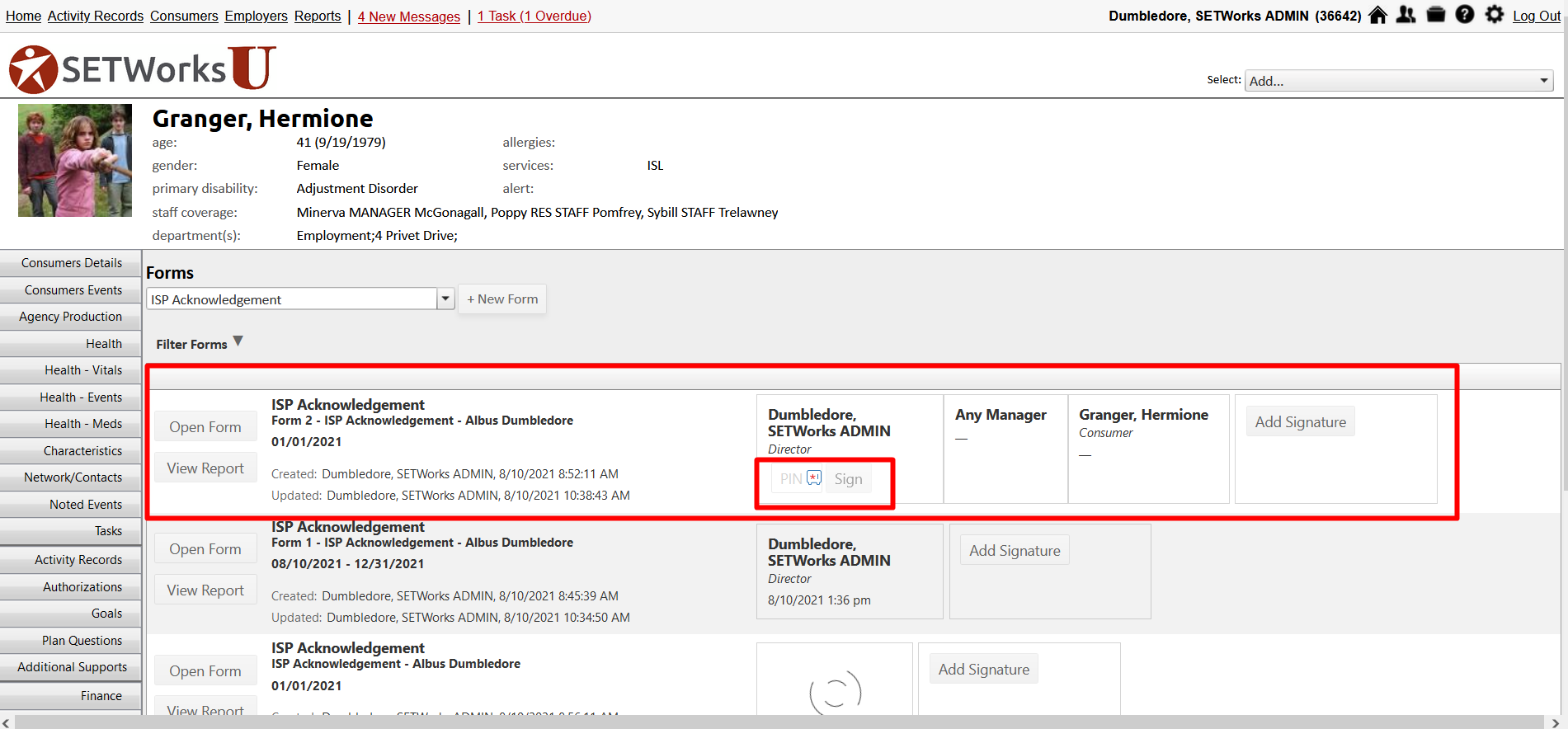
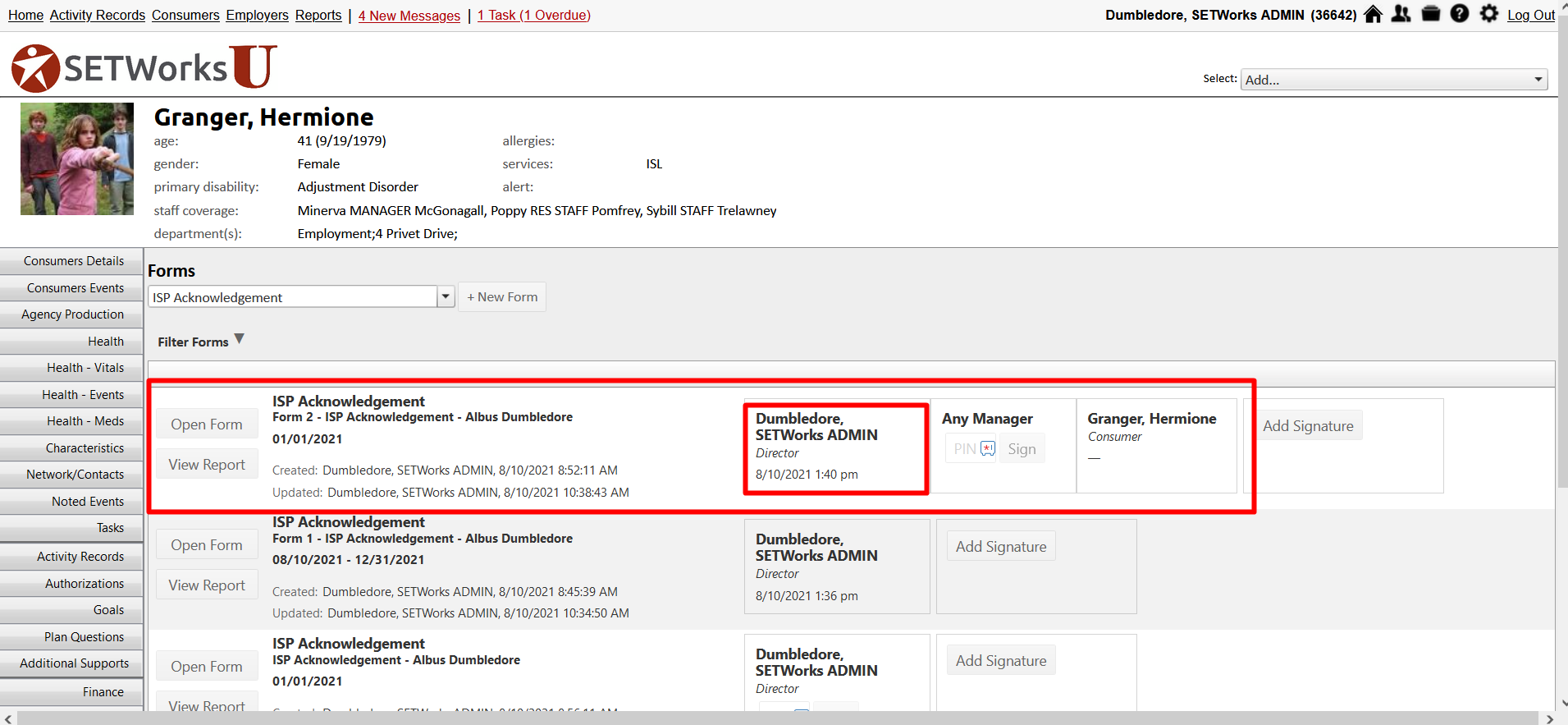
Each User/Staff Signs the same created form.
1. Navigate to Consumers.
2. Select the Consumer.
3. Navigate to the Forms tab.
4. Find the ISP Acknowledgement form with the Corresponding ISP Date.
5. Sign - or - Add Signature > Sign.
Form Signature Reporting
Check out the following Form Signature Reports!
Settings > Provider Build > Configure Report Access > Search: > Enable per Role
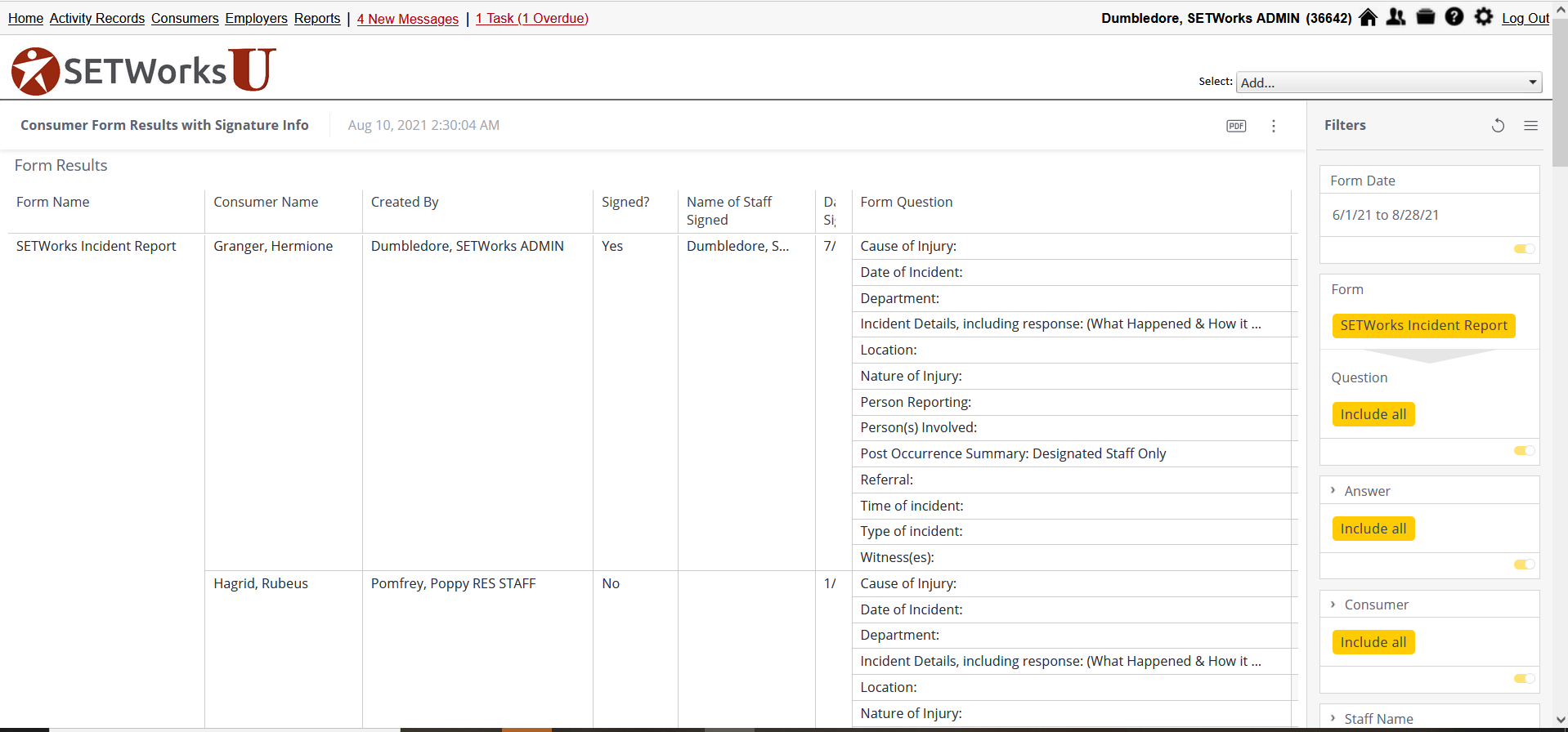
Note: Consumer Form Results with Signature Info
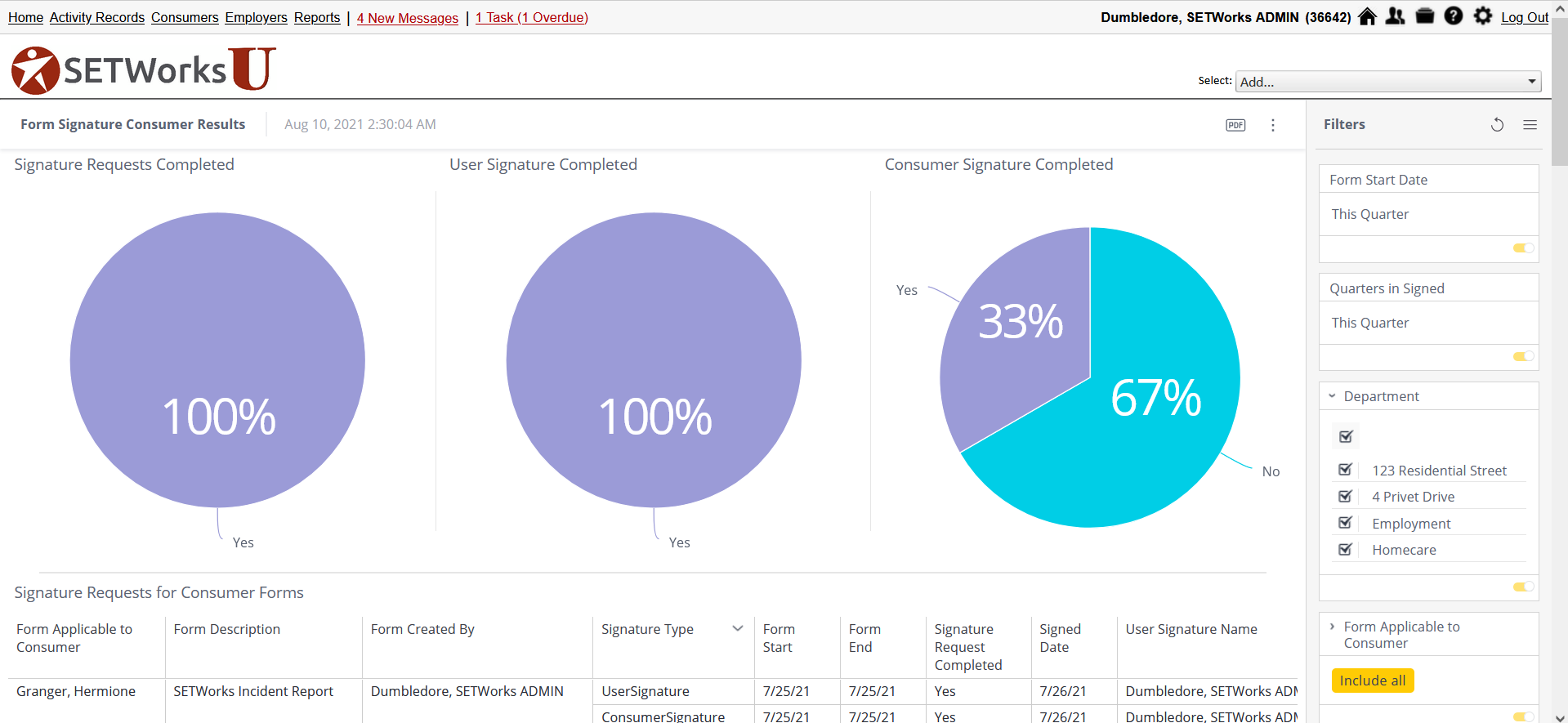
Note: Form Signature Consumer Results
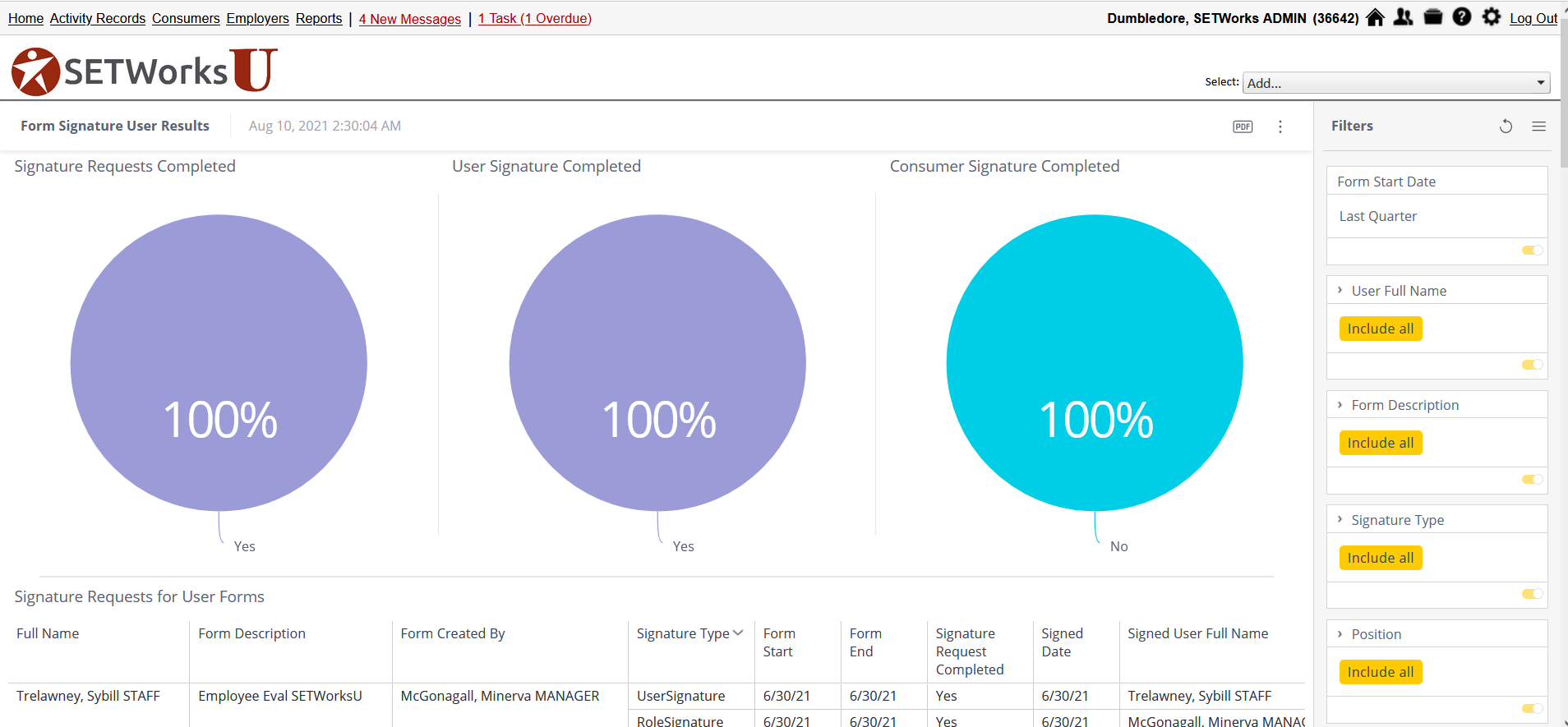
Note: Form Signature User Results