
Working with Forms in SETWorks
This Support Article will explain Locations, Purposes, and Features of Forms
Note: Terminology can be modified within SETWorks to better fit the needs of your organization. If the terminology in our articles are not the same on your site, talk to your local administrator to assist in translation.
Forms are available in several areas within SETWorks:
- Consumer Record
- Employer Record
- Staff Record
- Department Management
Forms have many purposes
To complete:
- Monthly/Quarterly summaries
- Consent Forms
- Disclosure forms
- Release of Information forms
- Goal Plans
- Intake Questions
- Surveys (e.g. Satisfaction Surveys)
- Career Profile Questions
- ... and many other purposes
Key Form Features
- Create forms directly from within the consumer (or employer, staff, or provider) record
- Auto-Populate data from anywhere within SET-Works
Note: For monthlies, the system can auto-populate all progress notes on one page, to make reviewing easy. From there, a simple "summary" box is all that may be needed to complete the monthly. Other options are to calculate number of hours that were provided to the consumer for the month, incidents logged, etc.
- Perform automatic calculations
- Electronically sign forms as a staff, manager, using a 4-digit pin
- Supports consumer signatures by signing the screen on a tablet/smartphone, or with a mouse on a computer
- Convert forms into reports for exporting or printing
Accessing Consumer Forms
Access Consumer forms by:
- Open a Consumer.
- Clicking on the "Forms" tab.
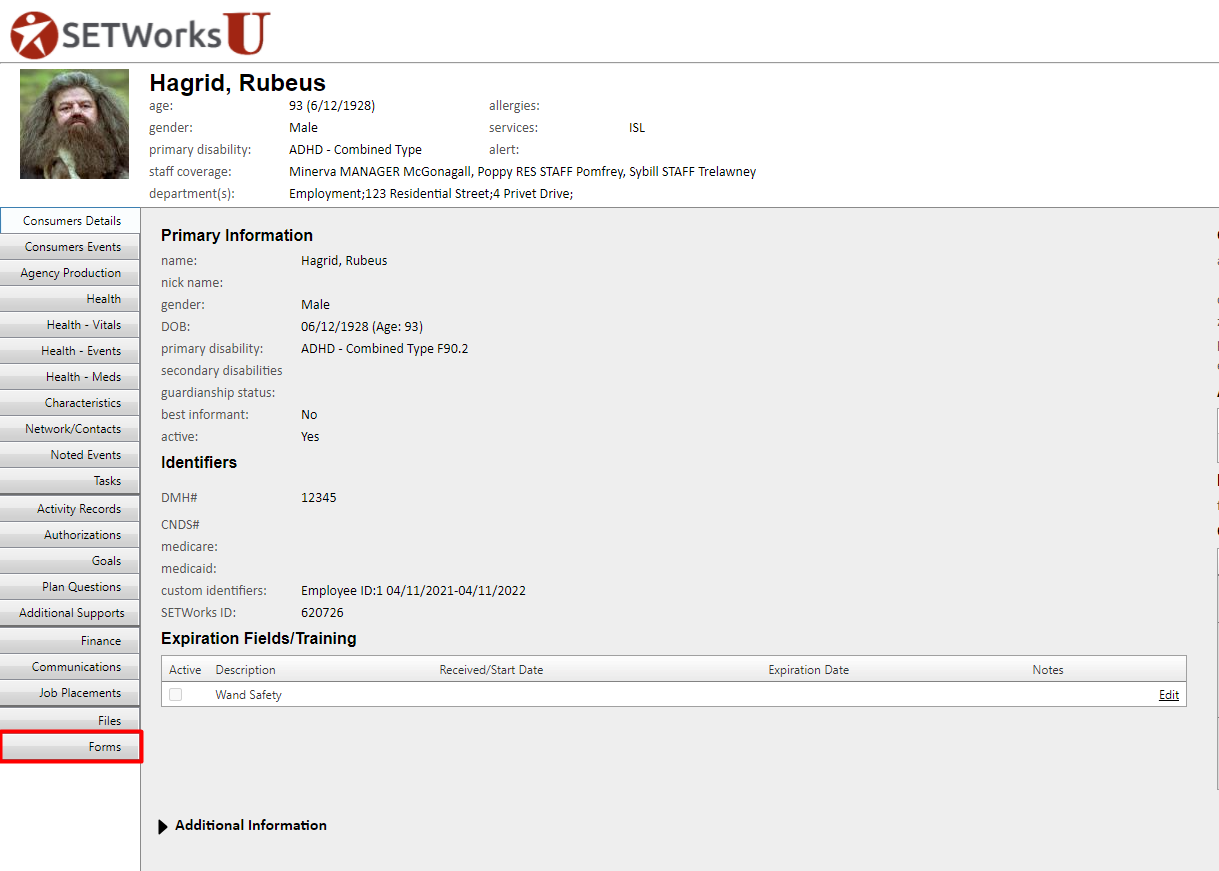
From there, a complete list of all the forms that have been completed for a consumer are available in a table.
Access Staff Forms
Access Employer forms by:
- Open a Staff Member.
- Clicking on the "Forms" tab.
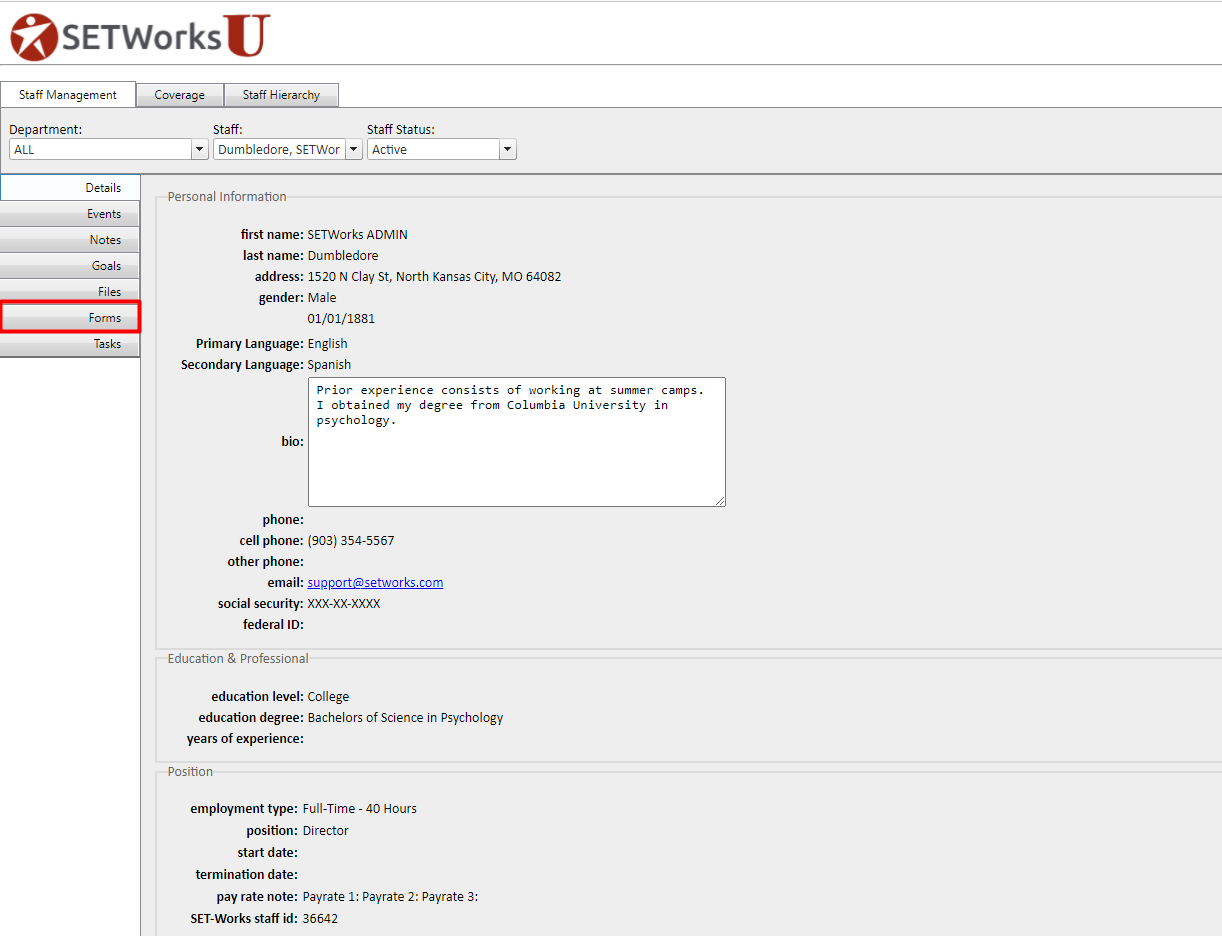
From there, a complete list of all the forms that have been completed for a Staff Member are available in a table.
Access Employer Forms
Access Employer forms by:
- Open an Employer.
- Clicking on the "Forms" tab.
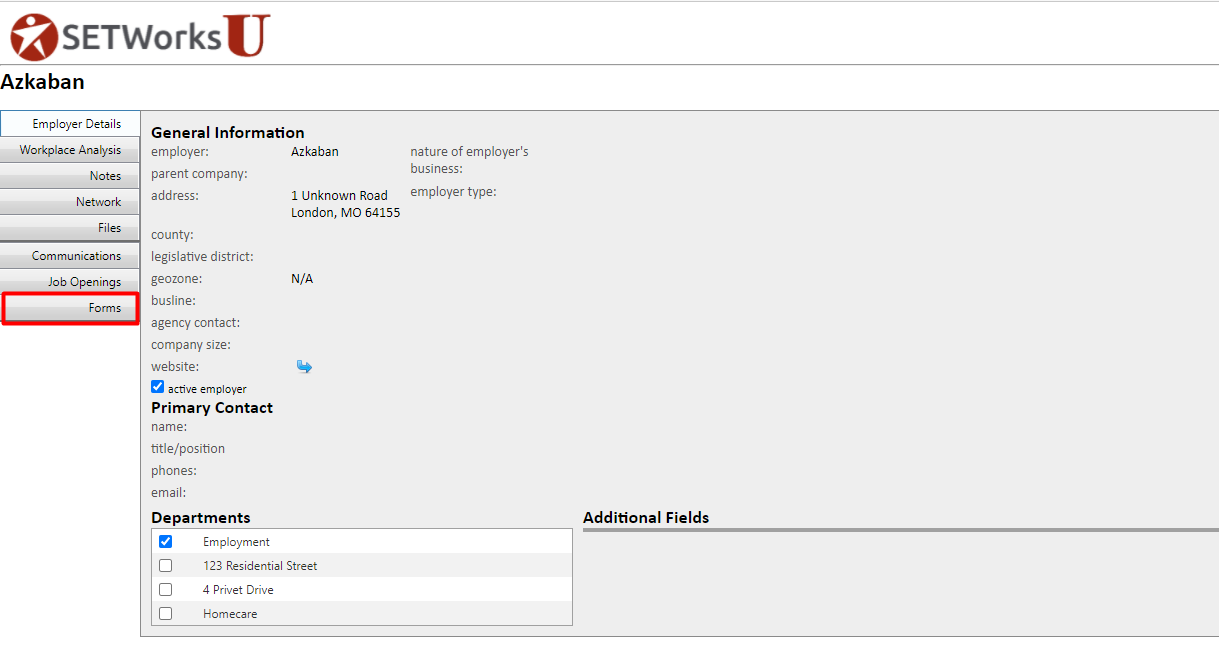
From there, a complete list of all the forms that have been completed for an employer are available in a table.
Access Department Forms
Access Employer forms by:
- Open an Department Management.
- Clicking on the "Forms" tab.
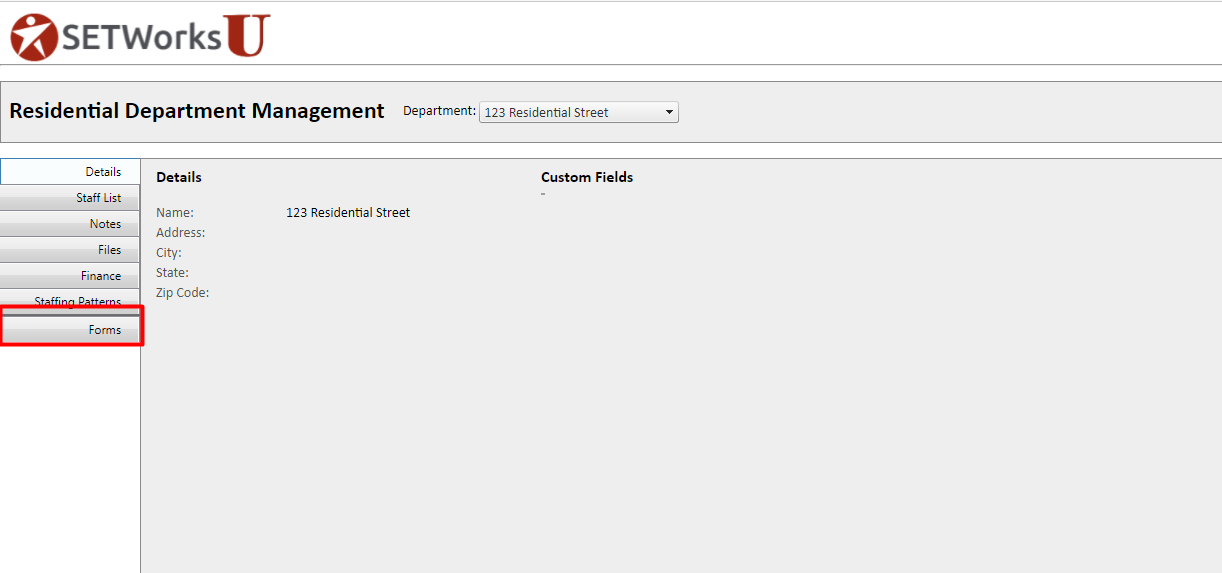
From there, a complete list of all the forms that have been completed for Department Management are available in a table.
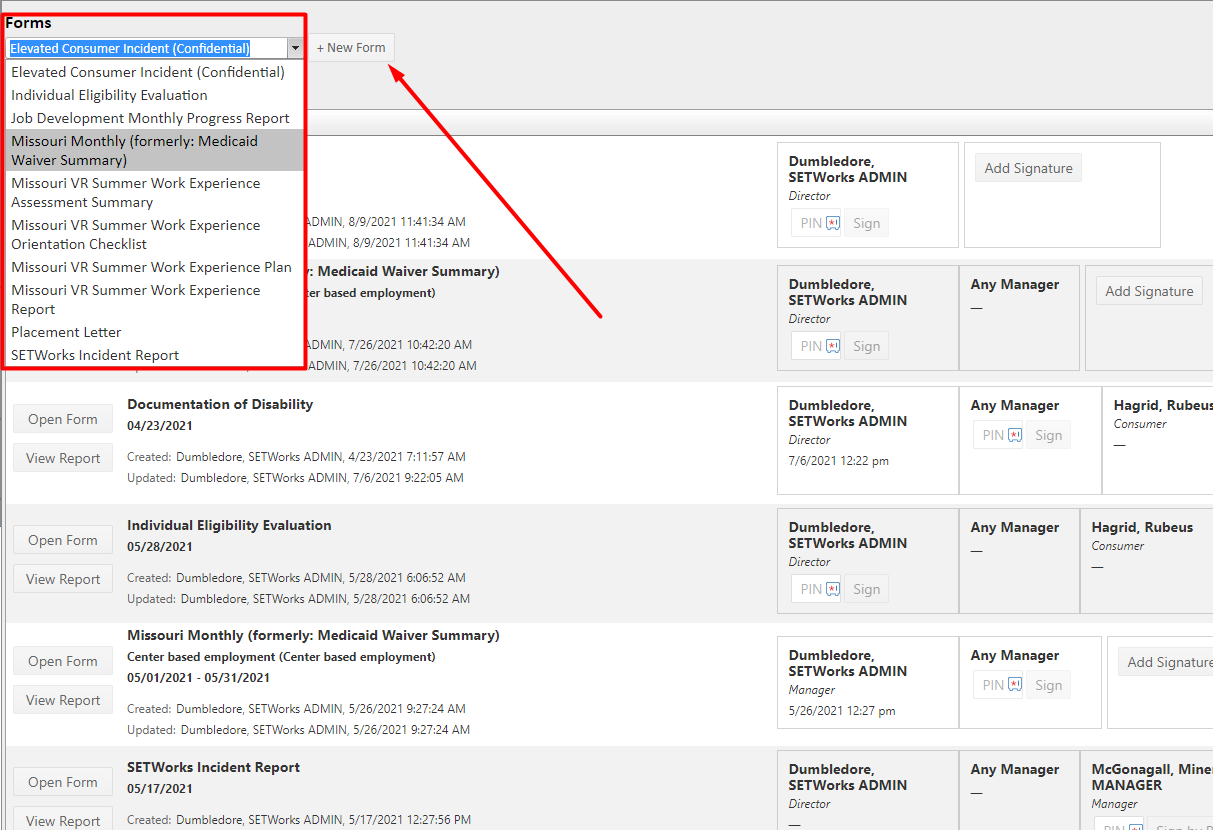
Adding a new form
From the "Forms" tab from within the record (see above):
- Select a form from the "Available Forms" drop-down field.
- Click the "+ New Form" button.
Signing forms
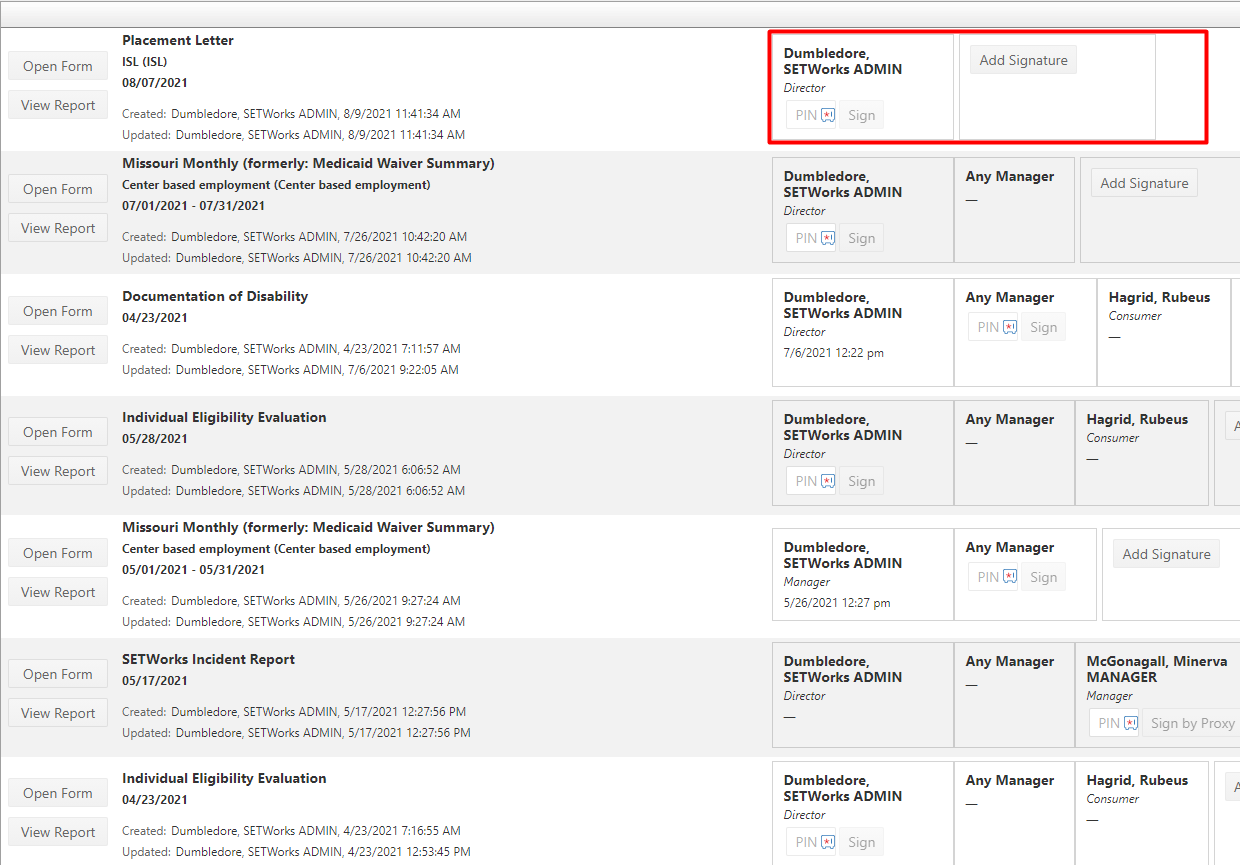
Forms are signed from within the forms table on the Forms tab (see above).
- Click the Sign button.
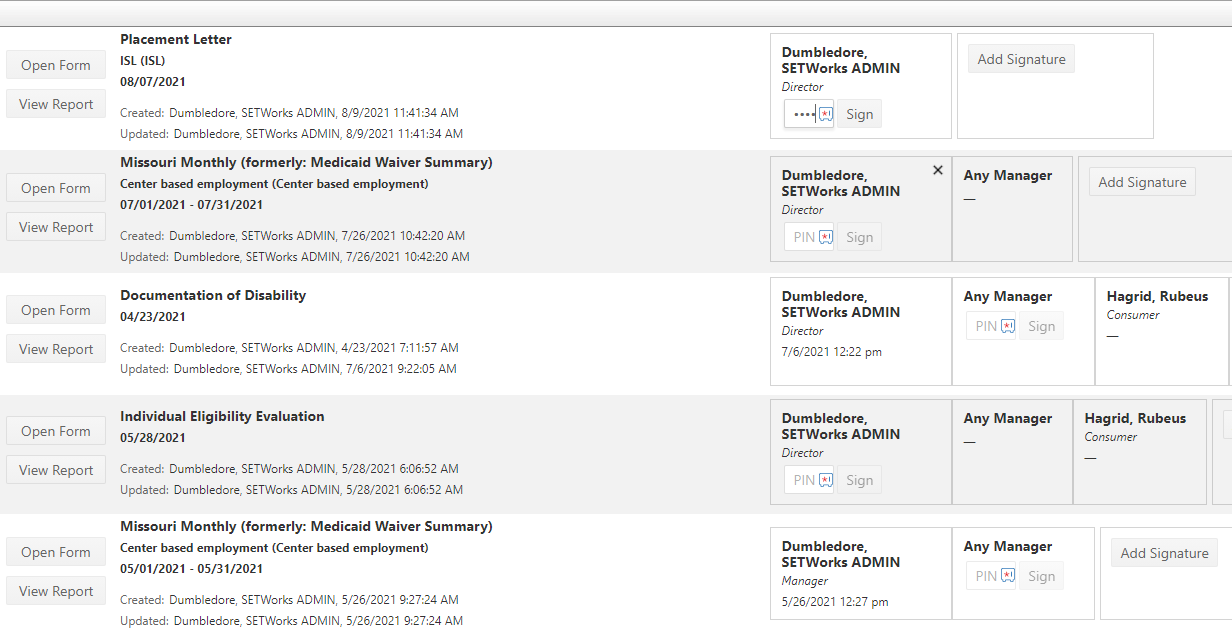
- Enter your PIN.
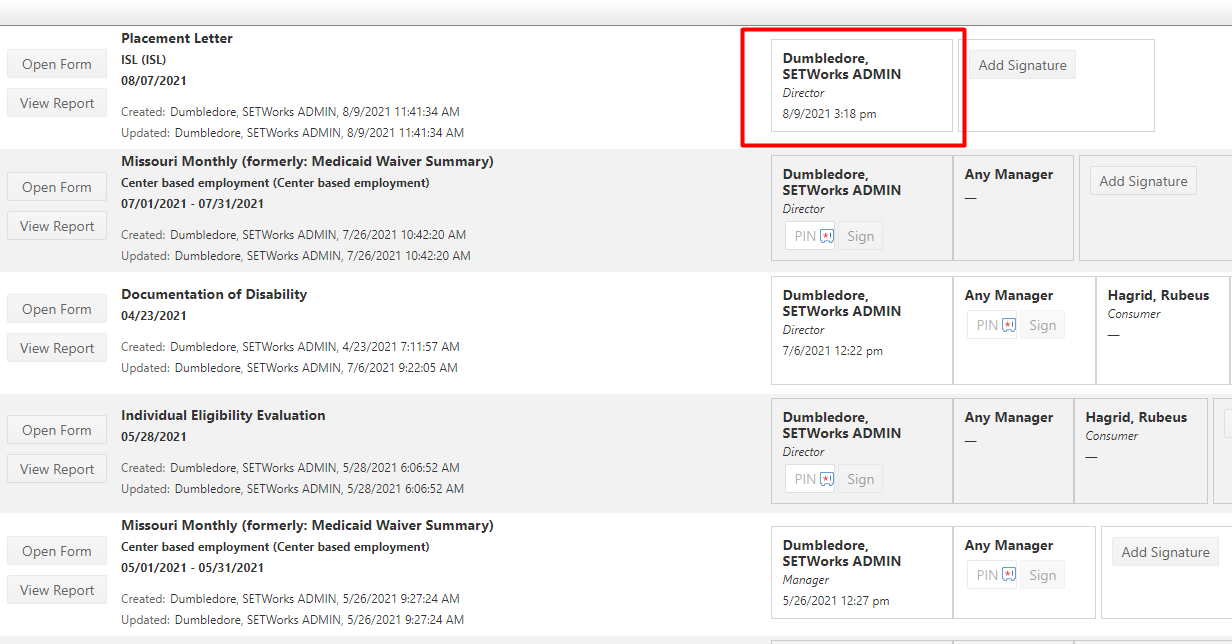
- Press Sign.
The form will then be signed.
Reassigning the owner of a form
When a user creates a form, they automatically become the owner of the form. Manager and administrator roles may have the ability to reassign the form to a new owner. This is accomplished by:
- Open a form.
- Change the Form Creator.
An administrator has access to adjusting who has access to changing the form creator.