Merge Reports
Merge Reports are Forms that use the actual Paper Form that a Client would fill out manually. A Client would fill out a Form like they normally would within SETWorks. The information from the Form filled out will be generated into the Clients PDF or Word Form digitally. For example, some States require their specific Paper Form to be submitted and not the Generic Form SETWorks creates. To create a Merge Report you will need to use two simple Utility. The first Utility is the Data Extractor Builder and the second Utility is the Merge Report Builder.
Data Extractor Builder
The Data Extractor Builder Utility is used to take the information from the filled out Form and makes what is a called a Data Model. The Data Model holds all the Form questions and answers. These become columns that the Merge Report Builder will use.
You can find the Data Extractor Builder in the Provider Build section in the Settings.
Settings > Provider Build > Data Extractor Builder
Note: This is an Internal Tool and is not Customer Facing
Note: Before creating a new Data Model make sure that you have opened your Form and filled it out completely within SETWorks. By not doing so the Data Model might not register a check box, radio button, etc.
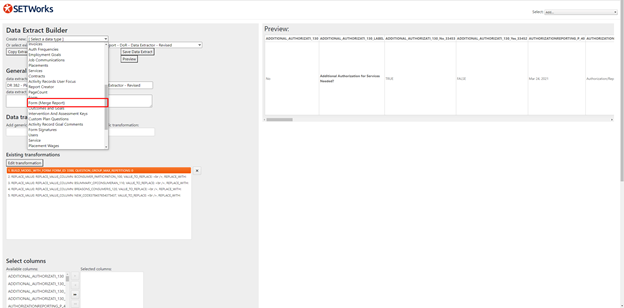
1. In the “Create New” drop down menu you will need to select the option “Form (Merge Report)”.
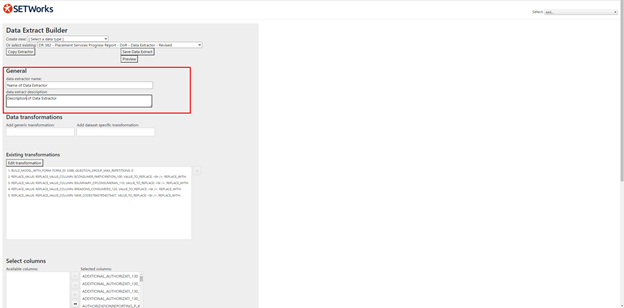
2. In the General section you will give a name to the Data Extractor. The description of the Data Extractor is optional.
Note: We recommend that you name the Data Extractor the same as the Form and adding Data Extractor at the End. Example: DR382 Data Extractor
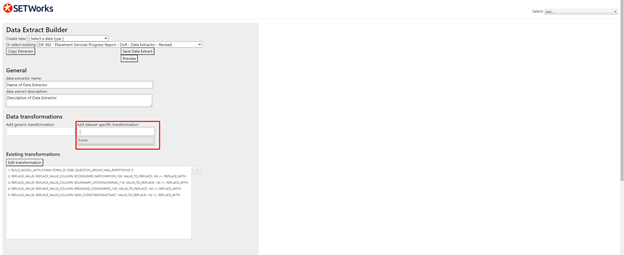
3. In the Data Transformation Section you use the “Add dataset specific transformation” area and select “Form”.
4. In the “Form ID” drop down select the Form you would like to Data Extractor to create a Data Model for.
Note: Forms are listed in when they are created and are not in alphabetical order
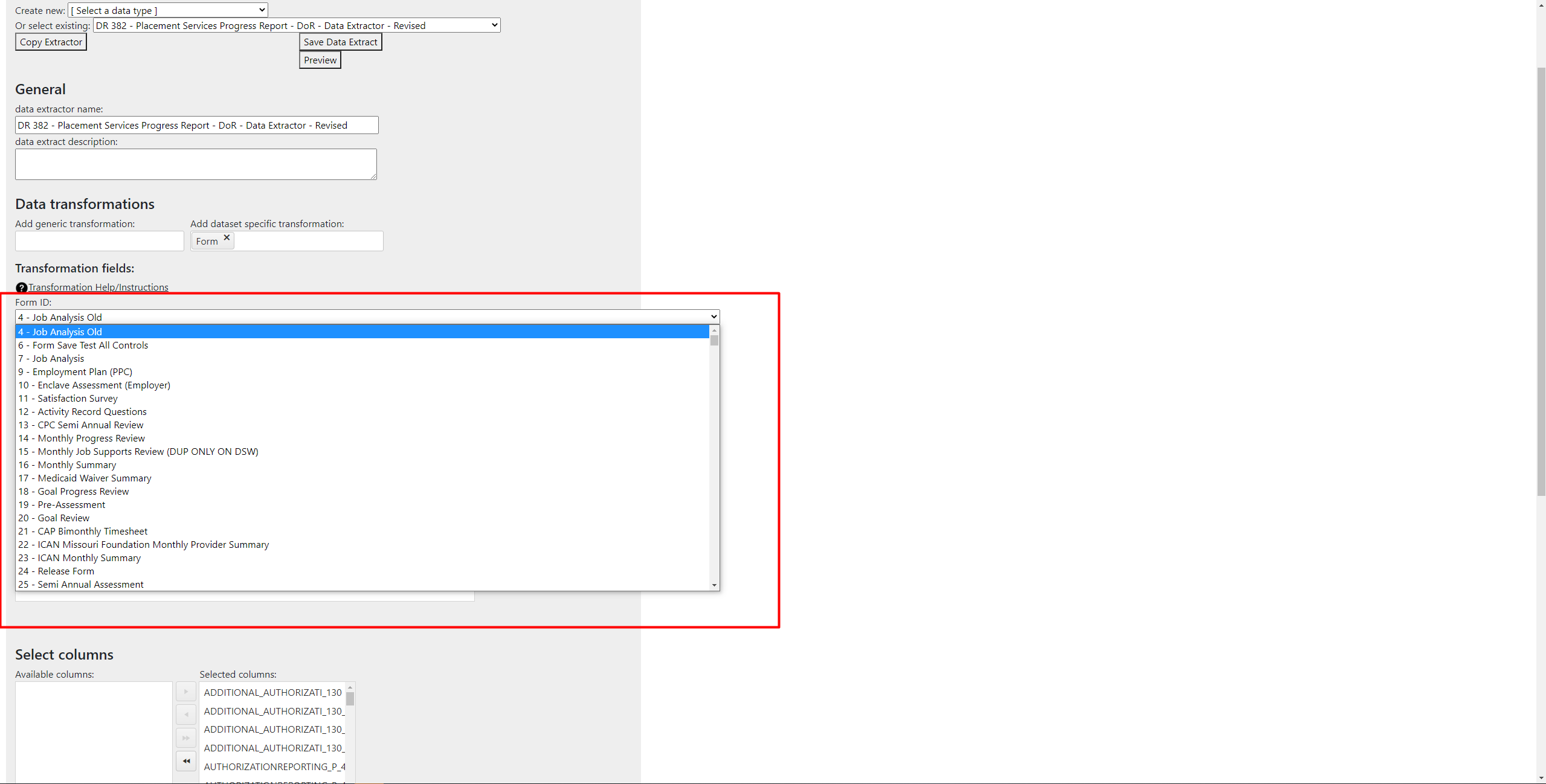
5. Once you have found the Form you will click the “Apply Transformation” button.
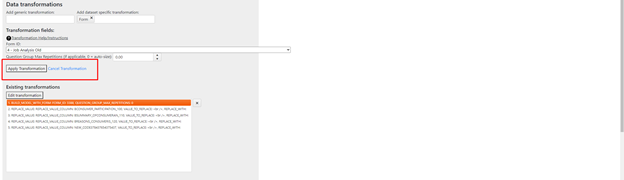
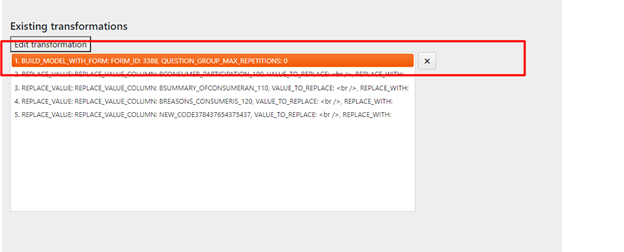
This will add your Form into the Existing Transformation Section.
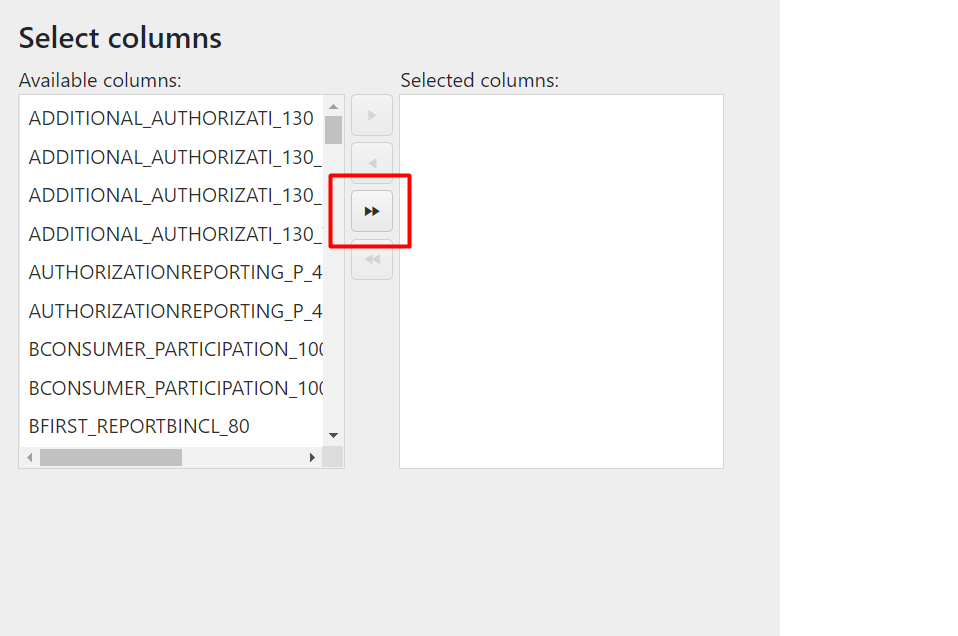
6. In the "Select columns" Section move over your Form Data from "Available columns" to "Selected columns" by clicking the Double Arrow.
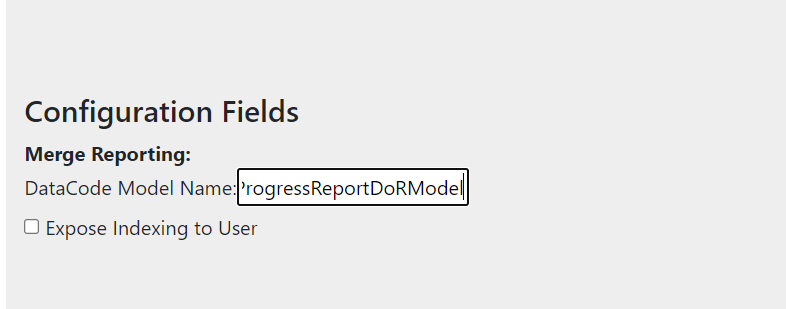
7. In the "Configuration Fields" Section name your Merge Report Model in the "DataCode Model Name" box. If you are creating a Simple Form Report do not check "Expose Indexing to User".
Note: When naming the DataCode Model Name use the name of the Form and add "Model" to the end. Do not use spaces or special character Example: D382Model
Note: Make Sure "Expose Indexing to User" is unchecked or the Check Boxes will not work.
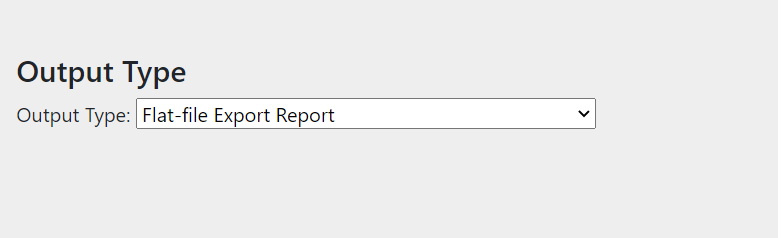
8. Leave the "Output Type" Section as is.
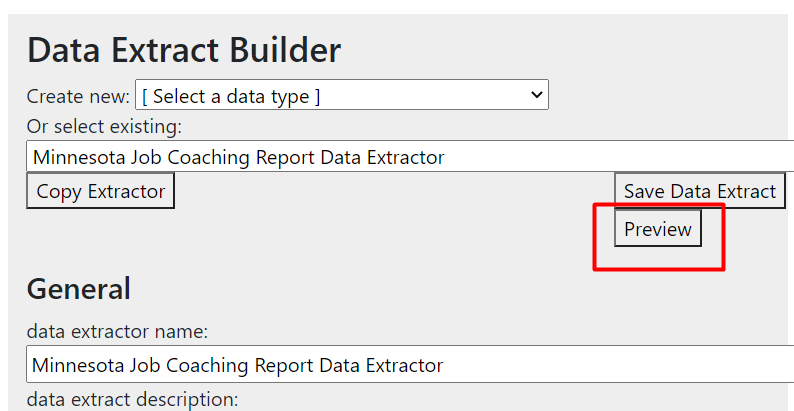
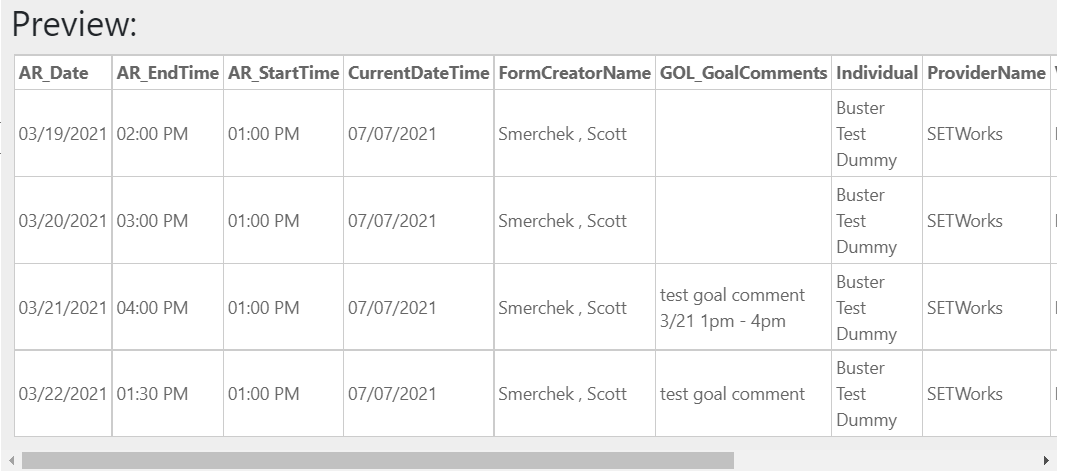
9. You can Preview your data extractor Columns before saving to make sure the correct Data is Populating into them.
This will display the Columns on the Right on hand Side.
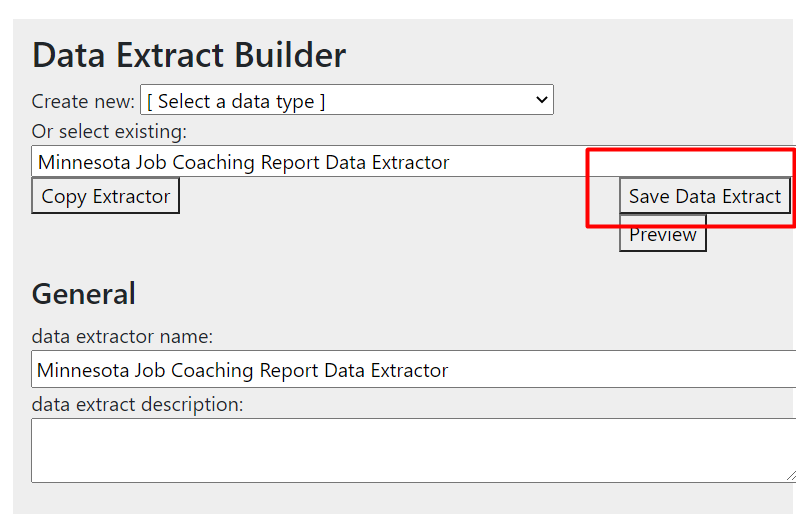
10. Once you have confirmed the Data is there you can click Save Data Extract.
Merge Report Builder
The Merge Report Builder uses your Data Model to input your data into a Template File such as a Word Document, Excel Spreadsheet, or a PDF.
You can find the Merge Report Builder Builder in the Provider Build section in the Settings.
Settings > Provider Build > Merge Report Builder
Note: This is an Internal Tool and is not Customer Facing
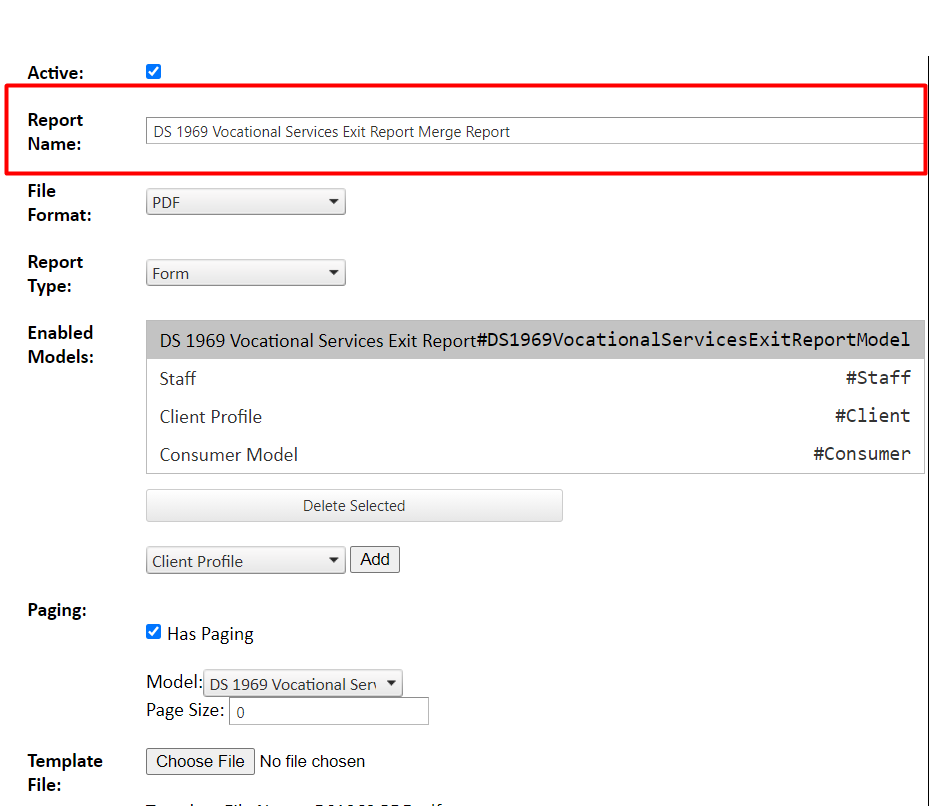
1. Name the Merge Report
Note: Use the name of the Form and add Merge Report to end when naming it
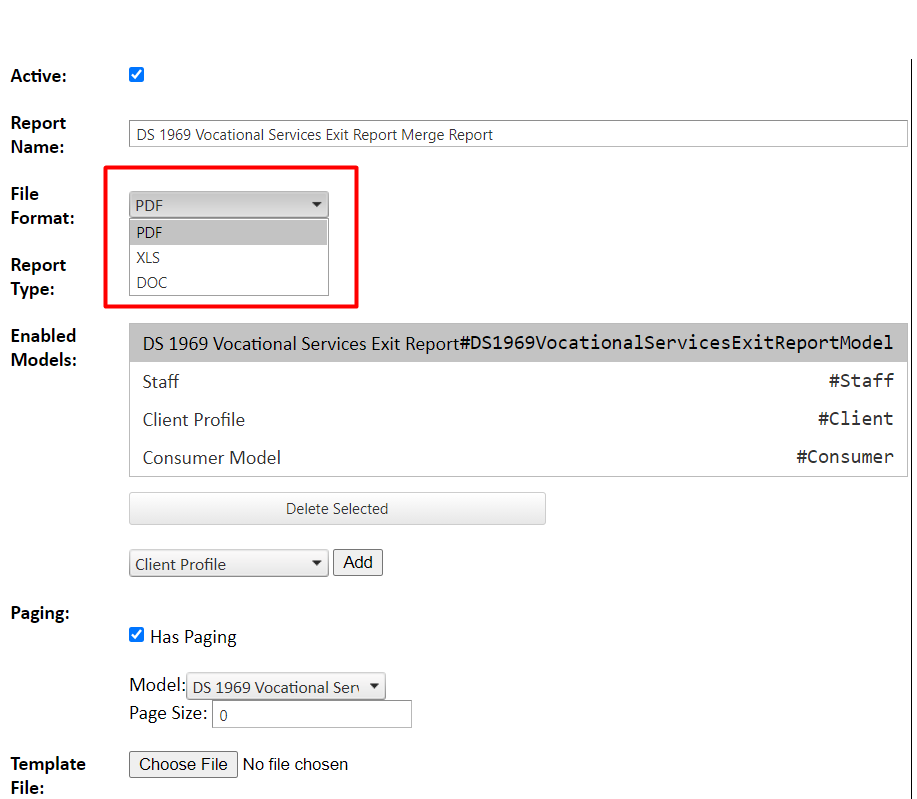
2. In the drop down box select the "File Format" of the Form
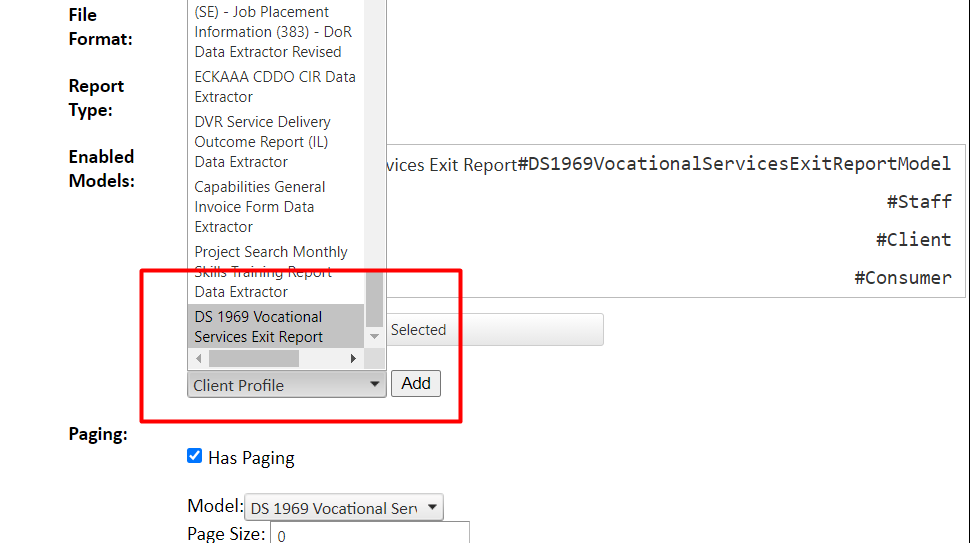
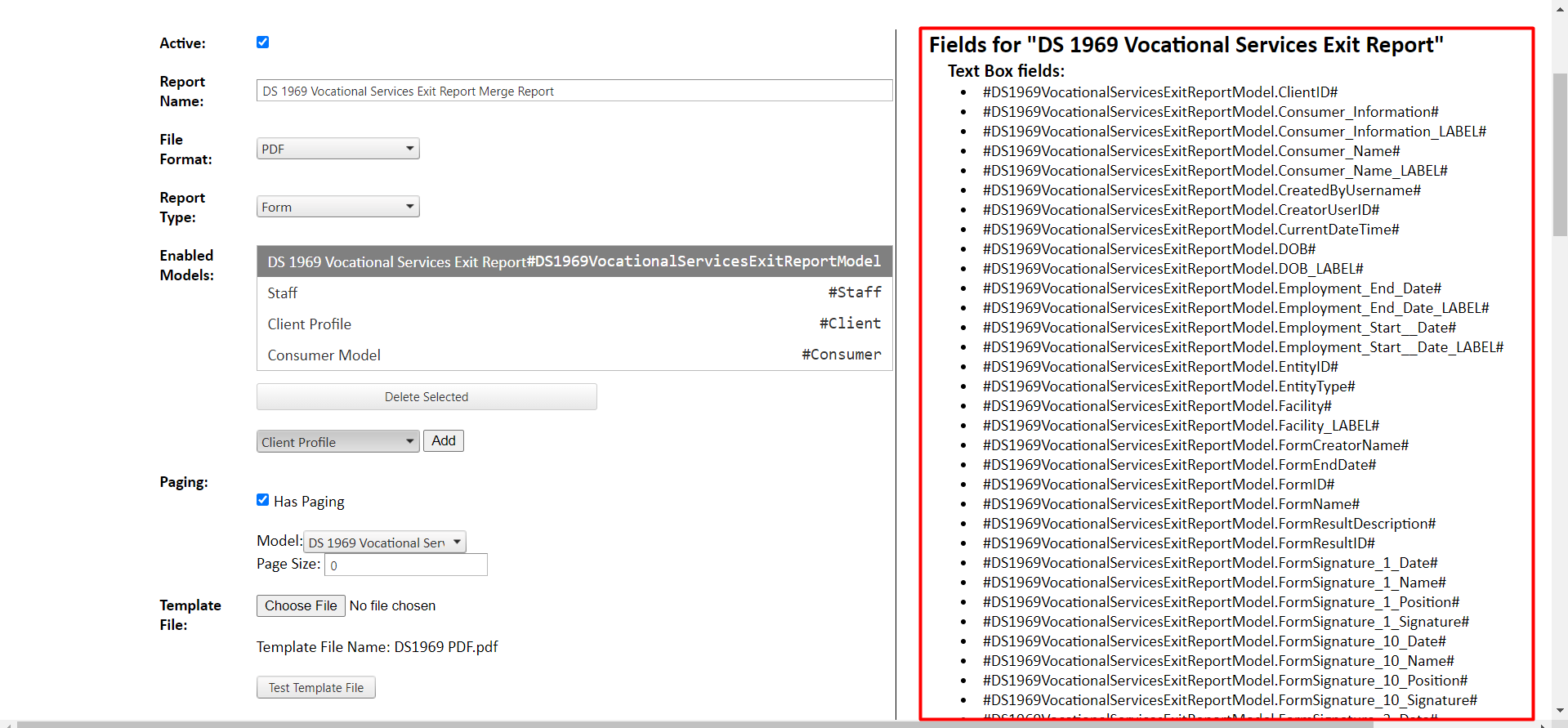
3. In the drop down in the "Enabled Models" section select your Data Model that you have created and click "Add"
4. Select the your Data Model within the Enabled Models section and it will display "Fields" on the right hand side. You will use these "Fields" to input the information into your Word, Excel, or PDF Form.
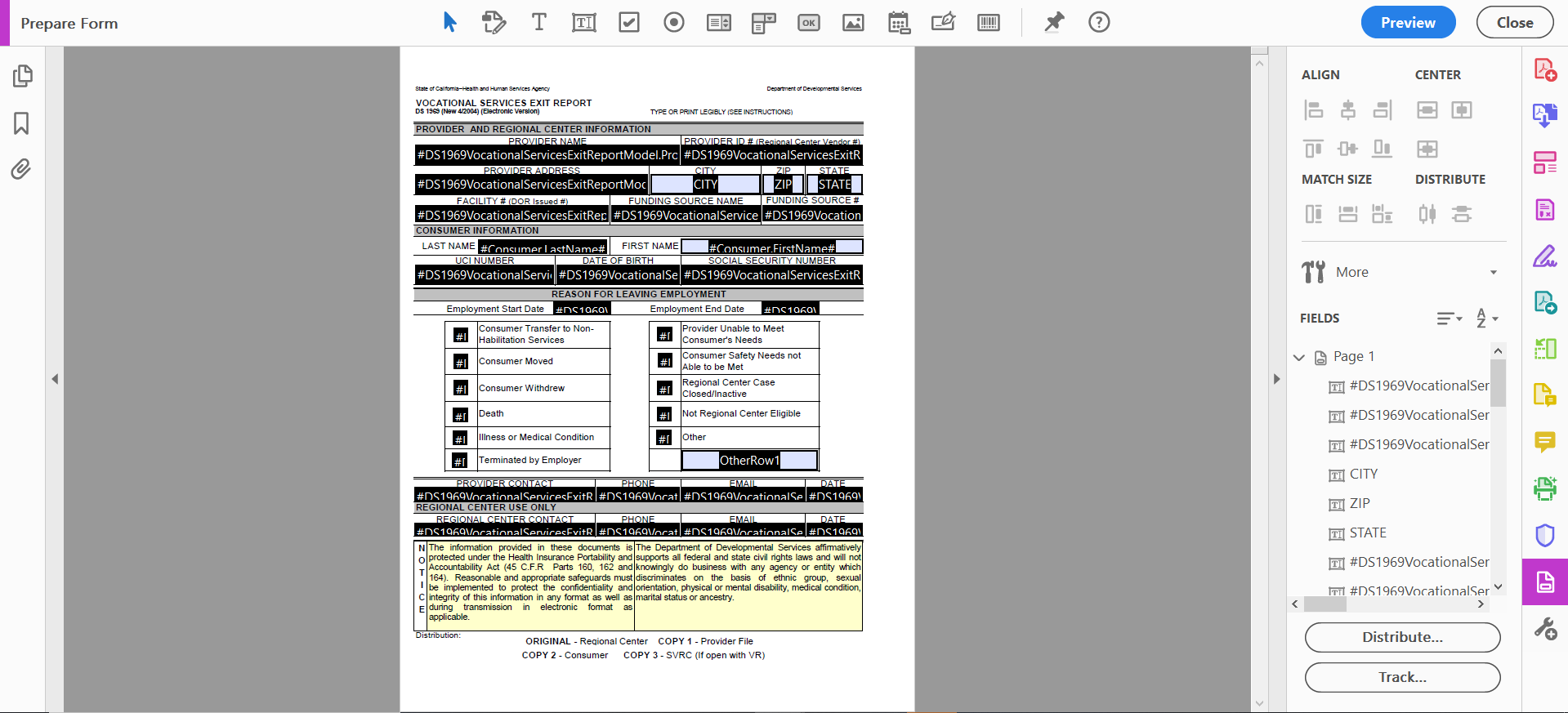
5. Open your Word, Excel, or PDF Form and add the corresponding "Fields" into the Form.
Note: PDFs will require Adobe Acrobat Pro and Word/Excel will require Office to make adjustments
6. In the "Template File" Section select "Choose File" and select your Word, Excel, or PDF Form that has the "Fields" copied into them. After loading the File select "Test Template File". The "Options" and "Paging" Sections can be ignored.
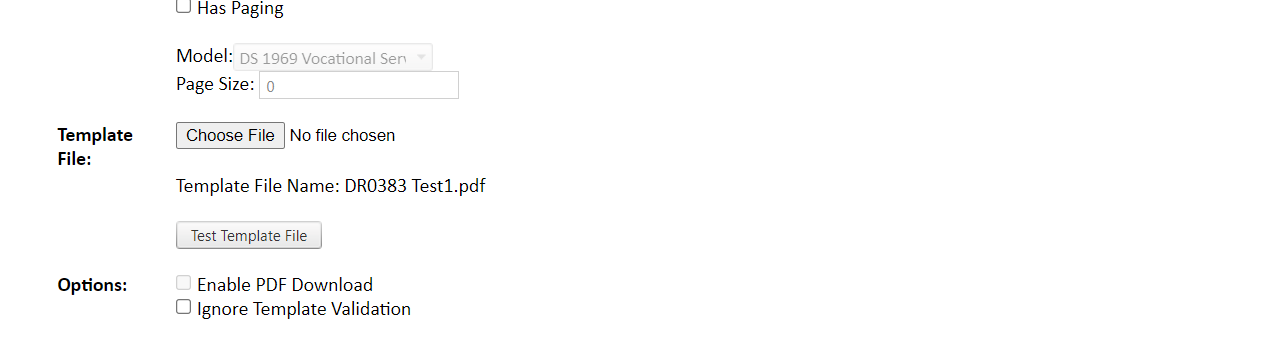
Note: If you receive any Invalid errors go back and check that the "Field" was copied correctly in the Form. Most commonly you will find that the Data Extractor will add "$" signs to the "Fields". Make sure you remove those to prevent Invalid errors. Another issue is that the Form was not filled out within SETWorks. Always make sure you filled out the Generic Form within SETWorks and try running the "Test Template File" again.

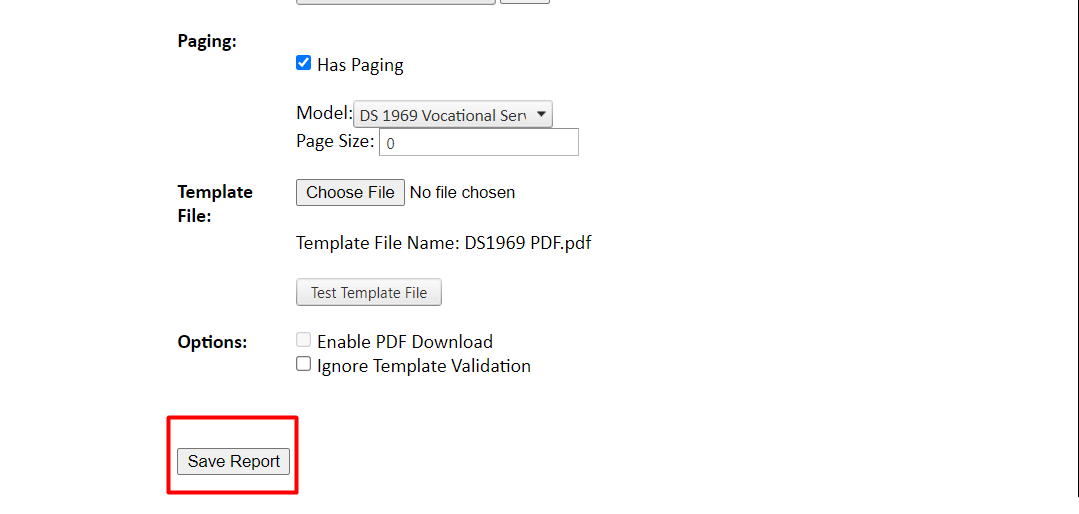
7. If the Merge Report Utility does not find any errors with the "Fields" select "Save" to save the Merge Report.
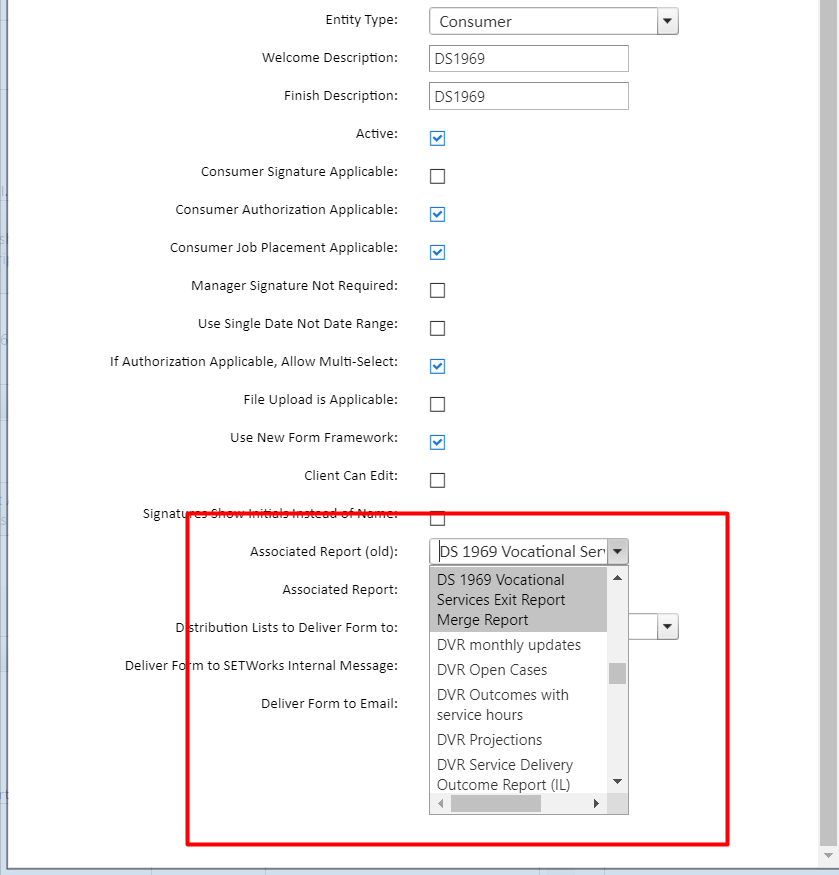
8. Use the Manage Forms Utility to replace the Generic Form with the Merge Report.
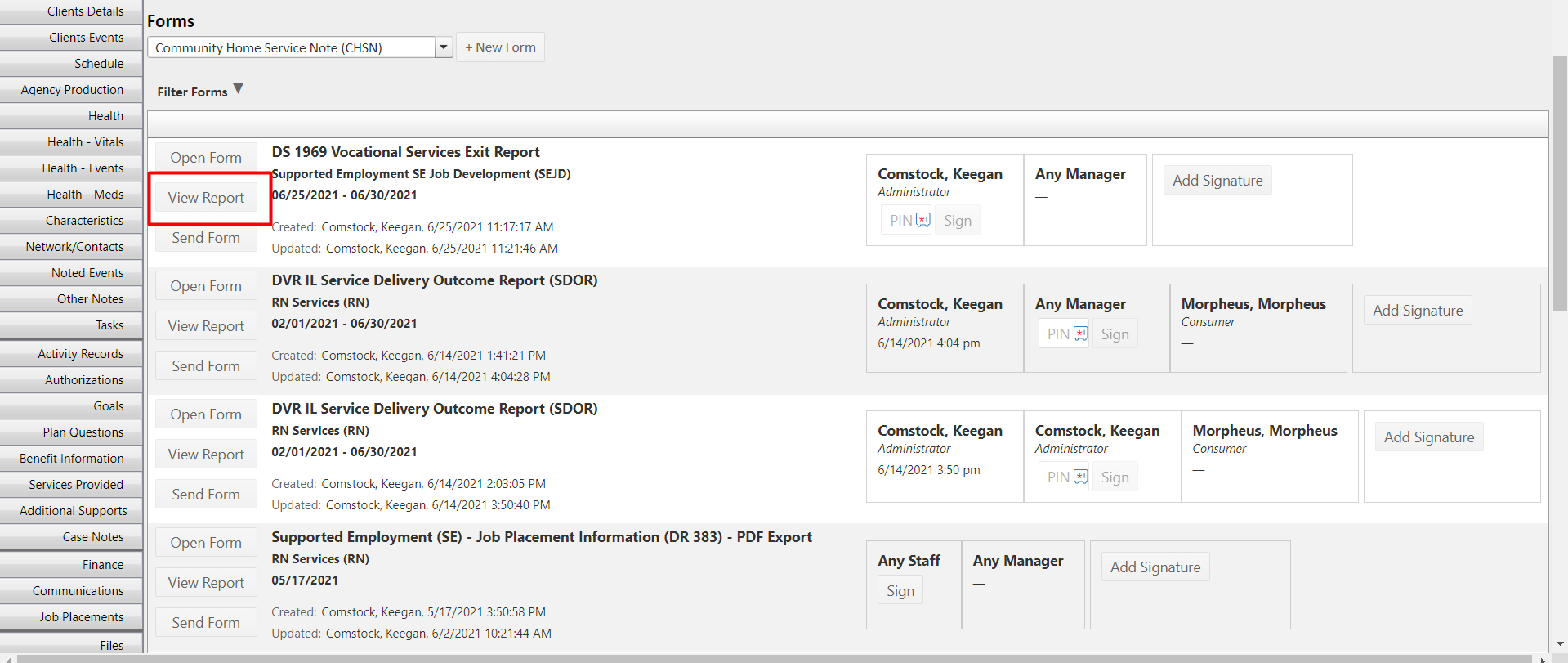
9. In the Forms Section of the Consumer Profile to test if the Merge Report works. Click the View Report button and the Form should load either as a Word, Excel or PDF depending on which file format you used.