
How do I manage Intervention/Assessment Keys for Billable Group Activity Records?
Administrators
Intervention/Assessment (I/A) Keys are how SETWorks refers to the keys used in activity records that collect quantitative data.
Note: Terminology can be modified within SETWorks to better fit the needs of your organization. If the terminology in our articles are not the same on your site, talk to your local administrator to assist in translation.
Note: PRIOR TO USE, note all warnings and instructions written in the utilities.
First identify which activity record type you're using by opening your billable documentation and checking the heading.
Note: Individual and Group Activity Records manage I/A keys in separate utilities - there are separate Support articles to describe each.

Access I/A Key Utility - Billable Group Activity Records
Settings > Provider Build > Utilities: Billable Group Key Utility
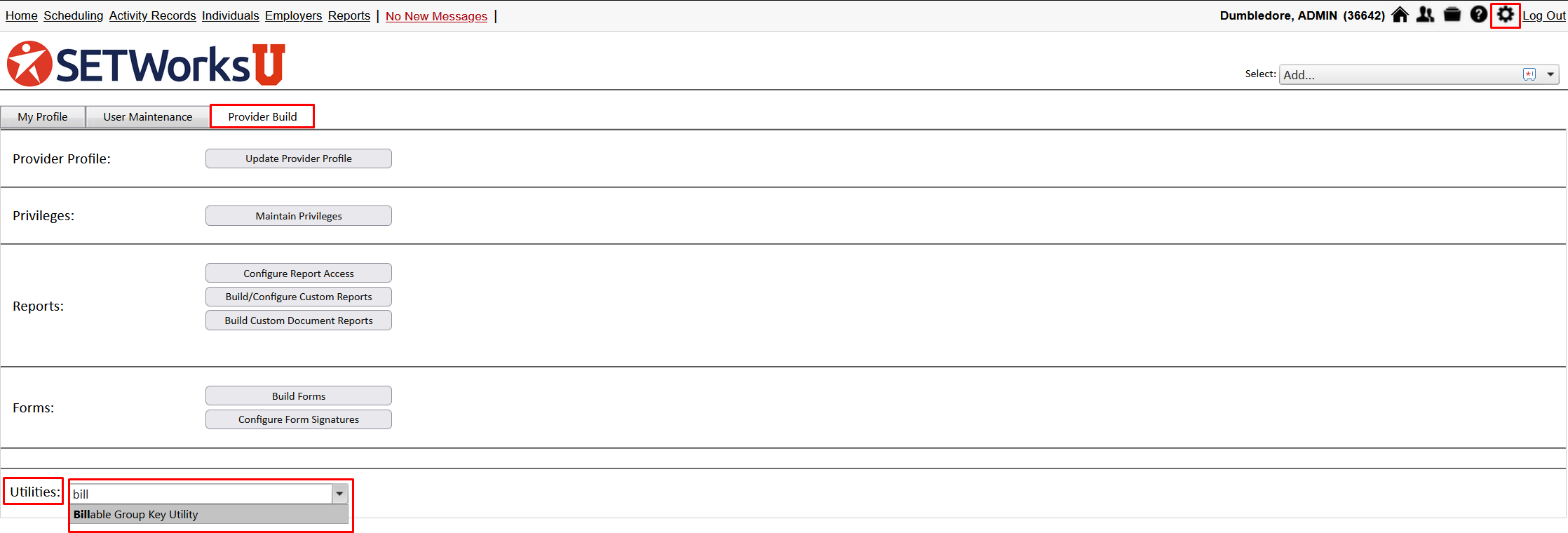
Create I/A Keys
Select +Add new record


Key Type: Intervention Keys or Assessment Keys
Intervention: Typically consists of interventions provided during a service with an individual. Example: Verbal Prompt, Physical Assistance, etc.
Assessment: Helps identify which outcomes, goals, or strategies were assessed during this day of service. Example: Completed, Not Applicable, Progress Made
Description: Enter a description - this is what you want to call the key (e.g., Verbal Prompt)
Abbreviation: Enter a code - this is what appears within the documentation (e.g., VP)
Max Count: Select an amount or enter 1 to appear as a checkbox - this is the max number a staff can use when documenting on the strategy
Completion Type: Select a Completion Type - identify if this key means Success, Fail, or Not Attempted to your agency
Primary Option: Checkbox - this determines if this key is needed to consider an Activity Record as Complete/Incomplete when documenting
Sequence: Select a sequence - this is what order the keys will appear within the activity record
Form: Select a form from the dropdown - this forces a staff to complete a form if this item is marked within an Activity Record (e.g., Incident Reporting)
Active: Checkbox - only mark as inactive if made in error.
Insert: Select Insert to save.


Note: Please note that if a key has a form associated the form must remain active to make any updates to the key.
Configure and Assign I/A Keys - Batch Assign
I/A keys can be assigned to services in bulk (Batch Assign Keys to each service) or individually (Assign keys to one service at a time).
- Determine which keys belong to which service.
- Select Services to update: Select Service(s)
- Select an Assessment key from the left box and move it to the right box using the single arrow. Move all options using the double arrow.
- Select the order in which they appear on the Activity Record using the up and down arrows.
- Repeat steps for the Intervention Keys.
- Save checked services.

Configure and Assign I/A Keys - One service at a time
- Determine which keys belong to which service.
- Use the Filter by Service option - or - scroll through to find the desired service.
- Select an Assessment key from the left box and move it to the right box using the single arrow. Move all options using the double arrow.
- Select the order in which they appear on the Activity Record using the up and down arrows.
- Repeat steps for the Intervention Keys.
- Changes are auto-saved holding the configuration in the Selected Keys boxes.
