
How Do I Configure Signatures on Forms?
Administrators
The default signature options shown on a form can be customized to each individual form. Read the following article to learn more.
Note: Terminology can be modified within SETWorks to better fit the needs of your organization. If the terminology in our articles are not the same on your site, talk to your local administrator to assist in translation.
Configuring Signatures on Forms
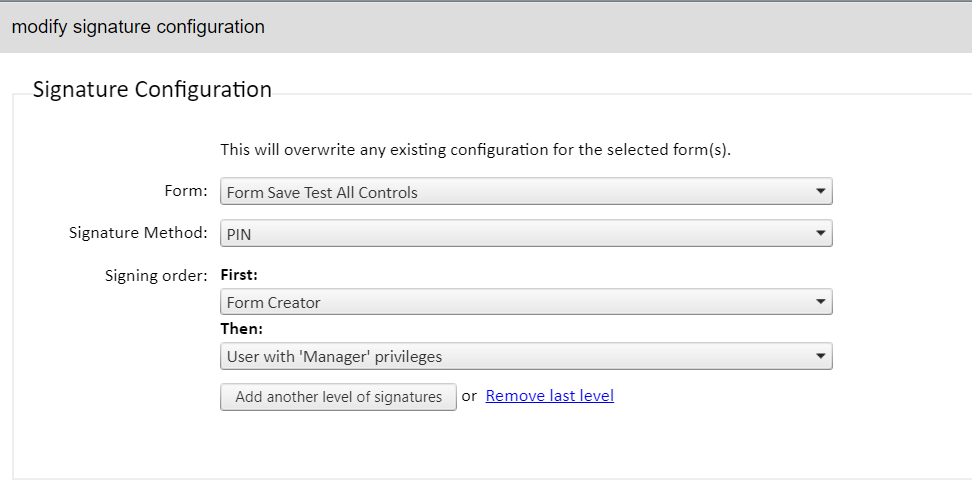
The default order of signatures for forms is typically as follows:
- Form Creator (example shows Certified Professional, Form Creator title may vary)
- User with 'Manager' Privileges

The signing order for forms can be modified using the Form Signature Utility.
Note: If you do not have access to the Form Signature Utility, please contact your administrator for further assistance.
Navigating the Form Signature Utility
- To access this feature, navigate to: Settings > Provider Build > Utility Dropdown > Form Signature Utility
- (Optional) Use the filters to select the type or specific form you would like to modify the signature settings for.
- Click the name of the form displayed from the results on the table.
- To change an existing signature setting, simply choose a new value from the dropdown.
- To add a new signature request, click Add another level of signatures and then select the desired role.
- To remove the last level of signature requests, click the Remove last level link.
- Finally, when you are ready to save, click Update to save your changes.
Signature Method
The default signing method for Internal Users (Staff) is to use an electronic PIN to sign.
If you would rather have your staff sign a digital signature pad using a mouse or touchscreen, select Freehand instead:
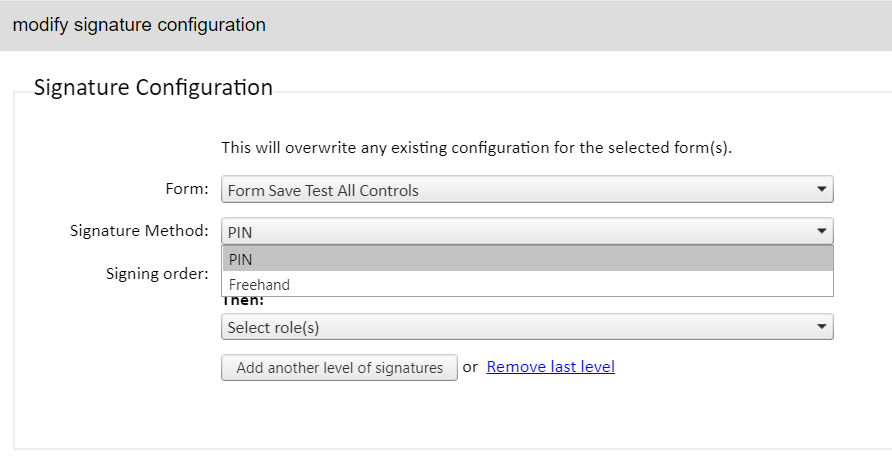
Note: Only Internal Users can use a PIN to sign. All External Users, including but not limited to Consumers, Parents, and Guardians, will sign using the Freehand method.