

Overview
Supervisors and QA staff can't read every word of every Activity Record as they come in, so incidents, health concerns, and incomplete documentation can go unnoticed until a monthly review or a billing denial. Ambient AI closes that gap.
Ambient AI reads each Activity Record in the background, checks it against the custom tasks your organization sets up, and sends an alert to the right people within minutes whenever something needs attention. You can act on critical incidents and health risks right away, and fix weak documentation before it turns into a compliance or billing problem.
What is Ambient AI?
Ambient AI is one of the SETWorks AI enhanced features. It runs automatically in the background and reads the entire contents of every Activity Record, including details, goal comments, plan question answers, and additional comments. Ambient AI compares each record against a set of tasks, which are the rules for what to look for. These can be default tasks provided by SETWorks or tasks your organization creates. When a record matches a task, Ambient AI sends an alert to the people you've chosen.
Ambient AI runs across your entire organization, so it requires agency-wide access through the AI Enhanced package or an active AI trial for your whole organization. Reach out to hello@setworks.com if you are interested in adding or turning on the feature.
What Ambient AI Watches For
Ambient AI is driven by customized tasks configured for your organization. Common uses include:
- Critical incidents: Flags descriptions of violent behavior, injuries, assaults, police involvement, or other events that may need an incident report or immediate follow-up.
- Health and safety monitoring: Alerts a nurse, residential manager, or other designated staff when a health concern is documented. For example, you can be notified right away when an Individual is documented as not having a bowel movement, or once it's been three days.
- Documentation quality: Catches records that may not hold up to an audit, such as a note that mentions a goal but doesn't document the service duration or an outcome assessment.
Organization-wide or Individual-specific tasks
Tasks can apply across your whole organization or to a single Individual. Use an Individual-specific task to track something particular to one person's needs.
Your QA Assistant configuration can be connected to Ambient AI, so your organization's documentation standards and service guidelines only have to be entered in one place.
Ambient AI Alerts
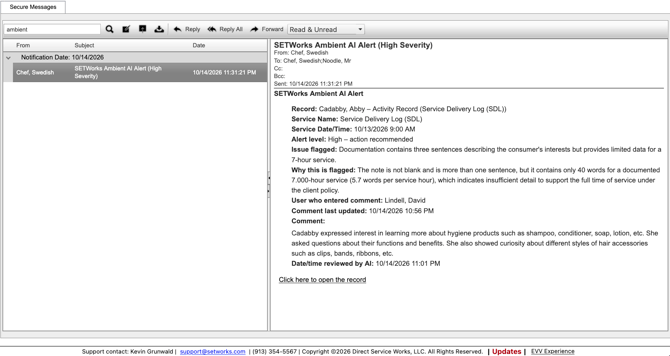
Ambient AI sends an alert within about five minutes after an Activity Record is saved or submitted. Alerts go out for both saved and submitted records, so issues are caught even before a record is finalized.
Who receives alerts
You decide who gets each alert. You can send it to:
- A single person
- Multiple people
- A distribution list
- Everyone in a specific role
What an alert includes
- Alert level: How serious the finding is, ranging from critical items (for example, violent behavior that caused serious injury) to low-level alerts (for example, a possible documentation error).
- Reason: A plain-language explanation of why the record was flagged.
- Comment: The actual text from the Activity Record that triggered the alert.
- Reviewed date/time: When Ambient AI reviewed the record.
- Record link: A link that opens the Activity Record directly, so you can follow up right away.
Ambient AI and the QA Assistant
The QA Assistant and Ambient AI work together at different points in the documentation process:
- QA Assistant gives staff feedback while they write a note, when they click Auto Review.
- Ambient AI reviews the record after it's saved or submitted, from a supervisor/QA point of view. It catches cases where staff skipped Auto Review or didn't follow its suggestions.
Your QA Assistant configuration can be connected to Ambient AI, so your organization's documentation standards and service guidelines only have to be entered in one place.
Setting Up Ambient AI
Ambient AI requires configuration before it starts sending alerts. The SETWorks team works with your organization to set up tasks, alert levels, and recipients. You can use the defaults or build a configuration around your state's rules and your organization's policies.
- Configuration is managed in Utilities.
- Access to AI features is controlled through user privileges, which your SETWorks administrator manages by role.
To get Ambient AI set up, contact your SETWorks representative. If you're currently in an AI trial, your trial contact will help you configure it, if you have the trial turned on for all your SETWorks users.
Frequently Asked Questions
Q: Do staff have to do anything for Ambient AI to review their notes?
No. Ambient AI runs automatically in the background on every Activity Record. Staff don't need to click Auto Review to run the QA Assistant, or take any other action.
Q: How quickly will I get an alert?
Alerts are typically sent within about 10-15 minutes after an Activity Record is saved or submitted.
Q: Does Ambient AI only read the comments on an Activity Record?
No. It reads the entire Activity Record, including record details, goal comments, plan question answers, and additional comments.
Q: Can I monitor something for just one Individual?
Yes. Along with organization-wide tasks, you can create Individual-specific tasks to track something unique to one person's needs.
Q: Can I turn on Ambient AI for only some of my users?
No. Ambient AI reviews documentation across your whole organization, so it requires agency-wide access through the AI Enhanced package or an AI trial.
Q: Does Ambient AI change the Activity Record?
No. Ambient AI flags issues and alerts the right people. Any changes to the Activity Record are still made by staff as needed.
Interested in adding Ambient AI to your AI Enhanced package? Reach out to hello@setworks.com or speak with your Account Executive for more information.