
One of the newest features we have implemented at SETWorks is the Form Builder, a client facing tool that allows you to create and manage your own forms for users, consumers, providers, employers & even as addition to individual billable activity records!
Getting Started
Navigate to the Form Builder utility:
Settings > Provider Build > Utilities > Form Builder
NOTE: Only some user roles have access to this area of SETWorks and the enabling of certain privileges may be required as well, please contact your Administrator for further details.
Creating a Form
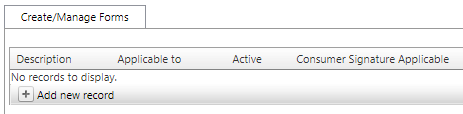
Under Create/Manage Forms select  , this will display the initial form setup options.
Each option controls the way your form will be utilized within SETWorks, below is the list of these options and how they will work within your form:
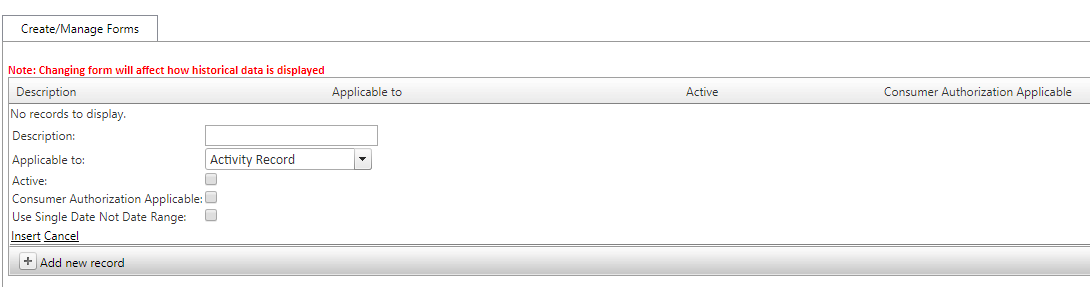
- Description: This is where the title of the form is created. (provide example/context)
- Applicable to: A drop down menu displays who the form applies to and where in SETWorks the form will be accessed.
- Activity_Record: Forms are available for select Billable Individual Activity Records and can be added in the Forms tab of the record (if available).
- The privilege "Shows Forms tab in Activity Record" must be activated for your role in order to add forms to select Activity Records, please contact your Administrator for assistance.
- Consumer: Navigate to the consumer's profile you would the form to apply to and click on the Forms tab. From here, select the form you created from the drop down menu and click

- Employer: Navigate to the Employers page and select the Form tab
- Provider: Found within the Provider Files page and under the Forms tab
- Staff: Applies to Staff Members and is accessible by clicking the Forms tab within the Staff Management page
- Activity_Record: Forms are available for select Billable Individual Activity Records and can be added in the Forms tab of the record (if available).
- Active: This box must be checked in order to access your form, if this box is not checked the form will be inactive/not visible for creation.
- Consumer Authorization Applicable:Check this box if the form being created contains data from a Consumer's Authorization.
- Choosing to include a Consumer Authorization allows for certain questions to have data auto populate, if configured to do so. (see Question Control: Predefined Answer section in Question Type Creation & Question Control Options)
- Use Single Date Not Date Range: Check this option if you would like the form being created to include all available data from a specified date.
- If you would like the form to only pull data from a specified date range, do not check this box.
- If Authorization Applicable, Allow Multi-Select: Consumer Authorization Applicable must be selected in order to select multiple authorizations that apply to the form being created. *Note: This is now a default setting and will no longer appear in form setup options.
- File Upload is applicable: This is a great option to activate if you would like associate files with the form you are creating (e.g.: Add a resume or job application to have on file with a form consisting of employment information)
Select Insert if you are happy with the above form settings or click Cancel to start over (all information entered will not be saved if Cancel is selected)