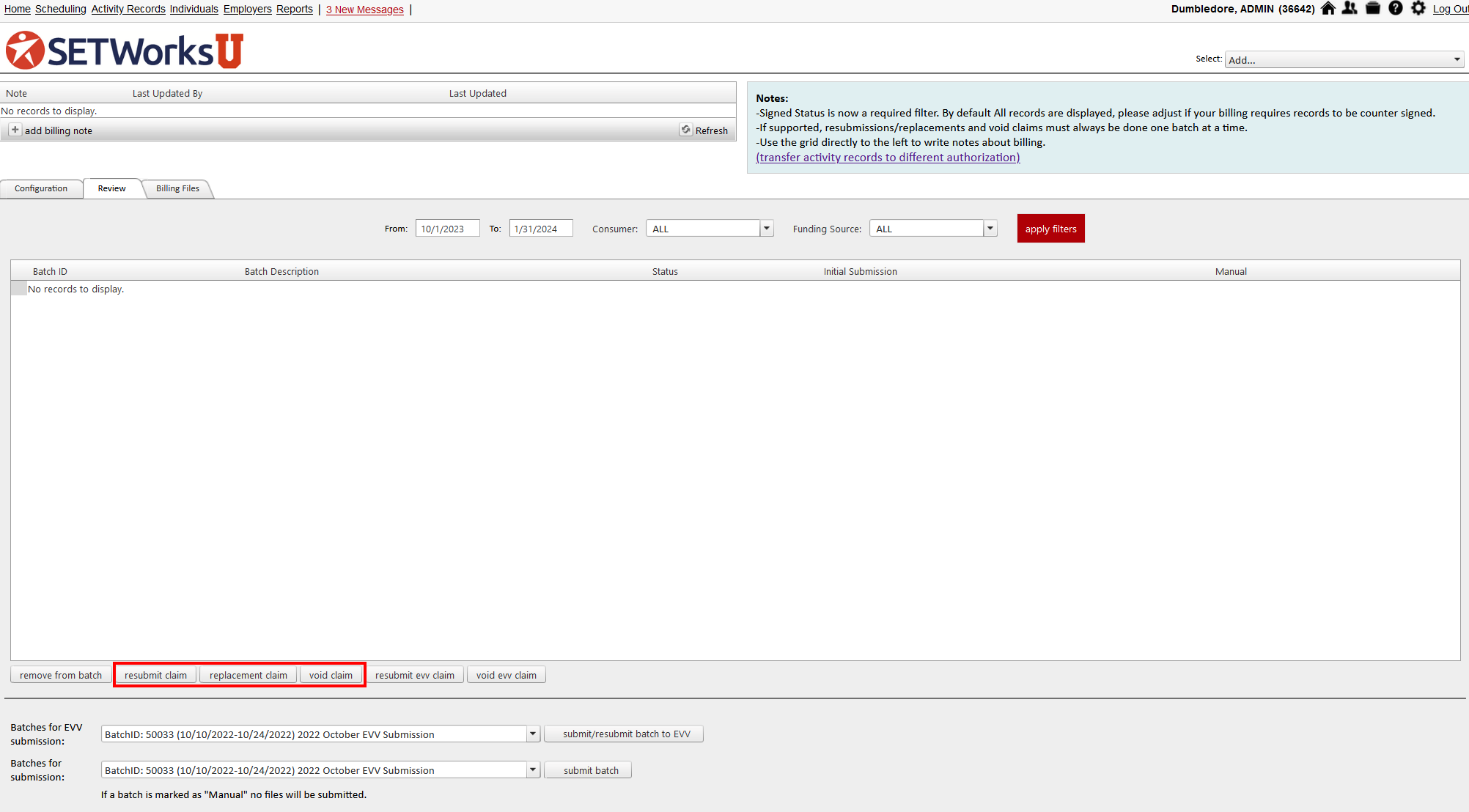
How Do I Void a Claim or Submit a Replacement Claim?
Administrators, Billing

Note: You may only grant access to the manage batches & submit billing page if you are a SET-Works administrator.
To Void a Claim

The Void Claim option renders the submitted claim as invalid. It effectively cancels and reverts any payment for the submitted claim.
Void a claim that was sent to a funder:
- Navigate to Manage Batches & Submit Billing from the select drop down menu.
- Navigate to the Review tab.
- Use the filters in this tab to locate desired batch.
- Use the arrows on the left of the batch to expand and view claims.
- Use the arrows on the left to view claim line items (i.e., the activity records associated with a claim).
- Use the check boxes to select claims to be voided.
- Click the void claim button at the bottom of the Review window to nullify the selected claim(s).

Void a claim only works if the remittance advice is in place from the funder (this can take several weeks after the batch was submitted and isn't available for all funders).
To Resubmit a Claim
The Resubmit Claim option simply submits the same claim again. It is intended for use in situations where some technical issue prevented successful submission.
- Navigate to Manage Batches & Submit Billing from the select drop down menu.
- Navigate to the Review tab.
- Use the filters in this tab to locate desired batch.
- Use the arrows on the left of the batch to expand and view claims.
- Use the arrows on the left to view claim line items (i.e., the activity records associated with a claim).
- Use the check boxes to select claims to be resubmitted.
- Click the resubmit claim button at the bottom of the Review window to resubmit the selected claim(s).
Resubmit should only be used if a claim was submitted and no response (confirmation of receipt) was received from the funder. If the funder confirmed receipt of the claim, do not use the resubmit option.
To Submit a Replacement Claim
The Replacement Claim option effectively acts as a Void plus a Resubmit. It is intended for situations where a minor adjustment is needed to a claim. For example, if too few units were submitted with the first submission, or if a rate needed to be updated.
Replace a previously submitted claim that was billed and was either partially paid or unpaid by the funder:
- Navigate to Manage Batches & Submit Billing from the select drop down menu.
- Navigate to the Review tab.
- Use the filters in this tab to locate desired batch.
- Use the arrows on the left of the batch to expand and view claims.
- Use the arrows on the left to view claim line items (i.e., the activity records associated with a claim).
- Use the check boxes to select claims to be replaced.
- Click the replacement claim button at the bottom of the Review window to void and submit replacements for the selected claim(s) with one click.
Replacement Claim only works if the remittance advice is in place from the funder (this can take several weeks after the batch was submitted and isn't available for all funders).

Replacement Claim requires that the service remain exactly the same. If the service billing code or modifier needs to be adjusted, do not use Replacement Claim. Instead, void the claim under the original service, then make adjustments to the records, and then submit a brand new claim.