
How do I Filter Electronic Billing Records on the Manage Batches & Submit Billing Page? How do I Change the Default View?
Administrators, Billing
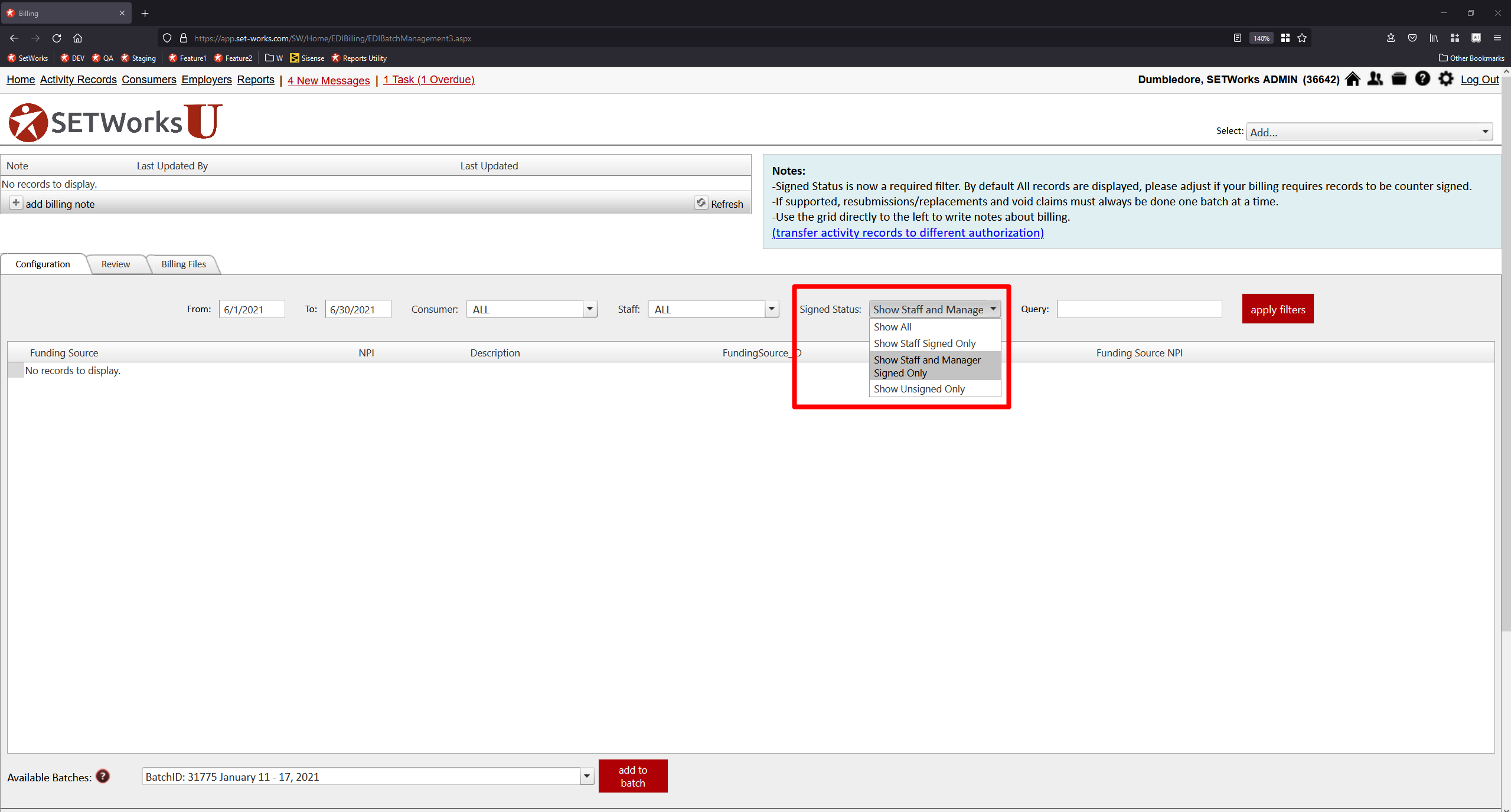
Signed Status is a required filter in SET-Works. Show All Records is the default option selected in the drop down menu. This means that all billing records (signed, countersigned, and unsigned) are displayed on the billing and batch management screen. For TCM, the signature status should be set to Show All because signatures aren't needed. For DS, generally both staff and manager signatures are required so Show Staff and Manager Signed Only is the recommended default. Read the following article to learn about

Note: You may only have access to utilities if you are a SET-Works administrator. Contact your local administrator if you need this filter's default status updated.
Signed Status Filter on the Manage Batches & Submit Billing Page
Updating the Filter's Default Value
Update the default status of this filter if your billing requires records to be countersigned by staff and/or a manager:
Navigate to the Maintain Privileges page:
- Click on Settings
 icon.
icon. - Click on the Provider Build tab.
- Click on the Maintain Privileges button.
Select the Electronic Billing tab.
Then, change the value of the appropriate privilege:
Settings > Provider Build > Maintain Privileges > Electronic Billing:

-
Specify the default value for the signature status on the EDI Billing Screen. 0 = ALL, 1 = Staff Signed Only, 2 = Staff and Manager Signed Only, 3 = Unsigned only.
- Determine which Signed Status code best fits your needs from the above list.
- Enter the corresponding number code into the box to specify the billing screen's default view for each role.
- Place a number code in the All Roles box to specify the billing screen's default view for every role.
- Click the Save button to set these codes.

Please note that signature configuration is customizable. The signed status filter on the manage batches and submit billing page only supports 2 levels of signatures, typically Staff signature and Manager signature.