
The Integration Framework in New SETWorks allows administrators to configure, manage, and monitor data exchanges between SETWorks and external systems, such as Carasolva, C-More, and Sandata.
Instead of requiring custom development for each integration, the framework provides configurable tools to define what data is exchanged, how it is formatted, when it is sent or received, and how errors are handled.
This article explains how to configure integrations, manage imports and exports, and troubleshoot integration issues.
Before You BeginBefore configuring an integration, ensure that:
- You have access to the Integration Framework in New SETWorks.
- You have the required connection details for the external system, such as an API endpoint, authentication credentials, or SFTP location.
- You understand which data needs to be exchanged between SETWorks and the external system.
- Any required Reporting Engine models have been configured for exports.
Note: The Integration Framework is intended for authorized SETWorks technical and administrative users. Some configurations may require engineering assistance.
Step 1: Configure a ConnectionA connection defines how SETWorks communicates with an external system.
- Navigate to the Integration Framework and open Connections.
- Create a new connection.
- Enter the destination address or endpoint.
- Configure authentication settings, if required.
- Set connection limits to control how frequently data is transmitted.
- Configure non-production settings to prevent test data from being sent to live external systems.
- Save the connection.
For example, a connection may be configured to allow four concurrent requests and a maximum of 60 requests per minute.
These limits help prevent SETWorks from overwhelming the external system.
Step 2: Create an Export Integration
Exports send data from New SETWorks to an external system.
Configure the Trigger
Select when the integration should run.
|
Trigger |
Description |
|---|---|
|
Manual |
Runs when initiated by a user |
|
Scheduled |
Runs automatically on a configured schedule |
|
Record Change |
Runs when relevant data changes |
|
File Arrival |
Runs when a file arrives at a configured location |
|
Incremental |
Uses the last successful run to retrieve new or updated data |
Select the Data Source
- Select the Reporting Engine model containing the data to export.
- Review the available fields.
- Confirm that the model includes all required information.
For example, an Individual model may include the individual's name, identifiers, and other demographic information.
Configure Field Mapping
Field mapping determines how SETWorks data corresponds to fields in the external system.
- Review the external system's required fields.
- Map each field to the appropriate SETWorks model field.
- Mark fields as required where applicable.
- Configure how missing or unmatched values should be handled.
- Configure crosswalk lookups when external identifiers are required.
For example:
|
External System Field |
SETWorks Field |
|---|---|
|
Consumer ID |
Individual ID |
|
First Name |
Individual First Name |
|
Last Name |
Individual Last Name |
|
External Reference |
Crosswalk Identifier |
Configure the Destination
Select the format and method used to deliver the data.
Supported formats include:
- JSON
- CSV
- Excel
- XML
Delivery methods include HTTP requests, file downloads, and saving files to destinations such as SFTP locations.
Select the previously configured connection and the appropriate delivery method, such as an HTTP POST request.
Step 3: Configure Integration Stages
Stages define the individual operations performed when an integration runs.
An integration can include multiple stages, each with its own conditions and configuration.
For example, an integration with C-More might include:
Stage 1: Register Consumers
- Retrieve Individuals from SETWorks.
- Check whether each Individual already has a corresponding external identifier.
- Register Individuals who do not already have a matching crosswalk record.
Stage 2: Send Episodes of Care
- Retrieve relevant service or Activity Record information.
- Determine which records are new or updated.
- Send the appropriate records to the external system.
Stages help ensure that information is exchanged in the correct sequence without unnecessarily resending existing data.
Understanding Crosswalks
Crosswalks maintain the relationship between identifiers in SETWorks and identifiers in external systems.
For example, an Individual might have one identifier in SETWorks and a different identifier in C-More.
The crosswalk allows the integration to recognize that both identifiers refer to the same person.
This helps:
- Prevent duplicate Individuals or records.
- Identify existing records in external systems.
- Maintain consistent relationships between systems.
- Support updates to previously exchanged records.
Step 4: Preview and Publish an Integration
Before sending data to an external system, you can preview the integration.
- Open the integration configuration.
- Select Run Preview.
- Review the data that would be sent.
- Verify that field mappings and values are correct.
- Make any necessary adjustments.
The preview allows you to validate the outgoing data without transmitting it to the external system.
Publishing Configurations
Integration configurations support versioning.
When changes are made, they can be saved as a new version and published when ready.
Only the latest published configuration is used when the integration runs.
This allows configurations to be updated and tested without immediately affecting the active integration.
Note: Integrations can also be configured individually for different customers.
Step 5: Create an Import Integration
Imports receive data from external systems and use it to create or update information in New SETWorks.
For example, an external system might send a CSV containing service records that should be converted into Activity Records.
Configure the Import
- Create a new import integration.
- Select the trigger, such as manual execution, a schedule, or file arrival.
- Define the incoming data source and its fields.
- Map the external fields to the appropriate SETWorks fields.
- Configure identifier lookups and crosswalk mappings.
- Mark required fields.
- Select the destination operation.
- Save the configuration.
Destination Operations
Destination operations determine what SETWorks does with incoming data.
For example, an import may be configured to Create Activity Records using service information received from C-More.
The framework supports multiple create and update operations, along with custom operations for scenarios not covered by standard functionality.
Step 6: Monitor Integration Runs
The Integration Framework includes tools for reviewing integration activity and identifying failures.
Open the integration's Runs and Failures area to review execution history.
You can view:
- Previous integration runs.
- Whether a run succeeded or completed with errors.
- Individual calls made during execution.
- Data rows processed.
- The stage where an error occurred.
- Details about failed operations.
Reviewing an Integration
- Locate the integration run you want to investigate.
- Review its status and outcome.
- Select View Calls to inspect the transmitted data.
- Review the individual rows or stages to identify issues.
- Use the available error details to determine what needs to be corrected.
Resubmitting Failed Integrations
If an integration fails, the framework supports resubmitting the failed operation.
Rather than restarting the entire integration, processing can resume from the point of failure.
This helps avoid unnecessarily resending previously processed data and reduces the risk of duplicate records.
Step 7: Review Advanced Execution Details
The Integration Framework includes an Advanced Mode for reviewing the underlying execution steps.
Advanced Mode provides additional visibility into the operations performed when an integration runs.
This can be helpful when:
- Troubleshooting an unexpected result.
- Investigating a failed integration.
- Reviewing how integration stages are processed.
- Understanding the sequence of operations.
Advanced Mode is primarily intended for technical users who need more detailed information about integration behavior.
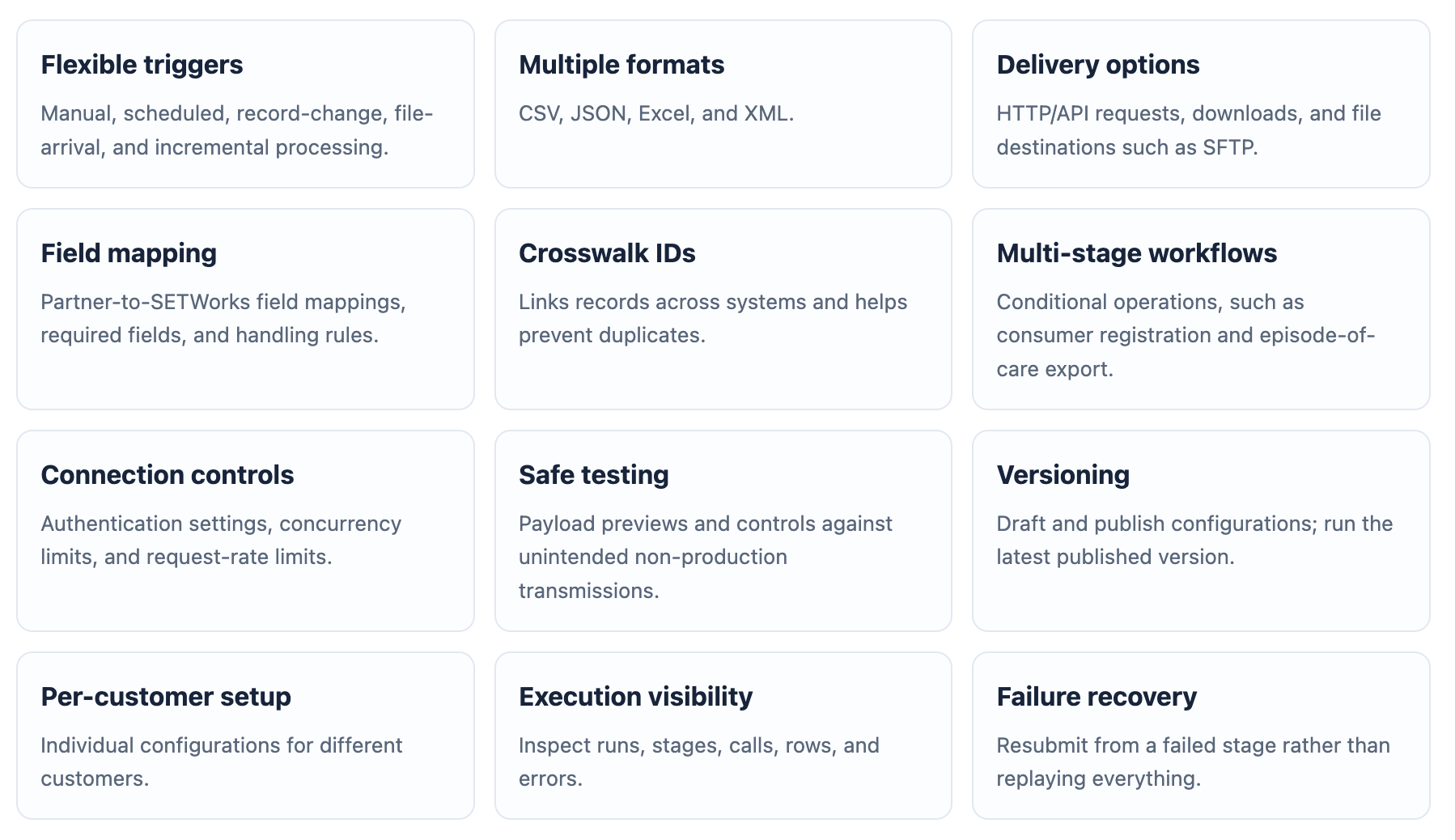
Core Capabilities
Frequently Asked Questions
Can integrations run automatically?
Yes. Integrations can be configured to run on a schedule, in response to record changes, or when files arrive. Manual execution is also supported.
Can different customers have different integration configurations?
Yes. Integration configurations can be established individually for different customers.
Do all integrations require custom development?
No. The framework is designed to reduce custom development by allowing connections, mappings, triggers, and operations to be configured. Some integrations may still require engineering support for new data models, operations, or complex logic.
How does the framework prevent duplicate records?
The framework uses crosswalk identifiers and configurable conditions to determine whether records already exist in the external system or SETWorks before creating new records.
Can I test an integration without sending real data?
Yes. The Run Preview feature allows you to review outgoing data without transmitting it. Connection settings also support non-production safeguards.
What happens if an integration fails?
The framework records execution details and identifies where processing failed. Failed operations can be resubmitted from the failure point rather than restarting the entire integration.
Can I see exactly what data was sent?
Yes. Integration run history includes the ability to inspect individual calls and processed rows.
Which external systems are supported?
The framework is designed to support integrations with systems such as Carasolva, C-More, and Sandata. Availability of a specific integration depends on whether its configuration and required operations have been implemented and deployed.