
Merge Reports allow organizations to take information entered into a Form in New SETWorks and automatically populate a formatted document. This is particularly useful when documentation must be submitted to a state agency, funder, or other organization in a specific format.
For example, a state may require providers to submit an incident report using an official PDF template. Rather than manually entering the same information twice, staff can complete the Form in SETWorks and use a Merge Report to generate the document in the required format, ready to print or submit.
Merge Reports work by connecting three components:
- SETWorks Form: Where staff enter and save the information.
- Document Template: The PDF, Word, or Excel document that defines the required output format.
- Field Mapping: The connection between fields in the SETWorks Form and the corresponding locations in the document.
Once configured, the Merge Report uses the information collected in SETWorks to populate the selected document template.
Note: Merge Reports are configured through the Reporting Utility. You do not need to build a separate regular report before creating a Merge Report.
Before You StartBefore creating a Merge Report, make sure you have:
- Access to the Reporting Utility in New SETWorks.
- An existing SETWorks Form containing the information you want to include.
- A copy of the document template in PDF, Word, or Excel format.
- An understanding of which Form fields should populate each location in the document.
Important: Create and finalize your SETWorks Form before configuring the Merge Report. Changes to the underlying Form may require you to recreate or remap the Merge Report.
Steps1. Open the Reporting Utility
- In New SETWorks, navigate to the Utilities section.
- Open the Select Utility dropdown.
- Select Report Utility.
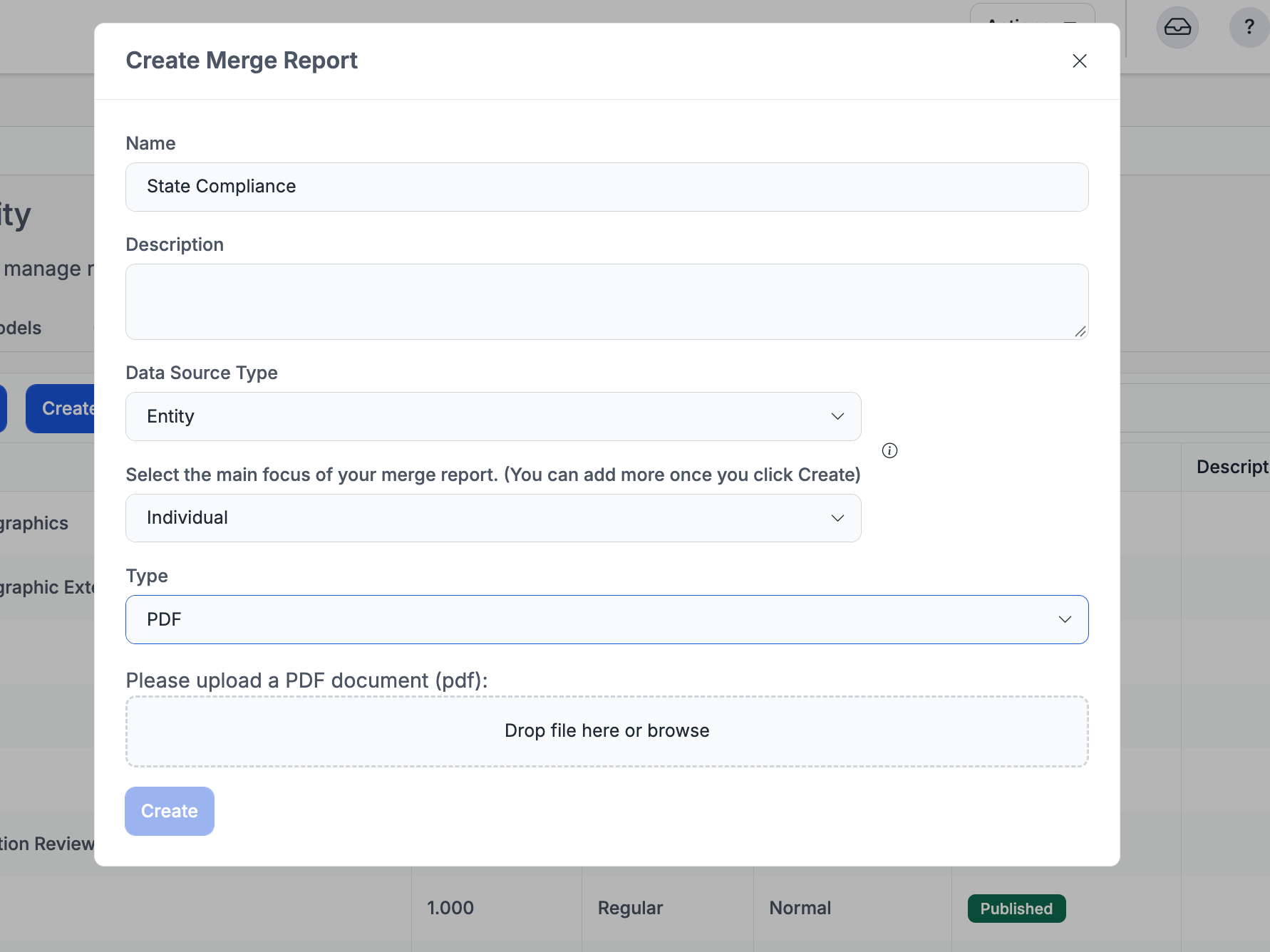
- On the Reports tab, click Create Merge Report.The Create Merge Report window will open.
2. Enter the Merge Report Details
In the Create Merge Report window:
- Enter a Name for your report, such as "Incident Report" or "State Employment Services Form."
- Optionally, enter a Description to help administrators understand the purpose of the report.
- Under Data Source Type, select Entity.
- In the next dropdown, select the primary data source for the report. For a Form-based Merge Report, select the corresponding Form.
This connects the Merge Report to the information collected in your SETWorks Form.
3. Select the Document Type and Upload Your Template
Under Type, choose the format of the document you want to generate.
Available options include:
- PDF: Use an existing PDF document, such as a state-required incident report.
- Word: Use a Word document template with defined merge fields.
- Excel: Use an Excel workbook to populate a formatted spreadsheet.
After selecting the document type:
- Click the upload area or drag and drop your file.
- Select the document you want to use as the template.
- Click Create to continue.
For Word documents, the template should contain the appropriate merge fields identifying where information will be inserted. SETWorks can identify these fields during the import process.
[Insert Screenshot 3: Document Type selection and template upload]
4. Select the Fields to Include
After creating the Merge Report, SETWorks displays the available fields from your selected data source.
- Review the fields available from your Form.
- Select the fields you want to use in the Merge Report.
- Exclude any fields that are unnecessary for the document.
- Continue to the mapping editor.
For example, an Incident Report might include the Individual's name, incident date, location, description, and staff information.
Tip: Use clear, descriptive field names when building your SETWorks Form. If multiple questions have similar names, identifying the correct field during mapping can become more difficult.
[Insert Screenshot 4: Available Form fields and field selection]
5. Map Your Form Fields to the Document
Field mapping tells SETWorks where each piece of information should appear in the uploaded document.
The Merge Report editor allows you to view the document and associate its fields with corresponding fields from your SETWorks Form.
To map fields:
- Open the Merge Report mapping editor.
- Locate the field or position in the document that should be populated.
- Select the corresponding SETWorks Form field from the available options.
- Repeat for each field you want to populate.
- Save your mapping configuration.
For example:
| Document Field | SETWorks Form Field |
|---|---|
| Individual Name | Individual's Full Name |
| Date of Incident | Incident Date |
| Facility Name | Name of Facility |
| Incident Description | Description of Incident |
| Staff Name | Reporting Staff |
For documents containing checkboxes, map the appropriate Form answers to the corresponding checkbox fields where supported.
The mapping process is currently manual. Each document field must be connected to the appropriate SETWorks data source.
[Insert Screenshot 5: Merge Report mapping editor showing Form fields and document preview]
6. Preview and Test the Merge Report
Once the mapping is complete, review the report using information from a completed Form.
- Open the Merge Report preview.
- Review the populated document.
- Confirm the information appears in the correct locations.
- Check that formatting, text, dates, and checkbox selections appear as expected.
- Return to the mapping editor to correct any issues.
For documents used in regulatory or funding submissions, verify that the generated document matches the required layout before putting it into regular use.
How Merge Reports Work Once ConfiguredOnce a Merge Report is configured, staff can complete the corresponding SETWorks Form as part of their normal documentation workflow.
The Merge Report uses the saved Form information to populate the formatted document.
This allows organizations to collect information in SETWorks while producing documents in the format required by an external agency.
For example, staff may complete a Special Incident Report in SETWorks, then generate a formatted version for submission to the appropriate state agency.
Managing Changes to Merge ReportsIf your organization updates a Form or the document template, review the existing Merge Report configuration.
Changes to field names, Form structure, or the underlying document may affect the existing mappings.
In the current implementation, changes to the source Form may require recreating the Merge Report and mapping its fields again.
For this reason, it is recommended that administrators finalize their Form structure and document template before completing extensive field mapping.
Frequently Asked QuestionsWhat is the difference between a regular Report and a Merge Report?
A regular Report is generally used to retrieve and analyze information stored in SETWorks. A Merge Report is used to populate information into a specific document format, such as a state-required PDF.
Merge Reports are especially useful when the final document must follow an exact layout.
Do I need to create a regular Report before creating a Merge Report?
No. In New SETWorks, you can create a Merge Report directly from the Reporting Utility and select the underlying data source.
Can I use an existing state or funder form as my template?
Yes. Merge Reports are designed to support documents that must follow a specific format, including required state and funder forms. The template must be prepared appropriately for the selected document type.
What document formats are supported?
The Create Merge Report workflow provides options for PDF, Word, and Excel documents.
Does the SETWorks Form need to be created first?
Yes. The Form provides the fields and information that will populate the document. Create the Form before configuring the Merge Report.
Does SETWorks automatically map the fields from my Form?
No. While SETWorks can identify merge fields in supported document templates, administrators currently select the corresponding SETWorks data source fields manually.
Can I include predefined information in the Merge Report?
Merge Reports can use fields available through the selected data source, including supported predefined fields. The available information depends on the underlying Form and data configuration.
What happens if I change the original SETWorks Form?
Changes to an existing Form may affect its connection to the Merge Report. Depending on the change, you may need to recreate the Merge Report and remap its fields.
For this reason, it is best to finalize the Form before creating the Merge Report.
Can I update the document template after configuring the Merge Report?
Changes to the document template may require reviewing or rebuilding its field mappings. Verify the mapping configuration and generated output whenever a template is replaced or modified.
Can Merge Reports include checkboxes?
Merge Reports can support checkbox fields, depending on the document format and configuration. Test checkbox output carefully to confirm selections appear correctly in the final printed document.
Why is a field missing or displaying incorrect information?
Check that the field exists in the source Form, that the correct field was selected during mapping, and that the underlying Form contains the expected data.
If the Form has recently changed, its mappings may need to be recreated.
Can a Merge Report be printed or submitted to a state agency?
Yes. Merge Reports are intended to generate formatted documents that can be printed or submitted according to the receiving organization's requirements.
For additional assistance, contact your SETWorks administrator or SETWorks Support.